
Invoice Manager
Module: Accounting
Overview
Use Invoice Manager (Program #1557) to specify the conditions to use when generating invoices. SBN displays the total amount of all invoices in the window. You can list the names and addresses of the customers that should receive an invoice.
Note: An invoice batch is cancelled if a work order included in the batch is opened while the batch is running.
Your action profile must include the following actions to:
1557/8 -- View delayed batches in the main window
1557/15 -- Create delayed batches
1557/16 -- Post delayed batches
Navigating to Invoice Manager
Use the following steps to navigate to Invoice Manager:
1. From the main SBN toolbar, select Menu.
2. From the drop-down menu, select Go To.
3. In the Go To Program dialog box, type in "1557" and press Enter.
w Invoice Manager opens.
The Invoice Manager Window
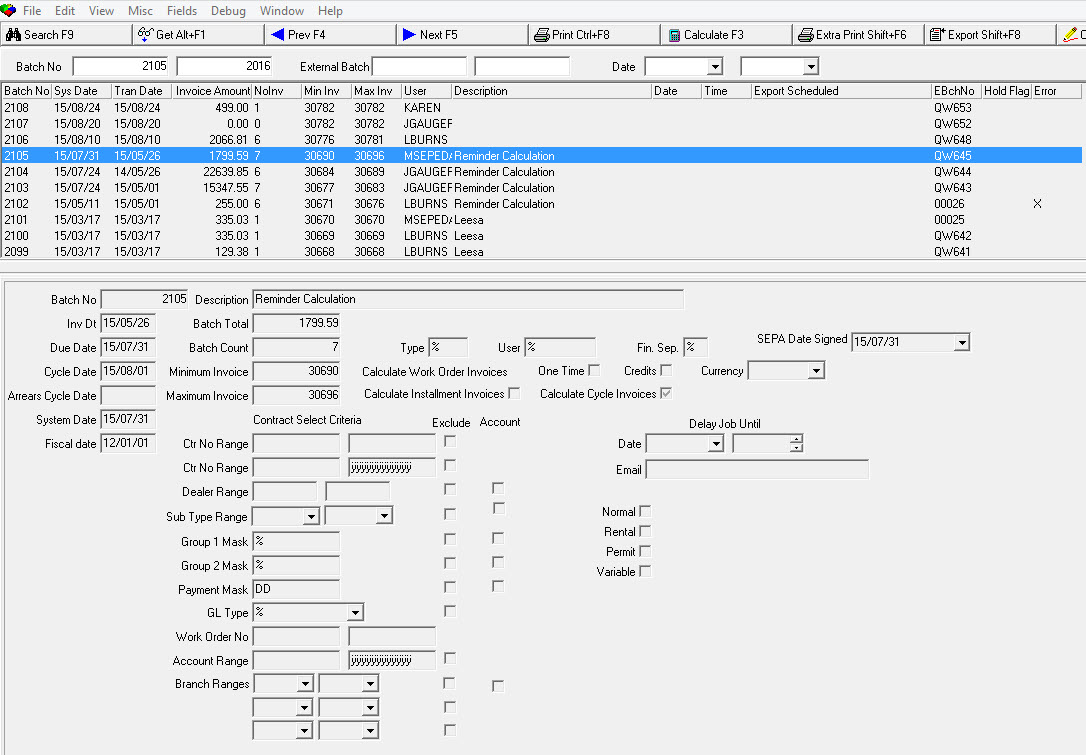
The following graphic displays the Invoice Manager as the program opens. You may calculate and export batches based on parameters that pull data from either the contract or account of record.
If option ba325 is on, users may view only those batches associated with dealer IDs in their user profiles.
The Invoice Manager window contains three panes:
The upper pane -- which contains fields for selecting search parameters for invoices or batches
The middle pane -- which displays search results
The lower pane -- which displays details of a batch
The following graphic shows the Invoice Manager as the program opens.
Field/Column Descriptions — Search Parameters
The following table describes the fields in the Search Parameters pane of this window.
Field |
Description |
Ranges |
|
Batch No - From |
You may search for batches by typing a range of batch numbers. Type the beginning batch number of the range. |
Batch
No - To |
You may search for batches by typing a range of batch numbers. Type the ending batch number of the range. |
External Batch - From |
You may enter a range of external batches to limit the display to batches within that range. Type the beginning external batch number of the range. |
External Batch - To |
You may enter a range of external batches to limit the display to batches within that range. Type the ending external batch number of the range. |
Date - From |
You may search for batches by selecting a range of invoice dates. Select the beginning date of the range. |
Date - To (No label) |
You may search for batches by selecting a range of invoice dates. Select the ending date of the range. |
Exclude |
You may exclude a pay means from the selected batch by typing the payment mask and then entering a check mark in this box. |
Account |
Enter a check mark in this box to limit the batch to invoices with this pay means mask at the account level. |
GL Type |
|
GL Type |
General ledger subscriber type for this batch. (This menu originates from program #1578.)
|
Exclude |
You may exclude a GL type from the selected batch by selecting the GL type and then entering a check mark in this box. |
Work Order Number Range |
|
Number —
From |
You may include a range of work order numbers in the selected batch. Type the beginning number of the range. |
Number —
To |
You may include a range of work order numbers in the selected batch. Type the ending number of the range; |
Account Number Range |
|
Account — From (No label) |
You may type a range of account numbers to limit the batch to invoices with an account number within the range. Type the beginning account number of the range. |
Account —
To |
You may type a range of account numbers to limit the batch to invoices with an account number within that range. Type the ending account number of the range. |
Exclude |
You may exclude a range of account numbers from the batch by typing the range and then entering a check mark in this box. |
Delay Job Until |
|
Delay — Date |
You may select a future date and time to run the invoice batch.
|
Delay —Time |
You may select a future date and time to run the invoice batch.
|
Column Descriptions — Search Results
The following table describes the columns used in the Search Results pane of this window.
Column |
Description |
Batch Number |
SBN-generated number assigned to each batch.
|
System Date |
Date the batch execution or invoice calculation occurred. |
Tran Date |
Date printed on the invoice. |
Invoice Amount |
Total amount for the selected invoice(s). |
No Invoice |
Number of invoices in this batch. |
Min Inv |
Starting invoice number for this batch. |
Max Inv |
Ending invoice number for this batch. |
User |
ID of the user that ran the invoice calculation process. |
Description |
Text description of the batch. Updated Export 128 so that item description on the invoice changed to item translation based on the user's language setting. |
Date |
If the batch is scheduled to run on a later date, this column displays the scheduled date. |
Time |
If the batch is scheduled to run at a later time, this column displays the scheduled time. |
Export Scheduled |
If this column displays an X, this batch is scheduled to export at a later date and time.
|
External Batch Number |
External batch number for the selected invoice batch. |
Hold Flag |
If this column displays an X, SBN placed this batch on Hold. Note: If a batch fails in calculation, SBN places all batches for that dealer on Hold and submits the next batch that is not on Hold for calculation. |
Error |
Column with populate with an X if an error occurred. |
Batch Previously Exported |
Column with populate with an X if the batch was previously exported. Note: When option bl232 is on, if the batch has been previously exported, users will see the line turn to the color selected in this option. |
Field Descriptions — Batch Details
The following table describes the fields used in the Batch Details pane of this window.
Field |
Description |
Batch No |
Batch number for the selected invoice batch. |
Inv Dt |
Invoice date for the selected batch.
|
Due Date |
Due date for the selected invoice batch; only used for contracts that do not contain specific payment terms. |
Cycle Date |
Control date for selecting cycle fees for this batch. This batch includes only cycle fees that have been invoiced through a date before the current date.
|
Arrears Cycle Date |
Control date for selecting arrears cycle fees for this batch. This batch includes only arrears cycle fees that have been invoiced through a date before the current date. |
System Date |
Date this batch was created. |
Fiscal Date |
Fiscal period in effect when this batch was created. |
Description |
Text description of the selected batch. |
Batch Total |
Total amount of the selected batch. |
Batch Count |
Total number of invoices included in the selected batch. |
Minimum Invoice |
Beginning invoice number included in this batch. |
Maximum Invoice |
Ending invoice number included in this batch. |
Type |
You may type a type code to limit this batch to work orders with this type. |
User |
You may type a user ID to limit batch to work orders created by this user. |
Fin Sep |
This field is active when option ba278 is on. Financial Separation; use with Securitas Partner Invoicing. You may enter a flag in this field to limit reminders based on the Fin Sep flag in Branch Profiles (program #1530) for the associated branch:
That user cannot enter % in this field If the user tries to enter %, SBN displays an error message |
Currency |
Currency type of the selected batch. SBN supports multiple currencies. |
Calculate Work Order Invoices |
|
One Time |
If this field displays a check mark, this batch includes invoices for work orders containing one-time fees. |
Credits |
If this field displays a check mark, this batch includes invoices for work orders containing negative amounts. |
Calculate Installment Invoices |
If this field displays a check mark, this batch includes invoices for work orders containing financing. |
Calculate Cycle Invoices |
If this field displays a check mark, this batch includes invoices for recurring charges. |
Contract Selection Parameters |
|
Ctr No Range |
|
Contract
Number 1 —
From |
You may type a range of contract numbers to include in the selected batch. Type the beginning contract number of the range. |
Contract
Number 1 —
To |
You may type a range of contract numbers to include in the selected batch. Type the ending contract number of the range. |
Exclude |
You may exclude a range of contract numbers from the selected batch by typing the range and then entering a check mark in this box. |
Ctr No Range |
|
Contract
Number 2 —
From |
You may type an additional range of contract numbers to include in the selected batch. Type the beginning contract number of the range.
|
Contract
Number 2 ——
To |
You may type an additional range of contract numbers to include in the selected batch. Type the ending contract number of the range.
|
Exclude |
You may exclude a range of contract numbers from the selected batch by typing the range and then entering a check mark in this box. |
Dealer Range |
|
Dealer
ID ——
From |
You may limit the batch to those invoices that contain a dealer ID at the contract level within a range of dealer IDs. Type the beginning dealer ID of the range.
|
Dealer
ID ——
To |
You may limit the batch to those invoices that contain a dealer ID at the contract level within a range of dealer IDs. Type the ending dealer ID of the range.
|
Exclude |
You may exclude a range of dealer IDs from the batch by typing the range and then entering a check mark in this box.
|
Account |
Enter a check mark in this box to limit the batch to invoices that contain a dealer ID —— at the account level —— within the range. |
Sub Type Range |
|
Subscriber Type --From (No label) |
You may limit the batch to invoices of particular subscriber types within a range of sub types. Select the beginning subscriber type of the range. |
Subscriber Type -- To (No label) |
You may limit the batch to invoices of particular subscriber types within a range of sub types. Select the ending subscriber type of the range. |
Exclude |
You may exclude a range of subscriber types from the batch by selecting the range and then entering a check mark in this box. |
Account |
Enter a check mark in this box to limit the batch to invoices that contain a subscriber type —— at the account level —— within the range. |
Normal |
Select this check box to limit the batch to invoices for only Normal type cycle fees. Note: You must select the Calculate Cycle Invoices check box to invoice cycle fees. |
Group 1 Mask |
|
Group 1 Mask |
You may select a Group 1 mask to limit the batch to invoices that with this Group 1 mask at the contract level. |
Exclude |
You may exclude a Group 1 mask from the batch by typing the Group 1 mask and then entering a check mark in this box. |
Account |
Enter a check mark in this box to limit the selected batch to invoices with this Group 1 mask at the account level. |
Rental |
Select this check box to limit the batch to invoices for only Rental type cycle fees. Note: You must select the Calculate Cycle Invoices check box to invoice cycle fees. |
Group 2 Mask |
|
Group 2 Mask |
You may select a Group 2 mask to limit the batch to invoices that have this Group 2 mask at the contract level. |
Exclude |
You may exclude a Group 2 mask from the batch by typing the Group 2 mask and then entering a check mark in this box. |
Account |
Enter a check mark in this box to limit the batch to invoices with this Group 2 mask at the account level. |
Permit |
Select this check box to limit the batch to invoices for only Permit type cycle fees. Note: You must select the Calculate Cycle Invoices check box to invoice cycle fees. |
Variable |
Select this check box to limit the batch to invoices for only Arrears type cycle fees. Note: You must select the Calculate Cycle Invoices check box to invoice cycle fees, and you must enter an Arrears Cycle Date to invoice Arrears cycle fees. |
Payment Mask |
|
Payment Mask |
You may enter a payment mask to limit the selected batch to invoices at the contract level that contain this pay means. Note: When you calculate work order invoices, SBN creates invoices for work orders with the selected pay means (Pay Code). SBN only invoices work orders with a blank Pay Code if the contract (or account when the Account check box is selected) associated with a work order contains the selected pay means. |
Exclude |
You may exclude a pay means from the selected batch by typing the payment mask and then entering a check mark in this box. |
Account |
Enter a check mark in this box to limit the batch to invoices with this pay means at the billing account level. |
GL Type |
|
GL Type |
General ledger subscriber type for this batch. (This menu originates from program #1578.)
|
Exclude |
You may exclude a GL type from the selected batch by selecting the GL type and then entering a check mark in this box. |
Work Order Number Range |
|
Number —
From |
You may include a range of work order numbers in the selected batch. Type the beginning number of the range. Note: You must enter a range of contract numbers along with a work order range to calculate work order invoices. |
Number —
To |
You may include a range of work order numbers in the selected batch. Type the ending number of the range. Note: You must enter a range of contract numbers along with a work order range to calculate work order invoices. |
Account No Range |
|
Account —
From |
You may type a range of account numbers to limit the batch to invoices with an account number within the range. Type the beginning account number of the range. |
Account —
To |
You may type a range of account numbers to limit the batch to invoices with an account number within that range. Type the ending account number of the range. |
Exclude |
You may exclude a range of account numbers from the batch by typing the range and then entering a check mark in this box. |
Branch Ranges |
|
Branch Range - From (1) |
You may select branch ranges to include in the selected batch. Select the beginning branch of the first range. (This menu originates from program #1530.) |
Branch - To (1) |
You may select branch ranges to include in the selected batch. Select the ending branch of the first range. (This menu originates from program #1530.) |
Exclude (Branch Range 1) |
You may exclude the first range of branches from the batch by selecting the range and then entering a check mark in this field. |
Account |
Enter a check mark in this field to limit the batch to accounts within the range of branches. |
Branch - From (2) |
You may select branch ranges to include in the selected batch. Select the beginning branch of the second range. (This menu originates from program #1530.) |
Branch - To (2) |
You may select branch ranges to include in the selected batch. Select the ending branch of the second range. (This menu originates from program #1530.) |
Exclude |
You may exclude the second range of branches from the batch by selecting the range and then entering a check mark in this field. |
Branch - From (3) |
You may select branch ranges to include in the selected batch. Select the beginning branch of the third range. (This menu originates from program #1530.) |
Branch - To (3) |
You may select branch ranges to include in the selected batch. Select the ending branch of the third range. (This menu originates from program #1530.) |
Exclude |
You may exclude the third range of branches from the batch by selecting the range and then entering a check mark in this field. |
Delay Job Until |
|
Delay — Date |
You may select a future date and time to run the invoice batch. |
Delay — Time |
You may select a future date and time to run the invoice batch. |
You may type an email address to which SBN sends a notice when the batch runs. The email includes
|
|
Using Common Functions
See the reference document Common Functions in SBN for more information.
Searching for a Batch Range
From the Invoice Manager window you can search for a specific batch or a range of batches that you want to view. If option ba325 is on, you may view only those batches associated with the dealer IDs in your user profile.
This search returns all batches starting with the date selected in the Start Date field and going forward. Option maxgeta determines the maximum number of calculations displayed at one time; the default is 100.
Use the following steps to search for a batch or range of batches:
1. Select your search parameters.
2. Choose Search.
w The results of your search appear in the columns.

Calculating Invoices
Actions 1557/11-20 control access to the calculate function for the following types of fees:
1557/11 — Cycle fees
1557/12 — One-time fees
1557/13 — Credit invoice fees
1557/14 — Installment fees
1557/20 — Running cycle fees, one-time fees, and credits at the same time
Use the Invoice Manager to generate customer invoices and to display the total amount of all invoices calculated. When the invoice calculation process runs, SBN creates a new batch.
Select the trial flag to run a trial batch and SBN displays the number of invoices and batch total that would be created by running this batch.
You can specify all of the parameters for an invoice batch and save them in the Invoice Manager for use in the future. You can also create batches with a delayed date and time for running in the future.
When you calculate invoices from the Invoice Manager, SBN examines all cycle fees and work orders to invoice all those accounts ready for invoicing, depending on the flags selected in the Calculate Invoice pane. During the calculation process, SBN processes the total amount of all included work orders and cycle fees as well as names and addresses for those items.
When you calculate one-time invoice batches, SBN finds un-invoiced work orders that contain one-time fees and charges those. If a work order contains a zero one-time fee and a cycle fee item, SBN copies the cycle fee information to the cycle fee tab and creates a batch with zero invoices and a zero dollar amount.
Option bl104 defines the availability of dates for the Invoice Date field. When on, this option prevents you from creating an invoice batch with an invoice date earlier than the current fiscal period.
Options blinvmin and blinvmax define the range for the Due Date field. If the due date is outside of this range, SBN displays a warning message.
If you define external invoice numbers in External Invoices (program #1620), when you calculate invoices from the Invoice Manager, SBN updates the invoice number on invoices and updates the invoice sequence number in program #1620.
When you calculate invoices using Account Consolidation Invoicing SBN uses the fee profile from the account level —— not from the contract level. Account consolidated invoices have s#ctr = 0.
If option bl137 is on and multiple tax types are invoiced, SBN sorts the invoicing based on s#rev. If option bl137 is off and multiple tax types are invoiced, SBN sorts the invoicing based on lowest percent to highest percent.
When option bl160 is on, you cannot edit the Invoice Date when you choose Calculate. If the Fiscal Date is the same as the current date, the Invoice Date defaults to the current date. If the Fiscal Date is not the same as the current date, the Invoice Date defaults to the last day of the fiscal month.
When option bl188 is on, the tax rate of a credit invoice matches the tax rate of the invoice being credited regardless of the invoice date entered for the credit in Invoice Manager. When off, the tax rate of a credit invoice depends on the invoice date of the credit invoice and the rate entered for the date in Tax Codes (program #1515).
When option bl214 is on, you cannot run a batch with a transaction date that is older than the previous batch of the same type (cycle or one-time). SBN displays an error message.
Use option bl216 to define a list of work order types for which SBN allows you to produce negative one-time invoices for work orders in program #1557. For the value of this option, enter each work order type in all capital letters with single quotes around each type, and a comma between each type. When you attempt to run invoices when the option is not defined, SBN does not allow you to produce negative one-time invoices and displays the message "Negative one time invoice account <account number> - <dealer>" in the Calculate window.
Use option bl217 to define the number of days into the future that SBN allows invoice dates to be.
If an account has an inhibit period set for any cycle fees in the Cycle Fees tab of Contract Master (program #548), the fees will not appear on the customer's invoices during that period. See Adding a Cycle Fee Inhibit Period in the Cycle Fees document. You may create credit periods for cycle fees during which credits for the fees appear on invoices. See Creating Cycle Fee Credit Periods in the Cycle Fees document.
When action 1557/20 is on, you can run cycle fees, one-time fees, and credits at the same time. When action 1557/20 is off, you can run only one type of invoice at a time.
Use the following steps to calculate invoices:
1. In Invoice Manager, highlight any numbered batch. (Do not select a batch that displays xxxxxx in the Batch No. column.)
2. Choose Calculate Invoices.
w The fields in the Calculate Invoice pane of the window open for calculation information.
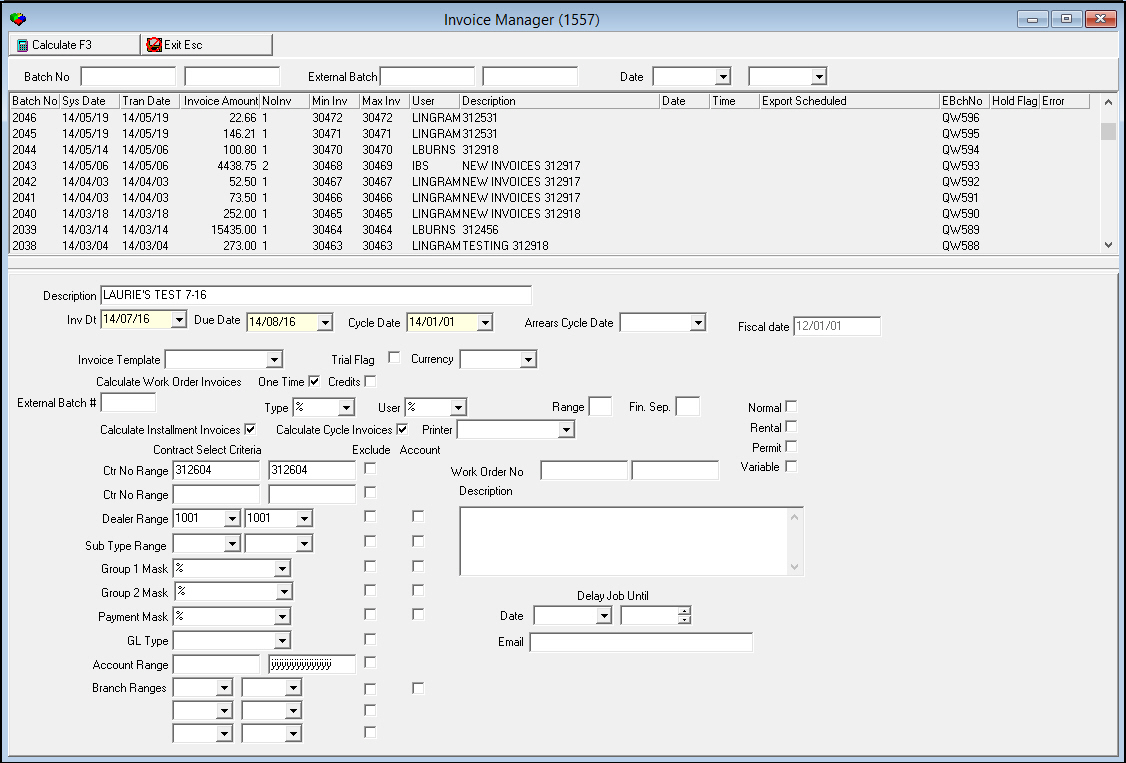
Note: Based on your settings, information defaults into some fields; you can override the default information.
Note: Six additional fields appear:
l Invoice Template —— you may select an invoice template. If templates have been associated with dealers in Invoice Templates (program #1826), the menu of available templates may be limited to those templates that match that dealer.
l Trial Flag —— enter a check mark in this box to run a trial batch. If any contract in the batch is flagged for Account Invoicing, the entire batch runs at account level even if you have entered a range of contracts. The results of the trial batch split into separate invoice numbers for account consolidated invoices and non-consolidated invoices.
l Currency —— you may select a currency type to limit the batch to only accounts with that currency defined in program #548. Invoices for accounts with a currency type defined will not run unless you select that currency when calculating invoices.
Note: When you create a credit work order, both the Currency and Cycle Currency fields of the work order must contain the primary currency type of the billing account. Since SBN converts all currencies to the primary currency of the account when invoicing, this is the only way SBN allows you to create a credit invoice in program #1557.
l Range —— you may type the index number (from program #1620) of the range of external invoices you want to use. (Your company may make this field required in Required Fields, program #1843).
l Printer —— select the printer from which the invoice batch report prints.
l Description —— this field defaults with instructions from the selected invoice template.
Note: If option ba325 is on, information defaults into the window from the last batch that met dealer restrictions.
3. Complete the fields.
Note: If option ba325 is on, the Dealer Range fields become required but must define only one dealer.
4. Choose Calculate Invoices again.
w The window displays the process as SBN calculates invoices.
w If you checked the Trial Flag, the results of the trial batch display in the right side of the window.
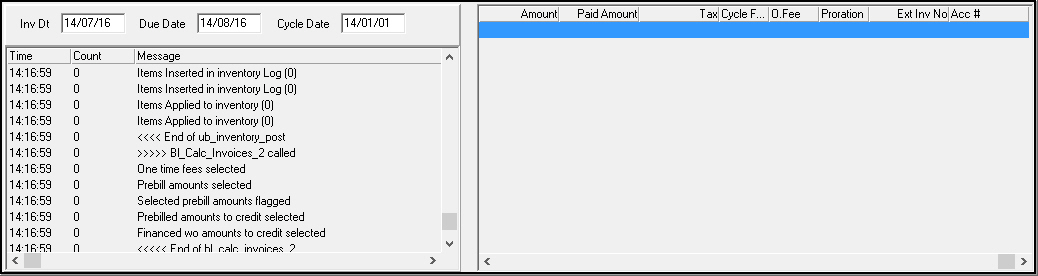
Note: For descriptions of the columns in the right side of this window, see Column Descriptions —— Calculate Invoices.
5. Choose Exit to return to the main window or if a trial was run, the invoice calculation window reappears with the parameters that you used.
6. To run a live batch from the trial, uncheck the Trial Flag
7. Choose Calculate Invoices again.
Column Descriptions — Calculate Invoices
The following table describes the columns used in the right pane of Calculate Invoices.
Column |
Description |
Contract # |
Contract number associated with the selected invoice in the batch. |
Invoice # |
Invoice number in the batch. |
Amount |
Amount due for the selected invoice. |
Paid Amount |
Amount of credit invoice or pre-bill invoice applied to the selected contract. |
Tax |
Tax on invoice total, if applicable. |
Cycle Fee |
If this column displays an X, the selected invoice includes cycle fees. |
One-Time Fee |
If this column displays an X, the selected invoice includes one-time fees. |
Proration |
Amount of an initial cycle-fee that SBN prorated as a one-time fee. |
External Invoice Number |
Customer-defined external invoice number. (The range of external invoice numbers originates from program #1620.) |
Account Number |
Displays the account number to which the selected contract is attached. |
Creating a Delayed Batch
In Invoice Manager you may create an invoice batch that runs at a specified later date and time.
Use the following steps to create a delayed batch:
1. In Invoice Manager, highlight any numbered batch. (Do not select a batch that displays xxxxxx in the Batch No. column.)
2. Choose Calculate Invoices.
w The fields in the lower pane of the window open for calculation information.
Note: Based on your settings, information defaults into some fields; you can override the default information.
3. Complete the fields, as needed, changing information where necessary.
4. In Delay Job Until, select the date and time that you want to run the invoice batch.
5. Choose Calculate Invoices again.
w SBN displays a message that it has inserted a delayed invoice calculation.

w SBN saves the delayed batch with xxxxxx in the Batch No. column.

w At the specified date and time, SBN runs the delayed batch.
Note: When option bl210 is on and an invoice batch in program #1557 is scheduled to run at a later time and be exported at a later time, SBN runs the export immediately after the invoice batch has run. When option bl210 is off and an invoice batch is scheduled to run at a later time and be exported at a later time, SBN does not run the export until the scheduled export time.
Exporting Batches Options
From the Invoice Manager you can export invoice data out of SBN. Use the Export procedure to create printed invoices in the template specified for your company.
The number of invoices in each export must be divisible by a blocking factor (10). If necessary, add records containing �9� in position 01-94 to make the number of records divisible by 10.
Options for All Exports
Some options affect all exports of batches:
If option bl023 is on, all exports of invoice batches include the total tax only. If this option is off, SBN calculates total tax and the tax percentage and displays the message �Tax percentage of total amount�. The default for this option is On.
If option bl193 is on, exports do not automatically load the parameters from the last time a user ran the selected export. If this option is off, exports automatically load the parameters from the previous run.
If option bl224 is on, the beginning of the Pay Mean Number is checked to see if a prefix is needed.
If option bl225 is on, the prefix "TK:" is added to the Pay Mean Number when the number starts with "99".
Option dtstylex controls date formats in all exports. Some versions of this format can include the century. Since the date fields in most exports are set to 8 characters, plus a space, be careful when you set this option.
Options for Export 11 (Word Format) Only
The following options only affect Export 11 (Word format):
If option ba325 is on, the Dealers menu in Export 11 (Word format) becomes required. The default for this option is Off.
If option bl027 is on, the Tax Location field from Contract Master is added to Export 11 (Word format). The default for this option is Off.
Option bl052 defines the table used for Payment Methods data in Export 11 (Word format). Use only the ba value if you
q Use Account Consolidated Invoicing
q Option bl052 is on
Option bl100 defines the source of the tax number in Export 11 (Word format). Use only the ba value if you
q Use Account Consolidated Invoicing
q Option bl052 is on
If option bl102 is on, Export 11 (Word format) includes a blank field after Installations and a blank field after City. The default for this option is Off.
If option bl103 is on, Export 11 (Word format) includes $0 items, even if amo + adj are both 0. The default for this option is Off.
If option bl108 on, Export 11 (Word format) includes an item number column for each ln_desc column in the file. The Item Number columns populate from the item number used in the work order. The default for this option is Off.
If option bl114 is on, Export 11 (Word format) includes a tax value and description, even when the tax = 0.00. The default for this option is Off.
If both option bl132 and bl108 are on, Export 11 (Word format) includes a Group by of amo + adj, resulting in separate lines for exchange items and free items.
When option bl156 is on, Export 11 (Word format) data appears in order of contract number. The default setting for this option is Off.
Define option sdi015 to exclude invoices based on work orders with specific credit reasons from Export 11.
Exporting an Invoice Batch
The following steps apply to all exports. The appearance of your screen may differ according to the template specified by your company.
Use the following steps to export an invoice batch:
1. Choose Export.
w The Invoice Export window appears.
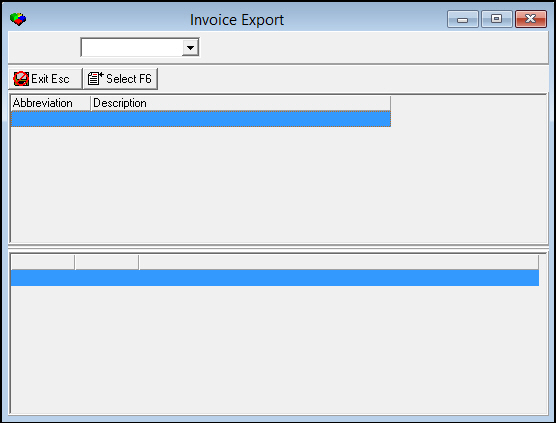
2. Select a company from the drop-down menu.
w The type of exports list appears.
Note: You can only enter a valid batch number from the drop-down menu to export for company 120. If you enter an invalid batch number, SBN displays an error message and does not allow you to continue.
3. Select the type of export you want to run.
Note: You may only have one export to select, depending on your system configuration.
4. Double-click your selection or choose Select Export.
w The Export dialog box appears.
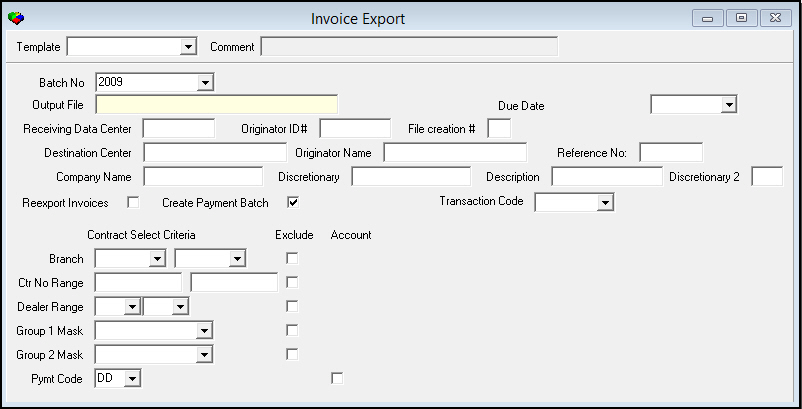
5. Complete the fields.
Note: There are two read-only External Batch # fields. The Template menu originates from program #1591. Templates defined for the selected export type appear in the menu.
6. Choose Run Export.
w The window shows the export events as the program processes.
7. Choose Exit to return to the main window.
Field Descriptions — Export 11 (Word Format)
The following table describes the fields used in Export 11 (Word format).
Field |
Description |
Template |
Template to use for the export. (This menu originates from program #1591. Templates defined for the selected export type appear in the menu.) |
Comment |
Comment about the selected export template. |
Batch Number (1) |
You must select at least one batch number to include in the export. |
External Batch # (1) |
You may select an external batch number to include in the export. Note: External Batch Number field (EBchNo) within Batch No dropdown of Export screen. |
Batch Number (2) |
Select a second batch number to include invoices within the range of the first and second batch. If you enter the same batch number in both Batch Number fields, the export contains only that batch. Note: SBN automatically populates this field with the same batch number entered in the first Batch Number field, but you may change it before running the export to include a range of batches. |
External Batch # (2) |
You may select a second external batch number to include invoices within the range of the first and second external batch. |
Output File |
You must type a name for the Output File that SBN creates when you run this program. |
Pay Code |
You may select a Payment Method Code to limit the export to invoices from the selected batch for accounts/contracts that use that code. (This menu originates from program #1528.) O If you leave this field blank: l SBN exports the invoices of accounts/contracts in the batch with no defined pay code l SBN exports the invoices of accounts/contracts in the batch with a pay code that does not require validation O If you type % in this field, SBN exports all invoices in the batch regardless of pay code. |
Dealer Range |
|
Dealer ID — From |
You may select a range of dealer IDs to limit the export to invoices from the selected batch that are associated with a dealer within the range. Select the beginning ID of the range. |
Dealer
ID —
To |
You may select a range of dealer IDs to limit the report to invoices from the selected batch that are associated with a dealer within the range. Select the ending ID of the range. |
Reexport Invoices |
Enter an X in this field to re-export invoices. |
Column names include |
Enter a check mark in this field to include column headers on the exported invoices. |
Include scheduled payments |
Enter a check mark in this field to include scheduled payments on the invoices from the selected batch. O This field no longer defaults to a check mark between exports. |
Language |
Select a language to export in. (Language originates from program #548). |
Subscriber Type |
Subscriber Type originates from program #559. |
Due Date Range |
|
Due Date — From |
You may select range of due dates to limit the report to invoices from the selected batch with a due date that occurs during the range. Select the beginning due date of the range. |
Due
Date —
To |
You may select a range of due dates to limit the report to invoices from the selected batch with a due date that occurs during the range. Select the ending due date of the range. |
Bank Account Number |
Enter the Bank Account number for the export. |
Bank Code |
Enter the Bank Code number for the export. |
My Invoices Only |
Select this check box to include only those invoices that you flagged to be printed in the Invoice Status tab of Contract Master (program #548) in the export, and exclude invoices flagged to be printed by other users. When this check box is blank, the export includes invoices flagged to be printed by all users. |
Export 11 Details
The details below apply only to Export 11 (Word format):
Export 11 (Word format) displays Total Taxable and Total Non-Taxable.
Export 11 (Word format) contains the email address from the Billing Information pane of Contract Master if the associated Use in Inv Exp field in the Billing Information pane displays a check mark (see Field Descriptions — Billing Information).
Export 11 (Word format) only includes contracts with flags in the Contract Master:
q Those flagged for Cycle or One Time in the Contract Information pane (see Column Descriptions — Contract Information)
q Those flagged for Print Cycle Inv or Print Onetime Inv in the New Contract window (see Field Descriptions — New Contract)
Export 11 (Word format) uses the contract branch stamped at the time the invoices were created, not the contract branch at time of export.
Export 11 (Word format) displays Account Balance.
Field Names
The following table lists the fields available for use in the output of Export 11 (Word format).
Field |
Field Length |
Description |
headline |
varchar (40) |
Customer-defined headline. |
invo_no |
varchar (10) |
Invoice number. |
pg |
varchar (5) |
Page number. |
mpg |
varchar (5) |
Maximum page number. |
ctr_no |
varchar (20) |
Contract number ’-’ dealer ID. |
acc_no |
varchar (20) |
Account number. |
branch |
varchar (6) |
Branch ID. |
c_name |
varchar (40) |
Contact name. |
inv_date |
varchar (9) |
Date invoice was created. |
due_date |
varchar (9) |
Date payment is due on invoice. |
name |
varchar (40) |
Account name. |
name2 |
varchar (40) |
Account name 2. |
street1 |
varchar (40) |
Street address for account. |
street2 |
varchar (40) |
Additional street address for account. |
zip |
varchar (10) |
Zip code for account. |
city |
varchar (30) |
City for account. |
state |
varchar (40) |
State for account. |
Detail Lines Up to 40 detail lines per page. The actual maximum number of detail lines per page depends on the format of the invoice. You may configure the number of detail lines. |
||
ln1_desc - ln40_desc |
varchar (60) |
Description of chargeable element. (This data originates from the Description field of the item in program #1535.) Note: The ln3_desc column displays the installation country after the street and city for installations with the Print Details flag checked and code 2 or 3 in the Print Details #2 field of program #548. |
ln1_desc2 - ln40_desc2 |
varchar (60) |
Description 2 of chargeable element. (This data originates from the Description 2 field of the item in program #1535.) |
ln1_amount -ln40_amount |
varchar (13) |
Amount charged for element. |
tot_desc |
varchar (64) |
Description of the total amount of the invoice. |
tot_amount |
varchar (13) |
Total amount of the invoice. |
ocr_acc |
varchar (12) |
OCR customer reference. |
amo_part1 |
varchar (10) |
OCR dollars (leading zeroes). |
amo_part2 |
varchar (2) |
OCR cents. |
amo_chk |
varchar (1) |
Check digit for dollars + cents. |
payto_acc |
varchar (20) |
Bank/post account to receive payment. |
ip_ix |
varchar (5) |
Internal pay mean code. |
pay_mean_cd |
varchar (12) |
Pay mean code. |
pay_mean_no |
varchar (30) |
Pay means number. |
pay_mean_txt |
|
Pay mean text. |
tax_no |
varchar (35) |
Tax number. |
tax_loc |
varchar (12) |
Tax location. |
tax_desc |
varchar (60) |
Description of tax amount. |
tax_amount |
varchar (13) |
Tax amount. |
text |
varchar (70) |
Report messages text. |
euro_novat_amt |
varchar (15) |
Portion of invoice total for which VAT does not apply. |
euro_vat_amt |
varchar (15) |
Portion of invoice total for which VAT applies. |
euro-tot_amt |
varchar (15) |
Total of non-VAT and VAT portions of invoice. |
grp1 |
varchar (8) |
Revenue group 1 from the billing account associated with the invoice. |
grp2 |
varchar (8) |
Revenue group 2 from the billing account associated with the invoice. |
cname |
varchar (40) |
Contact name from the contract associated with the invoice. O The export includes this contact only when the contact exclude flag in the contract is blank. |
wo_msgid |
varchar (10) |
ID of work order message. |
pay_term_cd |
char (4) |
Pay term code. |
county |
varchar (30) |
County for the account. |
inv_ix |
char (4) |
Index number of scheduled payment. |
wo_tran_date |
char (8) |
Transaction date of the work order. |
tot_cyc |
varchar (10) |
Total of cycle fees. |
extinv |
varchar (20) |
External invoice number. |
br_desc |
varchar (60) |
Description of contract branch. |
br_name |
varchar (60) |
Name of contract branch. |
br_street1 |
varchar (40) |
Street address of contract branch. |
br_street2 |
varchar (40) |
Additional street address of contract branch. |
br_zip |
varchar (10) |
Zip code of contract branch. |
br_city |
varchar (30) |
City of contract branch. |
br_state |
varchar (4) |
State of contract branch. |
br_phone |
varchar (15) |
Phone number of contract branch. |
br_fax |
varchar (15) |
Fax number of contract branch. |
br_email1 |
varchar (255) |
Text of email1. |
br_email2 |
varchar (255) |
Text of email2. |
br_pay_mean_cd |
varchar (2) |
Primary billing pay means of the contract branch; defined in program #1530. |
br_pay_mean_no |
varchar (30) |
Primary pay means number of the contract branch. |
br_pay_mean_cd2 |
varchar (2) |
Secondary billing pay means of the contract branch; defined in program #1530. |
br_pay_mean_no2 |
varchar (30) |
Secondary pay means number of the contract branch |
br_tax_no |
varchar (50) |
Tax ID of the contract branch; defined in program #1530. |
inv_tix |
char (8) |
Payment index. |
wo_type |
char (8) |
Work order type. |
pay_mean_no2 |
varchar (30) |
Secondary pay means number. |
bal_amount |
varchar (13) |
Amount of balance for the account. |
Item Lines Up to 40 item codes to include on the invoice. |
||
ln1_ic - ln40_ic |
varchar (12) |
Item codes 1 - 40. |
ins_date |
varchar (8) |
Installation date. |
sv_out_date |
varchar (8) |
Service request out date. |
ba_email1 |
varchar (255) |
Primary email address of the billing account. |
ba_email2 |
varchar (255) |
Secondary email address of the billing account. |
tot_taxable |
varchar (13) |
Amount of invoice to which tax applies. |
tot_ntaxable |
varchar (13) |
Amount of invoice to which tax does not apply. |
pay_mean_code2 |
varchar (2) |
Export code defined for the pay mean. |
pay_term_code2 |
varchar (4) |
Export code defined for the pay term. |
account_balan |
varchar (13) |
Total invoice balance for the account. |
ponum |
varchar (60) |
Purchase order number from the Work Order or Cycle Fee. |
inv_cred |
varchar (60) |
External invoice number of the credited invoice, if defined. If there is no external invoice number, this column displays the credited invoice number. |
crd_date |
varchar (8) |
Invoice date of the credited invoice. |
ctry |
varchar (2) |
Country of the billing account address. |
currency |
varchar (4) |
Invoice currency type. |
igrpkey |
varchar (12) |
Information group of the billing account. |
bill_paymean_cd |
varchar (2) |
Pay code of the billing account. |
ba_tax_no |
varchar (50) |
Tax ID of the billing account. |
bill_phone1 |
varchar (15) |
Phone number 1 of the billing account. |
bill_phone2 |
varchar (15) |
Phone number 2 of the billing account. |
prt_user |
varchar (15) |
Name of the individual printing the invoice. |
chg_flg |
char (1) |
Change Flag. |
UMR |
varchar (35) |
Current Unique Mandate Reference number; defined in SEPA tab of program #548. |
UMR_original |
varchar (35) |
Original Unique Mandate Reference number; defined in SEPA tab of program #548. |
Type |
varchar (5) |
Type of UMR (Core or B2B); defined in SEPA tab of program #548. |
FIRST |
varchar (1) |
When this check box is selected, it indicates that the selected UMR is new; defined in SEPA tab of program #548. |
signed_date |
varchar (10) |
Date on which the UMR was signed; defined in SEPA tab of program #548. |
deb_name |
varchar (75) |
The debtor's full name; defined in SEPA tab of program #548. |
deb_IBAN |
varchar (30) |
Debtor's current International Bank Account Number (IBAN); defined in SEPA tab of program #548. |
Deb_BIC |
varchar (25) |
Debtor's Bank Identifier Code (BIC); defined in SEPA tab of program #548. |
Deb_IBAN_org |
varchar (75) |
Debtor's original International Bank Account Number (IBAN); defined in SEPA tab of program #548. |
crd_ident |
varchar (35) |
Creditor identifier for the UMR; defined in SEPA tab of program #548. |
Crd_Name |
varchar (75) |
Creditor name for the UMR; defined in SEPA tab of program #548. |
crd_ident_org |
varchar (35) |
Original creditor identifier for the UMR; defined in SEPA tab of program #548. |
crd_name_org |
varchar (75) |
Original creditor name for the UMR; defined in SEPA tab of program #548. |
frq |
integer |
How often, in months, the selected UMR is used to make payments; defined in Frequency field of SEPA tab in program #548. |
MaxAmo |
integer |
The maximum amount that can be used on this SEPA UMR; defined in SEPA tab of program #548. |
chg_fields |
varchar (255) |
List of fields that have been changed in the SEPA tab of program #548. When no fields have been changed, this column displays NEW. |
sub_deal |
varchar (12) |
Sub-dealer (Found in Data Entry Master and Basics (#559)). |
invform |
varchar (4) |
Invoice Form (Found in Contract Master (#548)). |
Bank Export
In program #1557 a Bank Export feature was added for company 105. When selecting Invoice 110 SCICOM the Invoice Export screen displays.
The following graphic displays the bank selection option and the list of banks in the drop down bank list.
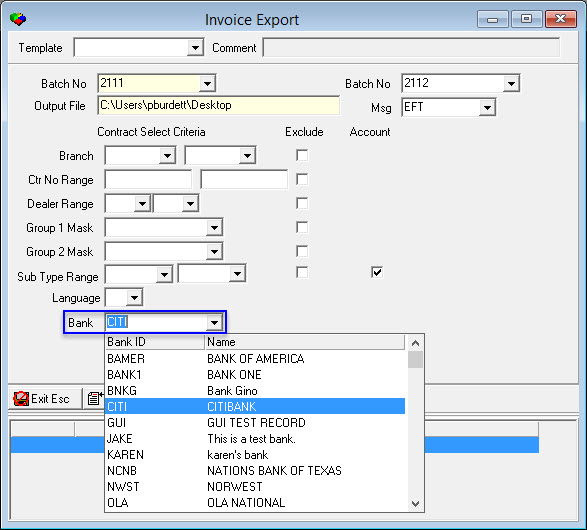
The drop down menu allows the user to select a bank to include in the invoice export file. The bank list is generated from Program #1736.
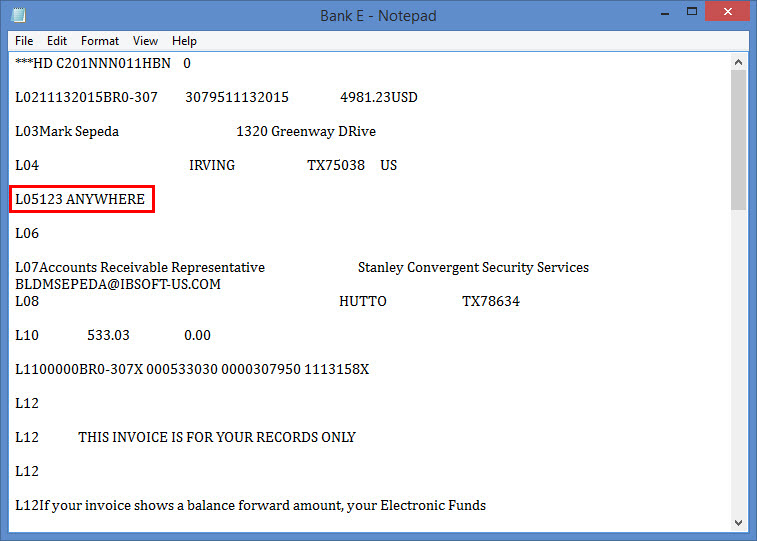
The following graphic is a sample of the Bank Export file that is generated in the output file.
Button Functions
The following table displays the buttons, describes the shortcut keys, actions, and functionality.
Button |
Name |
Shortcut Key |
Action |
Description |
|
Search |
f9 |
1557/ 3 |
Search for invoice batch or range of batches. |
|
Get Record |
alt+f1 |
1557/ 1 |
View details of selected batch. |
|
Previous Record |
f4 |
|
Go to previous record. |
|
Next Record |
f5 |
|
Go to next record. |
|
Print selected records |
ctrl+f8 |
1557/ 4 |
Print selected records. |
|
Calculate Invoices |
f3 |
1557/ 2 |
Calculate invoices. |
|
Reprint Report Locally |
shift+f6 |
1557/ 6 |
Reprint report locally. |
|
Export |
shift+f8 |
1557/ 5 |
Export invoice batch. |
|
Change Record |
f2 |
|
Change selected batch. |
|
Delete Record |
shift+f10 |
1557/ 7 |
Delete selected batch. |
|
Batch Report |
shift+f9 |
1557/ 9 |
Generate Invoice Export Report (report #2134) for the selected invoice batch. |











Invoicing Corrections and Performance
Prebilling no longer produces zero-dollar invoices, and invoicing runs faster.
Modifications and Updates to Invoice Manager
The following table lists modifications and updates to the Invoice Manager document.
Mod Number |
Date |
Description |
07.78.22531, 08.79.09193, 07.79.22600, 07.79.22618, 07.79.22638 |
11/06/13 |
Added Batch Report button |
07.80.23115, 07.80.23107 |
03/19/14 |
Added prt_user field to Export 11 Field Names. |
07.81.23401, 08.81.09662, 07.81.23376 |
06/09/14 |
Added options bl224 and bl225. |
n/a |
08/04/14 |
Images updated. |
07.90.26172, 08.90.11677, 07.90.26177 |
04/10/19 |
Added Language dropdown field to Export 11. Images updated. |
08.91.11757, 07.91.26273, 07.91.26283, 07.91.26283, 07.91.26332 |
01/13/20 |
Subscriber Type from Data Entry Master and Basics (#559) has been added to Export 11. |
07.92.26468, 08.92.11884, 07.92.26472, 08.92.11887 |
09/01/20 |
New option bl232 in Options (#1887). This option controls the color of the line within Invoice Manager (#1557). While in the Invoice Manager and selecting the export button, if the batch was previously exported, users will receive the following message: "Batch previously exported, do you wish to continue?". If the batch has been previously exported, when option bl232 is on, users will see the line turn to the color selected in this option. An "X" will also appear in the new column "Batch Previously Exported" within the Search Results window. |
07.93.26836 |
09/27/22 |
Added fields sub_deal and invfield. |