
Service Log
Module: Account Management
Overview
Use the Service Log tab to create and maintain all service requests for an installation. From the Service Log tab, you can manage all aspects of service requests from viewing and changing associated work orders, to marking the status of the technician or installer, to closing work orders and service requests. The Service Log tab also allows you to contact on-site technicians and view any activity associated with the request.
This document covers the following topics:
Viewing the Service Request Details Window
Creating a New Service Request
Changing Service Request Information
Viewing an Associated Work Order
Paging a Technician or Installer
Viewing the Miscellaneous Service Log
Misc_Svc_Log - Cause and Resolution Code
Closing/Reopening the Work Order
Outdating/Closing a Service Request
Printing the Service Request Report
Navigating to the Service Log
Use the following steps to navigate to the Service Log:
1. From the main SBN toolbar, select Menu.
2. From the drop-down menu, select Go To.
3. In the Go To Program dialog box, type in "559" and press Enter.
w Data Entry Master and Basics opens.
4. Choose the Service Log tab in the lower pane of Data Entry.
Service Log Options
You can manipulate the Service Log window and functionality by using a number of options. The settings of the following options control different aspects of the Service Log and how it relates to other tabs and programs. For detailed information on an option and its default setting, see SBN Options.
Option ba267 - When on, SBN asks you if you want to remove an installation from test when you outdate a service ticket on an installation currently in the Insert Test tab.
Option ba313 - When on, SBN looks up Item Codes in the Service Request Details window based on Zones; however, the service request includes only items with the Include in Service check box selected in program #1535.
Option ba334 - When on, SBN restricts the Items in service requests and the Zones tab based on Panel Types. Only items with the Include in Service check box selected in Items (program #1535) appear in the service request even with the item is linked to the Panel Type. This option is not compatible with dealer restrictions on price lists.
Note: For Company 120, when this option is off, option ba367 controls Item drop-down menu restriction in the Zones tab.
Option ba374 - When on and defined for a specific dealer, SBN selects the Chargeable check box in the Outdate screen of the service request if the contract dealer matches the definition of the option.
Option ba381 - When defined, SBN adds the value of this option to the outstanding balance and compares the result to the credit profile before allowing you to create a new service request.
Option bl155 - Enter an action number as the value of this option. If a user's action profile includes the action entered for this option, SBN displays the credit card number in the Pay Type drop-down menu of a service request in the Service Log tab. If a user's action profile does not include the action, the Credit Card Number column of this drop-down menu displays only the last four digits of the card number. If the option value is blank, all users see the credit card number in the service request Pay Type drop-down menu.
Option cog54 - When defined, a tracking email is sent if the value of a Service Request matches the option's value.
Option sv012 - Use to define the defaults for the following fields: Schedule Date (0), OutDate (1), and User ID (2).
Option sv015 - When on, you can change only the Text field in an outdated service request.
Option sv019 - When on, you cannot select a date or time in a service request that occurred before the current date and time.
Option sv020 - When on, you may have open only one service request at a time.
Option sv022 - When on, SBN retains scheduling information in the Schedule Board (program #563) after a user closes a service ticket. Also when on, SBN does not allow users to schedule service requests associated with closed work orders.
Option sv024 - Use to define the number of days to look back for the last closed service request. Use this option with option sv025.
Option sv025 - When on, SBN displays the following information about the last closed service request on the current account: Date, Time, and Number of days since.
Option sv044 - When on, the Priority of service requests defaults to the highest priority Problem Code in the service request.
Option sv047 - When on and a user chooses Paging from the Service Log tab, installer information defaults into the Paging window.
Option sv048 - When on and a user chooses New in the Service Log, a pop-up window containing the service instructions (entered in the Basics tab) appears. The pop-up only appears when the Service Instructions field in the Data Entry Basics tab contains text. Option is dealer-based.
Option sv049 - When on SBN will display a message if On Site or Off Site data is missing from that service request if the following conditions are met:
a technician is associated with a selected service request
a user chooses Outdate/Close Request [F4] in the Service Log for that service request
Option sv053 - This option controls the creation of work orders from a service request.
Option sv060 - When on, the Out-Date can precede the In-Date on a service ticket. When you are saving a service ticket, SBN bypasses the date validation. When off, SBN uses the current date validation and the In-Date must precede the Out-Date for all service tickets.
Option sv061 - When on, SBN creates a work order when a user creates a service request. A work order must exist for SBN to store all Cognito data.
Option sv063 - When on, you must define the Problem Code column in the Detail window of the Service Log tab in New or Change mode. When off, the Problem Code column is not required.
Option sv064 - When on, a service request that has already been allocated in Scheduling (program #563) does not appear in the Service Request List in the Detail View tab of Scheduling when you schedule it again in the Service Log tab. This prevents you from allocating more than one resource to the service request. When this option is off, you may schedule a service request a second time in the Service Log tab, and the service request appears again in the Service Request List of Scheduling.
Option sv065 - When on, the Tech ID, Schedule Date, Schedule Time, Work Type, and Schedule Slot fields of the Service Request Details window may be protected in program #1843, requiring the user to use the Schedule Request button. Option sv009 must be off to use this option.
Option sv069 - When on, the Has Events check box appears in the Service Request Details window. The check box is selected when a test alarm event signal of type 0, 1, 2, 4, 5, or 6 is generated for the ticket number of the service request. When off, the Has Events check box is hidden.
Option sv071 - When on, SBN does not outdate Fire Inspection Ticket service requests when an installation is removed from Test mode in the Insert Test tab of Data Entry (program #559). When off, SBN automatically outdates Fire Inspection Ticket service requests when an installation is removed from Test.
Option sv072 - Use to define the Resolution Code that SBN uses for Fire Inspection Ticket service requests when SBN removes installations from Test mode that have been scheduled to come out of Test mode at a specific time.
Option sv074 - When this option is on and a user chooses Change in the Service Log, a pop-up window containing the service instructions (entered in the Basics tab of Data Entry, program #559) appears. The pop-up only appears when the Service Instructions field in the Data Entry Basics tab contains text.
Option sv076 - When this option is on and a user chooses the On Site button, the Alarm Log tab records that the resource is on site. When this option is off and a user chooses the On Site button, the Alarm Log tab records that the resource has been dispatched.
Option sv079 - When on, SBN includes the email address(es) from the Email 1 field of Data Entry (program #559) in new service requests with a blank Email field for the selected installation.
Option sv082 - When on, SBN automatically closes the work order associated with a service request if the work order contains no items when the service request is changed to a status with a plus sign (+) in the Out Date field of program #1525.
Option sv085 - With this option, values in the Click Status field populate Service Ticket fields. The default value is "mystat|something else|more|here".
Option sv086 - With this option, values in the Click Status field determine whether a Web browser is launched. The default value is "here|there|neither here nor there|scheduled".
Option sv087 - With this option, the Web browser launch in Option sv086 opens a WorkForce URL. The default value is "http://www.google.com/?service_number=@s#svrq@".
Option sv088 - With this option, values in the Click Status field determine the launch of an external assembly call (.dll file). The default is "blank".
Option sv089 - When on, the service request Schedule Date is the default WO Transaction Date when selecting Zoom WO in the Service Log tab.
Option sv096 - When on, a predefined e-mail message template of up to 255 characters in length may be set. This e-mail template can use the following variables: @ticket, @date, @start access time, and @end access time. (Option sv040 must be on.)
Option sv097 - If this option value matches the new Service Ticket Status value then the e-mail insert is triggered which allows the predefined e-mail template set in option sv096 to be sent to the customer. Customer must have a valid e-mail address defined in the Service Log. (Option sv040 must be on.)
Option svtrpt - Use to define the service ticket report to use when printing from the Service Log.
Option wosvte - Use to define text in the Comment field that defaults when a user creates a work order from the Service Log. You can include the transaction date for the work order in the work order text.
The Service Log Tab
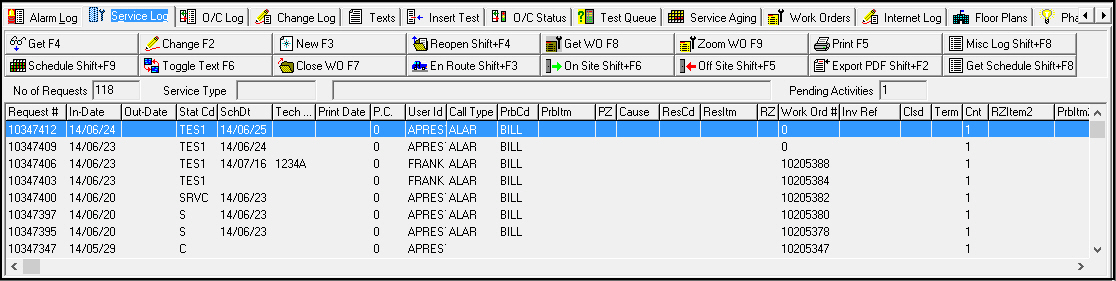
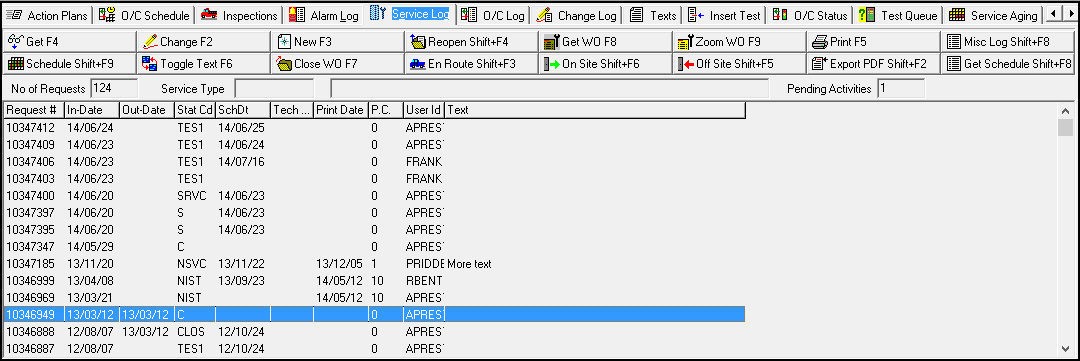
The following graphic shows the Service Log tab as the program opens. The tab displays previously defined service requests for the selected installation.
Field/Column Descriptions
The following table describes the fields and columns used in the Service Log tab.
Field/Column |
Description |
No of Requests |
Total number of service requests for the selected installation. |
Service Type |
Identifies the service type selected in the Data Entry Basics tab for the selected installation. |
Service Type Description (No label) |
Text description of the selected service type. |
Pending Activities |
Displays the number of entries in the Pending Service tab that have not yet been associated with a service request number. |
Request Number |
SBN-generated number to identify the service request. |
In-Date |
Date and time this request was created. |
Out-Date |
If the request has been closed, the date and time it was closed displays. Note: Option sv012 controls this field. |
Status Code |
Code to define the status of this request. |
Schedule Date |
Date service on this request is scheduled. Note: Option sv012 controls this field. |
Technician ID |
ID of the service technician assigned to this service request. |
Print Date |
Date this request was last printed. |
Print Count |
Number of times this request has been printed. |
User ID |
ID of the user that last entered information on this service request. Note: Option sv012 controls this field. |
Call Type |
Reason the customer called about this installation. |
Problem Code |
Code to define the problem covered in this service request. |
Problem Item |
Item code for the item that is malfunctioning. |
Problem Item 2 |
Item code for the item that is malfunctioning. |
Problem Zone |
Zone that is having problems. |
Cause |
Cause of the problem as determined by the service technician. |
Resolution Code |
Code to define the resolution to this service request. |
Resolution Item |
Item identified as being the malfunctioning item. |
Resolution Item 2 |
Item identified as being the malfunctioning item. |
Resolution Zone |
Zone identified as being the malfunctioning zone. |
Work Order Number |
Work order number of the work order that covers the charges incurred by this service request. Note: When option sv053 is on, it controls the creation of work orders. |
Invoice Reference |
User defined reference number for this invoice. |
Closed |
If this column displays an X, the corresponding work order has been closed. |
Terminal ID |
The Terminal ID of the monitoring operator. |
Count |
Displays the resolution count for the selected service request number. |
Problem Item Serial No |
50 character alpha-numeric field that holds the serial number of the item needing service. |
Resolution Item Serial No |
50 character alpha-numeric field that holds the serial number of the item used to fix/replace service item. |
P.O. # |
Purchase Order Number. |
Res Item Cost |
Resolution Item Cost. |
Call Type Descrip. |
Call Type Description. This field is auto-filled with the description when a user selects a Call Type from the Call Type dropdown within the Resolution Grid. (Call Types are predefined in #1524) |
Problem Code Descrip. |
Problem Code Description. This field is auto-filled with the description when a user selects a Problem Code from the Problem Code dropdown within the Resolution Grid. (Problem Codes are predefined in #1522) |
Cause Description |
Cause Description. This field is auto-filled with the description when a user selects a Cause from the Cause dropdown within the Resolution Grid. (Service Cause's are predefined in #1571) |
Resolution Code Descrip. |
Resolution Code Description. This field is auto-filled with the description when a user selects a Resolution Code from the Resolution Code dropdown within the Resolution Grid. (Resolution Codes are predefined in #1571) |
Symptom Description |
Symptoms originate from program #1522-Symptons Tab when zoomed into a Service Problem Code. |
Viewing the Service Request Details Window
Use the Service Request Details window to view all the details of a service request listed in the Service Log. If option sv020 is on, there may only be one service request open at a time.
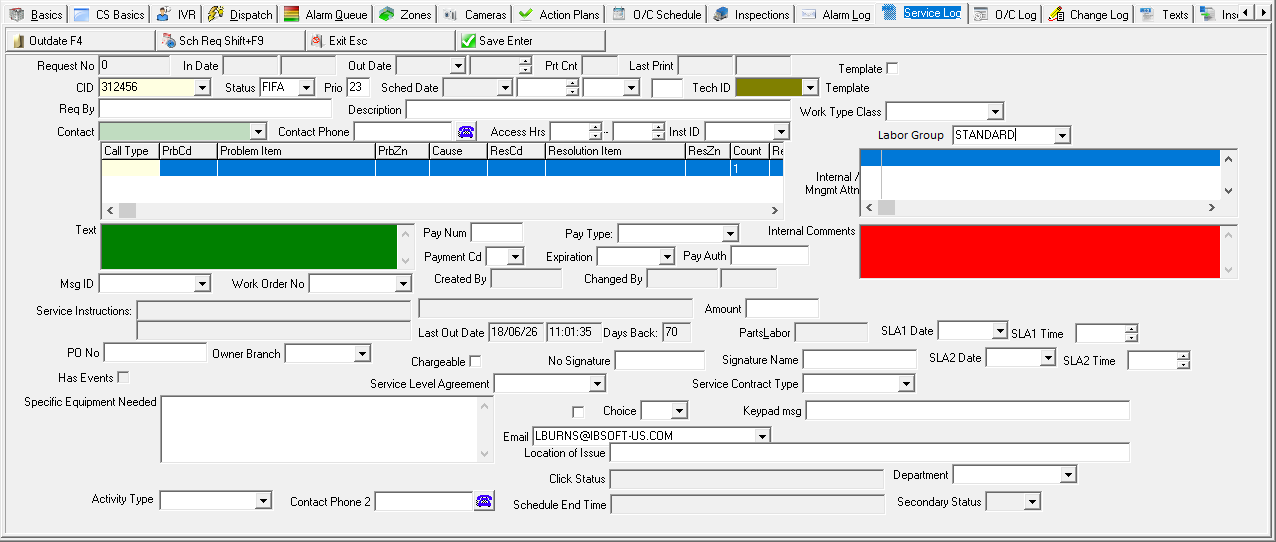
The following graphic shows the Details window of the Service Request tab in view mode. This is a read-only mode.
Field Descriptions - Details Window
The following table describes the fields in the Service Request Details window.
Field |
Description |
Request No |
SBN-generated number to identify the service request. |
In-Date |
Date this request was created. Note: If option sv060 is on, the Out-Date can precede the In-Date. When you save a service request, SBN bypasses the date validation. |
In-Time (No label) |
Time this request was created. |
Out-Date |
Date the request was closed, if applicable. Note: Use option sv012 to define this field. Note: If option sv060 is on, the Out-Date can precede the In-Date. When you save a service request, SBN bypasses the date validation. |
Out-Time (No label) |
Time this request was closed. |
Print Count |
Number of times this request has been printed; SBN-generated. |
Last Print |
Date and time this request was last printed; SBN-generated. |
Template |
Select this check box to make the service request a template that may be used to create other service requests for installations with the same dealer as the selected installation. Note: If action 559/74 is off, this check box is protected. |
CID |
Customer ID for this installation. Note: If you saved the original service request with a % in the CID field, the field defaults to the % even in Change mode. You may override the default. |
Status |
Code to define the status of this request. (This menu originates from program #1525.) Note: SBN automatically outdates service requests with a status that has an X or a + in the Out Date field of program #1525. When option sv082 is on, SBN also closes the work order associated with a service request if the work order contains no items when the service request is changed to a status with a plus sign (+) in the Out Date field of program #1525. (The work order associated with the service request must be linked to a contract for SBN to close the work order.) |
Priority |
Priority of this service request. This defaults from the Status you select. Note: If option sv044 is on, the priority of the service request defaults to the highest priority problem code in the service request. |
Sched Date |
Scheduled date for service on this request. Note: Use option sv012 to define this field. Note: If option sv019 is on, users may not select a date/time that has occurred prior to the current date/time. |
Schedule
Time |
Time this service request is scheduled to be completed. Note: If option sv019 is on, users may not select a date/time that has occurred prior to the current date/time. |
Sched Work
Type |
Schedule work type requested. (This menu originates from program #1526.) |
Schedule
Slot |
Work size requested. |
Tech ID |
ID of the technician assigned to this service request. (This menu originates from program #1811.) This menu displays only those resources
|
Req By |
Name of the person that has requested this service. |
Description |
Text description of the service needed. |
Work Type Class |
You may select a work type class to limit the Schedule Work Type drop-down menu to types associated with the work type class and types associated with no work type class in program #1526. (This menu originates from program #1590/71.) Note: This field is only used to limit the Schedule Work Type menu. SBN does not save the selection you make in this field. |
Labor Group |
This dropdown is used to select the appropriate labor group rate when generating a Service Request. This is dictated by what is defined in program #1795 (Standard Labor Rates) and Price List Group (#1771). |
Contact |
Name of the customer to contact about this service request. (This menu originates from the contacts listed in the Action Plans tab for this installation.) |
Contact Phone |
Phone number of the contact customer. |
Access Hrs |
Hours available to access the premises for this service request. |
Inst ID |
ID of the installer for this request. (This menu originates from program #1811.) This menu displays only those resources
|
Problem/Resolution Grid |
|
Call Type |
Reason the customer called about this installation. (This menu originates from program #1524.) |
Problem Code |
Identifies the problem covered in this service request. (This menu originates from program #1522.) Note: If option sv063 is on, you must define this column in New or Change mode. |
Problem Item |
Item code for the item that is malfunctioning. (This menu originates from program #1535.) Note: The item you select in this field appears as Item Code 2 entered for the selected item in program #1535. Your selection in this field automatically populates the Problem Item 2 field with the corresponding Item Code for the selected item from program #1535. Note: The drop-down menu includes an Item Code 3 column, in which you can identify a vendor’s model number for the item. Note: If option ba313 is on, SBN looks up the item code based on the selected zone; however, only service items populate the service request. Note: If option ba334 is on, this menu displays only those items associated — in program #1742 — with the panel type used in the installation. |
Problem Item 2 |
Item code for the item that is malfunctioning. (This menu originates from program #1535.) Note: The item you select in this field appears as the Item Code entered for the selected item in program #1535. Your selection in this field automatically populates the Problem Item field with the corresponding Item Code 2 for the selected item from program #1535. |
Problem Zone |
Zone that is having problems. (This menu originates from the Zones tab for the installation.) |
Cause |
Cause of the problem as determined by the service technician. |
Resolution Code |
Code to define the resolution to this service request. |
Resolution Item |
Item identified as the malfunctioning item. (This menu originates from program #1535.) Note: The item you select in this field appears as Item Code 2 entered for the selected item in program #1535. Your selection in this field automatically populates the Resolution Item 2 field with the corresponding Item Code for the selected item from program #1535. Note: The drop-down menu includes an Item 3 Code column, in which you can identify a vendor’s model number for the item. Note: If option ba313 is on, SBN looks up the item code based on the selected zone; however, only service items populate the service request. Note: If option ba334 is on, this menu displays only those items associated in program #1742 with the panel type used in the installation. |
Resolution Item 2 |
Item code for the item that is malfunctioning. Note: The item you select in this field appears as the Item Code entered for the selected item in program #1535. Your selection in this field automatically populates the Resolution Item field with the corresponding Item Code 2 for the selected item from program #1535. |
Resolution Zone |
Zone identified as being the malfunctioning zone. (This menu originates from the Zones tab for the installation.) |
Count |
Quantity of the item listed. Note: This quantity appears when generating a work order from the Service Request. |
Problem Item Serial Number |
50 character alpha-numeric field that holds the serial number of the item needing service. |
Resolution Item Serial Number |
50 character alpha-numeric field that holds the serial number of the item used to fix/replace service item. |
Symptom |
Symptoms is associated with program #1522. Symptoms codes are linked to the problem code entered on the service call within #1522. |
Res Item Cost |
Resolution Item Cost. |
Res Item Cost |
Resolution Item Cost. |
Call Type Descrip. |
Call Type Description. This field is auto-filled with the description when a user selects a Call Type from the Call Type dropdown within the Resolution Grid. (Call Types are predefined in #1524) |
Problem Code Descrip. |
Problem Code Description. This field is auto-filled with the description when a user selects a Problem Code from the Problem Code dropdown within the Resolution Grid. (Problem Codes are predefined in #1522) |
Cause Description |
Cause Description. This field is auto-filled with the description when a user selects a Cause from the Cause dropdown within the Resolution Grid. (Service Cause's are predefined in #1571) |
Resolution Code Descrip. |
Resolution Code Description. This field is auto-filled with the description when a user selects a Resolution Code from the Resolution Code dropdown within the Resolution Grid. (Resolution Codes are predefined in #1571) |
Symptom Description |
Symptoms originate from program #1522-Symptons Tab when zoomed into a Service Problem Code. |
Exp Date |
Expiration date of the credit card used for this method of payment, if applicable. |
Pay Auth |
Credit card company authorization code, if applicable. |
Internal/Mngmt Attn |
This text field consists of two columns. The first column being a checkbox to indicate that the corresponding second column line requires management attention. |
Internal Comments |
The text in the comment field can be expanded with Ctrl-Z. Once the zoom box is closed, the entered text is split into word wrapped lines of max 60 characters in length, the added text will be moved to the end of the last entry. Since the Internal Management component is a grid of text lines, individual lines cannot be combined again into the original text entered to create the lines; however each individual line can still be modified. |
Msg ID |
Code to identify the message displayed for this installation. |
Work Order No |
Work order number of the work order that covers the charges incurred by this service request. (This menu originates from the Work Orders tab for the installation.) |
Created By |
ID of the person who created this service request. This field is read-only. |
Changed By |
ID of the person who last changed this service request. This field is read-only. |
Changed
Date |
Date information on this service request last changed. This field is read-only. |
Secondary Status |
Read-only field that displays the Secondary Status of the service request as assigned in the Select Secondary Status dialog box. |
Service Instructions |
Any special Service Instructions regarding this installation. This field is read-only. (This field defaults from the Service Instructions field in Data Entry Basics tab.) |
Amount |
Amount to collect from the customer for this service. |
Last Out Date / Time |
Date and time of last closed service request. |
Days Back |
Number of days since last closed service request. Note: Option sv024 controls how many days SBN looks back for the last closed service request. |
PartsLabor |
Customer-defined field; no functionality in SBN. |
PO Number |
Purchase order number associated with the service request. When the service request is outdated, SBN fills the PO Number of the associated work order with this number. This field holds a maximum of 60 characters. Note: This field has not been expanded throughout the whole system, so it may truncate this number on reports or other areas of the system. |
Owner Branch |
Displays the branch that owns the service request. Note: If you leave this field blank when you save a new service request, it defaults with the service branch. |
Chargeable |
Select this check box to indicate that the customer should be charged for the service. Parts and labor will be calculated and charged on the Work Order according to the selected Service Rate and the Price List associated with the specific installation. |
No Signature |
Text indicating the reason the customer did not sign to accept the technician's work at the installation site. |
Signature Name |
Customer's name as he/she signed it to accept the technician's work at the installation site. |
SLA1 Date |
Service Level Agreement 1 Date. |
SLA1 Time |
Service Level Agreement 1 Time. |
SLA2 Date |
Service Level Agreement 2 Date. |
SLA2 Time |
Service Level Agreement 2 Time. |
Has Events |
When selected, this read-only check box indicates test alarm event signals of types 0, 1, 2, 4, 5, or 6 have been generated for the ticket number of the service request. SBN uses the following time ranges to check the Alarm Log for events of the above types: 1) If the alarms were processed in Dispatch (program #537), SBN selects this check box if any of the event types above came in from the time the first alarm was generated for the ticket until the alarm was resolved. 2) If the alarms were not processed in Dispatch, SBN selects this check box if any of the event types above came in from the time the ticket was created until it was outdated. 3) If the alarms were not processed in Dispatch and the ticket is not yet outdated, SBN selects this check box if any of the event types above came in seven days from the date the ticket was created. Note: This check box only appears when option sv069 is on. |
Service Level Agreement |
Service level agreement associated with the installation contract. (This menu originates from program #1709, index 01.) |
Service Contract Type |
Service type associated with the installation contract. (This menu originates from program #1709, index 02.) |
Specific-Equipment Needed |
Customer-defined field; no functionality in SBN. |
Acknowledge |
Customer-defined field; no functionality in SBN. |
Choice |
Customer-defined field; no functionality in SBN. |
Keypad msg |
Customer-defined field; no functionality in SBN. |
Location of Issue |
Customer-defined field; no functionality in SBN. |
Click Status |
This field is populated with the definition provided by Option sv085. |
Department |
Department associated with the installation contract. (This menu originates from program #1590.) Note: This field can be made Required and Protected in Filled in program #1843. |
Activity Type |
This field is populated if you have previously selected an Activity Type from the Activity Types program (program #1672.) |
Viewing the Details of a Service Request
Use the following steps to view service request details:
1. In the Service Log tab, select the service request you want to view.
2. Choose View Service Request.
w The Detail window appears and displays the details of the selected request.
Creating a New Service Request
From the Service Log tab, you can create a new service request for the selected installation. Before the Service Request Details window opens in New mode, SBN may display the following:
A message if this installation has an overdue balance. This message, �Account has an overdue balance, continue with service?� defaults to No.
Note: If action 559/70 is off, this message reads, "No service allowed: Open balance," and SBN does not allow you to save the service request. If you select the Bypass Aging Restriction in Service check box for the account in program #548, SBN allows you to create and change service requests.
A message if another service request is still open on this installation
A message stating the last date, time, and days back since the last closed service request
When option sv048 is on, a pop-up window of service instructions from the Data Entry Basics tab opens
A message if the installation is still within the warranty period defined in the Installer tab of Personnel (program #1811) for the original installer of the installation
If the contract or billing account contains a credit profile, SBN compares the value = (the outstanding account balance + the amount in option ba381), and presents a message if this amount exceeds the balance allowed by the credit profile
When option sv020 is on, an error message displays letting the user know that only one Service Request at a time can be open
When option sv061 is on, SBN creates a work order when a user creates a service request
A message from program #1828 if a message is entered in the Message ID field of program #1537 for the installation dealer, or if a message is entered in the Message ID field of program #1530 for the installation Service Branch
Use the following steps to create a new service request:
1. Choose New Record.
w Messages may appear. See possible messages above.
2. To continue with the new service request, choose Yes on each message.
w If option sv048 is on and a user entered service instructions in the Data Entry Basics tab, a pop-up window of those service instructions opens.
3. Choose X in the upper left corner of the Service Instructions to close the pop-up window.
w The Details window opens in New mode. The CID field defaults to %.
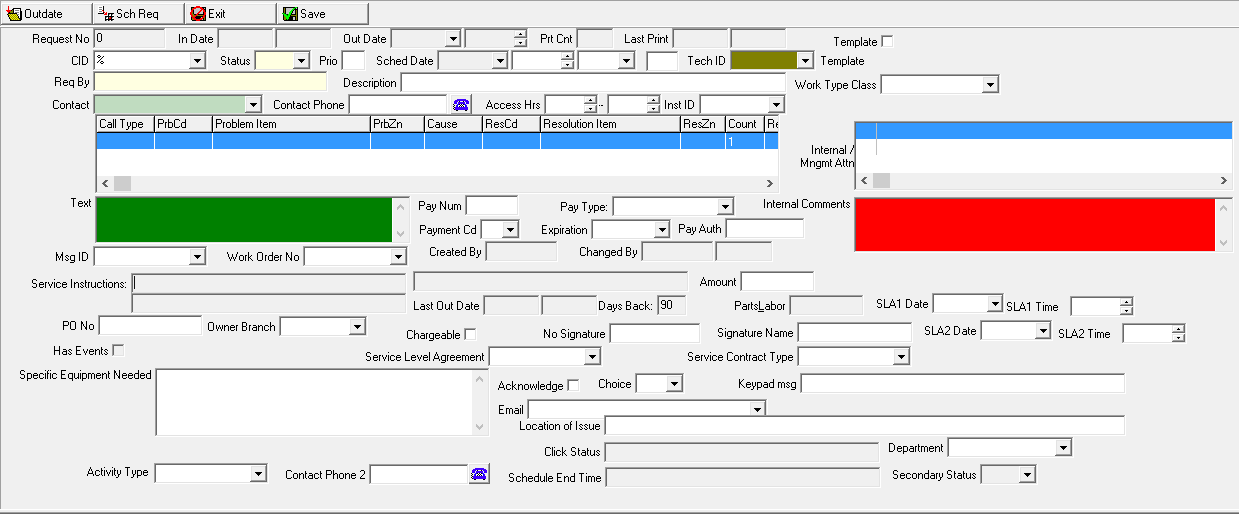
4. Complete the fields, as needed.
5. Choose Save.
Note: You can only create new service requests for accounts that contain or link to at least one active contract. SBN displays a warning message if it finds no active or active linked contracts.
IVR Start for Service Request
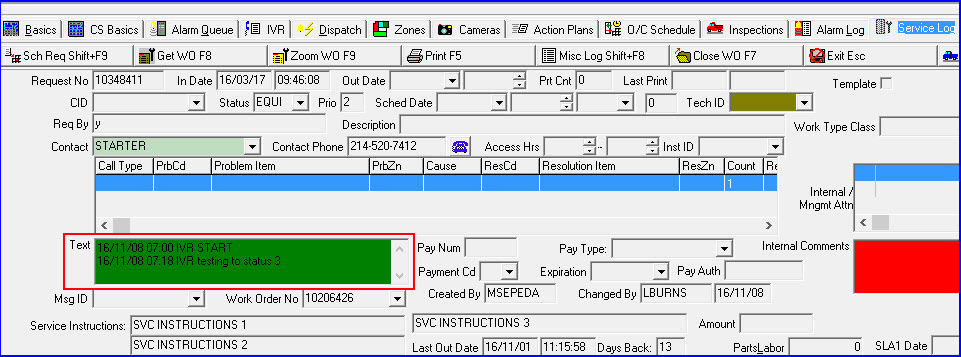
When using ATOM procedures inet_ivr_schedule_activity_new in program 550 and selecting a service request, you will receive an entry in the service request "Text" box of the date and IVR start time. When used in conjunction with procedure inet_ivr_sch_act_stat_upd the status of the account will be entered in the Service Log Text
The following graphic displays the date, IVR start time, and account status in the Service Request Text box.
Changing Service Request Information
You may only change the details of a service request if the associated work order is open/uninvoiced, and if the service request has not been outdated.
Note: When option sv015 is on, you may edit the Text field of an outdated service request. When option sv015 is off, you cannot make any changes to an outdated service request.
Use the following steps to change service request information:
1. From the Service Log tab, select the service request you want to change.
2. Choose Change Service Request.
w The Details window opens in Change mode.
Note: If option sv074 is on and a user entered service instructions in the Data Entry Basics tab, a pop-up window of those service instructions opens.
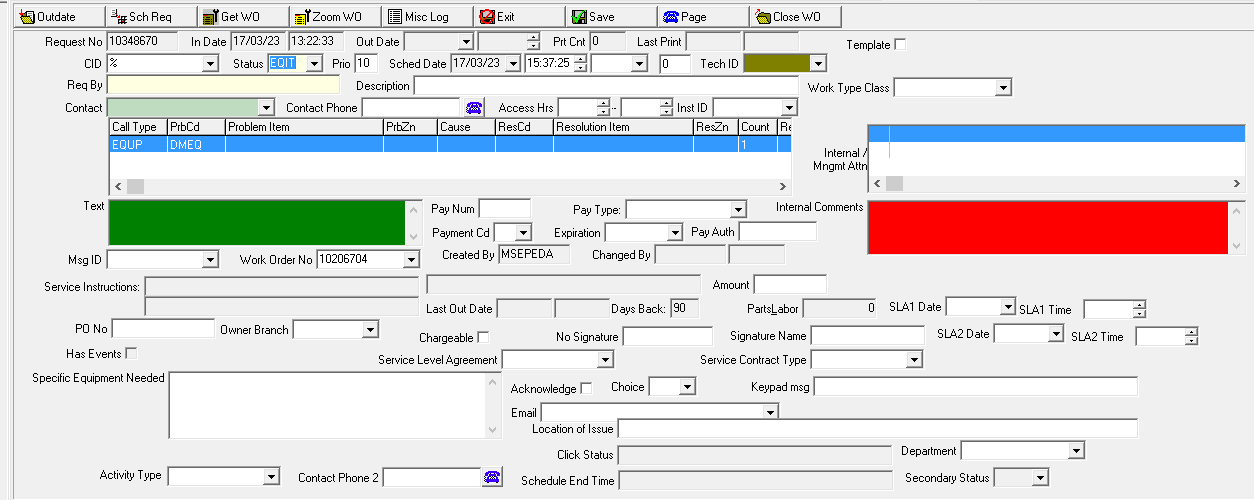
3. Change the fields, as needed.
Note: Changes to the Tech ID field appear in the Change Log tab of program #559.
4. Choose Save.
Note: You may not save changes to a service request if the associated work order is closed/invoiced. If you try to save changes and the associated work order has been closed/invoiced SBN displays the message: �Invalid Entry!� A warning message appears when you attempt to save changes to a service request with a status that requires a visit if the account balance exceeds the maximum amount set for an aging level in program #1802. If you select the Bypass Aging Restriction in Service check box for the account in program #548, SBN allows you to create and change service requests.
Viewing an Associated Work Order
From either the Service Log tab or the Service Log Details window, you can view the work order associated with the service request. You may also open the associated work order in Change mode to make changes.
Use the following steps to view a work order:
1. In the Service Log tab, select the service request that has a work order associated with it.
2. Choose Get Work Order to open the work order in View mode.
w SBN opens the Work Order window with the selected work order displayed.
3. Choose Exit to return to the Service Log tab.
Use the following steps to zoom to a work order:
1. In the Service Log tab, select the service request that has a work order associated with it.
2. Choose Zoom Work Order.
w SBN opens the Work Order window with the fields open to make changes.
3. Enter any changes, as needed.
4. Choose Save to save changes or Exit to return to the Service Log tab.
Scheduling a Service Request
From the Detail window, you can schedule a technician to complete this service request.
Schedule Type defaults to the Resource Type associated with the Work Type in Work Types (program #1526).
Work Type defaults to S
Schedule Date defaults to the date entered on the service request
Note: When option sv064 is on, a service request that has already been allocated in Scheduling (program #563) does not appear in the Service Request List in the Detail View tab of Scheduling when you schedule it again in the Service Log tab. This prevents you from allocating more than one resource to the service request. When this option is off, you may schedule a service request a second time in the Service Log tab, and the service request appears again in the Service Request List of Scheduling.
When option sv022 is on, SBN does not allow users to schedule service requests associated with closed work orders.
Use the following steps to schedule a request:
1. From the Detail window, choose Schedule Request.
w The Schedule Request dialog box appears.
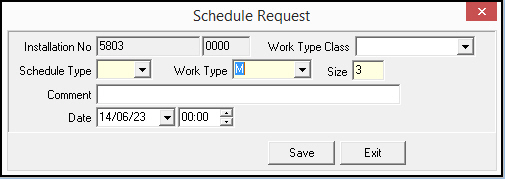
2. Complete the fields, as needed.
Note: The selection in the Work Type Class field limits the Work Type drop-down menu to types associated with the work type class and types associated with no work type class in program #1526.
3. Choose Save.
w SBN logs the schedule request in the Data Entry Change Log.
Note: When options sv040, sv096 and sv097 are defined and on, an e-mail can be triggered and sent which notifies the customer of a scheduled service visit when the Status of the Service log meets what is defined in Options sv097. A valid e-mail must be defined in the Service Log. There is no e-mail triggered if a job is removed from the schedule.
Changing Technician Status
From the either the main tab of the Service Log or from Service Request Details you may change the status of a technician to
En route — choose Mark En Route
On site — choose Mark On Site
Off site — choose Mark Off Site
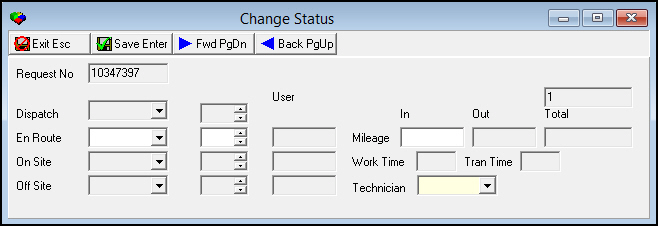
When you choose a status to change, SBN opens the Change Status dialog box. Different fields open based on the status you choose to change. The following graphic shows the Change Status dialog box when changing the status of a service request to En Route.
Assigning a Secondary Status to a Service Order
Sometimes you need to assign a secondary status to a service order to explain why it was not closed. A secondary status can be assigned to a work order that has a primary status that requires a secondary status. To assign a secondary status to a service order, complete the following steps.
1. In the Service Log tab of Data Entry (program #559), open a service order.
Note: The service order must have a status that requires a secondary status.
2. Click the drop-down arrow of the Status menu as if you were selecting a primary status.
w The Select Secondary Status dialog box appears.
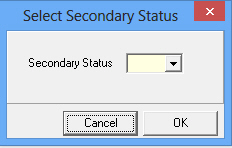
3. Select a status from the Secondary Status drop-down menu.
4. Click OK.
w SBN saves the secondary status for the service order.
Field Descriptions
The following table describes the fields used in the Change Status dialog box.
Field |
Description |
Request |
This field defaults with the number of the service request you selected. |
Dispatch |
|
Date (No label) |
The date on which the selected service request was paged or dispatched to the technician. |
Time |
The time at which the selected service request was paged or dispatched to the technician. Note: Enter the time in four digit format. Example: 0900 for 9:00. |
En Route |
|
Date (No label) |
Select the date on which you mark the technician as en route for the selected service request. This field opens only when you choose Mark En Route. Note: The calendar defaults to today’s date. |
Time (No label) |
Select the time at which you mark the technician as en route for the selected service request. This field opens only when you choose Mark En Route. Note: Enter the time in four digit format. Example: 0900 for 9:00. |
User |
When you save this changed status, this field defaults with your user ID. |
Mileage |
|
In |
Type the beginning mileage when you mark the technician as en route. This field opens only when you choose Mark En Route. |
Out |
Type the ending mileage when you mark the technician as on site. This field opens only when you choose Mark On Site. |
Total |
This field displays the total mileage the technician travelled for the selected service request based on (Mileage Out) - (Mileage In). |
On Site |
|
Date (No label) |
Select the date on which you are mark the technician on site for the selected service request. This field opens only when you choose Mark On Site. |
Time (No label) |
Select the time at which you mark the technician as on site for the selected service request. This field opens only when you choose Mark On Site. Note: Enter the time in four digit format. Example: 0900 for 9:00. |
User |
When you save this changed status, this field defaults with your user ID. |
Technician |
You must select the ID of the technician associated with the selected service request. |
Off Site |
|
Date (No label) |
Select the date on which you are mark the technician as off site for the selected service request. This field opens only when you choose Mark Off Site. |
Time (No label) |
Select the time at which you mark the technician as off site for the selected service request. This field opens only when you choose Mark Off Site. Note: Enter the time in four digit format. Example: 0900 for 9:00. |
User |
When you save this changed status, this field defaults with your user ID. |
Work Time |
This field displays the total time the technician spent on site for the selected service request based on (Off Site Time) - (On Site Time). |
Tran Time |
This field displays the total time the technician spent in transit for the selected service request based on (On Site Time) - (En Route Time). |
En Route
Use the following steps to change the status of a technician to en route:
1. In the Service Log, select the service request for which you want to change the status of a technician to en route.
2. From the toolbar, choose Mark en route.
w The Change Status dialog box opens with the relevant fields open.
3. Complete the following fields:
En Route Date
En Route Time
Mileage In
Technician
Note: Changes to the Technician field appear in the Change Log tab of program #559.
4. Choose Save.
w SBN returns the focus to either the main tab of the Service Log or to the Service Request Details.
On Site
Use the following steps to change the status of a technician to On Site:
1. In the Service Log, select the service request for which you want to change the status of a technician to on site.
2. From the toolbar, choose Mark On Site.
w The Change Status dialog box opens with the relevant fields open.
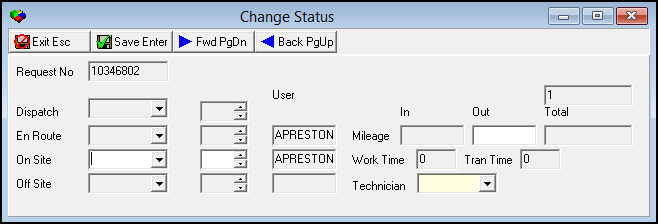
3. Complete the open fields, as necessary.
Note: Changes to the Technician field appear in the Data Entry Change Log.
4. Choose Save.
w SBN opens the Insert Test tab.
Off Site
Use the following steps to change the status of a technician to Off Site:
1. In the Service Log, select the service request for which you want to change the status of a technician to off site.
2. From the toolbar, choose Mark Off Site.
w The Change Status dialog box opens with the relevant fields pen.
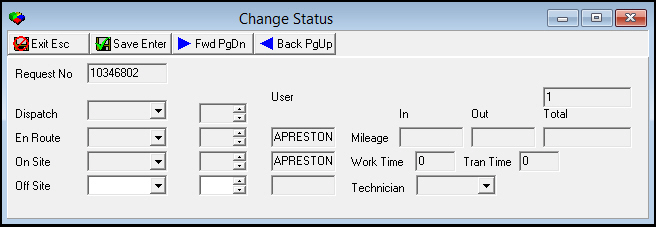
3. Complete the following fields:
Off Site Date
Off Site Time
4. Choose Save.
w SBN asks if service is complete.
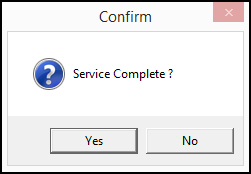
5. Choose either Yes or No.
w SBN opens the Insert Test tab.
Jumping to the Schedule Board
You can jump from the Service Log to Scheduling (program #563) to view the available resources and to schedule a technician for the selected service request. To access the Schedule Board, choose Schedule Board from the Service Log tab. When you enter the Schedule Board, SBN displays available resources. For more information on the Schedule Board, see Scheduling.
You may jump to the Schedule Board only from open service requests. You may not use this function from an outdated service request.
Paging a Technician or Installer
You can page a technician or installer directly from the Details windows in Change mode.
Use the following steps to page a technician or installer:
1. Select the appropriate service request.
2. Choose Change Service Request.
3. Choose Paging. If option sv047 is on, this dialog box defaults with the Installer paging information.
w The Paging dialog box opens.
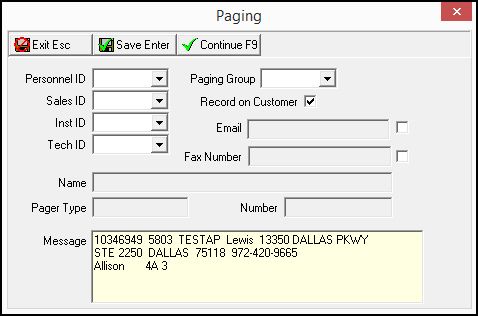
4. SBN enters the customer information in the Message box. Enter any additional information into the Paging dialog box.
Note: For more information on the fields in this dialog box, see Field Descriptions — Paging Dialog Box.
5. Choose Save.
Viewing the Miscellaneous Service Log
The Miscellaneous Service Log tracks information about the status of each service request. You may access the Miscellaneous Service Log from the main Service Log tab and from the Detail window in both View and Change modes.
The Tech Onsite Date column displays the date a technician was on site at an installation for a service call.
Use the following steps to view the Miscellaneous Service Log:
1. Select the appropriate service request.
2. Choose View Service Request.
3. Choose Miscellaneous Service Log.
w The Miscellaneous Service Log for this service request appears.

4. Choose X to close the log.
w SBN returns you to the Service Log tab.
Miscellaneous Service Log - Cause Code and Resolution Code
Miscellaneous Service Log - Added two new columns to the sv_misc_log table to store, Cause Code and Resolution Code sent back from the PDA, when a service call is debriefed. When the first record for a service call is written to the sv_misc_table has a Resolution code of NOAC (No Access). The second time a service call is scheduled to a technician, it will be treated as a first visit in the data sent to the PDA. It will remain as FIRST until the Resolution code is no longer a NOAC.

Viewing Service Request Text
You can change the view of the Service Log tab by choosing Toggle Text. After you choose this button, many of the columns in the Service Log tab do not display; instead, SBN displays the Text column with the text information you enter in the Service Request Details window.
Closing/Reopening the Work Order
You can close or reopen the attached work order for each service request from the main Service Log tab or from the Detail window in the View and Change modes.
Use the following steps to close or reopen a work order:
1. In the Service Log tab, select the line of the service request attached to the work order you want to close or reopen.
2. Choose View Service Request or choose Change Service Request.
3. Choose Close/Reopen Work Order.
w SBN asks you to confirm your choice.
4. Choose Yes.
w SBN confirms that it successfully closed or reopened the work order.
Outdating/Closing a Service Request
From the Service Request Detail window, you can close and enter an out date for a completed service request. You can close a service request from Change mode.
Use the following steps to close a service request:
1. In the Service log, select the service request you want to close.
2. Choose Change.
3. Choose Outdate/Close Request.
w SBN asks if you want to outdate the selected request.
4. Choose Yes to confirm that you want to close this service request.
Note: If option sv049 is on and a technician ID is associated with the selected service request, SBN displays a message if On Site or Off site information is missing from the selected service request.
Note: When an Insert Test is linked to a Service Request and the Service Request is closed, the associated test will automatically be removed.
w Additional fields open in the lower pane of the window.

Note: These fields may default with information entered in
q Scheduling (program #563)
q Change Status dialog box of the Service Log
q Voice Response Unit (VRU)
q Mobile SBN
5. Complete the fields.
6. Choose Save.
w If option ba267 is on and the installation attached to this service request is in test, SBN asks you to confirm that you want to remove the installation from test.
7. Choose Yes.
w SBN opens the Insert Test tab to allow you to remove the installation from test.
Reopening a Service Request
From the Service Log tab, you can reopen a service request that has previously been outdated. Action 559/65 controls access to the Reopen Service Request button.
Use the following steps to reopen a service request:
1. Select the out dated service request that you want to reopen.
2. Choose Reopen Service Request.
w SBN reopens the service request and clears the previous Out-Date from the display.
Printing the Service Request Report
From the Service Log tab, you can open the Service Ticket report to print report information. Option svtrpt determines the report number used for this report.
Use the following steps to run and view the report:
1. In the Service Log tab, choose Print.
w SBN opens the Service Ticket report window.
2. Define the parameters for the report.
3. Choose Save to save the report to the Report Queue.
4. In Report Queue (program #1558), choose Own to display the report list.
5. In the report list, locate the Service Ticket report.
6. Choose Own again to refresh the status of the report.
w SBN displays an X in the Print Flag column, when the report is ready to print.
7. Double-click the report to open it.
8. Choose Display Report.
w The Print Preview window opens.
Exporting Cognito Report PDFs
To export a Cognito report, complete the following steps:
1. Choose the Export PDF button.
w The following dialog box appears.
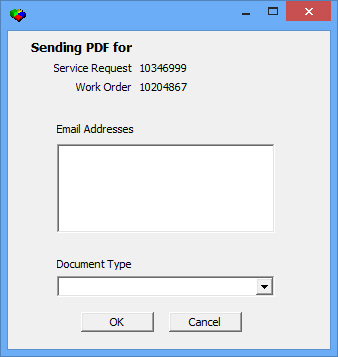
2. Type one or more email addresses in the Email Addresses field, separated by commas.
3. Select a document type from the Document Type drop-down menu, and then click OK.
w SBN adds the entry to the Cognito report queue.
Related Programs
The following table lists programs related to the Service Log.
Program |
Number |
Document Link |
Description |
Items |
1535 |
Define and maintain item codes and definitions to use in the Item Code, Problem Item, and Resolution Item menus. |
|
Payment Methods |
1528 |
Define and maintain payment codes to use in the Pay Code menu for service requests. |
|
Service Call Types |
1524 |
Define and maintain call types to use in the Call Type menu. |
|
Payment Methods Tab |
N/A |
Define credit card numbers or bank account numbers that the customer uses to make payments for the account. |
|
Service Request Codes |
1525 |
Define types of statuses and priorities to assign to service requests. |
|
Service Problem Codes |
1522 |
Define and maintain a list of problem codes to assign to service requests. |
|
Scheduling |
563 |
Schedule technicians or installers on a customer's premises to fix problems on service requests. |
|
Panel Types |
1742 |
Define and maintain a list of panel types that are installed on the customer's premises. |
|
Personnel |
1811 |
Define users in the Technician and Installer subtabs to assign to service requests on installations. |
|
Work Types |
1526 |
Define and maintain a list of work types to assign to service requests. Types also allow for slotting a technician in Scheduling. |
|
Pending Service Tab |
N/A |
View a list of pending service items that need to be attached to service requests. |
|
Data Entry Master and Basics |
559 |
The program from which you can access the Service Log tab. View installation information. |
|
Insert Test Tab |
N/A |
View installations that are in test. When you close a service request, remove any zones that were in test. |
|
Service Miscellaneous Fields |
1709 |
Define many drop-down menus that appear in the Service Request Details window. |
|
Zones Tab |
N/A |
Define zones for the installation and define them as open/close zones to be tracked in the Open/Close Status tab. |
Button Functions
The following table displays the buttons, describes the shortcut keys, actions, and functionality.
Button |
Name |
Shortcut Key |
Action |
Description |
|
View Service Request |
F4 |
559/64 |
View details on a service request. |
|
Change Service Request |
F2 |
559/61 |
Change service request information. |
|
New Service Request |
F3 |
559/63 |
Create a new service request. |
|
Reopen Service Request |
shift+F4 |
559/65 |
Reopen a service request that has previously been out dated. |
|
Get Work Order |
F8 |
559 |
Get the work order associated with the service request. |
|
Zoom to Work Order |
F9 |
559 |
Open the associated work order in Change mode. |
|
Print selected records |
F5 |
559/67 |
Print Service Request Ticket Report. |
|
Miscellaneous Service Log |
shift+F8 |
559 |
View Miscellaneous Service Log. |
|
Schedule Board |
shift+F9 |
559 |
Jump from Service Log to Schedule Board and schedule a technician for the selected service request. |
|
Toggle Text |
F6 |
559/68 |
Limits the number of columns in the Service Log and displays the Text from all service requests. |
|
Close/Reopen Work Order |
F7 |
559/62 |
Close or reopen attached work order. |
|
Mark En Route |
shift+F3 |
559/71 |
Change the status of a technician to en route. |
|
Mark On Site |
shift+F6 |
559/72 |
Change the status of a technician to on site. |
|
Mark Off Site |
shift+F5 |
559/73 |
Change the status of a technician to off site. |
|
Export PDF |
shift+F2 |
559/703 |
Opens a window in which you can select a report for the selected service request to be inserted into the Cognito report queue. |
Change Mode |
||||
|
Outdate/Close Request |
F4 |
559/62 |
Close the selected service request and enter an out date. |
|
Schedule Request |
shift+F9 |
559/66 |
Schedule a technician or installer for the selected service request. |
|
Get Work Order |
F8 |
559 |
View the work order associated with the selected service request, if any. |
|
Zoom to Work Order |
F9 |
559 |
Change the work order associated with the selected service request, if any. |
|
Print Selected Records |
F5 |
559/67 |
Print the selected service request. |
|
Miscellaneous Service Log |
shift+F8 |
559 |
View the miscellaneous service log for the selected request. |
|
Exit |
Esc |
559 |
Exit without saving. |
|
Save |
Enter |
559 |
Save existing record. |
|
Paging |
shift+F11 |
559 |
Send a page with details of the selected service request to personnel. |
|
Close/Reopen Work Order |
F7 |
559 |
Close or reopen the work order associated with the selected service request, if any. |




















Modifications and Updates to the Service Log
The following table lists modifications and updates to the Service Log document.
Mod Number |
Date |
Description |
n/a |
08/13/09 |
document rewritten |
07.02.18828 |
07/29/09 |
Added option sv064 to prevent scheduling the same service request twice. |
08.03.07229, 08.03.07236 |
12/18/09 |
Updated option sv022 to prevent scheduling a service request associated with a closed work order. |
07.02.19289 |
12/29/09 |
Added a Tech Onsite Date column to the Miscellaneous Service Log window. |
07.02.19252, 08.03.07216 |
01/05/10 |
Added option sv065 to protect Tech ID, Schedule Date, Schedule Time, Work Type, and Schedule Slot fields. |
07.02.19613, 08.03.07501 |
06/11/10 |
Added option sv069 to display Has Events check box in Service Request Details. |
07.02.20067, 08.03.07788 |
08/30/10 |
Message appears when creating a new service request if entered for the installation dealer in program #1537 or if entered for the Service Branch in program #1530. |
07.02.20086, 08.03.07801 |
09/14/10 |
Added Template check box and field to Service Request Details. |
07.02.19717, 08.03.07804 |
10/05/10 |
Added options sv071 and sv072. |
07.02.20427, 08.03.08024 |
12/21/10 |
Added Email field to Service Request details. |
07.02.20681, 08.03.08189 |
03/03/11 |
Added option sv074. |
08.03.08532, 07.02.21365 |
03/13/12 |
Added option sv079. |
07.02.21757, 08.03.08764 |
06/01/12 |
Added option sv082. |
07.02.21926, 08.03.08840 |
10/01/12 |
Added Work Type Class field to Service Request details and Schedule Request dialog box. |
08.78.09054, 07.78.22309 08.78.09044, 07.78.22292 07.78.22286, 08.78.09033 |
03/21/13 |
Added Secondary Status field to the Service Request Details window. |
07.78.22247, 08.78.09015 |
04/05/13 |
Added PO Number column. |
08.79.09194, 07.78.22536 08.79.09192, 07.78.22534 |
07/18/13 |
Updated the functionality of the Export PDF button. |
08.79.09393, 07.79.22922 08.79.09387, 07.79.22910 |
09/11/13 |
Added Acknowledge check box, Choice drop-down menu, Keypad Msg text box, Location of Issue text box, and Specific Equipment Needed text box fields to Service Log details window. |
07.79.23096, 08.79.09483 07.79.23085, 08.79.09479 |
03/24/14 |
Added Option sv089. |
08.79.09470, 07.79.23063, 08.79.09453, 07.79.23028 |
04/03/2014 |
Added new Activity Type and Click Status fields, and Options sv085, sv086, sv087, and sv088. |
07.81.23476, 08.81.09714, 08.81.09711, 07.81.23465 |
06/18/14 |
Added new Department field, with new image of Service Request Details window. |
n/a |
07/29/14 |
Images updated. |
07.81.23564, 07.81.23520 |
09/30/14 |
Added option cog54 |
07.82.24082, 07.82.24081, 07.82.24074, 07.82.24073, 07.82.24070, 08.82.10091, 07.82.24068, 07.82.24062, 07.82.24061, 07.82.24038, 07.82.24037, 07.82.24024 |
04/07/15 |
Added changes to #559, #1524, and #1522. |
07.87.25396, 07.87.25395, 07.88.25692 |
06/22/17 |
Took away "Print" button when user clicks on "New" or "Change" when on "Service Log" tab within Service/Data Entry. |
n/a |
06/28/17 |
New screen shot's showing removal of the "Print" button when on "New" or "Change" on "Service Log" tab within Service/Data Entry. |
08.88.11284, 07.88.25690, 08.88.11283, 07.88.25687 |
03/02/18 |
New Resolution Item cost Column added under Service tab and under Problem/Resolution Grid. |
07.89.25897, 07.89.25895 |
06/20/18 |
New Call Type Description, Problem Code Description, Cause Description, Resolution Code Description and Symptom Cause columns added within Service Log Grid as well as Resolution Grid when in Change Mode. |
07.89.25962, 08.89.11479, 07.89.25967, 08.89.11487 |
09/04/18 |
Added dropdown to Service Log – Labor Group. This is dictated by program #1795 (Standard Labor Rates) and Price List Group listed on the Contract Master for the installation. |
07.89.25951 |
09/13/18 |
Chargeable checkbox updated. Parts and labor will be calculated and charged on the Work Order according to the selected Service Rate and the Price List associated with the specific installation. |
08.89.11480, 07.89.25963, 08.89.11474, 07.89.25958 |
10/18/18 |
New Options sv096 and sv097 when defined and On will trigger an e-mail into the E-mail Alarms Windows service. E-mail will only be sent if a valid e-mail address is defined within the Service Log tab. |
07.89.26043 |
01/08/19 |
Note inserted under Outdating/Closing Service Request section. When an Insert Test is linked to a Service Request and the Service Request is closed, now the associated test will automatically be removed. |