
Financed Work Orders
Financed Work Orders
Financed Work Orders
Module: Accounting
Overview
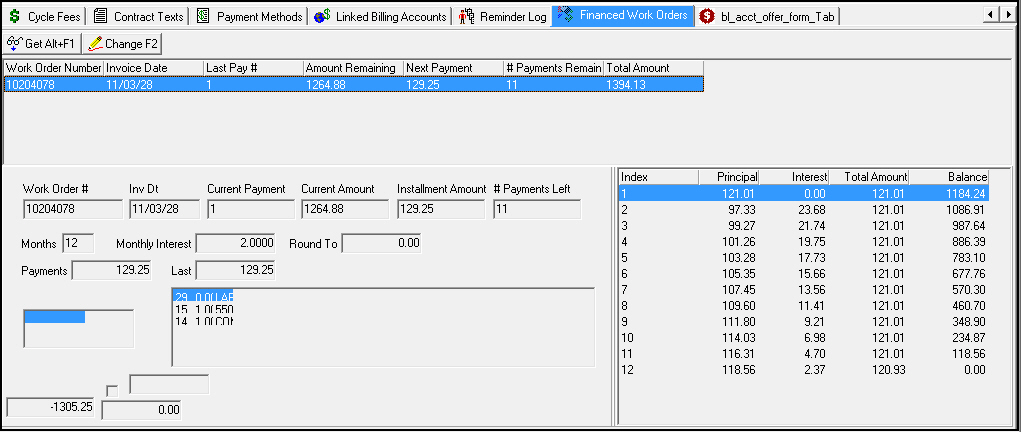
Use the Financed Work Orders tab to view and update work orders that have been flagged for financing and that have been invoiced.
To access this program, select Contract Master (program #548) and then choose the Financed Work Orders tab.
The Financed Work Orders Tab
The following graphic shows the Financed Work Orders tab.
Field/Column Descriptions
The following table describes the fields and columns used in this tab.
Field/Column |
Description |
Work Order Number (column) |
Displays work order numbers that have been flagged for financing and invoiced. |
Invoice Date |
Date each work order was invoiced. |
Last Pay # |
Number of last payment scheduled. (1 for first, 2 for second, etc.) |
Amount Remaining |
Financed amount remaining on each invoice. |
Next Payment |
Date next payment is due. |
# Payments Remain |
Number of payments remaining. |
Work Order # (field) |
Selected work order number. |
Inv Dt |
Selected work order invoice date |
Current Payment |
Number of the current payment due. (1 for first, 2 for second, etc.) |
Current Amount |
Remaining financed amount to be paid. |
Installment Amount |
Amount due per scheduled payment. |
# Payments Left |
Number of payments left on selected work order. |
Months |
Length of work order finance term in months. |
Monthly Interest |
Work order monthly interest rate. |
Round To |
Amount used for nearest rounding of currency amount. |
Payments |
Standard monthly payment amount. |
Last |
Standard last payment amount. |
Amortization Grid |
|
Index |
Number of each scheduled payment. |
Principal |
Amount of each scheduled payment that will go to pay the principal. |
Interest |
Amount of each scheduled payment that will go to pay interest. |
Total Amount |
Total amount of each scheduled payment. |
Balance |
Unpaid balance remaining after each scheduled payment. |
Viewing Work Order Financing Details
In the Financed Work Orders tab you can view the financing details of a work order.
Use the following view work order details:
1. In the Financed Work Orders tab, select the work order you want to view.
2. Choose Get Record.
‰ The finance details of the selected work order appear in the fields below the work order list.
Changing Work Order Financing Details
In the Financed Work Orders tab you can change financing details for an invoiced work order.
Use the following steps to change financing details:
1. In the Financed Work Orders tab, select the work order you want to change.
2. Choose Change Record.
‰ Cursor appears in the Months field below the work order list.
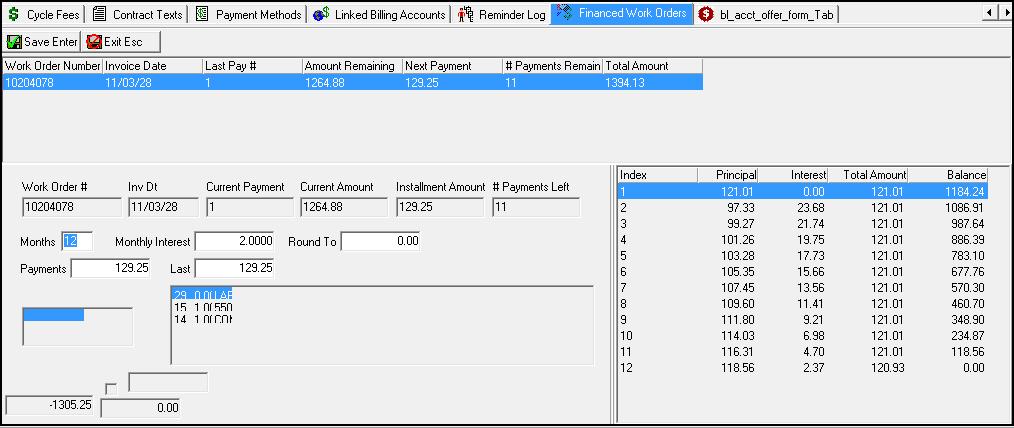
3. Make any necessary changes, then choose Save to save changes and return to work order list, or choose Exit to return to list without saving changes.
Button Functions
The following table displays the buttons, describes the shortcut keys, actions, and functionality.
Button |
Name |
Shortcut Key |
Action |
Description |
|
Get Record |
alt+f1 |
View details of selected record. |
|
|
Change Record |
f2 |
Change details of selected record. |
|
|
Exit without saving |
ESC |
Exit without saving changes. |
|
|
Save New Record |
ENTER |
Save existing changes to record. |




Modifications and Updates to Financed Work Orders
The following table lists modifications and updates to the Financed Work Orders document.
Mod Number |
Date |
Description |
n/a |
8/04/14 |
Images updated. |