
System Types
System Types
System Types
Module: System Administration
Overview
Use System Types (program #1883) to define items to sell together. When you choose a system in a work order, an additional System window opens with individual tabs for each item group. You can then enter quantities for each item for the work order. When saved, the work order shows all quantities and prices for the items selected within the System window.
System Types contains a sublevel in which you enter specific information for each system.
To access this program, select System Types (program #1883) from the main menu of SBN.
The System Types Window
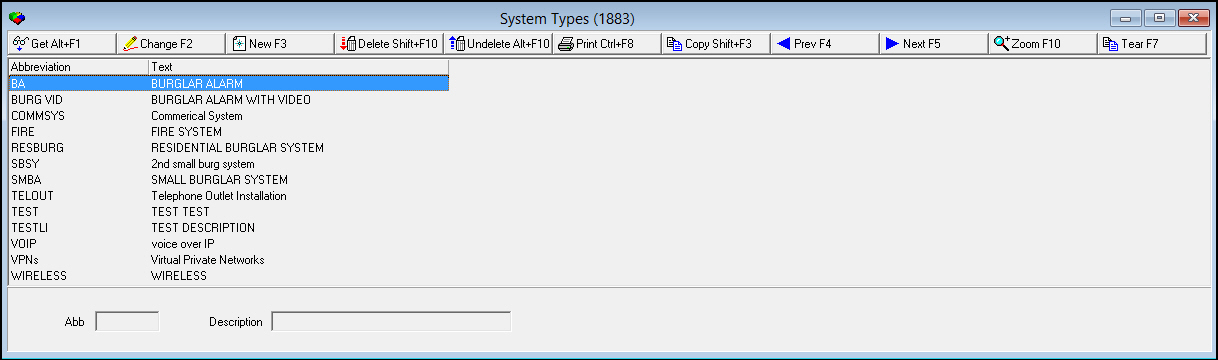
The following graphic shows System Types as the program opens.
Field/Column Descriptions
The following table describes the fields and columns used in System Types.
Field/Column |
Description |
Abbreviation |
Unique system identifier. |
Description |
Text description of the system. |
Using Common Functions
See the reference document Common Functions in SBN for more information.
Zooming into the Sublevel of System Types
System Types contains a sublevel in which you manage specific information for each system.
The System Types Details Tab
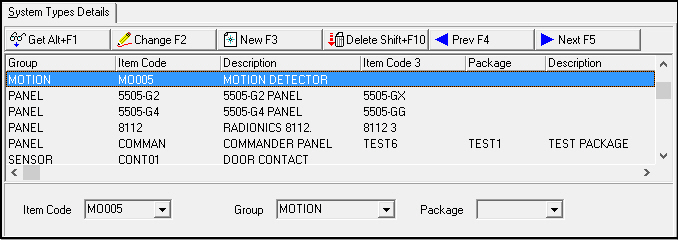
Use the System Types Details tab to define the items, item groups, and packages contained in the selected system type. The following graphic shows the System Types Details tab. The tab displays the details of the items included in the selected system type.
Field/Column Descriptions
The following table describes the fields and columns used in the System Types Details tab.
Field/Column |
Description |
Item Code |
Unique code that identifies the item. (This menu originates from program #1535.) |
Group |
You must select a Group for the item or package. This code separates the items or the packages into different tabs in the system window in Work Orders. (This menu originates from program #1764/08.) |
Package |
Code that identifies the packages to include in the system. When you choose a package as part of a system, all the items listed in the package appear in the work order when you save the system. (This menu originates from program #1777.) |
The Inclusion-Exclusion Management Tab
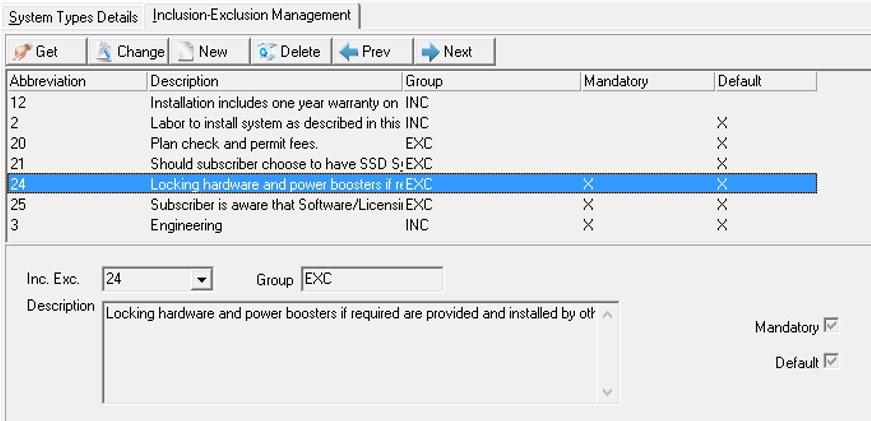
Inclusion-Exclusion Management tab allows two blocks of text to a printed Work Order. This is what the end-user will see. These blocks of text represent the "fine print" that would be seen on the Work Order. All records in the Inclusion-Exclusion Management tab should be defined in the Inclusion Exclusion Management program #2503.
Field/Column Descriptions
The following table describes the fields and columns used in the Inclusion-Exclusion tab.
Field/Column |
Description |
Inc. Exc. |
Abbreviation from top pane. (Defined in program #2503.) |
Group |
Populates with Inclusion or Exclusion from top pane. (Defined in program #2503.) |
Description |
Populates with a description from top pane as defined in program #2503. |
Mandatory |
Used on the Work Order. When checked, the current record must be added to the Work Order. |
Default |
Used on the Work Order. When checked, item will be selected to be added to the Work Order. (If Mandatory is checked then Default is checked.) |
Button Functions
The following table displays the buttons, describes the shortcut keys, actions, and functionality.
Button |
Name |
Shortcut Key |
Action |
Description |
|
Get |
ALT+F1 |
1883/ 1 |
Get record. |
|
Change |
F2 |
1883/ 2 |
Change selected record. |
|
New |
F3 |
1883/ 3 |
Create new record. |
|
Delete |
SHIFT+F10 |
1883/ 4 |
Delete selected record. |
|
Undelete |
ALT+F10 |
1883/ 5 |
Restore deleted record. |
|
CTRL+F8 |
1883/ 6 |
Print selected records. |
|
|
Zoom |
F10 |
1883/ 999 |
Zoom in/out of sublevel. |
|
Copy |
SHIFT+F3 |
1883/ 999 |
Copy selected system type. |
|
Tear |
F7 |
1883/ 999 |
Display system type details. |
|
Previous |
F4 |
1883/ 999 |
Select last record. |
|
Next |
F5 |
1883/ 999 |
Select next record. |











Modifications and Updates to System Types
The following table lists modifications and updates to the System Types document.
Mod Number |
Date |
Description |
n/a |
8/26/14 |
Images updated. |
08.88.11325, 07.88.25770, 08.88.11322, 07.88.25761 |
05/15/18 |
Images updated and new Inclusion-Exclusion tab added with new fields. |