
Installation Miscellaneous Fields
Installation Miscellaneous Fields
Installation Miscellaneous Fields
Program #: 1590
Module: System Administration
Overview
Use Installation Miscellaneous Fields (program #1590) to define and maintain miscellaneous installation fields and attach those fields to specific installations. The miscellaneous fields are company-specific, and may appear in the Data Entry Basics tab, depending on your company configuration.
To access this program, select Installation Miscellaneous Fields (program #1590) from the main menu of SBN.
The Installation Miscellaneous Fields Window
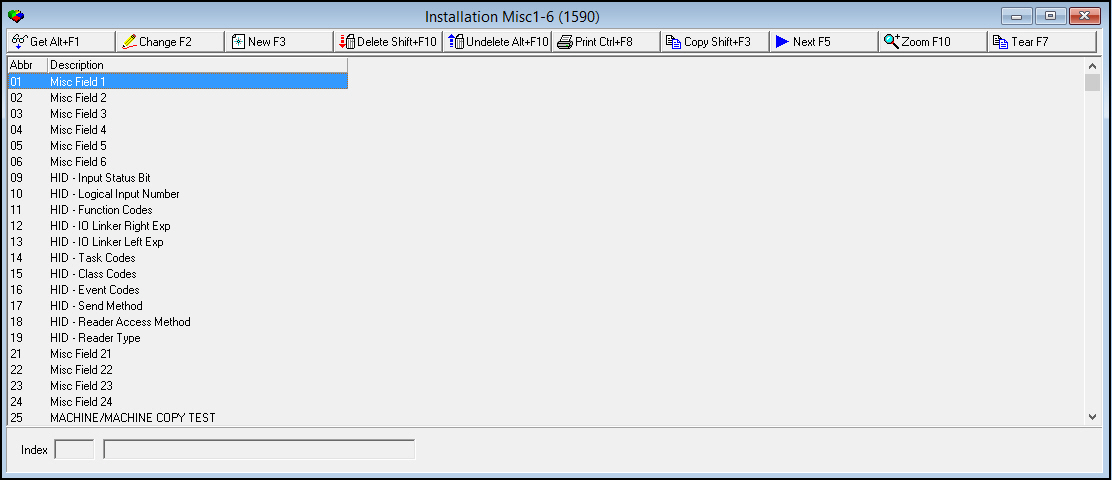
The following graphic shows Installation Miscellaneous Fields as the program opens. The upper pane displays all previously defined miscellaneous installation fields for your company.
Field/Column Descriptions
The following table describes the fields and columns used in Installation Miscellaneous Fields.
Field/Column |
Description |
Abbreviation / Index |
Identifies the indexed placement of the selected installation miscellaneous field. |
Description |
Text description of the selected installation miscellaneous field. |
Using Common Functions
See the reference document Common Functions in SBN for more information.
Zooming into the Sublevel of Installation Miscellaneous Fields
Installation Miscellaneous Fields contains a sublevel with two tabs:
The Installation Flag Detail tab - in which you can define and translate the installation flags to which the selected installation miscellaneous field is attached.
The Translations tab - in which you can translate the labels of the miscellaneous fields.
The Installation Flag Detail Tab
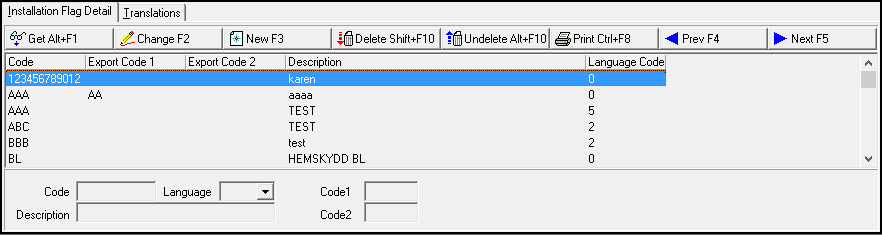
Use this tab to define and translate the installation flags to which the selected installation miscellaneous field is attached. You may add multiple translations of the same installation flag. For example, you may have several installation flags with the code DOG but with different language codes and descriptions.
The following graphic shows the Installation Flag Detail tab for the selected installation miscellaneous field. The tab displays previously defined and translated installation flags.
Field/Column Descriptions
The following table describes the fields and columns used in the Installation Flag Detail tab.
Field/Column |
Description |
Code |
Identifies the selected item in the menu for this field. O This field now accepts up to 10 characters. |
Language |
Select the language code to use with this flag. O Menus of installation flags include those flags whose language code matches the language code of the user. O If you leave this field blank, SBN enters 0. Installation Flags with a language code of 0 appear in the menu for the selected installation miscellaneous field for all users, regardless of the language code in their user profile. Note: Once a language has been selected for a line item, it cannot be changed. You must create a new line item, copying everything else in the original line item, with the language code you want. |
Code1 |
Company-defined export code for the selected item. |
Description |
Text description of the code. |
Code2 |
Company-defined export code for the selected item. |
The Translations Tab
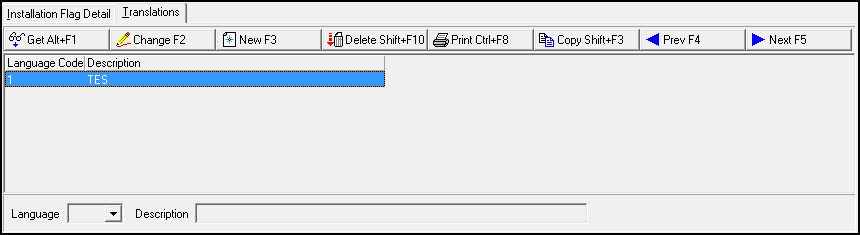
Use the Translations tab to translate the label of an installation miscellaneous field. The description of that field appears in the main tab of this program in the user’s language.
Note: Action 1590/20-24 control access to the Translations tab and its functions.
The following graphic shows the Translations tab. The tab displays previously defined translations of the field label.
Field/Column Descriptions
The following table describes the fields and columns used in the Translations tab.
Field/Column |
Description |
Language |
Code that identifies the language of the associated translation. O Contact IBS before using codes 11-17. |
Description |
Text description, in the associated language, of the selected installation miscellaneous field. |
Field Listings
Abbreviation |
Description |
Details |
01 |
Misc Field 1 |
This is a company-defined field. (55-character maximum.) |
02 |
Misc Field 2 |
This is a company-defined field. (55-character maximum.) |
03 |
Misc Field 3 |
This is a company-defined field. (55-character maximum.) |
04 |
Misc Field 4 |
Company-defined field; no functionality in SBN. Located in Contract Master, #548. This field accepts up to 50 characters. |
05 |
Misc Field 5 |
Company-defined field; no functionality in SBN. Located in Contract Master, #548. This field accepts up to 50 characters. |
06 |
Misc Field 6 |
GHQ Account number: text field. Located in Data Entry Master and Basics, #559. |
09 |
HID - Input Status Bit |
Human Interface Device - 2-digit status entry for leftside or rightside Boolean expressions. (Access Control - currently used by Company 105.) |
10 |
HID - Logical Input Number |
Human Interface Device - Choose a right logical input number, if needed. (Note: Access Control - currently used by Company 105.) |
11 |
HID - Function Codes |
Human Interface Device - Choose a function code for the interface panel from the drop-down menu. (Note: Access Control - currently used by Company 105.) |
12 |
HID - IO Linker Right Exp |
Human Interface Device - Rightside expression for I/O Linker Rules. (Note: Access Control - currently used by Company 105.) |
13 |
HID - IO Linker Left Exp |
Human Interface Device - Leftside expression for I/O Linker Rules. (Note: Access Control - currently used by Company 105.) |
14 |
HID - Task Codes |
Human Interface Device - Choose a task description for the selected message from the drop-down menu. (Note: Access Control - currently used by Company 105.) |
15 |
HID - Class Codes |
Human Interface Device - Codes associated with the selected information for tracking services provided or other customer-specific information. (Note: Access Control - currently used by Company 105.) |
16 |
HID - Event Codes |
Human Interface Device - Choose an event code for the selected message from the drop-down menu. (Note: Access Control - currently used by Company 105.) |
17 |
HID - Send Method |
Human Interface Device - Indicates the method by which messages are sent to the host. (Note: Access Control - currently used by Company 105.) |
18 |
HID - Reader Access Method |
Human Interface Device - Indicates the method by which a card or PIN reader sends messages to the host. (Note: Access Control - currently used by Company 105.) |
19 |
HID - Reader Type |
Human Interface Device - Indicates the type of card or pin reader being used. (Note: Access Control - currently used by Company 105.) |
21 |
Misc Field 21 |
Company-defined field; no functionality in SBN. (This field is in Data Entry Master and Basics, #559.) |
22 |
Misc Field 22 |
Company-defined field; no functionality in SBN. (This field is in Data Entry Master and Basics, #559.) |
23 |
Misc Field 23 |
Company-defined field; no functionality in SBN. This menu originates from program #1771. (This field is in Data Entry Master and Basics, #559.) |
24 |
Misc Field 24 |
Not currently used. |
25 |
MACHINE/MACHINE COPY TEST |
Not currently used. |
26 |
Misc Field 26 |
Not currently used. |
27 |
Export 133 Company IDs |
Not currently used. |
28 |
User Department |
You may select a Send-To Department that SBN uses for Communication Log (program #1888) entries that are created when you use the selected reason code in the Linked Billing Accounts tab of program #548. This field contains the department the entry in the Communication Log is sent to for further action, if any. (This field is in Link/Unlink Reasons, program 1662.) |
31 |
Mail Group 1 |
The first mailing group in Data Entry. (Data Entry Master and Basics; program #559.) |
32 |
Mail Group 2 |
The second mailing group in Data Entry. (Data Entry Master and Basics; program #559) |
33 |
Maintenance Type |
Maintenance type for installations with a maintenance contract or scheduled service. (Installation Services, program #1555). |
34 |
Maintenance Frequency (102) |
Lists the frequency of maintenance visits in months for an installation. (Data Entry Master and Basics, program #559) |
35 |
Notif |
Notification code of the selected CID. (Data Entry Master and Basics, program #559) |
38 |
Misc Field 38 |
Company-defined field; no functionality in SBN. Note: This menu may include a value that, when selected, blocks VRU access to this installation. |
39 |
Certificates Report formal selections (2193) |
Prints certificates for CIDs. (Certificates Report, program #2193) |
40 |
Install Component State |
Current state of the installed item. (Data Entry Master and Basics, program #559, Installed Components Tab) |
41 |
Install Component key type |
Selects the component key type to be displayed in the comment column of the Alarm Log tab. (Installed Components tab in Data Entry Master and Basics, program #559) |
42 |
559 Subtype combo field (misc75) |
Customer-defined field; no functionality in SBN. This field is found in Data Entry Master and Basics, program #559. |
43 |
559 combo field (misc76) |
Customer-defined field; no functionality in SBN. Note: If you define a default value for this field in program #1843, you must select the Protect If Filled check box as well. Otherwise, SBN displays an 'Invalid Entry' message when you attempt to save changes in program #559. |
45 |
Misc Field 35 |
Not currently used. |
46 |
Remote Agency Dispositions |
Defines the menu of the Cause Code field. (Callout Log Report, program #2167) |
47 |
Remote Agency Actions |
Field displays a cause code when selecting Fire, Medical, Patrol, or Police in the Agency Type dropdown menu. (Call Out Log, #705) |
48 |
Misc Field 40 |
Use this field in program #559 to type a web address that users can view from the Alarm Log when they choose Get HTTP. (This field accepts up to 160 characters.) |
49 |
Misc 33 |
Not currently used. |
50 |
Installed Components Types |
Type of installed component. (Found in the Installed Components section of #559.) |
51 |
Installed Components Sources |
Identifies the source that generated the item information. (Found in the Installed Components section of #559.) |
52 |
Misc Field 63 |
Company-defined field; no functionality in SBN. |
53 |
Misc Field 64 |
Company-defined field; no functionality in SBN. |
54 |
HID - Reader Antipassback |
Anti-passback type. Select an APB output type from the drop-down menu. (Note: Currently used by Company 105.) |
55 |
HID - Reader Antipassback action |
Action to take if an anti-passback or area violation is detected. Select an APB action from the drop-down menu. (Note: Currently used by Company 105.) |
56 |
HID - Interface Panel Type |
Defines the name of the hex firmware file associated with each type of interface panel, as well as the name of a file containing common memory addresses. Define a panel type by selecting from the drop-down menu. (Note: Currently used by Company 105.) |
57 |
HID - Message delimiters |
Select a message delimiter from the drop-down menu (Note: Currently used by Company 105.) |
58 |
Export 133 Company IDs |
Dropdown menu for Company IDs for Export 133 reports; was used in Invoice Manager, #1557. |
59 |
Export 133 Header |
Dropdown menu for headers for Export 133 reports; was used in Invoice Manager, #1557. |
60 |
Asset Adjustment Reasons |
Reason for the value adjustment. (Asset Management, #603) |
62 |
Arm Types |
This menu appears in the Send Command dialog box of Program #1598 when a user chooses the Arm command for a Vista panel. |
63 |
Zone States |
This menu appears in the Send Command dialog box of Program #1598 when a user chooses the Zone Info command for a Vista panel. |
64 |
IVR Event Parm |
Not currently used. |
66 |
Credit Results |
This dropdown menu allows you to modify the final result of the credit score. The choices include "APPROVED," "CREDIT HOLD," "CREDIT REFUSED," "DECLINED," "EMPTY," "FROZEN," and "NO HIT". (Found in #1674.) |
67 |
(blank) |
Not currently used. |
75 |
Svc Request Choice |
Choice dropdown menu in Service Log tab of Data Entry and Basics, #559. |
76 |
Offer Form No. |
Form dropdown menu in Offers, #1665. |
77 |
Offer Reasons |
Select a reason code for the offer you want to add. (Contract Master, program #548, Customer Offers Tab) This field is client-specific for Company 106. |
80 |
CS Basics Class1 1 |
This is one of 10 codes in this class from the drop-down menus for tracking services provided or other customer-specific information. (This is located in the Customer Service Basics tab of Data Entry, #559.) |
81 |
CS Basics Class1 2 |
This is one of 10 codes in this class from the drop-down menus for tracking services provided or other customer-specific information. (This is located in the Customer Service Basics tab of Data Entry, #559.) |
82 |
CS Basics Class1 3 |
This is one of 10 codes in this class from the drop-down menus for tracking services provided or other customer-specific information. (This is located in the Customer Service Basics tab of Data Entry, #559.) |
83 |
CS Basics Class1 4 |
This is one of 10 codes in this class from the drop-down menus for tracking services provided or other customer-specific information. (This is located in the Customer Service Basics tab of Data Entry, #559.) |
84 |
CS Basics Class1 5 |
This is one of 10 codes in this class from the drop-down menus for tracking services provided or other customer-specific information. (This is located in the Customer Service Basics tab of Data Entry, #559.) |
85 |
CS Basics Class1 6 |
This is one of 10 codes in this class from the drop-down menus for tracking services provided or other customer-specific information. (This is located in the Customer Service Basics tab of Data Entry, #559.) |
86 |
CS Basics Class1 7 |
This is one of 10 codes in this class from the drop-down menus for tracking services provided or other customer-specific information. (This is located in the Customer Service Basics tab of Data Entry, #559.) |
87 |
CS Basics Class1 8 |
This is one of 10 codes in this class from the drop-down menus for tracking services provided or other customer-specific information. (This is located in the Customer Service Basics tab of Data Entry, #559.) |
88 |
CS Basics Class1 9 |
This is one of 10 codes in this class from the drop-down menus for tracking services provided or other customer-specific information. (This is located in the Customer Service Basics tab of Data Entry, #559.) |
89 |
CS Basics Class1 10 |
This is one of 10 codes in this class from the drop-down menus for tracking services provided or other customer-specific information. (This is located in the Customer Service Basics tab of Data Entry, #559.) |
90 |
CS Basics Class2 1 |
This is one of 10 codes in this class from the drop-down menus for tracking services provided or other customer-specific information. (This is located in the Customer Service Basics tab of Data Entry, #559.) |
91 |
CS Basics Class2 2 |
This is one of 10 codes in this class from the drop-down menus for tracking services provided or other customer-specific information. (This is located in the Customer Service Basics tab of Data Entry, #559.) |
92 |
CS Basics Class2 3 |
This is one of 10 codes in this class from the drop-down menus for tracking services provided or other customer-specific information. (This is located in the Customer Service Basics tab of Data Entry, #559.) |
93 |
CS Basics Class2 4 |
This is one of 10 codes in this class from the drop-down menus for tracking services provided or other customer-specific information. (This is located in the Customer Service Basics tab of Data Entry, #559.) |
94 |
CS Basics Class2 5 |
This is one of 10 codes in this class from the drop-down menus for tracking services provided or other customer-specific information. (This is located in the Customer Service Basics tab of Data Entry, #559.) |
95 |
CS Basics Class2 6 |
This is one of 10 codes in this class from the drop-down menus for tracking services provided or other customer-specific information. (This is located in the Customer Service Basics tab of Data Entry, #559.) |
96 |
CS Basics Class2 7 |
This is one of 10 codes in this class from the drop-down menus for tracking services provided or other customer-specific information. (This is located in the Customer Service Basics tab of Data Entry, #559.) |
97 |
CS Basics Class2 8 |
This is one of 10 codes in this class from the drop-down menus for tracking services provided or other customer-specific information. (This is located in the Customer Service Basics tab of Data Entry, #559.) |
98 |
CS Basics Class2 9 |
This is one of 10 codes in this class from the drop-down menus for tracking services provided or other customer-specific information. (This is located in the Customer Service Basics tab of Data Entry, #559.) |
99 |
CS Basics Class2 10 |
This is one of 10 codes in this class from the drop-down menus for tracking services provided or other customer-specific information. (This is located in the Customer Service Basics tab of Data Entry, #559.) |
100 |
CS Basics Class3 1 |
This is one of 10 codes in this class from the drop-down menus for tracking services provided or other customer-specific information. (This is located in the Customer Service Basics tab of Data Entry, #559.) |
101 |
CS Basics Class3 2 |
This is one of 10 codes in this class from the drop-down menus for tracking services provided or other customer-specific information. (This is located in the Customer Service Basics tab of Data Entry, #559.) |
102 |
CS Basics Class3 3 |
This is one of 10 codes in this class from the drop-down menus for tracking services provided or other customer-specific information. (This is located in the Customer Service Basics tab of Data Entry, #559.) |
103 |
CS Basics Class3 4 |
This is one of 10 codes in this class from the drop-down menus for tracking services provided or other customer-specific information. (This is located in the Customer Service Basics tab of Data Entry, #559.) |
104 |
CS Basics Class3 5 |
This is one of 10 codes in this class from the drop-down menus for tracking services provided or other customer-specific information. (This is located in the Customer Service Basics tab of Data Entry, #559.) |
105 |
CS Basics Class3 6 |
This is one of 10 codes in this class from the drop-down menus for tracking services provided or other customer-specific information. (This is located in the Customer Service Basics tab of Data Entry, #559.) |
106 |
CS Basics Class3 7 |
This is one of 10 codes in this class from the drop-down menus for tracking services provided or other customer-specific information. (This is located in the Customer Service Basics tab of Data Entry, #559.) |
107 |
CS Basics Class3 8 |
This is one of 10 codes in this class from the drop-down menus for tracking services provided or other customer-specific information. (This is located in the Customer Service Basics tab of Data Entry, #559.) |
108 |
CS Basics Class3 9 |
This is one of 10 codes in this class from the drop-down menus for tracking services provided or other customer-specific information. (This is located in the Customer Service Basics tab of Data Entry, #559.) |
109 |
CS Basics Class3 10 |
This is one of 10 codes in this class from the drop-down menus for tracking services provided or other customer-specific information. (This is located in the Customer Service Basics tab of Data Entry, #559.) |
110 |
CS Basics Class4 1 |
This is one of 10 codes in this class from the drop-down menus for tracking services provided or other customer-specific information. (This is located in the Customer Service Basics tab of Data Entry, #559.) |
111 |
CS Basics Class4 2 |
This is one of 10 codes in this class from the drop-down menus for tracking services provided or other customer-specific information. (This is located in the Customer Service Basics tab of Data Entry, #559.) |
112 |
CS Basics Class4 3 |
This is one of 10 codes in this class from the drop-down menus for tracking services provided or other customer-specific information. (This is located in the Customer Service Basics tab of Data Entry, #559.) |
113 |
CS Basics Class4 4 |
This is one of 10 codes in this class from the drop-down menus for tracking services provided or other customer-specific information. (This is located in the Customer Service Basics tab of Data Entry, #559.) |
114 |
CS Basics Class4 5 |
This is one of 10 codes in this class from the drop-down menus for tracking services provided or other customer-specific information. (This is located in the Customer Service Basics tab of Data Entry, #559.) |
115 |
CS Basics Class4 6 |
This is one of 10 codes in this class from the drop-down menus for tracking services provided or other customer-specific information. (This is located in the Customer Service Basics tab of Data Entry, #559.) |
116 |
CS Basics Class4 7 |
This is one of 10 codes in this class from the drop-down menus for tracking services provided or other customer-specific information. (This is located in the Customer Service Basics tab of Data Entry, #559.) |
117 |
CS Basics Class4 8 |
This is one of 10 codes in this class from the drop-down menus for tracking services provided or other customer-specific information. (This is located in the Customer Service Basics tab of Data Entry, #559.) |
118 |
CS Basics Class4 9 |
This is one of 10 codes in this class from the drop-down menus for tracking services provided or other customer-specific information. (This is located in the Customer Service Basics tab of Data Entry, #559.) |
119 |
CS Basics Class4 10 |
This is one of 10 codes in this class from the drop-down menus for tracking services provided or other customer-specific information. (This is located in the Customer Service Basics tab of Data Entry, #559.) |
120 |
CS Basics Activity |
Saving information in the CS Basics tab of Data Entry, #559, automatically creates a new Communication Log entry. The number of the Communication Log entry appears in the main Data Entry pane to the right of Checkbox 1 in blue: you may click on this blue Comm. Log number in Data Entry to open and view the entry in the Communication Log. |
121 |
eDispatch Alarm Types |
Select a code from the drop-down menu in Zone Types, #1733, to make the zone type eligible for eDispatch alarm handling by a PSAP (Public Safety Answering Point) outside of SBN. |
122 |
CS Basics - Textbox 11 |
Making a selection in this dropdown menu in Data Entry, #559, will enter the same selection into the Textbox 11 field in the CS Basics tab. |
123 |
ta_basic Shopper's Gender |
Gender dropdown menu in the Basics tab of Marketing, #562. |
124 |
Required Department |
Department field in Service Log Tab of Data Entry Master and Basics, #559. |
125 |
Agency Update Status (Intrado) |
Police/Fire/Medical Status dropdown menus in the PSAP Queue tab in PSAP Interface Queue, #1659. |
126 |
Installation Status (Intrado) |
Installation Status dropdown menu in the PSAP Queue tab in PSAP Interface Queue, #1659. |
127 |
Verification Message (Intrado) |
Verification Status dropdown menu in the PSAP Queue tab in PSAP Interface Queue, #1659. |
128 |
PSAP status (Intrado) |
Monitoring status for which you want to search, from the PSAP Interface Queue, #1659. This field accepts wildcard characters. (This menu originates from program #1540.) Note: This drop-down menu only displays monitoring statuses that have the Include in PSAP check box selected in program #1540. |
131 |
SMS Message Hooks |
SMS Messages Hooks to store generic message list. |
132 |
Phasing Groups |
Phasing Groups 1-10. These populate the Group Picklist for Installation Phasing (#1846) and allow a group number 1-10 to be assigned to phases. If there is no group, the group number is 0. |
133 |
Text Titles |
Used in Temp Text to pre-define titles for Temp Text in program #559 |
Button Functions
The following table displays the buttons, describes the shortcut keys, actions, and functionality.
Button |
Name |
Shortcut Key |
Action |
Description |
|
Get |
ALT+F1 |
1590/ 1 |
Get record. |
|
Change |
F2 |
1590/ 2 |
Change selected record. |
|
New |
F3 |
1590/ 3 |
Create new record. |
|
Delete |
SHIFT+F10 |
1590/ 4 |
Delete selected record. |
|
Undelete |
ALT+F10 |
1590/ 5 |
Restore deleted record. |
|
CTRL+F8 |
1590/ 6 |
Print selected records. |
|
|
Copy |
SHIFT+F3 |
1590/3 |
Copies the current record. |
|
Next |
F5 |
1590/1 |
Select next record. |
|
Zoom |
F10 |
1590/10 |
Zoom in/out of sublevel. |
|
Tear |
F7 |
1590/10 |
Open the Details tab in a full-sized separate window. |
Installation Flag Detail |
||||
|
Get |
ALT+F1 |
1590/11 |
Get record. |
|
Change |
F2 |
1590/12 |
Change selected record. |
|
New |
F3 |
1590/13 |
Create new record. |
|
Delete |
SHIFT+F10 |
1590/14 |
Delete selected record. |
|
Undelete |
ALT+F10 |
1590/15 |
Restore deleted record. |
|
CTRL+F8 |
1590/16 |
Print selected records. |
|
|
Previous |
F4 |
1590/11 |
Select previous record. |
|
Next |
F5 |
1590/11 |
Select next record. |
Translations |
||||
|
Get |
ALT+F1 |
1590/21 |
Get record. |
|
Change |
F2 |
1590/22 |
Change selected record. |
|
New |
F3 |
1590/23 |
Create new record. |
|
Delete |
SHIFT+F10 |
1590/24 |
Delete selected record. |
|
CTRL+F8 |
1590/21 |
Print selected records. |
|
|
Copy |
SHIFT+F3 |
1590/23 |
Copies the current record. |
|
Previous |
F4 |
1590/21 |
Select previous record. |
|
Next |
F5 |
1590/21 |
Select next record. |











Modifications and Updates to Installation Miscellaneous Fields
The following table lists modifications and updates to the Installation Miscellaneous Fields document.
Mod Number |
Date |
Description |
n/a |
06/18/14 |
Added notice about being unable to change the language for an existing line item. |
n/a |
07/22/14 |
Created new Field Listings table to track known locations and contents of Misc Fields entries. |
n/a |
09/16/14 |
Images updated. |
07.92.26507, 08.92.11905, 07.92.26520, 08.92.11914 |
10/15/20 |
New Abbreviation 132 - Phasing Groups. |
08.93.12292, 08.93.12274, 07.93.27077 |
01/11/23 |
Re-design of Temp Text |
F1 Help
| Delphi Forms | rcalloutform |
| Program Numbers | 2167 |