
Schedule Capacity Report
Schedule Capacity Report
Schedule Capacity Report
Report #: 2054
Module: Account Generation
Overview
Use the Schedule Capacity Report to print schedules for:
Technicians
Installers
Sales persons
User’s branch restrictions apply.
To access this report, select Schedule Capacity Report (report #2054) from the main menu of SBN.
The Schedule Capacity Report
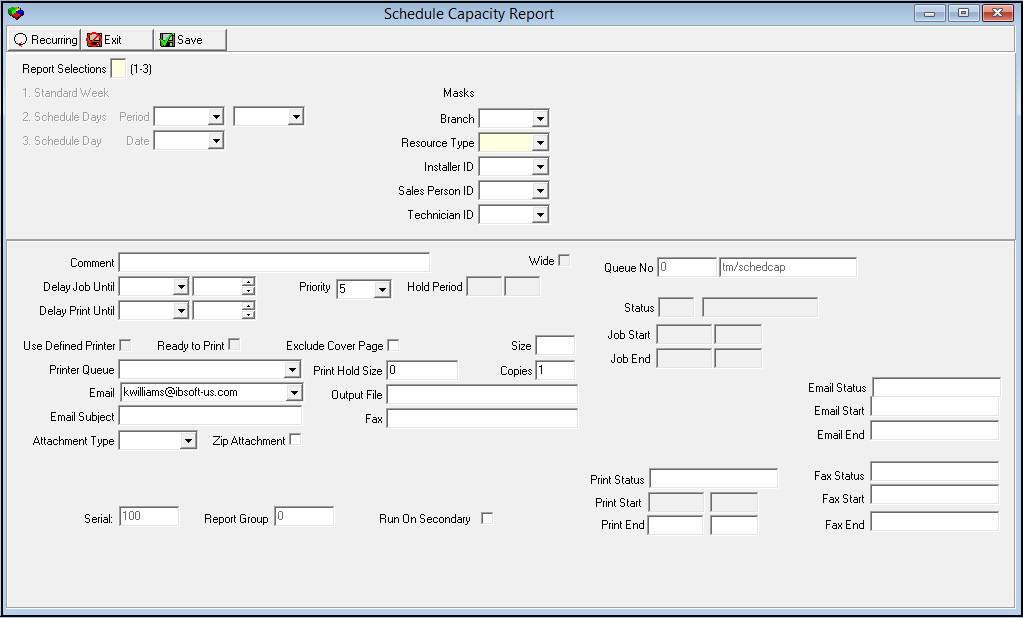
This window contains two panes: use the upper pane to define the contents of the report; use the lower pane to define the job output - how, when, and where you want the report printed.
Note: See Report Parameters Pane for information on the fields in the lower pane, which are the same in every report.
Field Descriptions
The following table describes the fields used in the upper pane of this report.
Field |
Description |
Report Selection |
Type the type of schedule report to run and press [TAB]: l 1 = Standard Week l 2 = Schedule Days l 3 = Schedule Day |
Period |
If you typed 2 in Report Selection and pressed [TAB], these fields open. Select the beginning and ending dates of a range of schedule dates. |
Date |
If you typed 3 in Report Selection and pressed [TAB], this field opens. Select the schedule date. |
Masks |
|
Branch |
You may select a branch to limit the report to schedules for that branch. (This menu originates from program #1530.) |
Resource Type |
You must select a resource type to limit the report to schedules for that resource type: l Installer l Sales Person l Technician |
Installer |
You may select an installer ID to limit the report to schedules for that installer. (This menu originates from program #1543.) O If you leave this field blank, the report includes all installer IDs. |
Sales Person ID |
You may select a sales person ID to limit the report to schedules for that sales person. (This menu originates from program #1539.) O If you leave this field blank, the report includes all sales person IDs. |
Technician ID |
You may select a technician ID to limit the report to schedules for that technician. (This menu originates from program #1864.) O If you leave this field blank, the report includes all technician IDs. |
Running and Viewing a Report
For information on running and viewing a report, see Common Functions in SBN.
Report Example 1
Standard Week
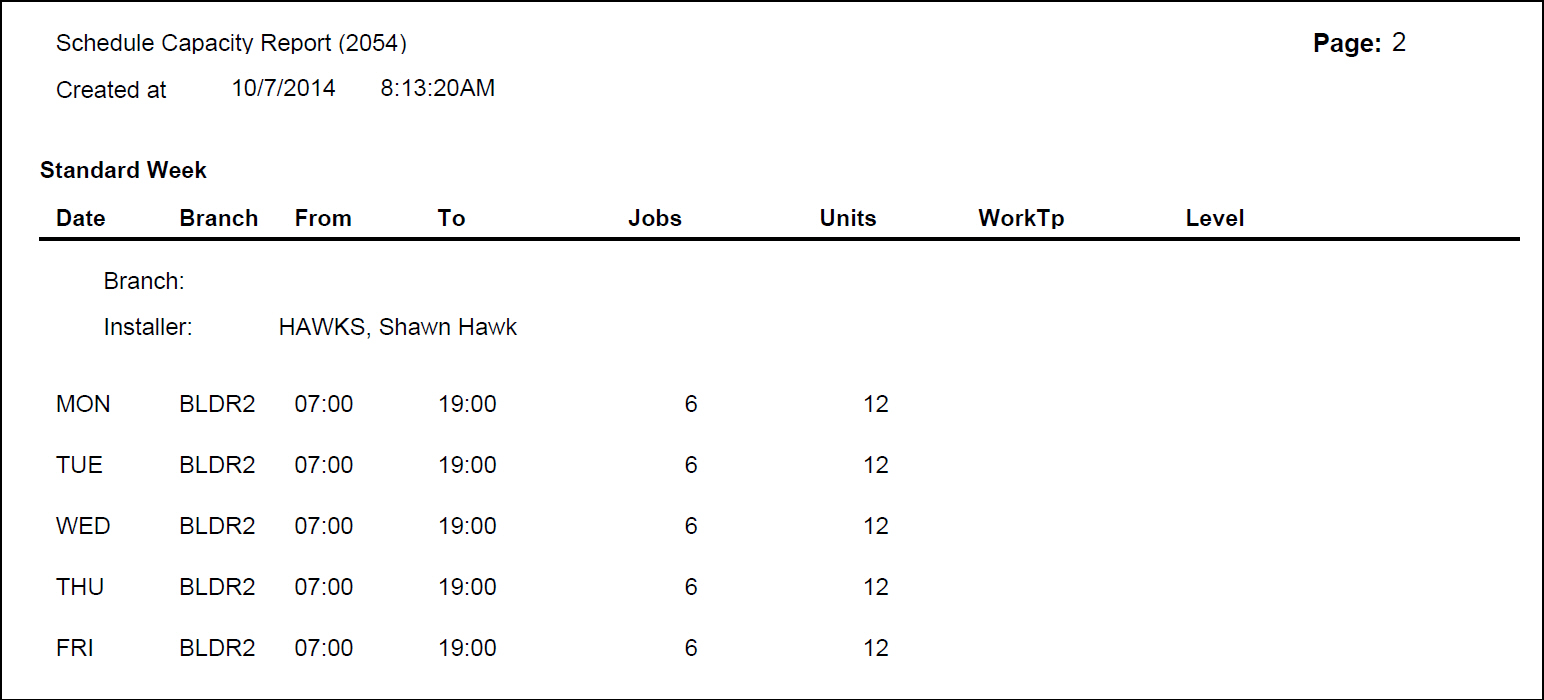
The following graphic shows an example of the Standard Week output of this report.
Column Descriptions 1
The following table describes the columns used in the Standard Week output of the report.
Column |
Description |
Branch |
Displays the default branch ID. |
Dynamic label |
Displays the resource type, resource ID, and resource name. |
Day |
Each day of the week that the resource is available. |
Branch |
Branch for which the resource is available. O If the resource is available to more than one branch, the report displays each branch. |
From / To |
The beginning and ending times that the resource is available for the selected branch. |
Jobs |
Number of jobs that can normally be completed in the time period for the selected branch. |
Units |
Number of units that can normally be completed in the time period for the selected branch. |
WorkTp |
Type of work to schedule in the time period for the selected branch. |
Level |
Not currently functional. |
Report Example 2
Schedule Days
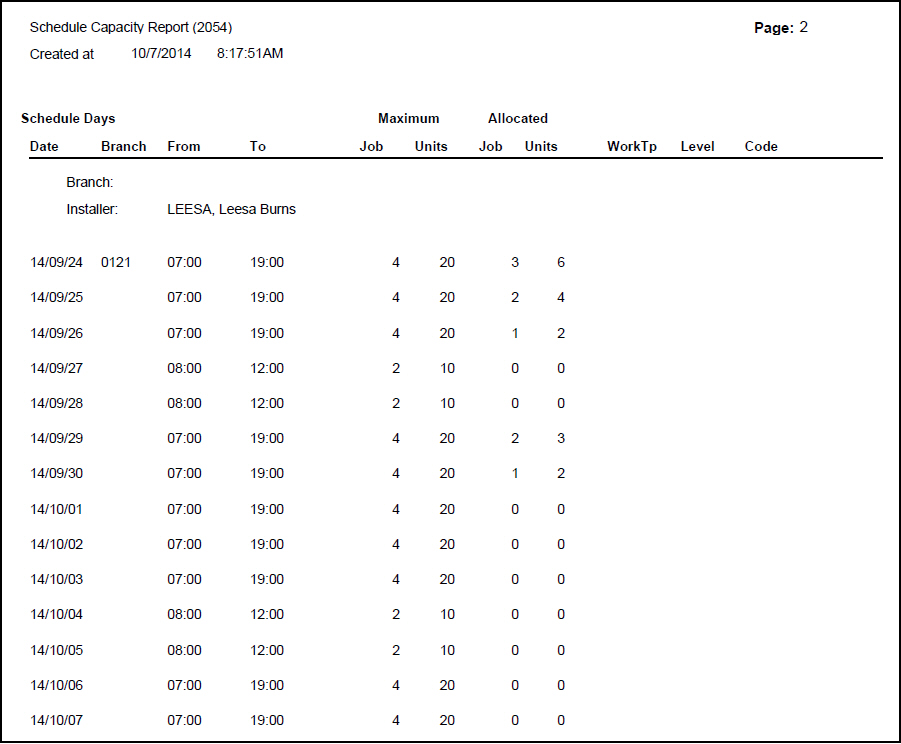
The following graphic shows an example of the Schedule Days output of this report.
Column Descriptions 2
The following table describes the columns used in the Schedule Days output of the report.
Column |
Description |
Branch |
Displays the default branch ID. |
Dynamic label |
Displays the resource type, resource ID, and resource name. |
Date |
Date on which the resource is available. |
Branch |
Branch for which the resource is available. O If the resource is available to more than one branch, the report displays each branch. |
From / To |
The beginning and ending times that the resource is available for the selected branch. |
Maximum Jobs |
Number of jobs that can normally be completed in the time period for the selected branch. |
Maximum Units |
Number of units that can normally be completed in the time period for the selected branch. |
Allocated Jobs |
Number of allocated jobs for the date and branch. |
Allocated Units |
Number of allocated units for the date and branch. |
WorkTp |
Type of work to schedule in the time period for the selected branch. |
Level |
Not currently functional. |
Code |
Not currently functional. |
Report Example 3
Schedule Day
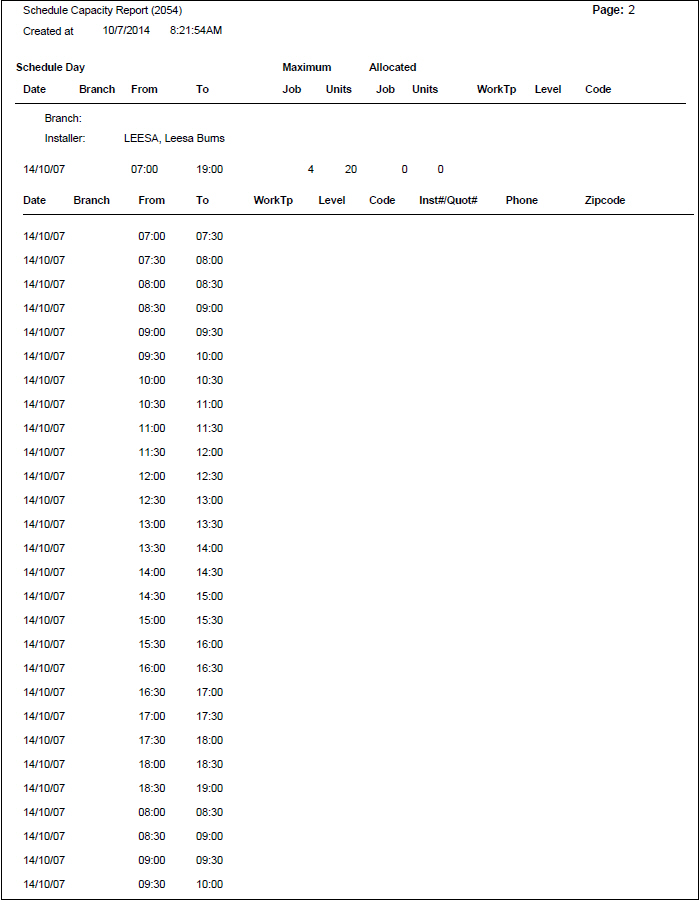
The following graphic shows an example of the Schedule Day output of this report.
Column Descriptions 3
The following table describes the columns used in the Schedule Day output of the report.
Column |
Description |
Date |
Date to which the following schedule applies. |
Branch |
Branch for which the resource is available. O If the resource is available to more than one branch, the report displays each branch. |
From To |
The beginning and ending times that the resource is available for the selected branch. |
WorkTp |
Type of work the resource may perform. |
Lev |
Not currently functional. |
Cd |
If this column displays an X, a job is scheduled for the time slot. If this column displays a work order number, the resource is not available during the time period. |
Inst# / Quot# |
Installation number or quote number for the scheduled job, if applicable. |
Phone |
Phone number for the scheduled job, if applicable. |
Zipcode |
Zip code for the scheduled job, if applicable. |
Button Functions
The following table displays the buttons, describes the shortcut keys, actions, and functionality.
Button |
Name |
Shortcut Key |
Action |
Description |
|
Open fields for recurring/template reports |
alt+f1 |
Open fields for recurring/template reports. |
|
|
Exit without saving |
esc |
Exit without saving changes to selected record. |
|
|
Save Existing Record |
enter |
Save changes to selected record. |



Modifications and Updates to Schedule Capacity Report
The following table lists modifications and updates to the Schedule Capacity Report document.
Mod Number |
Date |
Description |
n/a |
07/15/14 |
Images updated. |