
Action Profiles
Action Profiles
Action Profiles
Module: System Administration
Overview
Use Action Profiles to create profiles that restrict or allow users to access specific programs and functions. Usually, you define these profiles by job responsibilities, such as Monitoring Operators, Data Entry Supervisors, Collectors, or Telemarketers, and then attach the job responsibilities to each user profile.
Every SBN menu and menu item has an associated action number that you can disable or enable for a user’s action profile. SBN dynamically updates the main menu available to users when they log in based on the actions included in the user’s action profile. To access specific programs, users must also have access to the menus leading to the program, or the use of the Get Program function. You can also control access within each program. To see the details for the profile, choose Zoom.
SBN has two predefined action profiles - ALL and CSSA. The ALL profile provides access to every function in SBN, so you should assign the ALL profile to the person who sets up SBN. Because the ALL profile provides global access to SBN, assign it to users very carefully. (The name ALL is controlled through option allact. SBN only allows users with the ALL profile assigned in the Users tab of program #1811 to make changes to the ALL profile. If a user that does not have the ALL profile assigned attempts to make changes to it, SBN displays an error message.)
Note: Users can only grant access and revoke access to actions in program #1502 included in the action profiles assigned to their user ID in the Users tab of program #1811. If a user attempts to grant or revoke access to an action that is not included in one of their action profiles, SBN displays an error message stating that the user does not have authorization for that action.
If a user has only one action profile assigned in the Users tab of program #1811 and revokes access to an action in that profile, that user can no longer grant or revoke access to that action. Therefore, IBS recommends that a high level system administrator create a "Company ALL" profile that is a duplicate of the ALL profile defined by option allact, and assign both the "Company ALL" profile and the ALL profile defined by option allact to himself/herself in program #1811. This prevents this system administrator from revoking access to an action in the "Company ALL" profile and being completely restricted from granting and revoking access to that action.
The CSSA (Central Station System Administrator) profile is the initial login profile for first access to SBN. This profile provides access to the main features, including setting up profiles.
To access this program, select Actions (program #1502) from the main menu of SBN.
Note: Action 559/700 allows you to control department and user mode in the Communication Log (program #1888). When the action is on, you can toggle between all the departments assigned to you.
Note: Action 299 - SBN Super User allows only users with ALL Profile to assign the ALL Profile. This action is defined by Option "allact" – Name of action profile containing all actions. In Program #1811 – Personnel and Program #1501 User the ALL Profile will only be visible in the Action Picklist to user assigned the ALL Profile.
The Action Profiles Window
When you access Action Profiles, the window displays a list of previously defined profiles. When you set up SBN, select the ALL profile to access all areas.
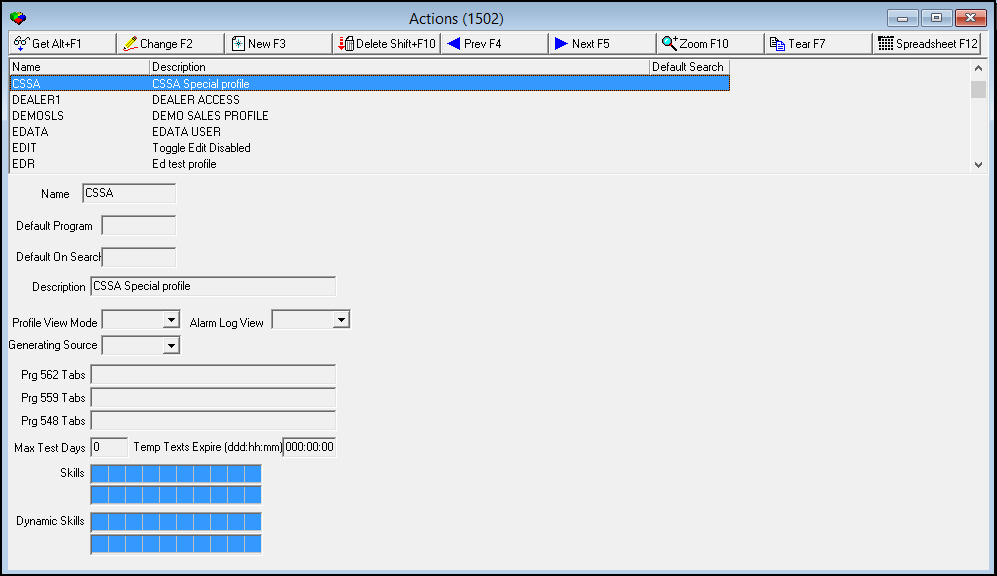
Field/Column Descriptions
The following table describes the fields and columns used in the main window of Action Profiles.
Field/Column |
Description |
Name |
Name of the action profile. |
Default Program |
Program number that SBN opens up to upon initial login. |
Description |
Description of the action profile. |
Default on Search |
Program number that automatically opens after performing a search. |
Profile View Mode |
Select an action profile view mode from the drop-down menu. |
Alarm Log View |
Define the default view for the Alarm Log for the selected action profile. Select one of the view types from the drop-down menu. Note: If you make change to this field, you must log off and log back on to SBN for changes to apply. |
Generating Source |
Select a generating source code to attach to the action profile. (This menu originates from program #1518.) Note: When you go to the Communication Log (program #1888) from no specific program and choose New, the Generating Source field in the Communication Log Details window defaults to the code defined in this field. If you go to the Communication Log from a program that already has a default generating source code, SBN does not use the code in this field. Note: If you make change to this field, you must log off and log back on to SBN for changes to apply. |
Prg 562 Tabs |
You may enter a series of numbers in this field to customize the order of the program tabs in Marketing (program #562) for users with the selected action profile. The numbers to identify the tabs are: 01 Basics (cannot be moved), 02 TM Queue, 03 Event Log, 04 Work Orders, 05 Referral, 06 Referral Log. For example, enter 05 03 02 to make the Referral tab appear second, Event Log tab third, and the TM Queue tab fourth. The order of the Basics tab cannot be changed; it always appears first. SBN will display the tabs you do not enter here to the right of the specified tabs in default order when you open Marketing. Note: If you leave this field blank, the tab order entered for the value of option tatab determines the order in which the Marketing tabs appear. If option tatab is blank, the tabs appear in the default order. |
Prg 559 Tabs |
You may enter a series of numbers in this field to customize the order of the program tabs in Data Entry (program #559) for users with the selected action profile. The numbers to identify the tabs are: 01 Basics (cannot be moved), 04 Dispatch, 05 Alarm Queue, 06 Zones, 07 Cameras, 08 Action Plans, 09 Notification (appears if option sdi002 is on), 10 Notify Account (appears if option sdi002 is on), 11 O/C Schedule, 12 Inspections, 13 Alarm Log, 14 Customer Specific (appears if option sdi002 is on), 15 Service Log, 16 O/C Log, 17 Change Log, 18 Texts, 19 Insert Test, 20 O/C Status, 21 Test Queue, 22 Service Aging, 23 Work Orders, 24 Internet Log, 25 Floor Plans, 26 Phasing, 27 SIM Phone, 28 Installed Components, 29 Pending Service, 30 Access Control. (The Overflow and CS Basics tabs, formerly tabs 02 and 03, have been removed. SBN ignores these numbers if you enter them in this field.) For example, enter 04 08 13 to make the Dispatch tab appear second, Action Plans tab third, and the Alarm Log tab fourth. The order of the Basics tab cannot be changed; it always appears first. SBN will display the tabs you do not enter here to the right of the specified tabs in default order when you open Data Entry. Note: If you leave this field blank, the tab order entered for the value of option detab determines the order in which the Data Entry tabs appear. If option detab is blank, the tabs appear in the default order. |
Prg 548 Tabs |
You may enter a series of numbers in this field to customize the order of the program tabs in Contract Master (program #548) for users with the selected action profile. The numbers to identify the tabs are: 01 Work Orders, 02 Collections, 03 Account Adjustments, 04 Account Change Log, 05 Contract Search, 06 Installation Data, 07 Miscellaneous Fields, 08 Invoice Status, 09 Payment Status, 10 Contract Change Log, 11 Contracts on Account, 12 Cycle Fee Change Log, 13 Cycle Fees, 14 Contract Texts, 15 Payment Methods, 16 Linked Billing Accounts, 17 Reminder Log, 18 Financed Work Orders. For example, enter 02 08 13 to make the Collections tab appear first, Invoice Status tab second, and the Cycle Fees tab third. SBN will display the tabs you do not enter here to the right of the specified tabs in default order when you open Contract Master. Note: If you leave this field blank, the tab order entered for the value of option cmtab determines the order in which the Contract Master tabs appear. If option cmtab is blank, the tabs appear in the default order. |
Max Test Days |
Maximum number of days that a user with the selected action profile can put an installation into Test or Runaway mode in the Insert Test tab of program #559. (SBN enters in this field by default, which allows users to put installations in Test/Runaway for an unlimited period.) Note: If your user ID has multiple action profiles assigned, SBN uses the action profile with the highest number of Max Test Days to determine how long you can put an installation into Test or Runaway mode. |
Temp Texts Expire |
Number of days, hours, and minutes that a user with this action profile can make temporary text valid in the Texts tab of program #559. When option ba508 is on, SBN displays an error message if you set temporary text to expire after the number of days, hours, and minutes set in the Temp Texts Expire field for your action profile. When option ba508 is off or when the value in this field is 000:00:00, SBN allows you to set temporary text to expire after any length of time. Note: The maximum time allowed for temporary text in the Texts tab of program #559 is calculated from the current time, not from the Start Date/Time in the Texts tab when option ba508 is on. |
Skills |
Set of up to 20 skills for the selected action profile that determine which alarms users with the action profile see in the Alarm Queue and can handle in Dispatch (program #537). (These menus originate from program #1862.) |
Dynamic Skills |
20 fields to define a dynamic skill level for the action profile. Select a skill level in one of these fields to define a default dynamic skill level that users with the selected action profile have when accessing Dispatch (program #537) and the Alarm Queue tab of program #559. (These menus originate from program #1862.) |
Viewing Details of a Profile
Use the following steps to view profile details:
1. Choose the profile you want to view.
2. Choose Zoom.
w The details appear in the Detail View tab to the right. The default view shows:
The expandable Main Menu items grouped into sublevels, which you can expand to the function key level
The Other Actions list, which provides a complete list of all actions by number
Note: You can use standard Windows functionality to expand or collapse the tree view.
3. In Action/Menu - choose Action if you want to view every available action by number. Choose Menu if you want to view every available action by its location in the menu.
The following image shows the view of the Detail View tab in Actions:
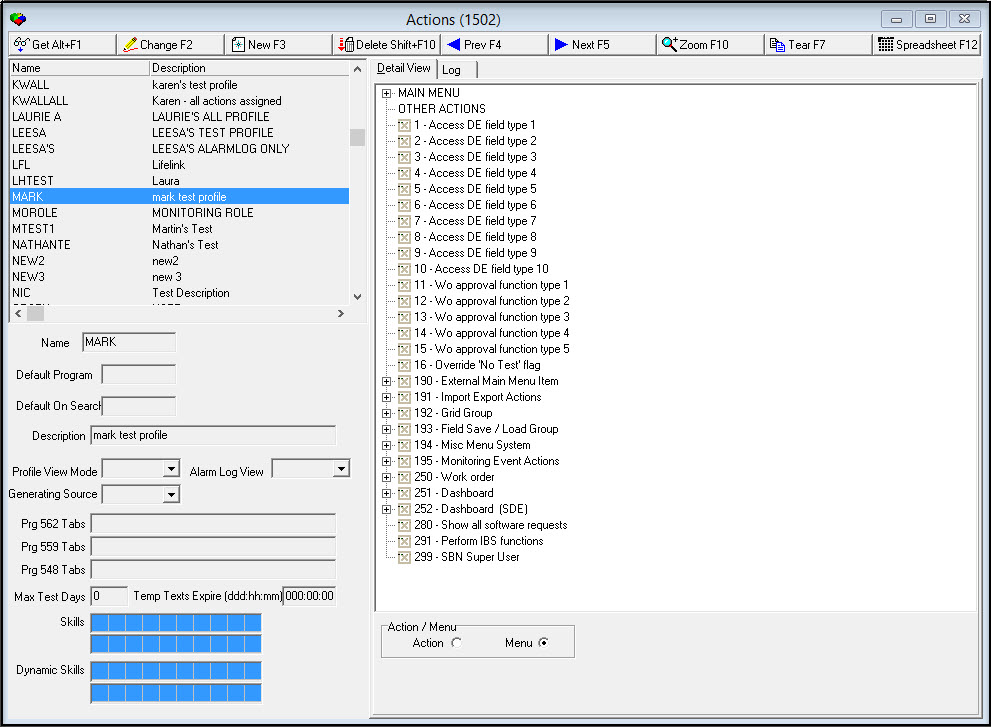
Field/Column Descriptions
The following table describes the checkboxes used in the Detail View tab when Menu is selected::
Checkbox |
Description |
Main Menu |
This selection opens and closes the program options available in the main menu, including Account Generation, Account Management, Accounting, System Administration, Utilities, WEB Menu, and WEB Menu 2. |
Other Actions |
|
1 - Access DE field type 1 |
This is a generic action defined in Required Fields (program #1843). This has no additional functionality. |
2 - Access DE field type 2 |
This is a generic action defined in Required Fields (program #1843). This has no additional functionality. |
3 - Access DE field type 3 |
.This is a generic action defined in Required Fields (program #1843). This has no additional functionality. |
4 - Access DE field type 4 |
This is a generic action defined in Required Fields (program #1843). This has no additional functionality. |
5 - Access DE field type 5 |
This is a generic action defined in Required Fields (program #1843). This has no additional functionality. |
6 - Access DE field type 6 |
This is a generic action defined in Required Fields (program #1843). This has no additional functionality. |
7 - Access DE field type 7 |
This is a generic action defined in Required Fields (program #1843). This has no additional functionality. |
8 - Access DE field type 8 |
This is a generic action defined in Required Fields (program #1843). This has no additional functionality. |
9 - Access DE field type 9 |
This is a generic action defined in Required Fields (program #1843). This has no additional functionality. |
10 - Access DE field type 10 |
This is a generic action defined in Required Fields (program #1843). This has no additional functionality. |
11 - Wo Approval Function Type 1 |
This is a generic action defined in Required Fields (program #1843). This has no additional functionality. |
12 - Wo Approval Function Type 2 |
This is a generic action defined in Required Fields (program #1843). This has no additional functionality. |
13 - Wo Approval Function Type 3 |
This is a generic action defined in Required Fields (program #1843). This has no additional functionality. |
14 - Wo Approval Function Type 4 |
This is a generic action defined in Required Fields (program #1843). This has no additional functionality. |
15 - Wo Approval Function Type 5 |
This is a generic action defined in Required Fields (program #1843). This has no additional functionality. |
16 - Override "No Test" Flag |
Selecting this checkbox overrides the "No Test" flag on actions in SBN. |
190 - External Main Menu Item |
Selecting this checkbox opens a list of actions under the 190 External Main Menu category. |
191 - Import Export Actions |
Selecting this checkbox opens a list of actions under the 191 Import/Export Actions category. |
192 - Grid Group |
Selecting this checkbox opens a list of actions under the 192 Grid Group category. |
193 - Field Save/Load Group |
Selecting this checkbox opens a list of actions under the 193 Field Save/Load Group category. |
194 - Misc Menu System |
Selecting this checkbox opens a list of actions under the 194 Miscellaneous Menu System category. |
195 - Monitoring Event Actions |
Selecting this checkbox opens a list of actions under the 195 Monitoring Event Actions category. |
250 - Work Order |
Selecting this checkbox opens a list of actions under the 250 Work Order category. |
251 - Dashboard |
Selecting this checkbox opens a list of actions under the Dashboard (program #251) category. |
252 - Dashboard (SDE) |
Selecting this checkbox opens a list of actions under the Dashboard (SDE) category. |
280 - Show All Software Requests |
Selecting this checkbox shows all software requests in the Log tab. |
291 - Perform IBS functions |
Selecting this checkbox shows all software requests in the CID. |
299 SBN Super User |
This action is only available to be assigned to a user with ALL Profile. When Action 299 – SBN Super User is enabled for a user assigned the ALL Profile, that user will have the ability to assign the ALL Profile. This action is defined by Option “allact� in Program #1887. Only users with the ALL Profile and Action 299 enabled will have the ALL Profile listed in the Action Picklist in Personnel - Program #1811 and Users - Program #1501. |
Action/Menu |
Select Action if you want to view every available action by number. Select Menu if you want to view every available action by its location in the menu. |
The following image shows a view of the Log tab in Actions:
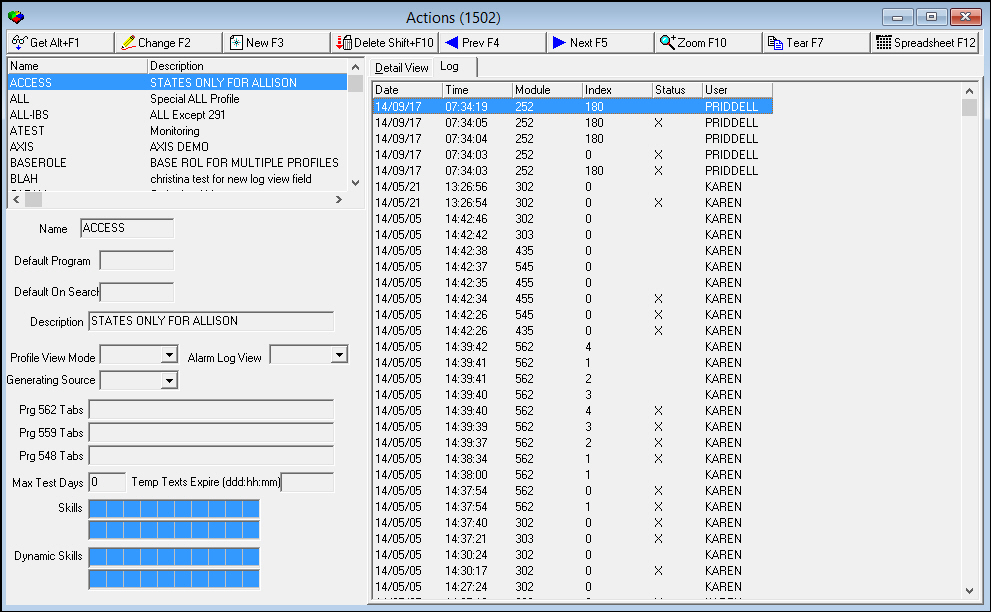
Field/Column Descriptions
The following table describes the columns used in the Log tab of Action Profiles.
Column |
Description |
Date |
The date of the action (year/month/day). |
Time |
The time of the action (hour/minute/second). |
Module |
The SBN program in which the action occurred.. |
Index |
The index action being used. |
Status |
The current active or inactive status of the action. An "X" denotes an inactive status. |
User |
The ID of the user making the action. |
Viewing Details in a Separate Window
You may find it easier to work with a profile if you open the Details tab in a full-sized separate window.
Use the following steps to view details in a separate window:
1. In Action Profiles, choose Tear.
w The Details tab opens in its own window.
Searching Actions
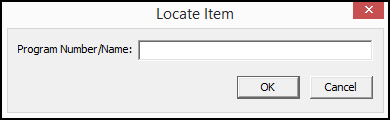
To search actions, highlight the expandable menu in the Sublevel section of the Action screen. To search by name or number, press [ALT+F2]. The search expands the tree as it searches. To locate the next instance of the search in the list, press [ALT+F3].
Creating New Action Profiles
You can use an existing profile as a template for a new one. When you use a template, most of the settings are already selected.
To create a new profile, first choose a name and template, then edit the profile to include the new settings.
Use the following steps to add a profile:
1. Choose New.
w The fields in the lower pane of the window open.
2. Complete the following fields:
l In Name - type a name for the new profile.
l In Default Program - type the program number to use as the default when SBN starts.
l In Description - type a descriptive definition of the profile.
l In Default on Search - type the program number to automatically open after performing a search.
Note: User profile must be allowed access to the program in this field.
l In Template (1) - either choose the existing profile that most closely matches the new profile you are creating or clear the contents to leave the field blank.
l In Template (2) - choose an additional template to merge actions into this profile.
l In Template (3) - choose an additional template to merge actions into this profile.
3. Choose Save.
w SBN adds the profile name to the list of profiles.
Changing Action Profiles
Use the following steps to add or remove programs and functions from a profile, or to change an existing profile:
1. Choose the profile you want to change.
2. Choose Zoom.
w The list of selected actions appears in Details.
3. Choose Change Record.
4. Change the action list as needed.
5. Choose Save.
w SBN saves your changes.
Changing Multiple Profiles
Use Spreadsheet to view and edit sets of options for all profiles at once.
Use the following steps to edit multiple profiles:
1. Choose Zoom.
2. Use the + signs to expand the menu system.
3. Select a specific category of actions.
4. Choose Spreadsheet.
w The Maintenance window appears with the selected actions group and all profiles listed alphabetically, left to right.
Note: You may change the order of the profile columns while in Spreadsheet mode.
5. Choose Change.
w The grid opens for editing.
6. To clear the Spreadsheet selections for all profiles, choose Clear.
w SBN clears the X from every selected column.
7. To change only a single column, double-click on column you want to update.
8. Enter changes, as needed.
9. Choose Save.
w SBN saves your changes to the data in the columns, but does not save a changed order of profile columns.
Deleting Action Profiles
Use the following steps to delete profiles:
1. Choose the profile you want to delete.
2. Choose Delete.
w SBN asks you to confirm your selection.
3. Choose Yes.
w SBN deletes the selected profile.
4. When finished, choose File > Close.
w The focus returns to a tab in Action Profiles Update.
Note: If you try to delete an action profile that has been assigned to a user, SBN displays an error message and does not allow you to delete the action profile.
Button Functions
The following table displays the buttons, describes the shortcut keys, actions, and functionality.
Button |
Name |
Shortcut Key |
Action |
Description |
Actions |
||||
|
Get |
ALT+F1 |
1502/ 1 |
Get record. |
|
Change |
F2 |
1502/ 2 |
Change selected record. |
|
New |
F3 |
1502/ 3 |
Create new record. |
|
Delete |
Shift+F10 |
1502/ 4 |
Delete selected record. |
|
Previous |
F4 |
Select last record. |
|
|
Next |
F5 |
Select next record. |
|
|
Zoom |
F10 |
1502/10 |
Zoom in/out of sublevel details. |
|
Tear |
F7 |
View details in a separate window. |
|
|
Spreadsheet |
F12 |
1502/12 |
View and edit sets of options for all users at once. |
Spreadsheet Maintenance |
||||
|
Change |
F2 |
1502/11 |
Change selected record. |
|
Clear |
f5 |
Clear selected columns for all profiles. |
|
|
Exit |
ESC |
Exit without saving changes. |
|
|
Save |
ENTER |
Save changes to selected record. |
|











Modifications and Updates to Action Profiles
The following table lists modifications and updates to the Action Profiles document.
Mod Number |
Date |
Description |
07.79.22656, 07.79.22632 |
06/17/13 |
SBN displays an error message if you try to delete an action profile that has been assigned to a user |
08.79.09272, 07.79.22716 07.79.22701, 08.79.09253 08.79.09304 |
06/25/13 |
Added Temp Texts Expire field |
08.79.09446, 07.79.23016 |
11/08/13 |
Added Dynamic Skill fields |
07.81.23361, 08.81.09647 |
06/11/14 |
Users cannot grant or revoke access to actions not included in their own action profiles |
n/a |
08/14/14 |
Images updated. |
n/a |
06/02/16 |
New Action 229 - SBN Super User for users assigned ALL Profile. |
07.88.25798, 08.88.11331, 07.88.25778 |
05/17/18 |
New Action 559/928. When ON, the code word is displayed for a contact. When OFF, the codeword isn't shown but displays *****. |
07.93.27162, 07.93.27163 |
03/28/23 |
Added new actions 194/16 to 194/115 and GU Messages (#1606) 18200-18299 |