
Installers
Installers
Installers
Module: System Administration
Overview
If you have administrative authority, you can use Installers (program #1543) to view or change an installer’s contact information. However, you must first add the installer to the database in Personnel (program #1811).
Navigating to Installers
Use the following steps to navigate to Installers:
1. From the main SBN toolbar, select Menu.
2. From the drop-down menu, select Go To [ALT+F1].
3. In the Go To Program dialog box, type in "1543."
w The Installers program opens.
The Installers Window
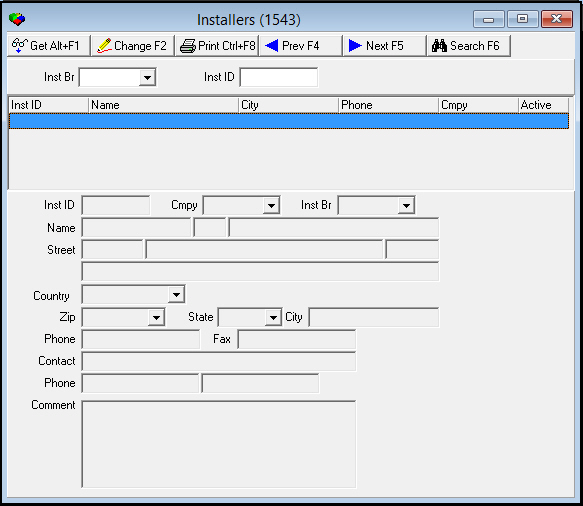
The following graphic shows Installers after the program launches..
Field/Column Description
The following table describes the fields and columns used in Installers.
|
Field/Column |
Description |
|
Search Parameters |
|
|
Inst Br |
You may select a branch to search for installers associated with that branch. This field accepts wildcards. |
|
Inst ID |
You may enter an installer ID to search for a particular installer. This field accepts wildcards. |
|
Search Results |
|
|
Inst ID |
The installer's ID code. |
|
Name |
The installer’s name. |
|
City |
The installer’s city. |
|
Phone |
The installer’s phone number. |
|
Cmpy |
The installer's company ID. |
|
Active |
If this column displays a -, the installer is inactive. |
|
Installer Details |
|
|
Inst ID |
The selected installer's ID code. |
|
Cmpy |
The selected installer's company ID. |
|
Inst Br |
Branch associated with the selected installer. |
|
Name |
The selected installer’s first name. |
|
Middle Initial (No label) |
The selected installer’s middle initial, if available. |
|
Last Name (No label) |
The selected installer’s last name. |
|
Street (Number) |
Street number (part of the selected installer’s address). |
|
Street Name (No label) |
Street name (part of the selected installer’s address). |
|
Apartment Number |
Apartment number, if applicable (part of the installer’s address). |
|
Additional Address Info (No label) |
Additional address information, if applicable. |
|
Country |
Country in which the selected installer is located. |
|
Zip |
Zip code of the selected installer's location. |
|
State |
State where the selected installer is located. (This field holds a maximum of 60 characters.) |
|
City |
City in which the selected installer is located. |
|
Phone |
The selected installer’s phone number. |
|
Fax |
The selected installer’s fax number. |
|
Contact |
Name of a contact for the selected installer. |
|
Phone |
Primary phone number for the contact. |
|
Phone 2 |
Secondary phone number for the contact. |
|
Comment |
Free-form text comment about the selected installer or contact. Note: The Comment field now accepts up to 250 characters. |
Searching for Installers
In order to view installer information, you must perform a search for installers. You can search for
-
Installers associated with a particular branch
-
Individual installers
Use the following steps to search for installers associated with a branch:
1. In Installers, select a branch from the Inst Br menu.
2. Choose Search.
w SBN displays all installers associated with the selected branch.
Use the following steps to search for a specific installer:
1. In Installers, enter an installer’s ID in Inst ID.
2. Choose Search.
w SBN displays the selected installer.
Using Common Functions
See the reference document Common Functions in SBN for more information.
Button Functions
The following table displays the buttons, describes the shortcut keys, actions, and functionality.
|
Button |
Name |
Shortcut Key |
Action |
Description |
|
|
Get |
ALT+F1 |
1543/ 1 |
Get record. |
|
|
Change |
F2 |
1543/ 2 |
Change selected record. |
|
|
|
CTRL+F8 |
1543/ 6 |
Print selected records. |
|
|
Previous |
F4 |
1543/ 999 |
Select last record. |
|
|
Next |
F5 |
1543/ 999 |
Select next record. |
|
|
Search |
F6 |
1543/ 7 |
Display installers based upon search parameters. |






Modifications and Updates to Installers
The following table lists modifications and updates to the Installers document.
|
Mod Number |
Date |
Description |
|
08.79.09319, 07.79.22830 08.79.09316, 07.79.22819 |
09/05/2013 |
The Comments field now accepts up to 250 characters. |
|
n/a |
08/19/14 |
Images updated. |