
SBN Tunnel with Concentrator
The Concentrator can reach each of its host (front-end) connections in two ways:
- Directly — the Concentrator connects straight to the endpoint's IP address and port.
- Through the SBN Tunnel — the Concentrator reaches the endpoint by its name, with no VPN. Your sbn-tunnel administrator (for Cloud customers this is Innovative247) will provide you with your authorized FE tunnel names.
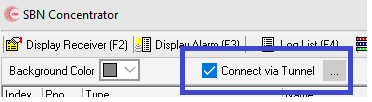
You choose which with the Connect via Tunnel checkbox at the top of the Concentrator window. The same host connection works either way — only the checkbox changes.
How the tunnel uses the connection name
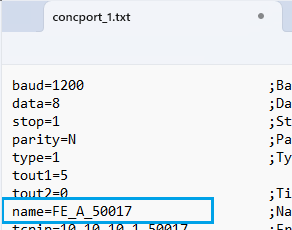
When Connect via Tunnel is checked, the Concentrator does not dial the IP address. Instead it asks the tunnel for the endpoint by the Name you gave the host connection (for example, FE_A_50017). The tunnel looks up that name and forwards the connection to the correct endpoint.
Because of this, the Name must match an endpoint name on your SBN Tunnel license. If the name does not match an authorized endpoint, the connection is refused and the line stays offline with a message that the endpoint is not authorized.

Setting up a host connection
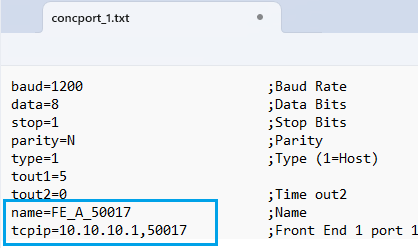
Each host connection has two fields that matter here:
Field | Used for |
|---|---|
Name | The endpoint name the tunnel uses to find the destination (when the tunnel is on). |
IP / Port | The direct address of the endpoint (when the tunnel is off). |
Set the Name to the endpoint name from your tunnel configuration, and the IP / Port to the endpoint's direct address.
With both filled in, you can switch between the two paths at any time with the checkbox — there is nothing to re-enter.
Connecting through the tunnel
- Check Connect via Tunnel.
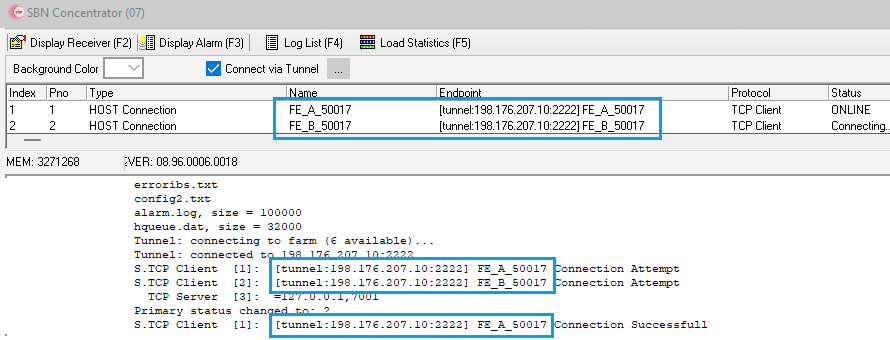
- The Concentrator establishes the tunnel and requests each host connection by name.
- Each line shows Connecting… while it reaches the endpoint, then Online once the endpoint actually answers. The Endpoint column shows the tunnel and the endpoint name.
A line shows Online only once the endpoint on the far side has accepted the connection. A name that points at an endpoint that is not running stays at Connecting… rather than briefly appearing online — so the status always reflects a real connection.
Connecting directly by IP / Port
To bypass the tunnel and connect straight to the endpoint:
- Uncheck Connect via Tunnel.
- The Concentrator closes the tunnel connections and reconnects each host connection directly to its IP / Port value.
- The Endpoint column shows the IP address and port instead of the tunnel name.
Use this when your network already has a direct route to the endpoint — for example, over a VPN or on the same local network.
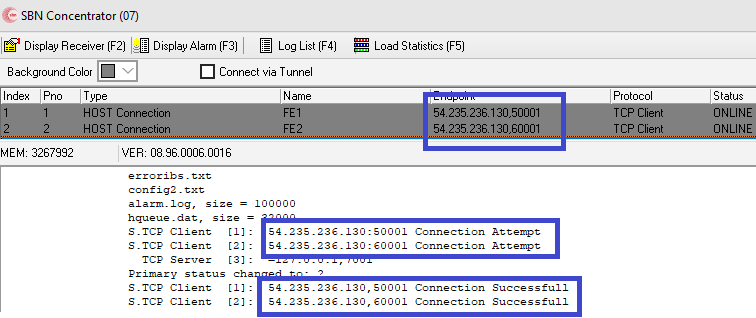
Switching between the two
Checking or unchecking Connect via Tunnel cleanly closes the current host connections and re-establishes them on the path you chose.
You can switch back and forth as needed; the Name and IP / Port values are kept either way.