
Communication Status Codes
Communication Status Codes
Communication Status Codes
Module: System Administration
Overview
Use Communication Status Codes (program #1721) to define the menus for the Status and Sub Status fields in the Communication Log. You can create new status and sub status codes, and edit or delete existing status or sub status codes.
To access this program, select Status Codes (program #1721) from the main menu of SBN.
The Status of an entry in the Communication Log can be used to prioritize entries and determine which entries should be handled sooner than others. A user may create status codes such as Accelerated status for serious problems or angry customers, and Pending status for entries that require feedback from a customer or manager before proceeding.
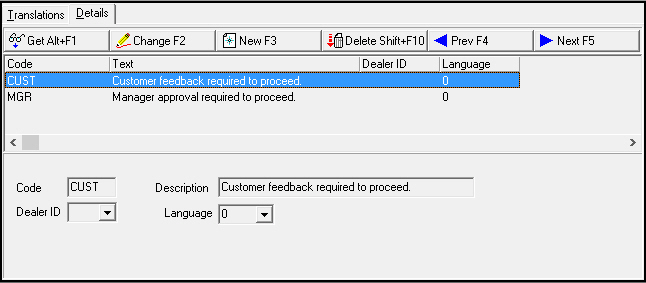
The Sub Status may be used to further define an entry's status. For example, putting an entry in Pending status may cause the sub status menu to display the items "Customer Feedback Required" or "Manager Approval Required" to explain why the entry is Pending.
The Status Codes Window
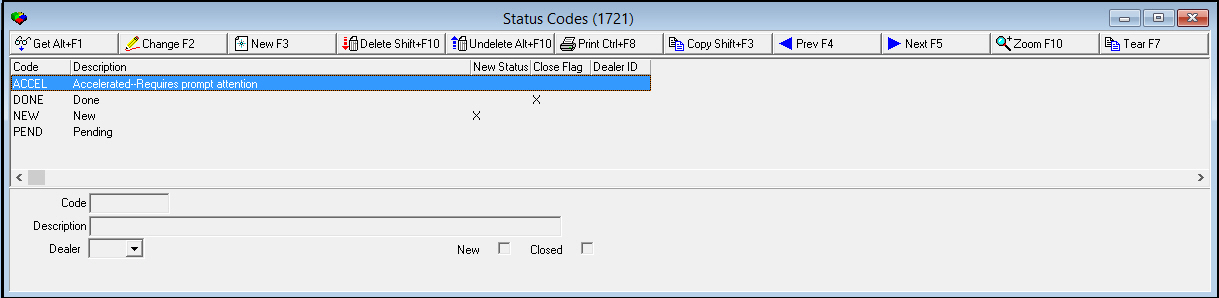
The following graphic shows Status Codes with information displayed.
Field/Column Descriptions
The following table describes the fields and columns used in Status Codes.
|
Field/Column |
Description |
|
Code |
Status code identifier. O This field accepts up to eight characters. |
|
Description |
Text description of the status code. |
|
New Status |
If this box contains a check mark, a new entry in the Communication Log will automatically be assigned this status. |
|
Close Flag |
If this box contains a check mark, a closed entry in the Communication Log will automatically be assigned this status. |
|
Dealer ID |
Dealer ID associated with selected status. |
Using Common Functions
See the reference document Common Functions in SBN for more information.
Changing a Status Code
Use the following steps to change the details of a Status Code.
1. Select the status code whose details you want to change.
2. Choose Change Record.
w Some fields below the status code grid open for changes.
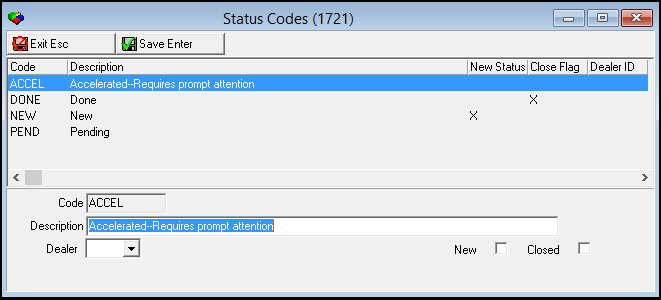
3. Make any necessary changes.
4. Choose Save to save changes and close the fields or Exit to close without saving changes.
Creating a Status Code
Use the following steps to create a new Status Code.
1. Choose New Record.
w All fields below the status code grid open to create a new status code.
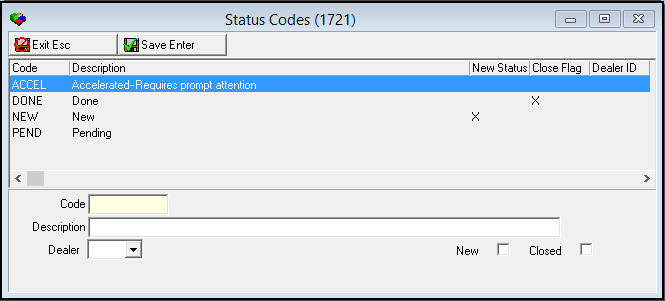
2. Enter new information into the fields.
3. Choose Save to save changes and close the fields or Exit to close without saving changes.
Deleting a Status Code
Use the following steps to delete a Status Code:
1. Select the status code you want to delete.
2. Choose Delete Record.
w A Confirm dialog box appears asking if you want to delete the selected status code. (The box refers to the status code by its abbreviation.)
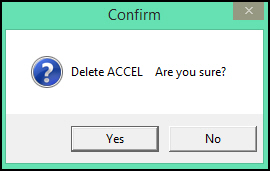
3. Choose Yes to delete the status code or No to cancel.
Restoring a Deleted Status Code
Use the following steps to restore (undelete) a deleted Status Code:
1. Choose Select Record to Undelete.
w A list of deleted status codes appears.
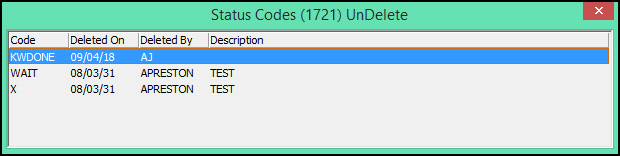
2. Double-click on a deleted status code to restore.
w The selected status code appears in the main grid of status codes. (The deleted info for the selected status code from the details and translations tabs in sublevel is also restored.)
3. Restore any other status codes as necessary.
4. Close the deleted status codes list when complete.
Zooming into the Sublevel
Status Codes contains a sublevel with two tabs
-
Details — in which you attach menu items that will appear in the Sub Status drop-down menu when the selected Status is chosen in the Communication Log.
-
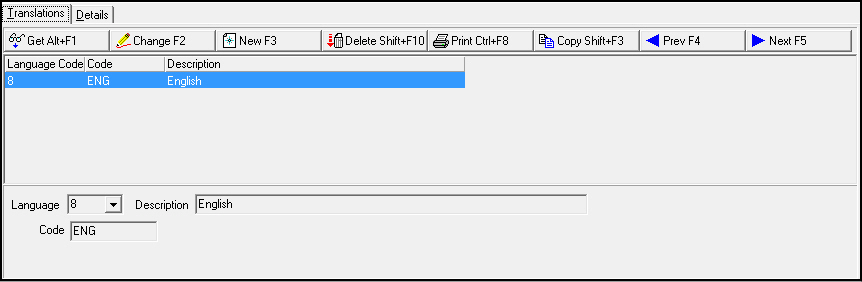
Translations — in which you attach translations to status codes. Menus of Status Codes appear in the user’s language.
Use the following steps to access the sublevel tabs of communication status codes:
1. Select the field whose details you want to view.
2. Choose Zoom in/out of sublevel.
w The sublevel tabs appear below the main window.
3. Select the Details tab to view sub status menu selections defined for status codes, or select the Translations tab to view languages defined for status codes.
The Details Tab
The following graphic shows the Details tab. The tab displays the Sub Status codes that appear in the drop-down menu when the Pending status is selected in the Communication Log.
Field/Column Descriptions
The following table describes the fields and columns used in the Details tab.
|
Field/Column |
Description |
|
Code |
Code that identifies the sub status. |
|
Description/Text |
Text description of the sub status. |
|
Dealer ID |
Dealer ID associated with the sub status. |
|
Language |
Code that identifies the language of the translation. Contact IBS before using codes 11-17. |
Creating Sub Status Codes in the Details Tab
Use the following steps to create menu items that will appear in the Sub Status drop-down menu when the selected Status is chosen in the Communication Log.
1. Select a Status Code that you want to define a Sub Status menu for, and choose Get.
2. In the Details tab, choose New Record.
w All fields below the grid open to create a sub status menu item.
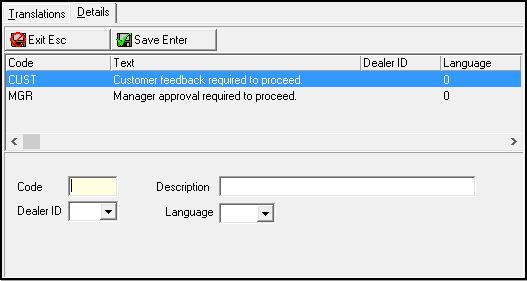
3. Enter new information into the fields.
4. Choose Save to save changes and close the fields.
The Translations Tab
The following graphic shows the Translations tab. The tab displays previously defined translations for the selected status code.
Field/Column Descriptions
The following table describes the fields and columns used in the Translations tab.
|
Field/Column |
Description |
|
Language Code |
Code that identifies the language of the attached translation. O Contact IBS before using codes 11-17. |
|
Code |
Code to identify the translated communication code. |
|
Description |
Text description, in the selected language, of the status code. |
Defining a Language in the Translations Tab
Use the following steps to define a language for a status code:
1. In the Translation tab, choose New Record.
w All fields below the grid open to define a language.
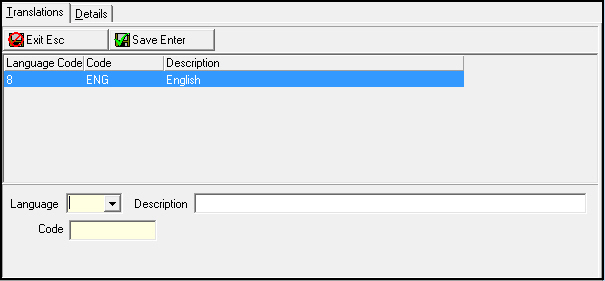
2. Select a language code from the Language drop-down menu.
3. Enter a text description of the language in the Description field.
4. Choose Save to save changes and close the fields.
Related Programs
The following table lists programs related to Communication Status Codes.
|
Program |
Number |
Document Link |
Description |
|
Communication Log |
1888 |
Log communication between customer and company. |
|
|
Codes |
1517 |
Create Communication Codes used in the Communication Log to describe the type of communication for an entry. |
|
|
Sources |
1518 |
Create Communication Source codes used in the Communication Log to show in what program an entry originated. |
|
|
Keys |
1519 |
Create and define codes and descriptions that appear in the Communication Log as Key 1, Key 2, Key 3, and Key 4. |
|
|
Media |
1520 |
Create Media Codes used in the Communication Log to describe the type of communication media for an entry. |
|
|
Resolution Codes |
1877 |
Create Resolution Codes used in the Communication Log to describe the resolution for an entry. |
|
|
Misc Communication Fields |
1627 |
Create Miscellaneous Fields used in the Communication Log to describe the substatus, satisfaction level, or priority of an entry. |
|
|
Communication Log Queue |
535 |
Research closed Communication Log entries. |
Button Functions
The following table displays the buttons, describes the shortcut keys, actions, and functionality.
|
Button |
Name |
Shortcut Key |
Action |
Description |
|
|
Get Record |
ALT+F1 |
1721/ 1 |
Get record. |
|
|
Change Record |
F2 |
1721/ 2 |
Change selected record. |
|
|
New Record |
F3 |
1721/ 3 |
Create new record. |
|
|
Delete Record |
SHIFT+F10 |
1721/ 4 |
Delete selected record. |
|
|
Select Record to Undelete |
alT+F10 |
1721/ 5 |
Restore deleted record. |
|
|
Print Selected Records |
CTRL+F8 |
1721/ 6 |
Print selected records. |
|
|
Copy Current Record |
SHIFT+F3 |
Copy selected record. |
|
|
|
Previous Record |
F4 |
Select last record. |
|
|
|
Next Record |
F5 |
Select next record. |
|
|
|
Zoom In/Out of Sublevel |
F10 |
1721/10 |
Access Details tab and Translations tab. |
|
|
Tear Away Selected Tab |
F7 |
View selected tab in separate window. |
|
|
|
Exit Without Saving |
esc |
Exit without saving changes to record. |
|
|
|
Save Existing Record |
enter |
Save existing changes to record. |













Modifications and Updates to Status Codes
The following table lists modifications and updates to the Status Codes document.
|
Mod Number |
Date |
Description |
|
n/a |
02/21/08 |
Document created |
|
n/a |
08/15/14 |
Images updated. |