
GUI Messages
GUI Messages
GUI Messages
Module: Utilities
Overview
Use GUI Messages (program #1606) to create GUI messages and message groups. When the program opens, it displays a list of message groups. You can use these message groups to define either language or company-specific translations for use in the GUI version. You may create translations for each of these groups.
Other message programs include JAM Messages (program #1607), SQR Messages (program #1608), SQL Messages (program #1609), and IBS Messages (program #1610).
Note: You must notify IBS when you make any changes in this program so the changes can be copied back to IBS and stored in the message system that IBS delivers with new releases. This ensures that any changes you make survive upgrades.
In the main window of GUI Messages, customers do not have access to:
Change Record
New Record
Delete Record
In the GUI Messages Details tab, customers do not have access to New Record.
Navigating to GUI Messages
Use the following steps to navigate to GUI Messages:
1. From the main SBN toolbar, select Menu.
2. From the drop-down menu, select Go To.
3. In the Go To Program dialog box, type in "1606" and press enter.
w The GUI Messages program opens.
The GUI Messages Window
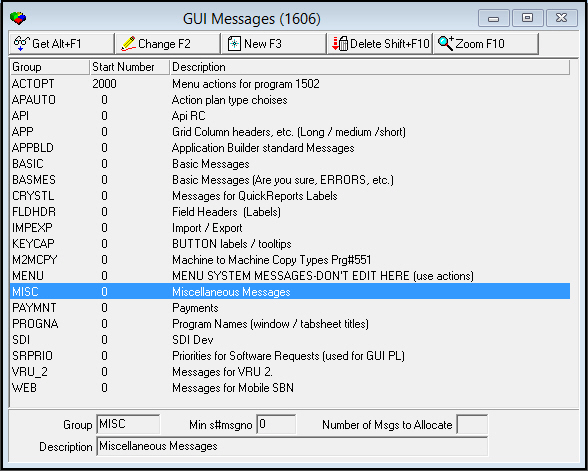
The following graphic displays GUI Messages as the program opens.
Field/Column Descriptions
The following table describes the fields and columns used in GUI Messages.
Field/Column |
Description |
Group |
Code to define the message group. |
Start Number |
Minimum message group number. |
Description |
Text description of the message group. |
Min s#msgno |
Minimum number to use when allocating messages. |
Number of Msgs to Allocate |
Minimum number of messages to allocate for the specified group. |
Description |
Text description of the message group. |
Using Common Functions
See the reference document Common Functions in SBN for more information.
Note: You may not delete a GUI Message Group that currently has messages.
Zooming to the Sublevel
Choose Zoom to view the GUI Messages sublevel in which you can define additional GUI message options.
The Details Tab
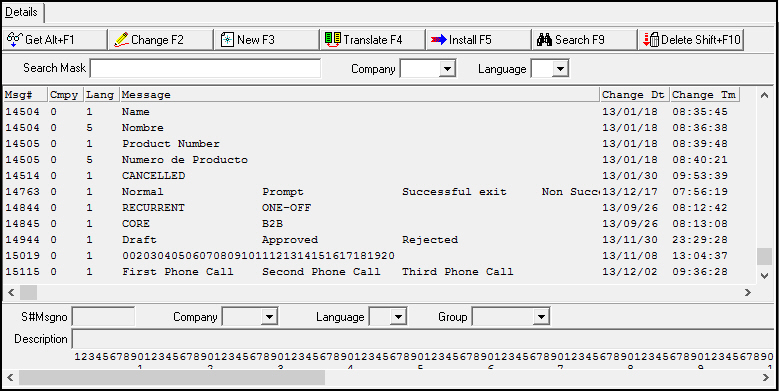
The following graphic shows GUI Messages Details tab. The tab displays messages attached to the selected GUI Message Group.
Field/Column Descriptions
The following table describes the fields and columns used in the sublevel of GUI Messages.
Field/Column |
Description |
Search Mask |
Search string, including wildcards, to locate messages. O For more information on using wildcards, see Using Wildcard Characters in the reference document, Searches. |
Company |
Specific company to include in the search. (IBS maintains this menu.) |
Language |
Specific language to include in the search. (IBS maintains this menu.) O Portuguese and Finnish are the most recently added languages. Seven more languages can be added as the need arises. |
Message Number |
Message ID number. |
Company Code |
Company ID. |
Language |
Language to which you want to translate. |
Message |
Text description of the message. |
Change Date |
Date the message was translated. |
Change Time |
Time the message was translated. |
S#Msgno |
Message to translate. |
Company |
Company for which you translate the message. |
Language |
Current language of the message. |
Group |
Message group to which the message belongs. |
Description |
Text description of the message. |
Searching for Specific Messages
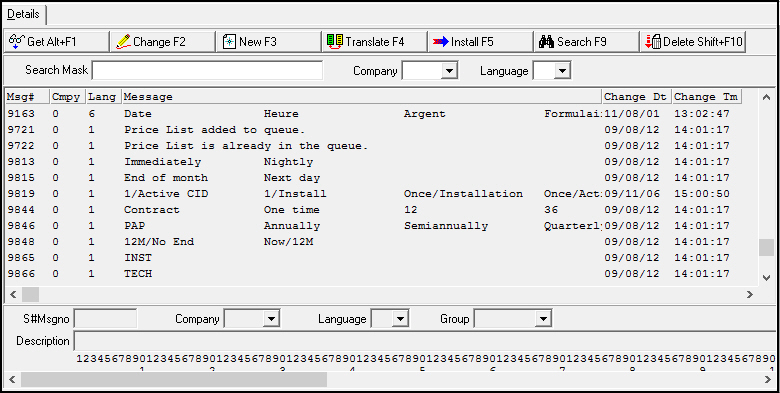
Use the following steps to search for specific messages for a selected GUI Messages Group:
1. In the GUI Messages Details tab, complete the search parameter fields.

2. Choose Search.
w SBN displays the results in the columns below the search parameters.
Using Message Translation
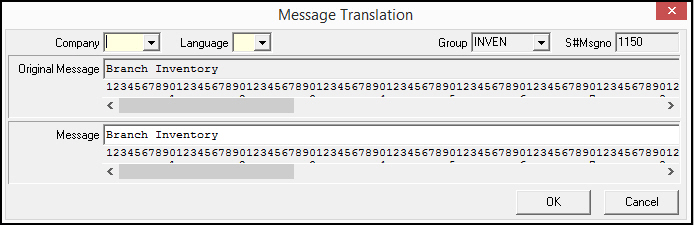
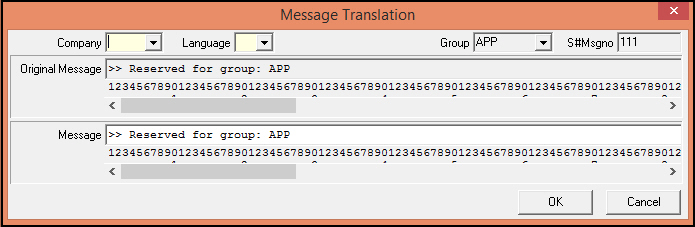
Use Message Translation to enter a message translation for a selected message based on language or company-specific requirements.
Field Descriptions
The following table describes the fields used in Message Translation.
Field |
Description |
Company |
Company ID. If you are entering a company-specific translation, select your company number. If you are entering a language translation, select Company 0. |
Language |
Language ID. If you are entering a language specific translation, select the code for language. |
Sub |
Message group to which the message belongs. |
S#Msgno |
Selected message number. |
Original Message |
Standard message for the selected record. |
Message |
Message translation. |
Message Group Specifics
The following sections describe GUI message groups that have unique characteristics.
APP
When defining translations for the APP message group, you must define three translations, which must be entered in positions #1, #41, and #61 in the Message field. These positions represent the long, medium, and short translations for column headings.
ACTOPT
You can define company-specific translations for the ACTOPT message group. Only the company-specific translations show in SBN for this message group; the language translations do not show.
Translating a Message
Use the following steps to translate a message:
1. In GUI Messages Details tab, select the message you want to translate.
2. Choose Translate.
w The Message Translation dialog box opens.
3. Complete the fields as needed.
4. Choose OK.
Note: If the selected language does not match the selected company's specified language(s), SBN translates the message to default Company 0/Language 1.
Installing and Compiling Messages
Use Installing and Compiling messages to install the messages that have been changed to the system. SBN automatically installs GUI Messages.
Note: SBN installation does not change GUI messages that the customer has modified. IBS no longer tracks the GUI messages that the customer modifies.
Customers can modify the GUI menu system descriptions. SBN installation does not change the GUI menu system descriptions that the customer modifies; IBS does not track or store customer modifications to the GUI menu system descriptions.
Use the following steps to install messages:
1. In the GUI Messages Details tab, choose Install and Compile Message.
w A confirmation box opens.
2. Choose Yes.
Button Functions
The following table displays the buttons, describes the shortcut keys, actions and functionality.
Button |
Name |
Shortcut Key |
Action |
Description |
|
Get Record |
alt+f1 |
1606/ 1 |
View details of selected message. |
|
Change Record |
f2 |
1606/ 2 |
Change details of selected message. |
|
New Record |
f3 |
1606/ 3 |
Create new message. |
|
Delete Record |
shift+f10 |
1606/ 4 |
Delete selected message. |
|
Zoom in/out of sublevel |
f10 |
1606/10 |
Access Details tab. |
|
Translate |
f4 |
1606/14 |
Translate selected message to another language. |
|
Install & Compile Messages |
f5 |
1606/15 |
Install messages that have been changed to the system. |
|
Search |
f9 |
1606/16 |
Search for messages. |
|
Delete |
SHIFT+F10 |
1606/17 |
Delete messages. |
|
Exit without saving |
esc |
Exit without saving changes to selected record. |
|
|
Save Existing Record |
enter |
Save changes to selected record. |











Modifications and Updates to GUI Messages
The following table lists modifications and updates to the GUI Messages document.
Mod Number |
Date |
Description |
n/a |
7/30/14 |
Images updated. |
08.88.11302, 07.88.25730, 08.88.11277, 07.88.25679 |
03/22/18 |
GUI Messages 16448-16453 added within Field Headers (Labels). |
07.93.27162, 07.93.27163 |
03/28/23 |
GUI Messages 18200-18299 added. |