
Report Parameters Panes
Report Parameters Panes
Report Parameters Panes
Module: Reference
Overview
Use this chapter to learn about setting up and printing reports in SBN. In order for SBN to print reports correctly you must
Install Report Services
Set a print directory in each terminal
Set up report parameters in four system administration programs:
q Report Default Parameters (program #1561)
q Report Priorities (program #1509)
q Printer Profile Updates (program #1559)
q Report Messages (program #1766)
Define the report parameters in the individual report
Use the Report Queue
The Lower Pane of Report Parameters
Every report in SBN contains the same lower pane with fields for selected parameters.
The following sections explain
The parameters in the lower pane
The report cover page
The following graphic shows the lower pane of a report.
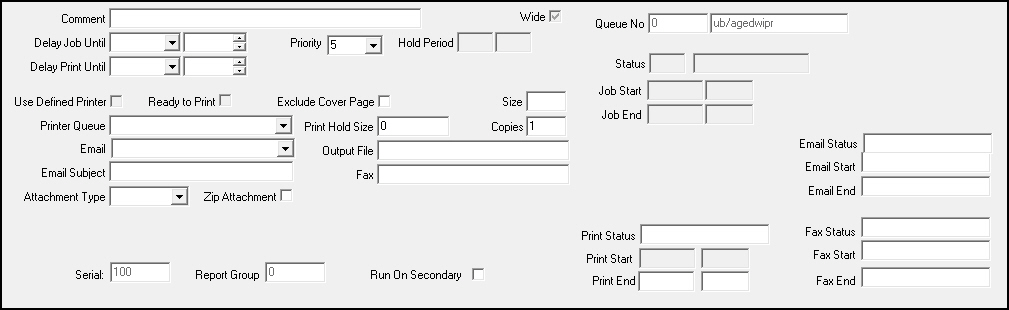
Field Descriptions- Report Parameters
The following table describes the fields used in the lower pane of a report.
Field |
Description |
Comment |
You may type a description of the job; the comment appears in the report queue. |
Wide |
This box displays a check mark if the report requires wide paper, landscape printing, or condensed print. |
Delay Job Until |
Select a date and time to use as the minimum start time for processing the report. O The report may remain held after the delay until time if the priority requires the report to print at a certain time. |
Priority |
Defaults to the priority of the report defined in the Report Default Parameters. You can override the default. |
Hold Period |
If the priority defined for the report causes SBN to hold the report, these fields display the beginning and ending of the hold time. |
Delay Print Until |
Select a date and time to use as the minimum start time for printing the report. |
Status |
Displays the current status of the job. This is a read-only field. |
Status
Description |
Displays the description of the status of the job. This is a read-only field. |
Use Defined Printer |
This box defaults with a check mark if l You have a printer defined in the Reports tab of the Options window as the default printer. l The default parameters of the report include a check mark in Use Defined Printer. For more information, see Report Default Parameters. Enter a check mark in this box to use the defined printer regardless of the printer selected in Printer Queue. You may select a different printer by l Removing the check mark from this box l Selecting a different printer in Printer Queue O If you have no report defined in the Reports tab, this box appears grayed out. You must then select the printer to use in Printer Queue. O If you leave this box blank, SBN uses the printer that defaults or that you select in Printer Queue to print the report. |
Ready to Print |
This box displays a check mark when the report is ready to print. |
Exclude Cover Page |
Enter a check mark in this box to remove the cover page from the print job. |
Size |
Displays the actual size of the report in pages. |
Printer Queue |
Defaults to the printer queue defined for the report in Report Default Parameters. You can override the default by selecting a different printer queue from the menu. (This menu originates from program #1559.) O The menu displays only those printers flagged as In Use for the printer profile associated with the report in Report Default Parameters (program #1559). |
Print Hold Size |
Defaults to the print hold size defined for the report in Report Default Parameters. You can override the default by typing the maximum number of pages to print automatically. If the number of report pages exceeds the hold size, SBN l Holds the report in the Report Queue l Does not print the report l Does not migrate the report to the Done Queue O SBN holds a report with a hold size of 0 (zero) in the Report Queue and NEVER prints the report. O SBN will only email or fax reports l Defined with a hold size > 0 l With a print size that is less than or equal to the hold size |
Copies |
Defaults to the number of copies defined for the report in Report Default Parameters. You can override the default. |
When option fe009 is on, you may select a valid email address to which SBN will email the report. Processing the report with a value in this field hands the report off to your email system. If the report size is larger than the hold size, SBN sends the report to the Report Queue and keeps the report on hold until you release it. O The email function does not support wide reports. O If the report equals 0 pages, excluding cover page, the email will state: �r;No Data Received.� O SBN will only email or fax reports l Defined with a hold size > 0 l With a print size that is less than or equal to the hold size |
|
Output File |
You may type the name of the destination file for output, if desired. The file path must be a directory known to the file server that generates the output. |
Email Subject |
You may type a subject that will appear in the subject line of the email. |
Fax |
When option fe007 is on and the Fax Gateway has been installed on your server, you can type a fax number to which SBN will fax the report. Processing the report with a value in this field hands the report off to the Fax system. If the report size is larger than the hold size, SBN sends the report to the Report Queue and keeps the report on hold until you release it. O If the report equals 0 pages, excluding cover page, the fax will state: �r;No Data Received.� O SBN will only email or fax reports l Defined with a hold size > 0 l With a print size that is less than or equal to the hold size |
Attachment Type |
You may select the format to which SBN will convert the report when it exports with the email: l HTML l JPEG l PDF l RTF l JPG l TXT l WMF l XHTML l XLS l TXT2 - when you select this type, SBN embeds the text of the report into the body of the email. O If you leave this field blank, the report scheduler will use the PDF format. |
Zip Attachment |
Enter a check mark in this box to zip the report attachment. |
Job Start |
Displays the date and time the report began processing. |
Job End |
Displays the date and time the report finished processing. |
Print Start |
Displays the date and time the report began printing. |
Queue Number |
Displays the queue number assigned from the Report Queue. |
Report
Name |
Displays the program name of the report, if applicable. |
The Cover Page of a Report
The cover page of a report displays details about the report.
Field Descriptions - Cover Page
The following table describes the fields used on the cover page of a report.
Field |
Description |
Title |
Title of the report. |
Program Name |
Report program name and number. |
Queue No. |
Printer queue number. |
Created By |
Name of person who created report. |
Prio |
Priority number of report. |
Exclude Time |
Hold time of report, if applicable. |
Job Loaded |
Date and time report was submitted. |
Job Scheduled |
Date and time report will run if on hold. |
Job Started |
Date and time report job started. |
Print Scheduled |
Date and time report will print if on hold. |
Comment |
Comment from report parameters. |
Print Queue |
Printer queue selected on the report parameters. |
Parameters |
Actual parameters selected for the specific report. |
Modifications and Updates to Report Parameters Panes
The following table lists modifications and updates to the Report Parameters Panes document.
Mod Number |
Date |
Description |
n/a |
09/29/14 |
Images updated. |