
AP Check Batch Manager
AP Check Batch Manager
AP Check Batch Manager
Program #: 1857
Module: Accounting
Overview
Use AP Check Batch Manager (program #1857) to view all check batches created in AP Open Vouchers (program #1837). From this window you can also print, create, import, and export checks.
The AP Check Batch Manager
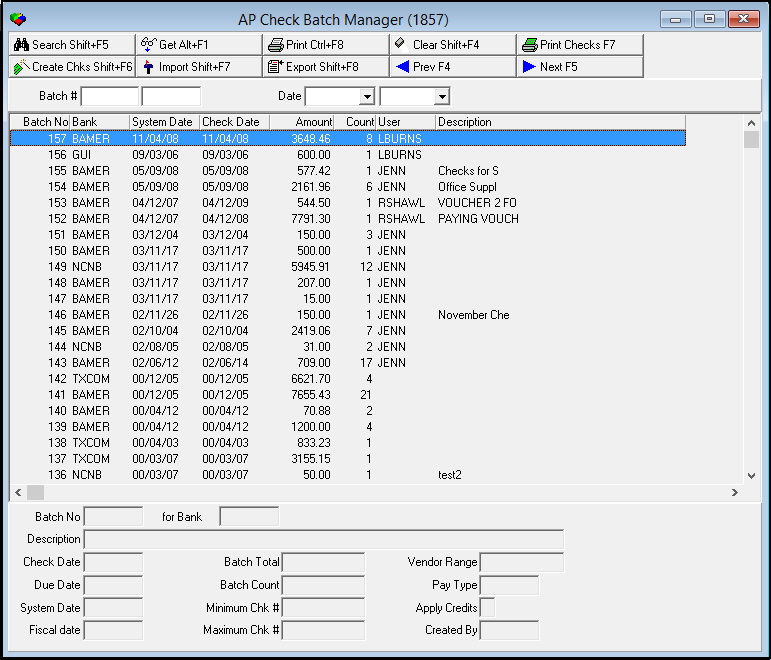
The following graphic shows the AP Check Batch Manager with information displayed.
Field/Column Descriptions
The following table describes the fields and columns used in the AP Check Batch Manager.
Field/Column |
Description |
Batch # (Begin and End) |
SBN-created batch number range to include in the search for records. |
Date (Begin and End) |
Date range of batches to include in the search for records. |
Batch Number |
SBN-defined batch number assigned when checks were created. |
Bank |
Bank ID for the bank the checks in the batch are drawn. |
System Date |
Date the check batch was created. |
Check Date |
Date to print on the checks in this batch. |
Amount |
Total combined amount for all checks in the batch. |
Count |
Number of checks in the batch. |
User |
ID of the user who created the batch. |
Description |
Text description, if any, of the check batch. |
Batch Total |
Total combined amount for all checks in the batch. |
Vendor Range |
Displays a % sign unless the batch was created for a specific vendor. |
Pay Type |
Displays a % sign unless the batch was created for a specific payment type. |
Minimum Check # |
Starting check number for the batch. |
Apply Credits |
If this box displays a check mark, credits have been applied to some vendors in the batch. |
Fiscal Date |
Fiscal date in effect when check batch was run. |
Grp |
Maximum check number |
Created By |
ID of the user who created the check batch. |
Searching for Check Batches
When the AP Check Batch Manager opens, it displays all open check batches. To find a specific check batch, you can search by
Batch number
Batch creation date
Use the following steps to search for check batches:
1. In AP Check Batch Manager, type a batch number range and/or select a date range.
2. Choose Search.
w Search results appear in the middle pane of the window.
Using Common Functions
See the reference document Common Functions in SBN for more information.
Printing Checks
From the AP Check Batch Manager you can access AP Print Checks (report #2011) by choosing Print Checks.
Creating Checks
Use Create Chks to specify check parameters and create a batch of checks.
Use the following steps to create checks:
1. Choose Create Chks.
w The Create Checks dialog box opens.
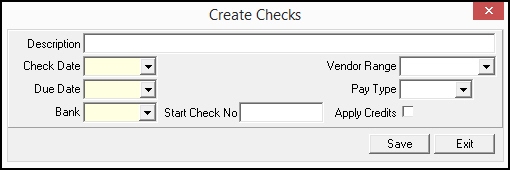
2. Enter the following information:
l In Description type a description for the batch.
l In Check Date select the date to appear on the checks.
l In Vendor Range select a specific vendor for whom you want to create checks, if needed.
l In Due Date select the maximum voucher due date to include in this batch of checks.
l In Pay Type select the Pay Type for this batch of checks, if needed.
l In Bank select the Bank ID from which the checks are drawn.
l In Start Check No. type the first check number to use.
l In Apply Credits enter a check mark in this box to apply credits to the open balances before you calculate the check amount.
3. Choose Save.
w The Create Checks window appears and shows the process as it runs.
4. Choose Close.
5. Choose Search again to display the new batch.
w The new check batch appears in the list.
Importing Checks
You can use the Import Checks function to import bank statement reconciliation information.
Use the following steps to import check information:
1. In AP Check Batch Manager, choose Import Batch.
w The AP Bank Imports window appears.
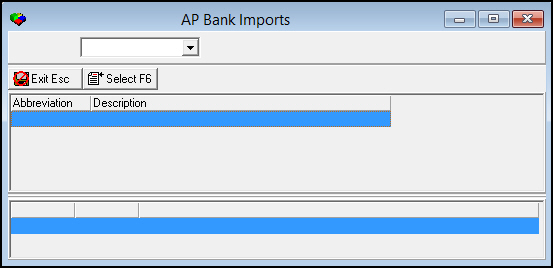
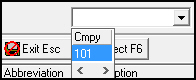
2. From the drop-down menu, select the desired Company.
3. Choose Select Import.
w The Input File field opens.
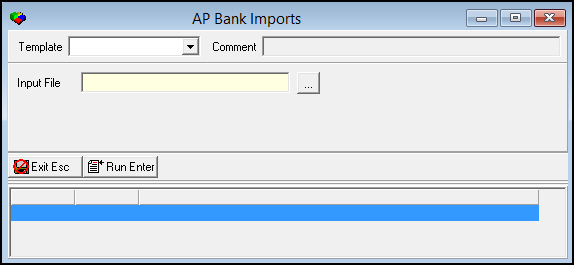
3. In Input
File type the full file path, or choose  to locate
the file on your computer.
to locate
the file on your computer.
Note: The name of the output file may contain spaces; for example, c:/January Results/batch 23.txt.
4. Choose Run Import.
w SBN asks you to wait for BCP to finish.
5. Choose OK.
w SBN completes the import and displays the status of the import.
Exporting Check Batches
You can export check batches to use in another program or to print checks outside SBN.
Use the following steps to export a check batch:
1. In AP Check Batch Manager, choose Export.
w The AP Bank Export window appears and displays a list of available exports.
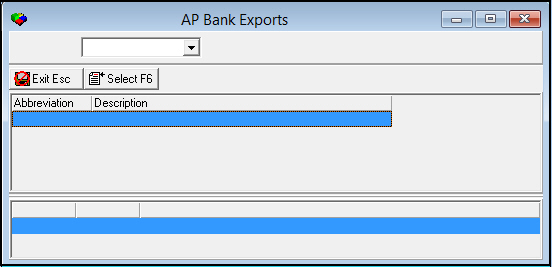
2. Select the export you want to use.
3. Choose Run Export.
w The Export details window appears.
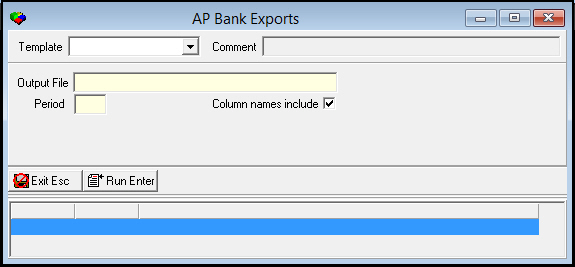
4. Complete the following fields:
l In Description - type a description of the export.
l In Batch No - select the batch number to export.
l In Include Details - enter a check mark to export batch details.
l In Filename - type the destination of the export on your computer.
5. Choose Run Export.
w SBN displays the export process.
Button Functions
The following table displays the buttons, describes the shortcut keys, actions, and functionality.
Button |
Name |
Shortcut Key |
Action |
Description |
|
Search |
shift+f5 |
1857/ 3 |
Search for check batches. |
|
Get Record |
alt+f1 |
1857/ 1 |
View details of selected record. |
|
Print selected records |
ctrl+f8 |
1857/ 6 |
Print selected records. |
|
Clear Search Screen |
shift+f4 |
Clear search screen. |
|
|
Print Checks |
f7 |
1857/ 5 |
Access AP Print Checks (report #2011). |
|
Create Chks |
shift+f6 |
Specify check parameters and create a batch of checks. |
|
|
Import batch |
shift+f7 |
1857/ 8 |
Import check information. |
|
Export |
shift+f8 |
1857/ 7 |
Export check batches. |
|
Previous Record |
f4 |
Go to previous record. |
|
|
Next Record |
f5 |
Go to next record. |










Modifications and Updates to AP Check Batch Manager
The following table lists modifications and updates to the AP Check Manager document.
Mod Number |
Date |
Description |
n/a |
7/31/14 |
Images updated. |
F1 Help
| Delphi Forms | apchkbatmgrform |
| Program Numbers | 1837, 1857, 2011 |
| Keywords | create checks dialog |