
Email Queue
Email Queue
Email Queue
Module: Utilities
Overview
Use Email Queue (program #545) to access a log of outstanding or failed email messages that SBN has sent automatically. You can set up an account to automatically send an email when an alarm comes in. Set this feature up under the Action Plans tab in Service/Data Entry (program #559).
Email messages that are sent are automatically logged in the Email Queue and can be viewed in this program. An email can also be deleted from the queue or reset so that it is resent to the original recipient. Once an email is sent successfully, it is cleared from the queue.
To access this program, select Email Queue (program #545) from the main menu of SBN.
Note: Use option ba414 to send phone type SMS alarm pages to the Email Queue instead of the Paging Queue (program #572).
The Email Queue Window
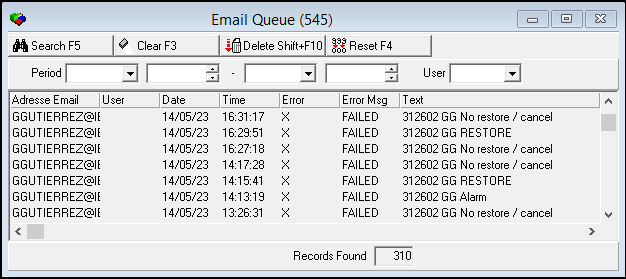
The following graphic shows Email Queue as the program opens. The middle pane of the window remains empty until you perform a search for email messages.
Field/Column Descriptions
The following table describes the fields and columns used in Email Queue.
|
Field/Column |
Description |
|
Period |
Start date for this search. |
|
Start Time (No label) |
Start time for this search. |
|
Period End (No label) |
End date for the search. |
|
End Time (No label) |
End time for the search. |
|
User |
Not functional yet. |
|
Email Address |
Destination address for this email. |
|
User |
Not functional yet. |
|
Date |
Date that the email was inserted in the queue. |
|
Time |
Time that the email was inserted in the queue. |
|
Error |
An X displays if an error occurred while sending this email. |
|
Error Message |
Explanation of the error that occurred when this email was sent. |
|
Text |
Additional text sent within the email. |
|
Records Found |
The number of records that match the selected search parameters. |
Searching for an Email Message
Use the search feature to search for email messages that have been sent from SBN and to view information regarding those email messages. When you perform a search you can narrow the search by selecting specific parameters or you can get general information by leaving search fields blank. If SBN finds no records that match your search parameters, the window remains blank.
Use the following steps to search for an email:
1. In the search fields, select your search parameters.
2. Choose Search.
‰ The results of the search appear in the lower pane of the window.
3. To perform a new search, choose Clear.
‰ SBN clears the search fields and the display.
4. Repeat steps 1-2.
Deleting an Email Message
Use the following steps to delete an email message from the email queue:
1. Select the email you want to delete.
2. Choose Delete Record.
‰ SBN removes the selected email from the email queue.
Resetting an Email Message
Use the following steps to reset an email to resend to the intended recipient:
1. Select the email you want to resend.
2. Choose Reset.
Button Functions
The following table displays the buttons, describes the shortcut keys, actions and functionality.
|
Button |
Name |
Shortcut Key |
Action |
Description |
|
|
Search |
f5 |
545/ 5 |
Search for Email. |
|
|
Clear Search Screen |
f3 |
545/ 6 |
Clear search parameters. |
|
|
Delete Record |
shift+f10 |
545/ 7 |
Delete selected Email from queue. |
|
|
Reset |
f4 |
545/ 8 |
Reset Email to resend to intended recipient. |
|
|
Exit without saving |
esc |
Exit without saving changes to selected record. |
|
|
|
Save Existing Record |
enter |
Save changes to selected record. |






Modifications and Updates to Email Queue
The following table lists modifications and updates to the Email Queue document.
|
Mod Number |
Date |
Description |
|
n/a |
9/2/14 |
Images updated. |