
Installation Classes
Installation Classes
Installation Classes
Program #: 1555
Module: System Administration
Overview
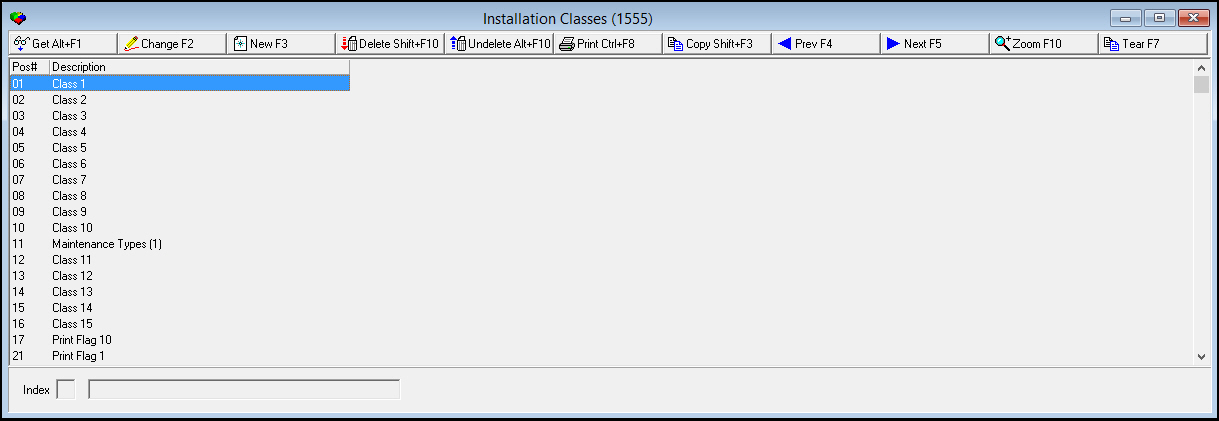
Use Installation Classes (program #1555) to define installation class fields that appear in menus in the Data Entry Master window. When you open the program, the window displays valid indexes and default descriptions. For each field, you must select an installation code and then zoom into the sublevel to define the menus.
To access this program, select Installation Classes from the main menu of SBN.
The Installation Classes Window
The following graphic shows Installation Classes as the program opens. The upper pane displays previously defined Installation Classes.
Field/Column Descriptions
The following table describes the fields and columns used in Installation Classes.
Field/Column |
Description |
Pos # (Index) |
Identifies the indexed placement of the selected installation class. |
Description |
Text description of the selected installation class. |
Index/Installation Class
The following table lists and describes the indexes and corresponding installation classes available in Installation Classes.
Index |
Installation Class |
Description |
1-10 12-16 |
Classes |
Each of these 15 fields can be used to classify your customers in order to define the products or services you provide to them. The menu for this list appears in the Class field in Data Entry (program #559). After you attach a class to a customer, it is visible in the Class field in Work Orders for the installation. |
11 |
Maintenance Type |
Used to define valid maintenance types. The menu for this list appears in the Maintenance field in the Data Entry Basics tab. Note: Company 150 uses the Export 1 field to define the frequency of maintenance. |
21-29 |
Print Flags |
Used to define print flags for reports. The menu for this list appears in the Report Flag field of the Data Entry Basics tab. |
30 |
Print Flag |
Used to define email and fax flags for reports. If you use this field for other options, it does not work for email and fax flags. Options rptdfax and rptdmai control the menu for this field. |
60-79 |
Classes 2 |
Each of these 20 fields can be used to classify your customers in order to define the products or services you provide to them. The menu for this list appears in the Class 2 field of the Data Entry Basics tab. Note: The Class 2 fields do not generate cycle fees. |
The following reports use information from the class fields to display additional customer data:
Report #2002 - Work Order Report
Report #2023 - Contract Approval Report
Report #2066 - Current Customer Status Report
Report #2068 - Customer Listing Report
Using Common Functions
See the reference document Common Functions in SBN for more information.
Zooming into the Sublevel of Installation Classes
Installation Classes contains a sublevel with two tabs:
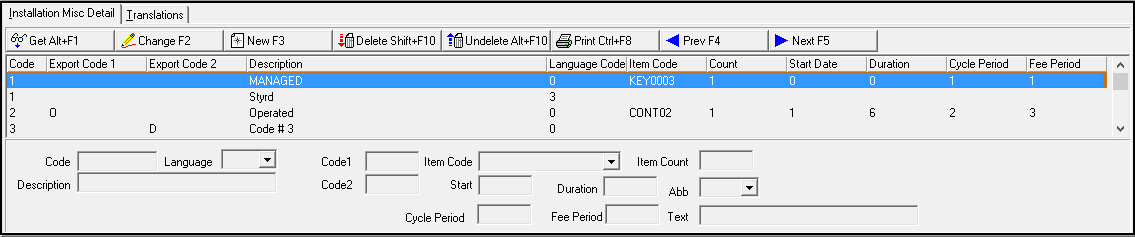
The Installation Misc Detail tab - in which you manage codes and translated codes for the menus for installation classes. You may set up cycle fees for codes as well. (SBN only creates cycle fees for an installation if the selected class code has the same language as the installation.)
The Translations tab - in which you can attach multiple translations to a selected installation class. Installation classes then appear in SBN in the user's language.
The Installation Misc Detail Tab
The following graphic shows the Installation Misc Detail tab. The tab displays codes previously attached to the selected installation class.
Field/Column Descriptions
The following table describes the fields and columns used in the Installation Misc Detail tab.
Field/Column |
Description |
Code |
Abbreviation that identifies the code. |
Language |
Translation of the code description that appears in the menu in Data Entry. The translated description then appears in the language set in the user's profile. Note: If the selected code includes a cycle fee, SBN only implements the cycle fee for an installation if the selected code has the same language as the installation. Note: Once a language has been selected for a line item, it cannot be changed. You must create a new line item, copying everything else in the original line item, with the language code you want. |
Code1 |
Company-defined export code for the selected item. |
Item Code |
You may select an item for which SBN creates a cycle fee when you enter the selected code in the selected Class field of Data Entry. (This menu originates from program #1535.) Note: The Class 2 fields defined in indexes 60-79 do not generate cycle fees. |
Item Count |
You may enter an item count for which SBN creates a cycle fee when you enter the selected code in the selected Class field of Data Entry. Note: The Class 2 fields defined in indexes 60-79 do not generate cycle fees. |
Description |
Text description of the code. |
Code2 |
Company-defined export code for the selected item. |
Start |
Enter the number of months from today's date that you want the cycle fee for the selected code to start. (If you enter , the cycle fee becomes effective immediately.) Note: The Class 2 fields defined in indexes 60-79 do not generate cycle fees. |
Duration |
Enter the number of months for which the cycle fee for the selected code will be valid. SBN uses this number to calculate the Valid To Date for the cycle fee. Note: The Class 2 fields defined in indexes 60-79 do not generate cycle fees. |
Abbreviation |
You may select a special text abbreviation that replaces the item description on invoices for the cycle fee for the selected code. (This menu originates from program #1544.) Note: The Class 2 fields defined in indexes 60-79 do not generate cycle fees. |
Cycle Period |
Frequency, in months, for invoicing the cycle fee for the selected code. Note: The Class 2 fields defined in indexes 60-79 do not generate cycle fees. |
Fee Period |
Period of time covered by the cycle fee for the selected code, in months. Note: The Class 2 fields defined in indexes 60-79 do not generate cycle fees. |
Text |
Text description of the cycle fee for the selected code that will appear in the Cycle Fees tab. Note: The Class 2 fields defined in indexes 60-79 do not generate cycle fees. |
The Translations Tab
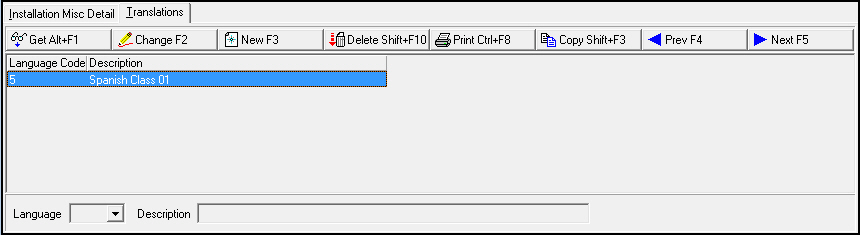
Use the Translations tab to translate the label of an installation class.
The following graphic shows the Translations tab. The tab displays previously defined translations of the classes.
Field/Column Descriptions
The following table describes the fields and columns used in the Translations tab.
Field/Column |
Description |
Language |
Code that identifies the language of the associated installation class. O Contact IBS before using codes 11-17. |
Description |
Translation of the text description of the installation class. |
Button Functions
The following table displays the buttons, describes the shortcut keys, actions, and functionality.
Button |
Name |
Shortcut Key |
Action |
Description |
|
Get |
ALT+F1 |
1555/1 |
Get record. |
|
Change |
F2 |
1555/2 |
Change selected record. |
|
New |
F3 |
1555/3 |
Create new record. |
|
Delete |
SHIFT+F10 |
1555/4 |
Delete selected record. |
|
Undelete |
ALT+F10 |
1555/5 |
Restore deleted record. |
|
CTRL+F8 |
1555/6 |
Print selected record. |
|
Details |
1555/10 |
|||
|
Get |
ALT+F1 |
1555/11 |
Get record. |
|
Change |
F2 |
1555/12 |
Change selected record. |
|
New |
F3 |
1555/13 |
Create new record. |
|
Delete |
SHIFT+F10 |
1555/14 |
Delete selected record. |
|
Undelete |
ALT+F10 |
1555/15 |
Restore deleted record. |
|
CTRL+F8 |
1555/16 |
Print selected records. |
|
Translations |
1555/20 |
|||
|
Get |
ALT+F1 |
1555/21 |
Get record. |
|
Change |
F2 |
1555/22 |
Change selected record. |
|
New |
F3 |
1555/23 |
Create new record. |
|
Delete |
SHIFT+F10 |
1555/24 |
Delete selected record. |
|
Copy Current Record |
SHIFT+F3 |
Copies the current record. |
|
|
Previous |
F4 |
Select last record. |
|
|
Next |
F5 |
Select next record. |
|
|
Zoom |
F10 |
Zoom in/out of sublevel. |
|
|
Tear |
F7 |
Open the Details tab in a full-sized separate window. |
|











Modifications and Updates to Installation Classes
The following table lists modifications and updates to the Installation Classes document.
Mod Number |
Date |
Description |
N/A |
6/18/14 |
Added notice about being unable to change the language for an existing line item. |
n/a |
09/16/14 |
Images updated. |
08.87.11020, 07.87.25332 |
06/30/17 |
Added Pos#50 (WIP Labor Cost detail.) |
08.87.11020, 07.87.25332 |
06/30/17 |
Added Pos#51 (WIP Travel Cost detail.) |