
Call Out Log
Call Out Log
Call Out Log
Module: Account Management
Overview
Use the Call Out Log to create an interface between patrol response in Dispatch (program #537) and the service and billing functionality of SBN. If an operator disposes of an incident in the Dispatch tab as a Call Out event, the event closes in Dispatch and moves to the Call Out Log. You may also use the Call Out Log to view information for incidents with a patrol response and to determine the current status of each incident.
Operators use the Quality Control window to enter or edit billing information for the customer and the patrol agency. Dealer restrictions apply.
Note: When a Call Out event with no agency attached to the patrol ticket occurs in Dispatch, SBN deletes the ticket when the operator selects an alarm resolution.
This document covers the following topics:
Navigating to the Call Out Log
Searching for Call Out Records
Scrolling through the Call Out Log
Navigating to the Call Out Log
Use the following steps to navigate to the Call Out Log:
1. From the main SBN toolbar, select Menu.
2. From the drop-down menu, select Go To.
3. In the Go To Program dialog box, type in "705" and press Enter.
w The Call Out Log opens.
Call Out Log Options
You can manipulate the Call Out Log window and functionality through the use of a number of options. The settings of the following options control different aspects of the Call Out Log and how it relates to other tabs and programs. For detailed information on an option and its default setting, see SBN Options.
Option ba127 - When on, this option activates patrol ticket functionality. SBN creates a ticket when a user dispatches a patrol agency in program #537. This option must be on to use the Call Out Log.
Option ba195 - When on and a user creates patrol tickets in the Call Out Log, SBN flags the patrol tickets with an approved status. You cannot edit the Close flag in the Quality Control window.
Option ba210 - When on, SBN activates the Call Out Log (program #705). When this option is on, option ba127 must also be on, and option diswolt must be defined.
Option ba308 - When on, the Price List Group field in the Quality Control window of the Call Out Log defaults from the Price List Group defined in the Contract Details tab in Contract Master (program #548) for the account associated with the Call Out incident.
Option ba312 - When on, the Price List Group field in the Quality Control window of the Call Out Log defaults from the Price List Group defined in the Agency Pricing tab of Patrol Agencies (program #1717). You cannot have this option on if option ba308 is on or option wopapg has a defined value.
Option ba331 - This option is dealer based. When on, users many change information in the Patrol Agency Price and Patrol Comments fields of a closed Quality Control record in the Call Out Log.
Option ba532 - When On, it will not automatically check QC complete box for Patrol tickets in Call Out Log.
Option diswolt - Use to define the offset (in days) for the Transaction Date on work orders created for the Call Out Log. When this option is on, option ba210 must be on.
Option wocoitc1 - Use to define the first item code to use for Free Call Out work orders, which appears on the work orders for a positive amount. The item entered for the value of option wocoitc2 appears on the work orders for a negative amount, making the work order total $0. (See Creating Free Call Out Work Orders.)
Option wocoitc2 - Use to define the second item code to use for Free Call Out work orders, which appears on the work orders for a negative amount. The item entered for the value of option wocoitc1 appears on the work orders for a positive amount, making the work order total $0. (See Creating Free Call Out Work Orders.)
Option wocopayc - Use to define the Payment Code to use for Free Call Out work orders. (See Creating Free Call Out Work Orders.)
Option wopait4 - Use to define the default Item Code to use for patrol agency work orders. This option is dealer-based.
Options wopait6-9 - Use to define the default Item Code to use for patrol work orders for Agencies 6-9. These options are dealer-based.
Option wopapg4 - Use to define the default Price List Group to use for patrol agency work orders. This option is dealer-based.
Options wopapg6-9 - Use to define the default Price List Group to use for patrol work orders for Agencies 6-9. These options are dealer-based.
Option wopawt4 - Use to define the default Work Order Type to use for patrol agency work orders. This option is dealer-based.
Options wopawt6-9 - Use to define the default Work Order Type to use for patrol work orders for Agencies 6-9. These options are dealer-based.
The Call Out Log
The Call Out Log contains two panes:
The upper pane contains search parameter fields to use when searching for incidents.
The lower pane displays the results of the search.
The following graphic shows the Call Out Log after a search.
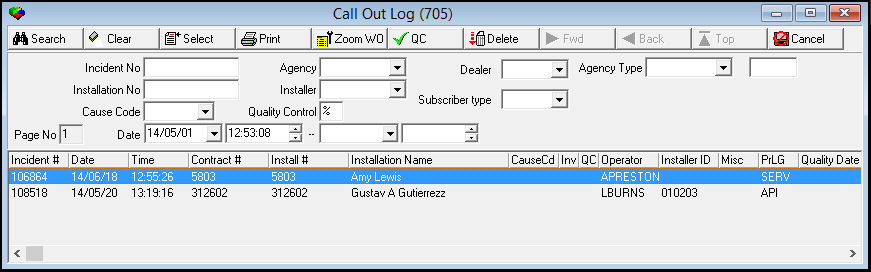
Field Descriptions - Search Parameters Pane
The following table describes the fields in the upper pane of the Call Out Log.
Field |
Description |
Incident Number |
Specific incident number to search for. |
Agency |
You may search by agency. Note: The Agency menu displays only those agencies associated with the dealer specified in the user’s profile. |
Dealer |
You may search by dealer. Note: The Dealer menu displays only those dealers associated with the dealer specified in the user’s profile. |
Agency Type |
You may search by agency type. |
(No label) |
Customer-defined field; no functionality in SBN. |
Installation Number |
You may search by installation number. |
Installer |
You may search by installer ID. |
Subscriber Type |
You may search by a Subscriber Type. |
Cause Code |
You may search by cause code. (This menu originates from program #1590, abbreviation 46.) |
Quality Control |
If this box displays an X, SBN includes in the search only those records that have been quality checked. If you leave this box blank, SBN includes in the search only those records that have not been quality checked. Note: The default is %, which includes all records. |
Page Number |
Current page number for the queue display. |
Date/Time Range |
|
Date - From |
You may select a range of dates in which call out events occurred to include in the search; select the beginning date of the range. |
Time - From (No label) |
You may select a time range in which call out events occurred to include in the search; select the beginning time of the range. |
Date - To (No label) |
Select the ending date of the range. |
Time - To (No label) |
Select the ending time of the range. |
Column Descriptions - Results Pane
The following table describes the columns used in the lower pane of the Call Out Log.
Column |
Description |
Incident Number |
Incident number from the Alarm Queue tab. |
Date |
Date on which the incident occurred. |
Time |
Time at which the incident occurred. |
Contract Number |
Number of the contract associated with the incident. |
Installation Number |
Number of the installation associated with the incident. |
Installation Name |
Name on the installation. |
Cause Code |
Cause code of the incident. (This menu originates from program #1590, abbreviation 46.) |
Invoice Flag |
If this column displays an X, SBN has created an invoice for the incident. |
Quality Control Flag |
If this column displays an X, the Quality Control window has been edited. |
Operator |
ID of the operator who handled the alarm in Dispatch (program #537). |
Installer ID |
Original installer ID for the installation. |
Miscellaneous |
Customer use only; no functionality in SBN. |
Price List Group |
Price list group from the initial work order. Note: Use option wopapg to define the default Price List Group to use for patrol work orders. |
Quality Date |
Date Quality Control was closed for the incident. |
Dealer ID |
Identifies the dealer associated with the selected installation. |
Misc |
Displays the patrol that responded to the selected incident. |
Disposition |
Alarm resolution for the selected incident. |
Ev Ext |
The event extension of the alarm resolution for the selected incident. |
Sub_Type |
Displays the subscriber type associated with the selected installation. |
Searching for Call Out Records
If you leave all search parameters blank when you search, SBN displays all Call Out Log entries in the lower pane.
Use the following steps to search for a call out record:
1. Complete the search parameters in the upper pane.
2. Choose Search.
w The call out log records that match your search parameters appear in the lower pane
Viewing a Call Out Record
You may select a Call Out entry and view the associated installation in Data Entry Basics (program #559).
Use the following steps to view the installation for a call out record:
1. Select the call out record you want to view.
2. Choose Select.
w SBN opens Data Entry Basics so that you can view the associated installation.
Printing Selected Records
Choose Print Selected Records to open the Alarm Ticket Report (report #1997). For more information on this report, see the Alarm Ticket document.
Scrolling through the Call Out Log
If the Call Out Log has more than one page, you can use the navigation buttons to move backward and forward through the pages.
Choose Scroll Forward 1 Page to move forward through the pages of the Call Out Log.
Choose Scroll Backward 1 Page to move backward through the pages of the Call Out Log.
Choose Go To Top of Log to jump back to the first page.
Deleting a Record
You may delete a call out record from the Call Out Log list. You cannot retrieve a deleted record.
Use the following steps to delete a record:
1. Select the call out record you want to delete.
2. Choose Delete Record.
w SBN asks if you are sure you want to delete the record.
3. Choose Yes.
w SBN deletes the selected record.
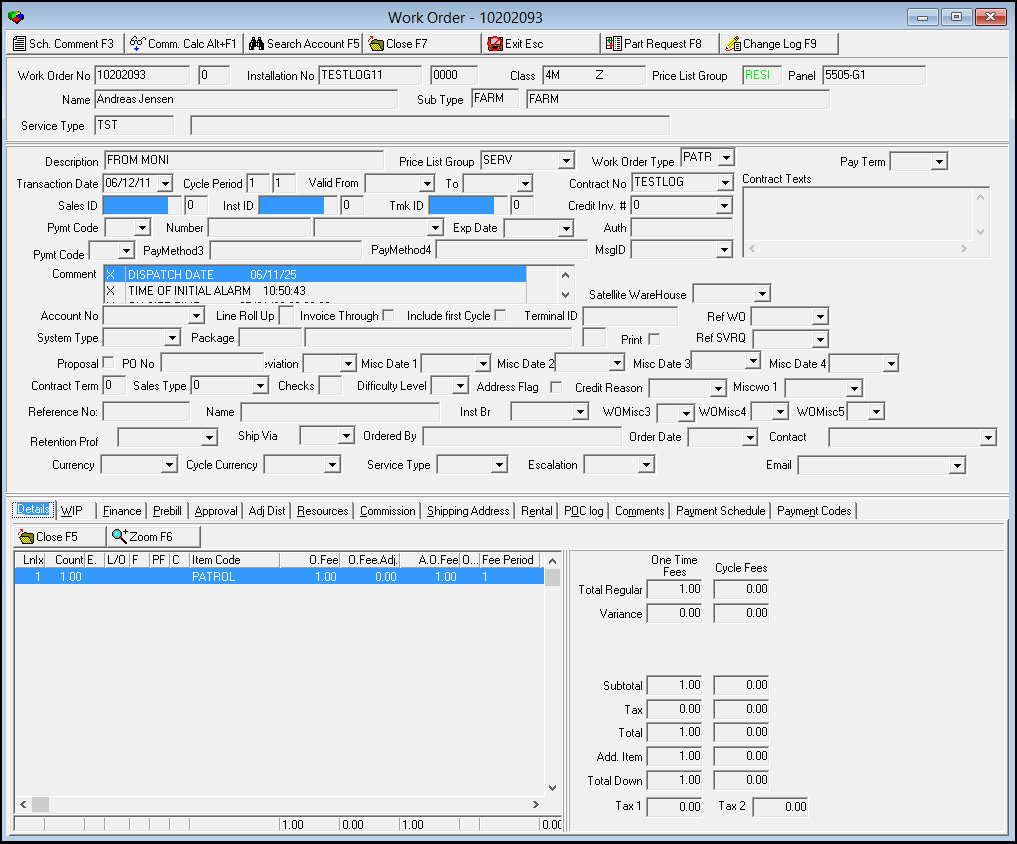
Zooming to Work Orders
Zooming to work orders opens a patrol dispatch work order window for the call out record you selected. SBN creates the work order automatically when you set the Invoice Flag in the Quality Control window. If a user created the work order in Dispatch, the comment attached to the work order displays information about the incident.
Note: The Item Count for work orders you create from the Call Out Log defaults to one (1.0). Options wopait1-9, wopapg1-9, and wopawt1-9 must be defined to create work orders in the Call Out Log.
The following options are associated with patrol dispatch work orders:
Option ba127 must be on to create patrol work orders.
Option ba210 must be on for the work order to contain Call Out Log information.
Option diswolt defines the number of days out for the transaction date on the patrol work order.
The following options define the defaults to use on patrol work orders. When these options are blank, SBN does not create patrol work orders when you set the Invoice Flag in the Quality Control window.
Option wopawt4 defines the default Work Order Type to use for patrol agency work orders.
Options wopawt6-9 define the default Work Order Type to use for patrol work orders for Agencies 6-9.
Option wopapg4 defines the default Price List Group to use for patrol agency work orders.
Options wopapg6-9 define the default Price List Group to use for patrol work orders for Agencies 6-9.
Option wopait4 defines the default Item Code to use for patrol agency work orders.
Options wopait6-9 define the default Item Code to use for patrol work orders for Agencies 6-9.
Use the following steps to zoom to a work order:
1. Select the call out record for which you want to view the work order.
2. Choose Zoom to Work Order.
w The patrol dispatch work order opens.
Quality Control
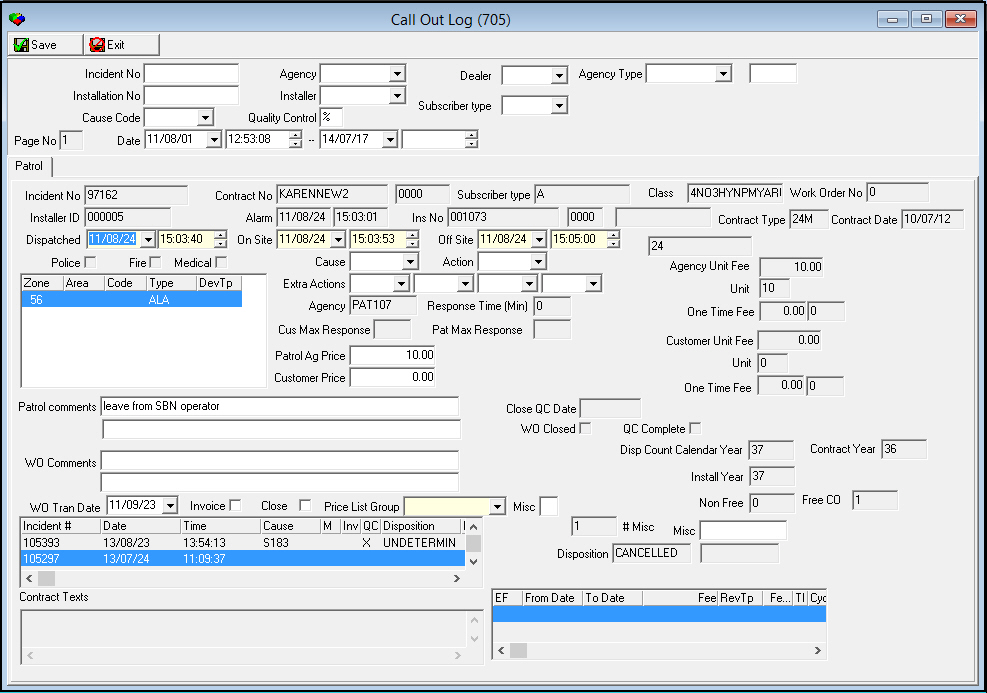
Use Quality Control to edit default information, add additional zone information, edit price information, and create comments that print on the Alarm Ticket (report #1997). You can also create work orders for patrol tickets in this window.
Most information in this window originates from the Alarm Log tab and from sublevel windows in Action Plans. SBN uses information from Quality Control to generate:
Statistical reports
Invoicing reports
Payment reports
The Quality Control window displays different tabs according to the type of alarm ticket created in Dispatch (program #537). Tickets for patrol agencies and Agencies 6-9 display a Patrol tab with the details of the alarm incident. Tickets for police, fire, and medical agencies display three tabs:
Police/Fire Medical tab - contains alarm incident details
Permit tab - contains details of the permit associated with the dispatched agency. The permit determines what fees to charge the customer for the incident.
Agency tab - contains details of the agency dispatched for the alarm incident
The Patrol Tab
The following graphic displays the Quality Control window with the details of a patrol ticket displayed. The upper pane of the window contains the search parameters from the main Call Out Log.
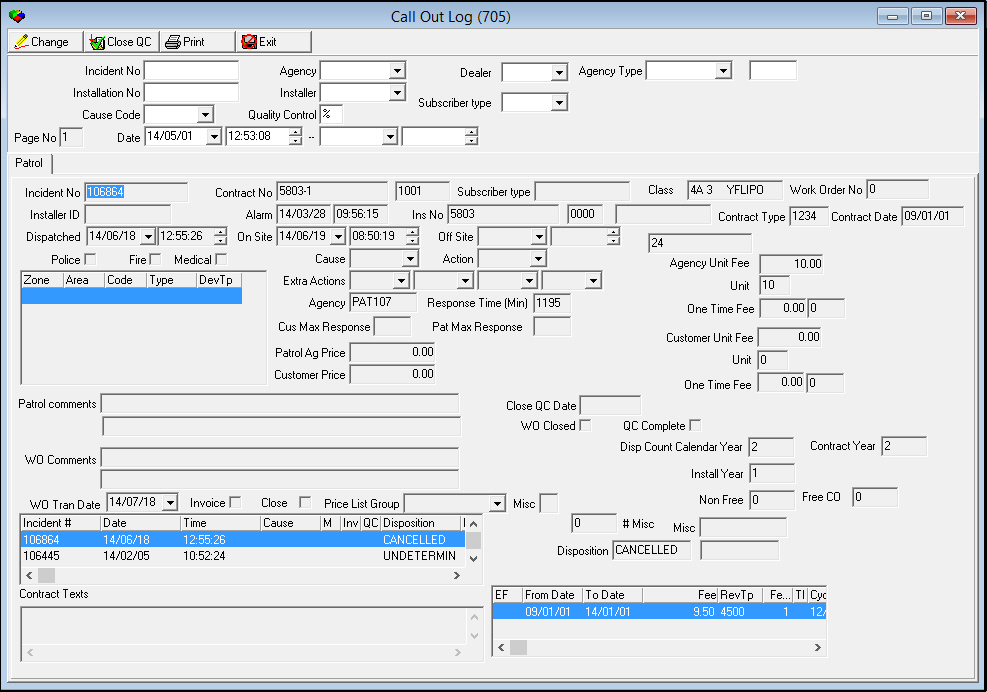
Field/Column Descriptions - Quality Control Patrol Tab
The following table describes the fields and columns used in the Patrol tab of the Quality Control window.
Field/Column |
Description |
Incident Number |
The number of the selected incident. |
Contract Number |
The contract number associated with the incident. |
Dealer ID (No label) |
Dealer ID for the contract specified. |
Subscriber Type |
Subscriber type for the contract specified. |
Class |
Corresponds to the class fields from Data Entry Master and Basics (program #559). |
Work Order Number |
Work order number created for the patrol ticket. |
Installer ID |
Installer ID number. |
Alarm Date |
Date the alarm initially entered the Dispatch tab. |
Alarm Time |
Time the alarm initially entered the Dispatch tab. |
Installation Number (3 fields) |
Installation number for the account from which the alarm generated. |
Contract Type |
Contract type identifier. |
Contract Date |
Initial contract date from Contract Master (program #548). |
Dispatch Date |
Date the patrol was dispatched. |
Dispatch Time |
Time the patrol was dispatched. |
On Site Date |
Date the patrol was on site; recorded in the Dispatch tab. (Required Field) |
On Site Time |
Time the patrol was on site; recorded in the Dispatch tab. (Required Field) |
Off Site Date |
Date the patrol left the site; recorded in the Dispatch tab. (Required Field) |
Off Site Time |
Time the patrol left the site; recorded in the Dispatch tab. (Required Field) |
Police |
If this box displays a check mark, a police agency was dispatched. |
Fire |
If this box displays a check mark, a fire agency was dispatched. |
Medical |
If this box displays a check mark, a medical agency was dispatched. |
Cause |
Cause of the alarm. (This menu originates from program #1590, abbreviation 46.) |
Action |
Identifies the action the operator took. (This menu originates from program #1590, abbreviation 47.) |
Agency Unit Fee |
Rate the agency charges for each unit of time onsite. |
Agency Unit |
Number of minutes covered by the agency unit time fee. |
Agency One Time Fee |
One time fee the agency charges for being onsite. |
Agency One Time Fee Minutes (No label) |
Number of minutes covered by the agency one time fee. |
Zones Grid |
|
Zone |
Zone from which the alarm generated. |
Area |
Zone area from which the alarm generated. |
Code |
Code that corresponds to the zone. |
Type |
Zone type from which the alarm generated in the Dispatch tab. |
Device Type |
Device type from the Dispatch tab. |
Extra Action 1 |
Extra fields to log operator actions. (These menus originate from program #1590, abbreviation 47.) |
Extra Action 2 (No label) |
|
Extra Action 3 (No label) |
|
Extra Action 4 (No label) |
|
Agency |
ID of the patrol agency that was dispatched. (This menu originates from program #1717.) |
Response Time Min |
Calculated minutes between the time the patrol was dispatched and arrived on site. |
Cus Max Response |
Maximum time in which agency must respond; used to determine billing for customer. |
Pat Max Response |
Maximum time in which agency must respond; used to determine payment to agency. |
Customer Unit Fee |
Rate to charge the customer for each unit of time the patrol is on site. |
Customer Unit |
Number of minutes corresponding to the customer unit fee. |
Customer One Time Fee |
One time fee to charge the customer for the patrol being on site. |
Customer One Time Fee Minutes (No label) |
Number of minutes covered by the customer one time fee. |
Patrol Agency Price |
SBN-calculated fee based on one-time fees, unit fees, and grace periods. You can override this default. Note: If the response time is greater than the allowable for the specified agency, the price is zero. Note:
SBN matches the details from the contract with a pricing entry
in Patrol Agencies (program #1717) based on the following logic:
Note: If option ba331 is on, you may edit only this field on a closed Quality Control record. |
Customer Price |
SBN-calculated fee based on one-time fees, unit fees, and grace periods. You can override this default. Note: If the response time is greater than the allowable time specified in the action plan, the price is zero. |
Patrol Comments |
Text field for comments. |
Additional Comments (No label) |
Additional text field for comments that appear on the Alarm Ticket (report# 1997). |
Close QC Date |
SBN-stamped date when the record was closed. Note: May be closed with the F5 key or automatically closed by SBN when you invoice the work order. |
WO Closed |
If this check box is selected, the work order is closed. |
QC Complete |
If this check box is selected, quality control is complete. Note: SBN enters a check mark in this box when you save a change in this window. |
WO Comments |
Text field for comments that appear in the Comment lines of the work order created by the Call Out Log. |
Additional
Comments |
Additional text field for comments that appear in the Comment lines of the work order created by the Call Out Log. |
Dispatch Count |
|
Calendar Year |
Total number of patrol dispatches during the current calender year. |
Contract Year |
Number of dispatches by the patrol agency that have occurred on the contract in the contract year. |
Install Year |
Total number of patrol dispatches during the installation year. |
Non Free |
Count of entries with work orders. |
Free Call Out |
Count of entries without work orders. |
# Misc |
The number of Free Call Out Work Orders on the contract since January 1 of the year of the Contract Date. If no contract date is entered in program #548, SBN displays the number of Free Call Out Work Orders since the Installation Date. |
Misc |
Patrol that responded to the selected incident. Note: This field can be edited in Change mode. |
WO Transaction Date |
Transaction date for the work order. Based on option diswolt, this date defaults to a specified number of day from the date of call out. |
Invoice |
If this check box is selected, SBN sends an invoice to the customer. SBN creates a work order for the selected patrol ticket when you select this check box if options wopait1-9, wopapg1-9, and wopawt1-9 are defined. Note: When you select this check box, the incident number appears: l In the first comment line of the associated work order l On the invoice |
Close |
If this box displays a check mark, the work order is closed. Note: If option ba195 is on, you cannot update the Close flag from this window. |
Price List Group |
When option ba308 is on, this field defaults from the Price List Group defined in the Contract Details tab in Contract Master (program #548) for the account associated with the Call Out incident. Note: When option ba312 is on, this field defaults from the Price List Group defined in the Agency Pricing tab of Patrol Agencies (program #1717). You cannot have this option on if option ba308 is on or option wopapg is defined. (Required Field) |
Misc |
Customer-defined field. Place an X in this field, select the Invoice check box, select a Price List Group, and enter an amount in the Customer Price field to create a Free Call Out work order for the selected patrol ticket. (See Creating Free Call Out Work Orders.) |
Incident Grid |
|
Incident Number |
Incident number for old tickets. |
Date |
Dispatched date for old tickets. |
Time |
Dispatched time for old tickets. |
Cause |
Service cause code associated with the incident. |
Miscellaneous |
Customer-defined field; no functionality in SBN. |
Invoice Flag |
Designates whether the incident is invoiced. |
Quality Control Flag |
Quality control passed flag. |
Disposition |
Alarm resolution code for the selected incident. |
Event Extension |
Event extension for the alarm resolution code for the selected incident. |
Disposition |
|
Resolution Code (No label) |
Alarm resolution code for the selected incident. |
Resolution Extension Code (No label) |
Event extension of the alarm resolution code for the selected incident. |
Contract Texts |
Text information from the Contract Texts tab in Contract Master (program #548). |
Cycle Fees Grid |
|
End Flag |
If this check box is selected, you invoice this fee until the date it expires. |
From Date |
Date that this cycle fee goes into effect. |
To Date |
Date that this cycle fee expires. |
Fee |
Amount of this cycle fee. |
RevTp |
Code for the type of fee being charged to the customer. (This menu originates from program #1512.) |
Fee Period |
Period of time covered by this cycle fee, in months. |
Tax Included |
If this column displays an X, the cycle fee rate includes tax. This causes SBN to reduce the revenue amount by the amount of tax calculated. |
Cycle Date |
Last invoiced date for this cycle fee. |
The Police/Fire/Medical Tab
When you choose the Quality Control button on an alarm ticket for a police, fire, or medical agency, the Quality Control window displays a Police/Fire/Medical tab, a Permit tab, and an Agency tab.
The following graphic displays the Quality Control window with the Police/Fire/Medical tab displayed. The tab displays details of an alarm ticket in which a police agency was dispatched. The upper pane of the window contains the search parameters from the main Call Out Log.
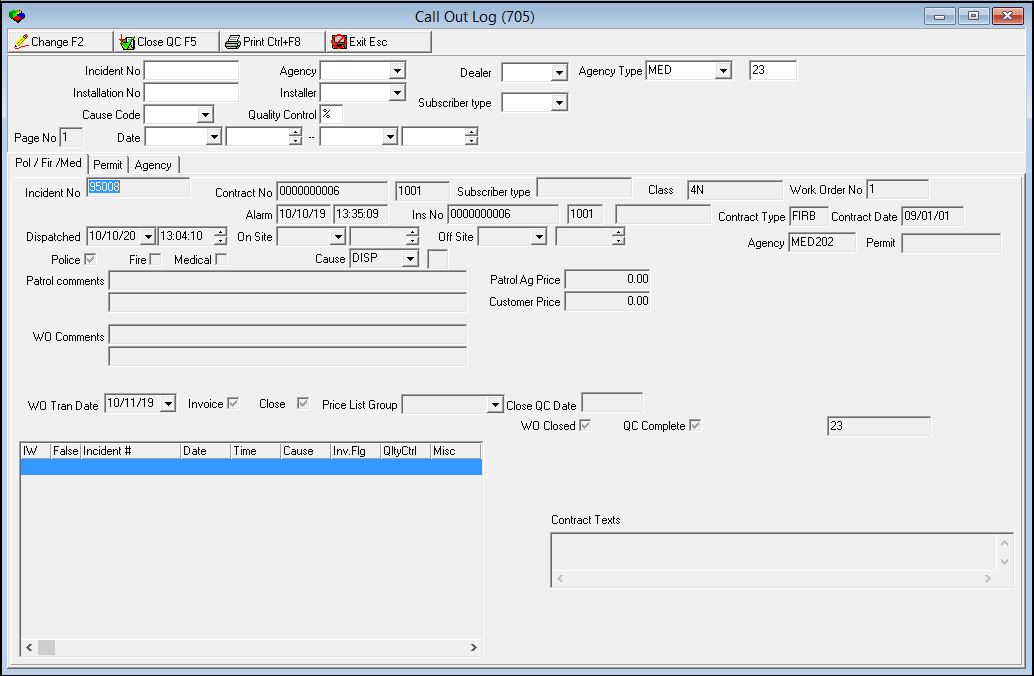
Field/Column Descriptions - Quality Control Police/Fire/Medical Tab
The following table describes the fields and columns used in the Police/Fire/Medical tab of the Quality Control window.
Field/Column |
Description |
Incident Number |
The number of the selected incident. |
Contract Number |
The contract number associated with the incident. |
Dealer ID (No label) |
Dealer ID for the contract specified. |
Subscriber Type |
Subscriber type for the contract specified. |
Class |
Corresponds to the class fields from Data Entry Master and Basics (program #559). |
Work Order Number |
Work order number created for the alarm ticket. |
Alarm Date |
Date the alarm initially entered the Dispatch tab. |
Alarm Time |
Time the alarm initially entered the Dispatch tab. |
Installation Number (3 fields) |
Installation number for the account from which the alarm generated. |
Contract Type |
Contract type identifier. |
Contract Date |
Initial contract date from Contract Master (program #548). |
Dispatched Date |
Date the patrol was dispatched. |
Dispatch Time |
Time the patrol was dispatched. |
On Site Date |
Date the patrol was on site; recorded in the Dispatch tab. |
On Site Time |
Time the patrol was on site; recorded in the Dispatch tab. |
Off Site Date |
Date the patrol left the site; recorded in the Dispatch tab. |
Off Site Time |
Time the patrol left the site; recorded in the Dispatch tab. |
Agency |
Agency ID that was dispatched to the installation premises. |
Permit |
Permit ID assigned to the dispatched agency. |
Police |
If this box displays a check mark, a police agency was dispatched. |
Fire |
If this box displays a check mark, a fire agency was dispatched. |
Medical |
If this box displays a check mark, a medical agency was dispatched. |
Cause |
Cause of the alarm. The Export Code 1 attached to the Cause code indicates if an incident is False (0), Disputed (1), or Real (2). (This menu originates from program #1590, abbreviation 46.) |
Patrol Comments |
Text field for comments that appear on the Alarm Ticket (report #1997). |
Patrol Agency Price |
SBN-calculated fee based on one-time fees, unit fees, and grace periods. You can override this default. Note: If the response time is greater than the allowable for the specified agency, the price is zero. Note:
SBN matches the details from the contract
with a pricing entry in Patrol Agencies (program #1717) based
on the following logic: Note: If option ba331 is on, you may edit only this field on a closed Quality Control record. |
Additional Patrol Comments |
Additional text field for comments that appear on the Alarm Ticket (report #1997). |
Customer Price |
SBN-calculated fee based on one-time fees, unit fees, and grace periods. You can override this default. Note: If the response time is greater than the allowable time specified in the action plan, the price is zero. |
WO Comments |
Text field for comments that appear in the Comment lines of the work order created by the Call Out Log. |
Additional WO Comments |
Additional text field for comments that appear in the Comment lines of the work order created by the Call Out Log. |
WO Transaction Date |
Transaction date for the work order. Based on option diswolt, this date defaults to a specified number of day from the date of call out. |
Invoice |
If this check box is selected, SBN sends an invoice to the customer. SBN creates a work order for the selected patrol ticket when you select this check box if options wopait1-9, wopapg1-9, and wopawt1-9 are defined. Note: When you select this check box, the incident number appears:
|
Close |
If this box displays a check mark, the work order is closed. Note: If option ba195 is on, you cannot update the Close flag from this window. |
Price List Group |
When option ba308 is on, this field defaults from the Price List Group defined in the Contract Details tab in Contract Master (program #548) for the account associated with the Call Out incident. Note: When option ba312 is on, this field defaults from the Price List Group defined in the Agency Pricing tab of Patrol Agencies (program #1717). You cannot have this option on if option ba308 is on or option wopapg is defined. |
Close QC Date |
SBN-stamped date when the record was closed. Note: May be closed with the F5 key or automatically closed by SBN when you invoice the work order. |
WO Closed |
If this check box is selected, the work order is closed. |
QC Complete |
If this check box is selected, quality control is complete. Note: SBN enters a check mark in this box when you save a change in this window. |
Incident Grid |
|
Inside Window |
An X in this column indicates that the incident occurred on or before the Dispatched date of the selected alarm ticket. |
False |
Indicates if the incident is False (), Disputed (), or Real (). |
Incident Number |
Incident number for old tickets. |
Date |
Dispatched date for old tickets. |
Time |
Dispatched time for old tickets. |
Cause |
Service cause code associated with the incident. |
Invoice Flag |
Designates whether the incident is invoiced. |
Quality Control Flag |
Quality control passed flag. |
Miscellaneous |
Customer-defined field; no functionality in SBN. |
Disposition |
Alarm resolution code for the selected incident. |
Event Extension |
Event extension for the alarm resolution code for the selected incident. |
Contract Texts |
Text information from the Contract Texts tab in Contract Master (program #548). |
The Permit Tab
When you choose the Quality Control button on an alarm ticket for a police, fire, or medical agency, the Quality Control window displays a Police/Fire/Medical tab, a Permit tab, and an Agency tab. The Permit tab displays the details of the permit associated with the agency dispatched for the selected alarm ticket. The permit determines what fees to charge the customer for the alarm incident.
The following graphic displays the Permit tab of the Quality Control window.
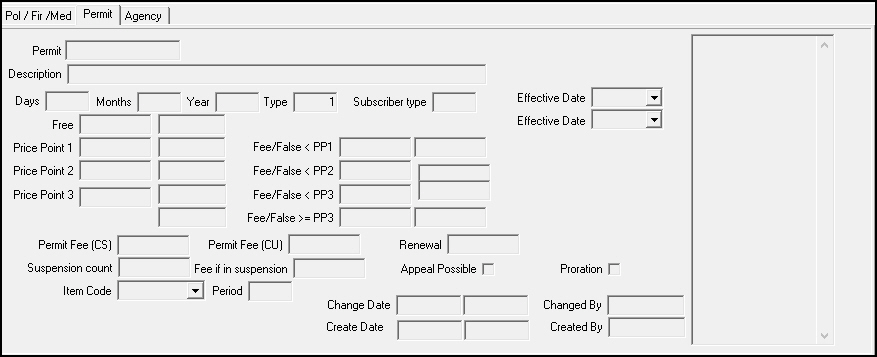
Field/Column Descriptions - Quality Control Permit Tab
The following table describes the fields and columns used in the Permit tab of the Quality Control window.
Field/Column |
Description |
Permit |
Abbreviation that identifies the permit profile. |
Description |
Text description of the permit profile. |
Days |
Number of days in the term during which the permit is valid. |
Months |
Number of months in the term during which the permit is valid. |
Years |
Number of years in the term during which the permit is valid. |
Type |
Indicates when the permit term ends. 1 - Anniversary (a fixed period, such as 12 months from the Effective Date) 2 - Calendar Year (January 1 to December 31) 3 - Rolling Year (renews each year from Create Date) |
Subscriber Type |
Subscriber type (commercial, residential, etc.) that determines the permit rules. (Some agencies apply different rules to commercial and residential subscribers.) |
Effective Date (From) |
Date on which the permit becomes effective. |
Free |
Number of free dispatches the agency allows per permit term. |
Free Range (No label) |
Range of free dispatches the agency allows per permit term. |
Effective Date (To) |
Date on which the permit expires. |
Price Point 1 |
Number of false alarm dispatches up to which the agency charges the fee amount in the Fee/False < PP1 field. |
Price Point 1 Range |
Range of false alarm dispatches within which the agency charges the fee amount in the Fee/False < PP1 field. |
Fee/False < PP1 |
Fee that the agency charges for a false alarm dispatch within the Price Point 1 range. If the agency uses a range rather than a flat fee, this is the minimum fee amount of the range. |
Fee/False < PP1 Range |
Maximum fee amount that the agency charges for a false alarm dispatch within the Price Point 1 range, if the agency uses a range rather than a flat fee. |
Price Point 2 |
Number of false alarm dispatches up to which the agency charges the fee amount in the Fee/False < PP2 field. |
Price Point 2 Range |
Range of false alarm dispatches within which the agency charges the fee amount in the Fee/False < PP2 field. |
Fee/False < PP2 |
Fee that the agency charges for a false alarm dispatch within the Price Point 2 range. If the agency uses a range rather than a flat fee, this is the minimum fee amount of the range. |
Fee/False < PP2 Range |
Maximum fee amount that the agency charges for a false alarm dispatch within the Price Point 2 range, if the agency uses a range rather than a flat fee. |
Price Point 3 |
Number of false alarm dispatches up to which the agency charges the fee amount in the Fee/False < PP3 field. |
Price Point 3 Range |
Range of false alarm dispatches within which the agency charges the fee amount in the Fee/False < PP3 field. |
Fee/False < PP3 |
Fee that the agency charges for a false alarm dispatch within the Price Point 3 range. If the agency uses a range rather than a flat fee, this is the minimum fee amount of the range. |
Fee/False < PP3 Range (No label) |
Maximum fee amount that the agency charges for a false alarm dispatch within the Price Point 3 range, if the agency uses a range rather than a flat fee. |
Maximum Price Point |
Number of false alarm dispatches after which the agency charges the fee amount in the Fee/False >= PP3 field. |
Fee/False >= PP3 |
Fee that the agency charges for a false alarm dispatch beyond the number in the Maximum Price Point field. If the agency uses a range rather than a flat fee, this is the minimum fee amount of the range. |
Fee/False >= PP3 Range (No label) |
Maximum fee amount that the agency charges for a false alarm dispatch beyond the number in the Maximum Price Point field, if the agency uses a range rather than a flat fee. |
Permit Fee (CS) |
Fee the central station pays for the permit. |
Permit Fee (CU) |
Fee the customer pays for the permit. |
Renewal |
Permit renewal fee amount. |
Suspension Count |
Number of false alarms allowed before an account is suspended and the agency will no longer be dispatched to the installation premises. |
Fee if in Suspension |
Fee the customer is charged if the account has been suspended. |
Appeal Possible |
Select this check box to indicate if the customer can appeal the agency's decision to suspend an account. (This check box has no SBN functionality.) |
Proration |
Select this check box to indicate that the agency prorates permit fees. |
Item Code |
Select an item to associate with the permit that can be used to set up a cycle fee for the permit. (This menu originates from program #1535.) |
Period |
Cycle period, in months, when the permit fee is charged. |
Change Date |
Date on which a user last changed the permit record. |
Change Time (No label) |
Time at which a user last changed the permit record. |
Changed By |
User ID that last changed the permit record. |
Create Date |
Date on which a user created the permit record. |
Create Time (No label) |
Time at which a user created the permit record. |
Created By |
User ID that created the permit record. |
Comment |
Permit profile comment text. Note: Comment text may be entered on separate lines. Press Ctrl+Enter on your keyboard to move the cursor to the next line. |
The Agency Tab
When you choose the Quality Control button on an alarm ticket for a police, fire, or medical agency, the Quality Control window displays a Police/Fire/Medical tab, a Permit tab, and an Agency tab. The Agency tab displays the details of the agency dispatched for the selected alarm ticket.
The following graphic displays the Agency tab of the Quality Control window.
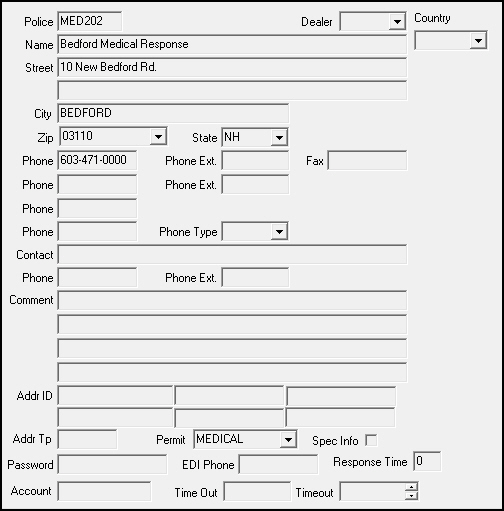
Field/Column Descriptions - Quality Control Agency Tab
The following table describes the fields and columns used in the Agency tab of the Quality Control window.
Field/Column |
Description |
Agency |
Agency ID. |
Dealer |
ID of the dealer associated with the agency. |
Country |
Country where the agency is located. |
Name |
Name of the agency. |
Street |
Street address of the agency. |
Street 2 (No label) |
Additional line for the street address. |
City |
City where the agency is located. |
Zip |
Zip code where the agency is located. |
State |
State where the agency is located. |
Phone (1) |
Primary phone number for the agency. |
Phone Ext. (1) |
Extension of the primary phone number. |
Fax |
Fax number of the agency. |
Phone (2) |
Secondary phone number for the agency. |
Phone Ext. (2) |
Extension of the secondary phone number. |
Phone (3) |
Third phone number for the agency. |
Phone (4) |
Paging or other special phone number for the agency. |
Phone Type |
Type of the paging or other special phone number. Note: The phone type determines how the phone call is treated when dialed automatically in Dispatch (program #537). For example, a pager phone type opens the paging dialog box rather than the dialer. |
Contact |
Contact name at the agency. |
Phone (5) |
Phone number for the contact person. |
Phone Ext. (5) |
Extension number for the contact person. |
Comment |
Four lines of comments for this agency. |
Addr ID |
Primary IP address for special agency interface. |
Addr ID (No label) |
Secondary IP address for special agency interface. |
Addr ID (No label) |
Additional IP address for special agency interface. |
Addr ID (No label) |
Additional IP address for special agency interface. |
Addr ID (No label) |
Additional IP address for special agency interface. |
Addr ID (No label) |
Additional IP address for special agency interface. |
Address Type |
Address type defines the Dispatch interface used for this agency. Valid inputs are:
Note: When a Addr Tp is defined, all Guard actions in the Dispatch tab bypass the autodialer and transmit the Dispatch event using the IP addresses defined in the Addr ID. |
Permit |
Permit profile assigned to this agency. (This menu originates from program # 1716.) |
Special Info |
This check box indicates that there is additional information for this agency. This information displays in Dispatch (program #537) after the phone number is dialed, but before the Call Resolution dialog box opens. |
Password |
Password used to authenticate information electronically sent to the agency. |
EDI Phone |
Phone number SBN dials to electronically transfer information directly to the agency. |
Response Time |
Maximum response time for the agency, in minutes. |
Account |
General Ledger account for the agency. |
Time Out |
Amount of time that SBN should try transmitting the data electronically before notifying the operator there is a problem and an alternate contact method should be used. |
Timeout |
Amount of time that SBN should try transmitting the data electronically before notifying the operator there is a problem and an alternate contact method should be used. |
Changing Information in the Quality Control Window
Use the following steps to change information in the Quality Control window:
1. Select the record from the Call Out Log that you want to change.
2. Choose Quality Control.
w The Quality Control window appears.
3. Choose Change Record.
w Fields in the lower pane of the window open.
4. Enter or change information in the open fields.
Note: For more information on individual fields, see Field/Column Descriptions.
5. Select the Invoice check box to create a work order for the selected patrol ticket. (Options wopait1-9, wopapg1-9, and wopawt1-9 must be defined to create work orders for patrol tickets.)
Note: The item entered for the value of option wopait4 must exist in the Price List Group entered for option wopapg4 or SBN will not create work orders for patrol tickets on patrol agencies. The item entered for the value of options wopait6-9 must exist in the Price List Group entered for options wopapg6-9 or SBN will not create work orders for patrol tickets on Agencies 6-9.
6. Choose Save.
7. Choose Exit to return to the Call Out Log.
w SBN returns the cursor to the incident that was highlighted when you entered Quality Control.
Creating Free Call Out Work Orders
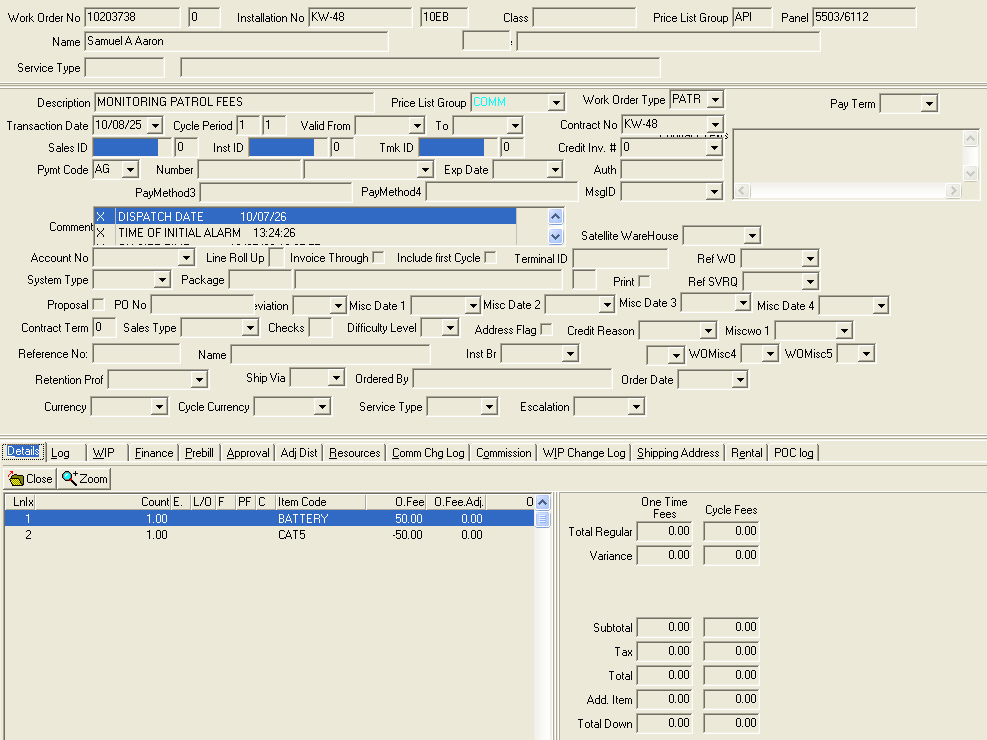
To create a Free Call Out work order for a patrol ticket, select the patrol ticket from the Call Out Log and choose Quality Control. Place an X in the Misc field beside the Price List Group field, select a Price List Group, select the Invoice check box, and enter an amount in the Customer Price field. The value of option wocoitc1 determines the first item code that appears on the work order in the amount you entered for the Customer Price. The item entered for the value of option wocoitc2 appears on the work order in the amount you entered for the Customer Price, only as a negative amount, which makes the work order total $0. The value of option wocopayc determines the Payment Code that appears on the work order.
Note: Options wopait4, wopapg4, and wopawt4 must be defined for SBN to create patrol ticket work orders for patrol agencies in the Call Out Log. Options wopait6-9, wopapg6-9, and wopawt6-9 must be defined to create patrol ticket work orders for Agencies 6-9.
The following graphic shows an example of a Free Call Out work order.
Printing Selected Records from Quality Control
Choose Print Selected Records in the Quality Control window to print the Alarm Ticket Report (report #1997). You can send the report to patrol agencies to uses as an invoice for central station charges.
Closing Quality Control
You can close a quality control record using Close Quality Control. When you use this button, the current date automatically appears in the Close QC Date field. SBN can close a quality control record when the work order is invoiced.
If option ba331 is on, you may change only the following two fields of a Quality Control record after it has been closed:
Patrol Agency Price
Patrol Comments
Cancelling Invoicing
Use Cancel Ctr to remove the invoicing flag for a call out record. Use this function if you flagged the record for invoice, but then decide you want to cancel the flag. After you have cancelled invoicing, SBN no longer associates the call out record with a work order.
Use the following steps to cancel an invoice:
1. Select a call out record that is flagged for invoicing.
2. Choose Cancel Ctr.
w SBN asks if you are sure.
3. Choose Yes.
Related Programs
The following table lists programs related to the Call Out Log.
Program |
Number |
Document Link |
Description |
Installation Misc Fields |
1590 |
Define the drop-down menus for the Cause Code and Action fields. |
|
Contract Master |
548 |
View contract details for selected Call Out Log entries. Access the Contract Texts tab. |
|
Dispatch Tab |
537 |
Call on patrol units to respond to alarms. Close and dispose of alarms. Create patrol work orders for alarm response. |
|
Call Out Log Report |
2167 |
Create a report of Call Out Log entries and details. |
|
Alarm Ticket Report |
1997 |
Print alarm tickets for alarms within a specified period |
|
Monitoring Event Extensions |
1751 |
Define event extensions for operators to use while handling alarms in Dispatch. |
|
Patrol Agencies |
1717 |
Define patrol agencies to call from the Dispatch tab. The Price List Group for a Call Out Log entry defaults from this program when option ba312 is on. |
|
Revenue Types |
1512 |
Define the drop-down menus for the Revenue Type field. |
Button Functions
The following table displays the buttons, describes the shortcut keys, actions, and functionality.
Button |
Name |
Shortcut Key |
Action |
Description |
Call Out Log |
||||
|
Search |
F2 |
705/ 1 |
Perform a search. |
|
Clear |
ALT+F1 |
705 |
Clear search parameter fields. |
|
Select |
F3 |
705/ 2 |
View installation details of a selected Call Out entry. |
|
Print selected record |
F4 |
705/ 3 |
Open the Alarm Ticket Report (#1997) in order to print records. |
|
Zoom to Work Order |
F5 |
705/ 4 |
View the work order for the selected Call Out record. |
|
Quality Control |
F6 |
705/ 5 |
Edit default information, add additional zone information, edit price information, create comments and work orders. |
|
Delete Record |
SHIFT+F10 |
705/ 9 |
Delete a Call Out record from the log list. |
|
Scroll Forward 1 Page |
PGDN |
705 |
Scroll forward one page. |
|
Scroll Backward 1 Page |
PGUP |
705 |
Scroll backward one page. |
|
Go to top of Log |
HOME |
705 |
Go to first entry in log. |
|
Cancel Ctr |
F7 |
705/10 |
Remove invoicing flag for selected Call Out record. |
Quality Control |
||||
|
Change Record |
F2 |
705/ 6 |
Change information in the Quality Control window. |
|
Close Quality Control |
F5 |
705/ 7 |
Close the Quality Control when the work order is invoiced. |
|
Print selected record |
CTRL+F8 |
705/ 8 |
Print the Alarm Ticket Report (report #1997) from the Quality Control window. |
|
Save |
ENTER |
705 |
Save existing record. |
|
Exit |
ESC |
705 |
Exit without saving. |















Modifications and Updates to Call Out Log
The following table lists modifications and updates to the Call Out Log document.
Mod Number |
Date |
Description |
n/a |
02/19/09 |
document rewritten |
07.02.19945 |
08/23/10 |
Added options wopait1-9, wopapg1-9, and wopawt1-9. |
07.02.19965 |
08/25/10 |
Added options wocopayc, wocoitc1, and wocoitc2. |
07.02.20242 |
11/01/10 |
Added Police/Fire/Medical, Permit, Agency, and Patrol tabs to Quality Control window. |
n/a |
07/17/14 |
Images updated. |
08.88.11244, 07.88.25650, 07.88.25668, 08.88.11257 |
02/05/18 |
Off Site Date, On Site Date, Off Site Time, On Site Time, and Price List Group are now required fields within Call Out Log. They will not be required until they are marked as required within program #1843. |