
ASAP - Getting Started
ASAP stands for Automated Secure Alarm Protocol. It lets your monitoring center exchange alarm information with a Public Safety Answering Point (PSAP) electronically through the TMA ASAP Broker, so an operator no longer has to relay an alarm to a 911 dispatch center by phone.
Two things travel over ASAP. Installation addresses go out first and are verified by the agency, which is what the ASAP Address Verification Queue (program #1675) tracks. Once an installation's address is verified, alarm incidents at that installation can be sent to the agency electronically from Dispatch (program #537), along with chat messages between your operator and the agency.
How the pieces fit together
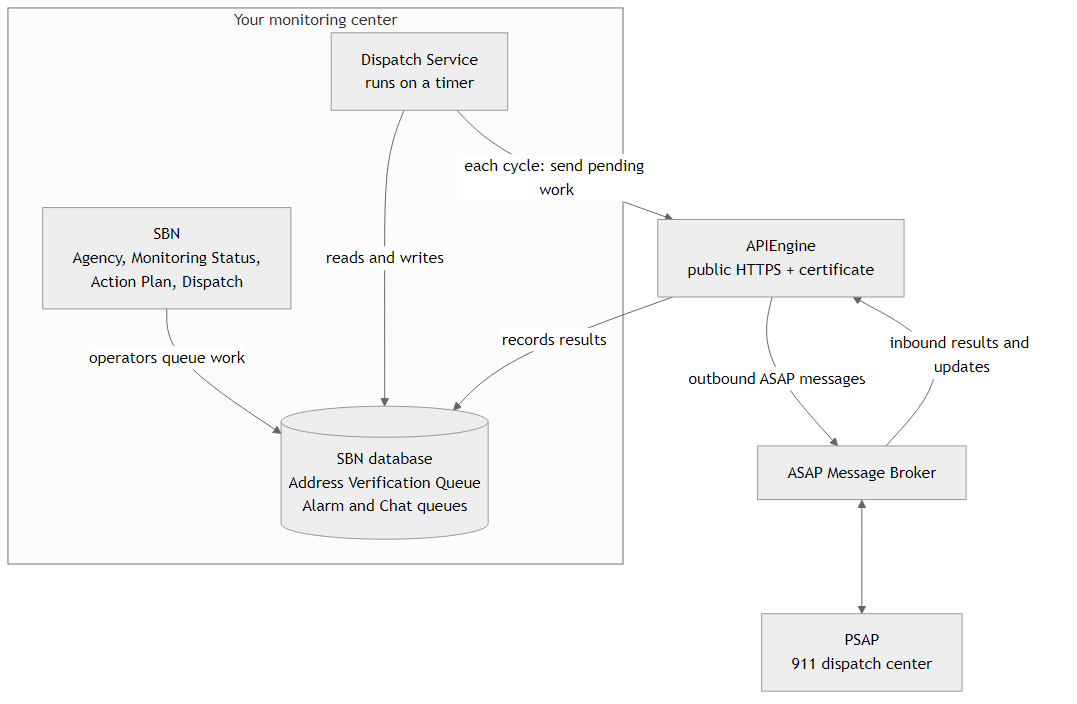
SBN is where the work originates. Saving an agency with an ASAP address type queues that agency's addresses for verification. Changing an installation's monitoring status or action plan queues that installation. Handling an alarm in Dispatch queues an incident.
The SBN database holds the queues — the ASAP Address Verification Queue plus the alarm and chat queues. Records sit there until they are picked up.
The Dispatch Service runs in the SBN Service Manager on a timer. Each cycle it asks APIEngine to send whatever is pending. It is the only background task ASAP needs, and nothing leaves your monitoring center while it is stopped.
APIEngine builds the ASAP messages and exchanges them with the broker. It is also the inbound endpoint: verification results, incident updates, and chat replies come back from the broker directly to APIEngine, which records them in the SBN database. Because the broker calls it from outside your network, APIEngine must be publicly reachable over HTTPS with the certificate issued during onboarding.
The ASAP Message Broker routes messages between your central station and the PSAP.
Address verification
Before any incident can be sent to an agency, that installation's address must be verified by that agency.
- You enter the agency's nine-digit ASAP code and set its address type to ASAP, then answer Yes to the submission prompt. That records one submission request for the agency.
- The Dispatch Service expands the request into one queue entry per eligible installation. Eligibility depends on the agency being on the installation's action plan and the installation's monitoring status having Include in PSAP selected.
- Entries arrive in Ready to Process and are sent to the agency in batches sized by the agency's Addr ID (1) and Addr ID (2) fields.
- A sent address moves to Verifying while SBN waits for the agency's answer.
- The agency's answer moves it to Verified or Failed. A failed address can be corrected and resubmitted from program #1675.
The queue screen, its filters, and its buttons are described on the ASAP Address Verification Queue page.
Dispatching
When SBN receives an alarm on a zone type that has an eDispatch value in Zone Types (program #1733), and the installation address is verified for the agency being dispatched, the operator is asked whether to send the incident to the PSAP in the Agency Details window of Dispatch (program #537).
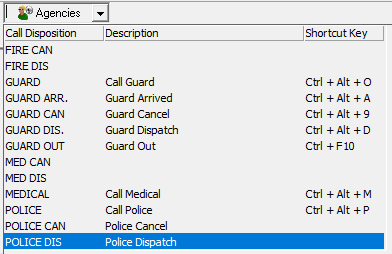
A few seconds pass before the answer comes back from ASAP. The incident is either accepted or rejected, and SBN records the outcome in the Alarm Log.
Chat
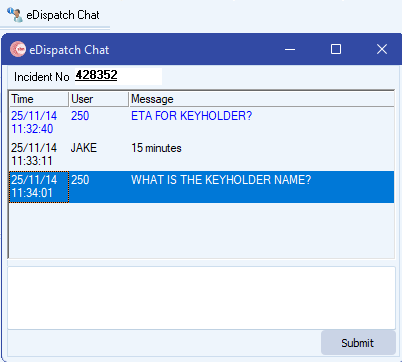
An operator can use the eDispatch Chat button to communicate directly with the agency about an incident that has been sent. The chat window can stay open while the operator works on another incident.
Deployment checklist
- You contacted ASAP and started the onboarding process.
- Working with ASAP, you have a valid agency to onboard and its nine-digit code.
- SBN option asap is on, and its stored procedures have been recompiled.
- APIEngine is hosted in a public-facing web environment with HTTPS enabled and the onboarding certificate installed.
- The Dispatch Service is deployed inside your monitoring center and configured against that APIEngine.
- The agency, the monitoring statuses, the action plans, and the zone types are configured as described on the ASAP Setup page.
Where to go next
- ASAP Setup — every option, field, and check box that must be configured, in the order to do it.
- ASAP Troubleshooting — what each queue status means and where to look when addresses or incidents do not move.
- ASAP Address Verification Queue — the program #1675 screen reference.
- APIEngine ASAP — the APIEngine settings block and endpoints.
- eDispatch Service — the Dispatch Service properties.