
Alarm Queue Transfer
Alarm Queue Transfer
Alarm Queue Transfer
Program #: 1696
Module: Utilities
Overview
Use Alarm Queue Transfer (program #1696) to set up automatic transfers of alarms from one queue to another when an operator performs a particular action in Dispatch (program #537) on a particular zone type. Use Background Job #68 in Background Tasks (program #1712) to initiate the transfer when the designated amount of time has passed after an operator performs the designated action. When SBN transfers the alarm, it removes the current operator's name so that the alarm is unassigned.
Use message #13053 in the FLDHDR (Field Headers/Labels) group of GUI Messages (program #1606) to define the text that SBN displays in the Comment column of the Alarm Log when transferring an alarm to another queue.
This document covers the following topics:
Navigating to Alarm Queue Transfer
The Alarm Queue Transfer Window
Viewing the Details of a Transfer
Changing the Details of a Transfer
Navigating to Alarm Queue Transfer
Use the following steps to navigate to Alarm Queue Transfer:
1. From the main SBN toolbar, select Menu.
2. From the drop-down menu, select Go To.
3. In the Go To Program dialog box, type in "1696" and press enter.
w The Alarm Queue Transfer program opens.
The Alarm Queue Transfer Window
The following graphic shows Alarm Queue Transfer as the program opens.
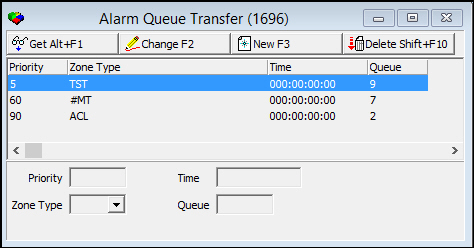
Field/Column Descriptions
The following table describes the fields and columns used in Alarm Queue Transfer.
|
Field/Column |
Description |
|
Priority |
Priority of the zone type to transfer to another queue. SBN automatically populates this read-only field when you select a zone type. |
|
Zone Type |
Zone type to transfer to another queue. |
|
Time |
Amount of time after the selected action is performed on an alarm on the zone type before SBN moves the alarm to another queue. (Format for this field/column is Days:Hours:Minutes:Seconds.) |
|
Queue |
Queue number to which alarms are transferred. |
|
Operator Action |
Monitoring action an operator must take for an alarm to be transferred to another queue. |
Viewing the Details of a Transfer
You can view the details of previously defined transfers listed in the upper pane.
Use the following steps to view the details of a transfer:
1. Select the transfer you want to view from the upper pane.
2. Double-click your selection or choose Get.
w The fields in the lower pane display the details of the selected transfer.
Adding a Transfer
Use the following steps to add a new transfer:
1. Choose New.
w The fields in the lower pane open for changes.
2. Complete the fields.
3. Choose Save.
w SBN adds the transfer to the list of defined transfers in the upper pane.
Changing the Details of a Transfer
Use the following steps to change the details of a previously defined transfer:
1. Select the transfer you want to change.
2. Choose Change.
w The fields that can be changed open for changes in the lower pane.
3. Enter changes, as needed.
4. Choose Save.
Deleting a Transfer
Use the following steps to delete a transfer:
1. Select the transfer you want to delete.
2. Choose Delete.
w SBN removes the transfer from the list in the upper pane.
Related Programs
The following table lists programs related to Alarm Queue Transfer.
|
Program |
Number |
Document Link |
Description |
|
Alarm Queue Tab |
N/A |
Displays unresolved alarm incidents. View each alarm queue to see where alarms are before and after SBN transfers them according to the transfer setup in program #1696. |
|
|
Alarm Log Tab |
n/a |
Displays recorded alarm incidents for installations. You can see what actions were taken on incidents and when alarms were transferred from one queue to another. |
|
|
Data Entry/Customer Service |
559 |
Enter customer contact and monitoring information about alarm system installations. |
|
|
Background Tasks |
1712 |
Use Background Job #68 to initiate transfers from one queue to another when the designated amount of time has passed after an operator performs the designated action. |
Button Functions
The following table displays the buttons, describes the shortcut keys, actions and functionality.
|
Button |
Name |
Shortcut Key |
Action |
Description |
|
|
Get Record |
alt+f1 |
1696/ 1 |
View details of selected transfer. |
|
|
Change Record |
f2 |
1696/ 2 |
Change details of selected transfer. |
|
|
New Record |
f3 |
1696/ 3 |
Create new transfer. |
|
|
Delete Record |
shift+f10 |
1696/ 4 |
Delete selected transfer. |
|
|
Exit without saving |
esc |
Exit without saving changes to selected transfer. |
|
|
|
Save Existing Record |
enter |
Save changes to selected transfer. |






Modifications and Updates to Alarm Queue Transfer
The following table lists modifications and updates to the Alarm Queue Transfer document.
|
Mod Number |
Date |
Description |
|
n/a |
09/24/10 |
Document created. |
|
n/a |
8/27/14 |
Images updated. |