
Work Order Status Report
Work Order Status Report
Work Order Status Report
Module: Accounting
Overview
Use Work Order Status to list
All open work orders by branch
Only those work orders that should have been billed
The report exclude deleted work orders.
User’s branch restrictions apply.
To access this report, select Work Order Status (report #1168) from the main menu of SBN.
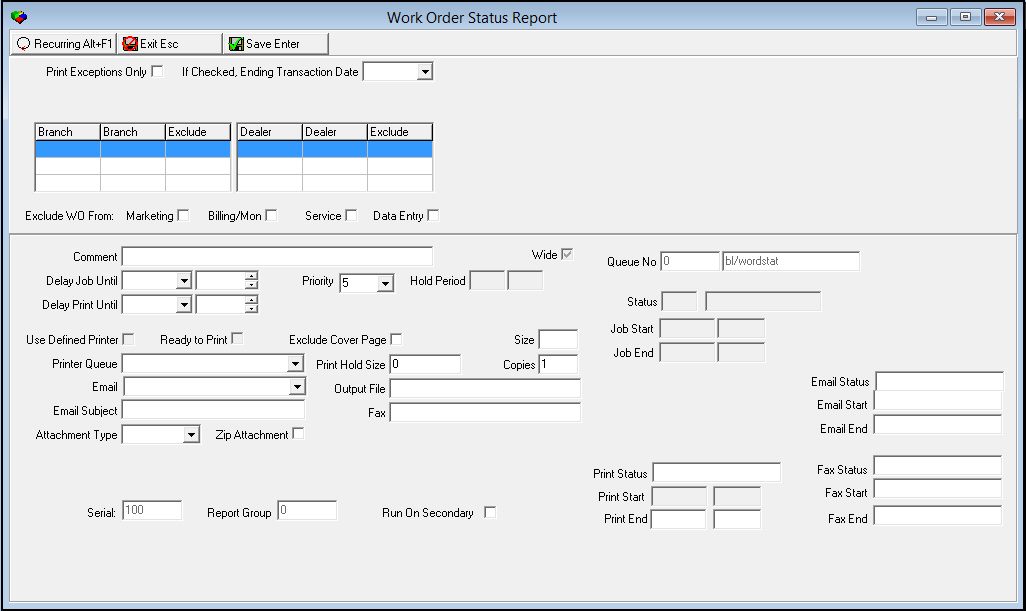
The Work Order Status Report
This window contains two panes: use the upper pane to define the content of the report; use the lower pane to define the job output - how, when, and where you want to print the report.
Note: See Report Parameters Pane for information on the fields in the lower pane, which are the same in every report.
Field Descriptions
The following table describes the fields used in the upper pane of this report.
Field |
Description |
Print Exceptions Only |
Enter a check mark in this box to limit the report to work orders with a transaction date that is earlier than the ending transaction date. O If option bl036 is on, work orders may have a blank transaction date. |
If Checked, Ending Transaction Date |
You may select the ending transaction date. O If you enter a check mark in the previous field and select an ending transaction date, the report includes work orders from the beginning of time until the selected date, but excludes work order between the selected date and the date you run the report. O This report includes work orders with a blank transaction date. |
Branch Ranges |
|
Branch |
You may select up to three ranges of branches to limit the report to branches within the ranges. Select the beginning branch number of a range. (These menus originate from program #1530.) O If you leave the fields blank, the report includes all branches in your user profile. O Branch restrictions apply. |
Branch |
You may select up to three ranges of branches to limit the report to branches within the ranges. Select the ending branch number of a range. (These menus originate from program #1530.) O If you leave the fields blank, the report includes all branches in your user profile. O Branch restrictions apply. |
Exclude |
You may exclude ranges of branches from the report by selecting the ranges and then entering a check mark in the corresponding Exclude box. |
Dealer Ranges |
|
Dealer |
You may select up to three ranges of dealer IDs to limit the report to dealer IDs within the ranges. Select the beginning dealer ID of a range. (These menus originate from program #1537.) O If you leave the fields blank, the report includes all dealers in your user profile. O Branch restrictions apply. |
Dealer |
You may select up to three ranges of dealer IDs to limit the report to dealer IDs within the ranges. Select the ending dealer ID of the range. (These menus originate from program #1537.) O If you leave the fields blank, the report includes all dealers in your user profile. O Branch restrictions apply. |
Exclude |
You may exclude ranges of dealer IDs from the report by selecting the ranges and then entering a check mark in the corresponding Exclude box. |
Exclude Work Orders From: |
|
Marketing |
Enter a check mark in this box to exclude work orders created in Marketing. O These work orders have a generating module of 0. |
Billing / Mon |
Enter a check mark in this box to exclude work orders created in Billing or Monitoring. O These work orders have a generating module of 1. |
Service |
Enter a check mark in this box to exclude work orders created in Service. O These work orders have a generating module of 2. |
Data Entry |
Enter a check mark in this box to exclude work orders created in Data Entry. O These work orders have a generating module of 4. |
Running and Viewing a Report
For information on running and viewing a report, see Common Functions in SBN.
Report Example
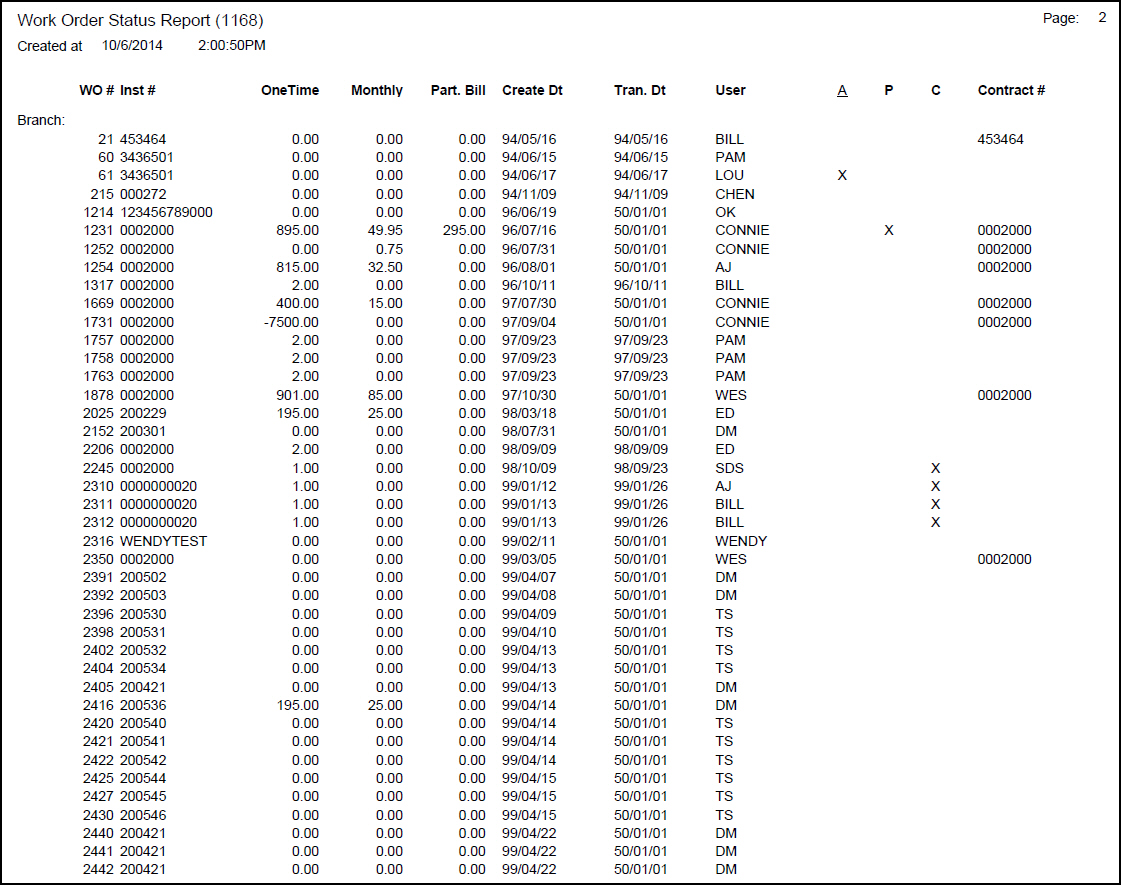
The following graphic shows an example of the output of the Work Order Status report.
Column Descriptions
The following table describes the columns used in the output of the report.
Column |
Description |
Branch |
Branch ID. |
WO# |
Work order number. |
Inst# |
Installation number associated with the selected work order. |
One-Time |
Total of one-time fees for the selected work order. |
Monthly |
Total of cycle fees for the selected work order divided by the cycle frequency. |
Part. Bill |
Total of all partial billings that have occurred for the selected work order. |
Create Dt. |
Date on which selected work order was created. |
Trans Dt. |
Date the selected work order is scheduled for invoicing. |
User |
ID of the user who created the work order. |
A |
Displays an X if the selected work order is approved. |
P |
Displays an X if the selected work order has been partially billed. |
C |
Displays an X if the selected work order is closed. |
Contract |
The contract number associated with the selected work order. O Any work order without an associated contract number is never billed. |
Branch Total |
Displays totals for the branch of the following columns: l A count of the number of work orders l Total one-time fee l Total monthly fees l Total partial billing |
Grand Total |
Displays totals for all branches for the following columns: l A count of the number of work orders l Total one-time fee l Total monthly fees l Total partial billing |
Button Functions
The following table displays the buttons, describes the shortcut keys, actions, and functionality.
Button |
Name |
Shortcut Key |
Action |
Description |
|
Open fields for recurring/template reports |
alt+f1 |
Open fields for recurring/template reports. |
|
|
Exit without saving |
esc |
Exit without saving changes to selected record. |
|
|
Save Existing Record |
enter |
Save changes to selected record. |



Modifications and Updates to Work Order Status Report
The following table lists modifications and updates to the Work Order Status Report document.
Mod Number |
Date |
Description |
n/a |
8/06/14 |
Images updated. |