
Report Messages
Report Messages
Report Messages
Program #: 1766
Module: System Administration
Overview
This chapter provides information on setting up and printing reports in SBN. In order for SBN to print reports correctly you must
Install Report Services
Set a print directory in each terminal
Set up report parameters in four system administration programs:
q Report Default Parameters (program #1561)
q Report Priorities (program #1509)
q Printer Profile Updates (program #1559)
q Report Messages (program #1766)
Define the report parameters in the individual report (see Report Parameters Pane)
Use the Report Queue
Report Messages
Use Report Messages to create text that appears on specific reports and exports when you display or print them. Users can select these messages from the Message ID field.
Option ba212 controls the appearance of the Message ID field in programs. When off, the Message ID field appears only in:
Purchasing (program #0571)
Passcard Print (program #2006)
When this option is on, you can use flags in Report Messages to specify in which programs the Message ID field and menu appear.
To access this program, select Report Messages (program #1766) from the main menu of SBN.
The Report Messages Window
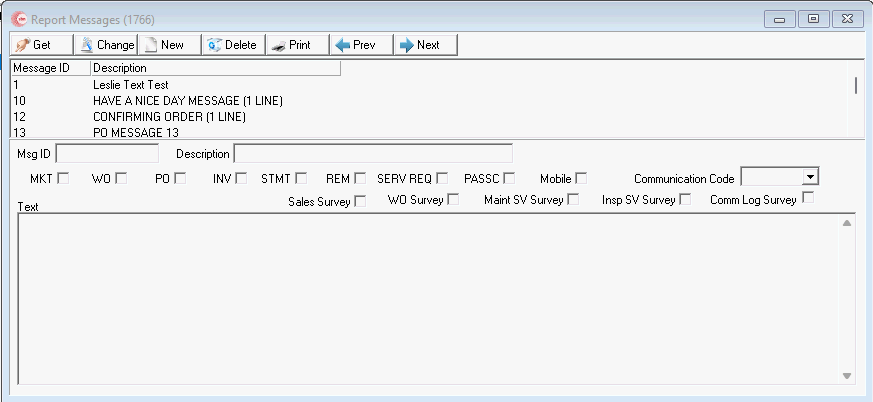
The following graphic shows Report Messages as the program opens. The upper pane displays previously defined report messages.
Field/Column Descriptions
The following table describes the fields and columns used in Report Messages.
Field/Column |
Description |
Message ID |
Abbreviation that identifies the report message. |
Description |
Text description of the report message. |
MKT |
Enter a check mark in this box to display the Message ID field in the Marketing report: Proposal Report (report #2133). |
WO |
Enter a check mark in this box to display the Message ID field in Work Orders Report (report #2002). |
PO |
Enter a check mark in this box to display the Message ID field in Purchasing (program #571). |
INV |
Enter a check mark in this box to display the Message ID field in the Export dialog box of Invoice Manager (program #1557). |
STMT |
Enter a check mark in this box to display the Message ID field in the Export dialog box of Statements (program #1508). |
REM |
Enter a check mark in this box to display the Message ID field in Reminders Calculation (program #1570). |
SERV REQ |
Enter a check mark in this box to display the Message ID field in Service Requests. |
PASSC |
Enter a check mark in this box to display the Message ID field in Passcard Print (report #2006). |
Mobile |
Enter a check mark in this box to display the Message ID field in the Mobile SBN application. |
Communication Code |
Select from the dropdown the communication code used to generate the survey. |
Sales Survey |
Select this check box to indicate that SBN uses the selected message for sales surveys. |
WO Survey |
Select this check box to indicate that SBN uses the selected message for work order surveys. |
Maint SV Survey |
Select this check box to indicate that SBN uses the selected message for maintenance service request surveys. |
Insp SV Survey |
Select this check box to indicate that SBN uses the selected message for inspection service request surveys. |
Comm Log Survey |
Select this check box to indicate that SBN uses the selected message for Communication Log surveys. |
Text |
Free-form text message that appears on selected reports. This field accepts up to 250 characters. Note: Only survey messages (those with a Survey check box selected) should use more than 70 characters in this field so as not to impede performance in other SBN programs. |
Using Common Functions
See the reference document Common Functions in SBN for more information.
Surveys
You may select a Survey check box (Sales Survey, WO Survey, Maint SV Survey, or Insp SV Survey) to indicate that SBN uses a message for survey emails. SBN only uses one message for each survey type. If you enter more than one message for the same survey type, SBN uses the first message for the type listed alphabetically by Description and ignores the others. You may use the same message for more than one survey type.
Surveys support HTML formatting, so using a <return> or <enter> when creating survey messages will not necessarily result in a line break in the email. To ensure line breaks in your text, use the tag <br>. The backslash character (\) is not supported.
Sales Survey
Select the Sales Survey check box to indicate that SBN uses the selected message for sales surveys. SBN adds an entry to the survey queue on the sales visit scheduled date + number of days defined by option sur1_day when option survey1 is on. (For example, if you schedule a sales visit for March 30 and the value of option sur1_day is 1, the sales survey will go into the queue on March 31.) To schedule a sales visit, go to Marketing (program #562), and use the Sales Visit Requested action on an inquiry. Then schedule the request for a sales resource in Scheduling (program #563). SBN only creates an entry in the survey queue if the schedule request is assigned to a sales resource, defined in Sales Persons (program #1539).
If you remove the sales visit from the schedule board before the survey is sent, (if for example, you scheduled the visit for tomorrow), then it is removed from the survey queue. If you have option sur1_day set to 0, it is possible your survey will go out before the actual sales visit. It is recommended you have this value set to no less than 1.
SBN sends sales surveys to the email address defined by option sur1_eml when background job 72 runs in program #1712.
Sales Survey Variables
The following table lists the available variable names and their data sources for sales surveys.
Variable Name |
Data Source |
@customer_name@ |
Customer first and last name associated with the Marketing inquiry. |
@business@ |
Customer AKA name associated with the Marketing inquiry. |
@address@ |
Customer street1no1 and street1 associated with the Marketing inquiry. |
@city@ |
Customer city associated with the Marketing inquiry. |
@state@ |
Customer state associated with the Marketing inquiry. |
@country@ |
Customer country associated with the Marketing inquiry. |
@ins_no@ |
Installation number (not s#ins) associated with the Marketing inquiry. |
@resource_number@ |
Quote number associated with the Marketing inquiry. |
@resource_name@ |
Sales person first and last name scheduled for the sales visit. |
@resource_date@ |
Date of the sales visit. |
@branch@ |
Branch name (s#br) associated with the Marketing inquiry. |
@customer_email@ |
Customer email associated with the Marketing inquiry. |
Work Order Survey
Select the WO Survey check box to indicate that SBN uses the selected message for work order surveys. SBN adds an entry to the survey queue when a work order of a type defined by option sur2_op1 is closed and option survey2 is on. The entry will be removed from the survey queue if the work order is reopened before the survey entry can be processed.
SBN sends work order surveys to the email address defined by option sur2_eml when background job 73 runs in program #1712.
Work Order Survey Variables
The following table lists the available variable names and their data sources for work order surveys.
Variable Name |
Data Source |
@customer_name@ |
Contact name on the work order (ba_work_orders.wocname). |
@business@ |
Customer AKA name on the work order installation. |
@address@ |
Customer street1no1 and street1 on the work order installation. |
@city@ |
Customer city on the work order installation. |
@state@ |
Customer state on the work order installation. |
@country@ |
Customer country on the work order installation. |
@ins_no@ |
Installation number (not s#ins) on the work order installation. |
@resource_number@ |
Work order number. |
@resource_name@ |
Installer first and last name on the work order. |
@resource_date@ |
Date the work order was closed. |
@resource_desc@ |
Work order text (ba_work_orders.text). |
@branch@ |
Branch name (s#br) on the work order installation. |
@customer_email@ |
Customer email on the work order (ba_work_orders.wocemail). |
@salesperson_name@ |
First salesperson's name in the Commissions tab of the work order. |
Maintenance Service Request Survey
Select the Maint SV Survey check box to indicate that SBN uses the selected message for maintenance service request surveys. SBN adds an entry to the survey queue when a service request is outdated, option survey3 is on, and the service request status is of a value that is contained in option sur3_val.
SBN sends maintenance service request surveys to the email address defined by option sur3_eml when background job 74 runs in program #1712.
Maintenance Service Request Survey Variables
The following table lists the available variable names and their data sources for maintenance service request surveys.
Variable Name |
Data Source |
@customer_name@ |
Contact name on the service request (sv_requests.contact). |
@business@ |
Customer AKA name on the service request installation. |
@address@ |
Customer street1no1 and street1 on the service request installation. |
@city@ |
Customer city on the service request installation. |
@state@ |
Customer state on the service request installation. |
@country@ |
Customer country on the service request installation. |
@ins_no@ |
Installation number (not s#ins) on the service request installation. |
@resource_number@ |
Service request number. |
@resource_name@ |
Technician first and last name on the service request. |
@resource_date@ |
Service request outdate. |
@resource_desc@ |
Service request description (sv_requests.descr). |
@branch@ |
Branch name (s#br) on the service request installation. |
@customer_email@ |
Customer email on the service request (sv_requests.svemail). |
Inspection Service Request Survey
Select the Insp SV Survey check box to indicate that SBN uses the selected message for inspection service request surveys. SBN adds an entry to the survey queue when a service request is outdated, option survey4 is on, and the service request status is of a value that is contained in option sur4_val.
SBN sends inspection service request surveys to the email address defined by option sur4_eml when background job 75 runs in program #1712.
Inspection Service Request Survey Variables
The following table lists the available variable names and their data sources for inspection service request surveys.
Variable Name |
Data Source |
@customer_name@ |
Contact name on the service request (sv_requests.contact). |
@business@ |
Customer AKA name on the service request installation. |
@address@ |
Customer street1no1 and street1 on the service request installation. |
@city@ |
Customer city on the service request installation. |
@state@ |
Customer state on the service request installation. |
@country@ |
Customer country on the service request installation. |
@ins_no@ |
Installation number (not s#ins) on the service request installation. |
@resource_number@ |
Service request number. |
@resource_name@ |
Technician first and last name on the service request. |
@resource_date@ |
Service request outdate. |
@resource_desc@ |
Service request description (sv_requests.descr). |
@branch@ |
Branch name (s#br) on the service request installation. |
@customer_email@ |
Customer email on the service request (sv_requests.svemail). |
Communication Log Request Survey
Select the Comm Log Survey check box to indicate that SBN uses the selected message for communication log request surveys. SBN adds an entry to the survey queue when a communication log has the select communication code from the Communication Code dropdown, option survey5 is on, and the communication log has a code that matches what is in the communication code dropdown.
SBN sends communication log request surveys to the email address defined by option sur5_eml when background job 113 runs in program #1712.
Inspection Service Request Survey Variables
The following table lists the available variable names and their data sources for communication log request surveys.
Variable Name |
Data Source |
@customer_name@ |
Contact name on the service request (sv_requests.contact). |
@business@ |
Customer AKA name on the service request installation. |
@address@ |
Customer street1no1 and street1 on the service request installation. |
@city@ |
Customer city on the service request installation. |
@state@ |
Customer state on the service request installation. |
@country@ |
Customer country on the service request installation. |
@ins_no@ |
Installation number (not s#ins) on the service request installation. |
@resource_number@ |
Service request number. |
@resource_name@ |
Technician first and last name on the service request. |
@resource_date@ |
Service request outdate. |
@resource_desc@ |
Service request description (sv_requests.descr). |
@branch@ |
Branch name (s#br) on the service request installation. |
@customer_email@ |
Customer email on the service request (sv_requests.svemail). |
Button Functions
The following table displays the buttons, describes the shortcut keys, actions, and functionality.
Button |
Name |
Shortcut Key |
Action |
Description |
|
Get |
ALT+F1 |
1766/ 1 |
Get record. |
|
Change |
F2 |
1766/ 2 |
Change selected record. |
|
New |
F3 |
1766/ 3 |
Create new record. |
|
Delete |
SHIFT+F10 |
1766/ 4 |
Delete selected record. |
|
CTRL+F8 |
1766/ 6 |
Print selected records. |
|
|
Previous |
F4 |
1766/ 999 |
Select last record. |
|
Next |
F5 |
1766/ 999 |
Select next record. |







Modifications and Updates to Report Messages
The following table lists modifications and updates to the Report Messages document.
Mod Number |
Date |
Description |
n/a |
8/22/14 |
Images updated. |
08.93.12234, 07.93.27009, 07.93.27003, 08.93.12229 |
08/17/22 |
Added communication log surveys |