
Installation Number Auto Generation
Installation Number Auto Generation
Installation Number Auto Generation
Module: System Administration
Overview
Use Installation Number Auto Generation (program #1791) to define how SBN generates installation (INS) numbers in Data Entry (program #559). You can define ranges of installation numbers by branch and dealer. After you set these definitions, use Auto Generate Ins# in Data Entry (program #559) to automatically complete the Ins# field.
To access this program, select Installation Number Auto Generation (program #1791) from the main menu of SBN.
The INS Number Auto Generation Window
The following graphic shows INS Number Auto Generation as the program opens. The columns displays defined masks for installation numbers.
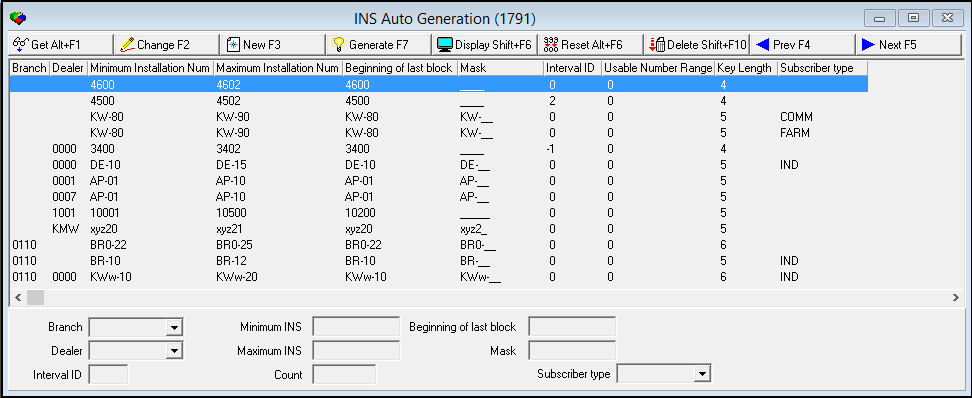
Field/Column Descriptions
The following table describes the fields and columns used in INS Auto Generation.
|
Field/Column |
Description |
|
Branch |
Branch identifier. (This menu originates from program #1530.) |
|
Dealer |
Dealer Code number. (This menu originates from program #1537.) |
|
Minimum Installation Number |
Minimum (lowest) installation number. |
|
Maximum Installation Number |
Maximum (highest) installation number. |
|
Beginning of Last Block |
The first number in current pool. |
|
Mask |
Print format to use for this generation. Define number ranges with specific prefixes and/or suffixes. Use an underscore for each number placeholder. For example, if you are generating four-digit numbers, use four underscores (____). |
|
Interval ID |
ID number for a set of numbers for the same branch and dealer. The first interval ID is 0. The next interval number is 1, once 0 is used up. O If you need blocks of numbers, you may group them by interval number. |
|
Usable Number Range |
Indicates whether the number range is acceptable. |
|
Key Length |
Number of characters in the minimum and maximum numbers. |
|
Count |
Number of INS numbers sitting in the buffer ready to be issued. |
|
Subscriber Type |
Subscriber type. (The menu originates from program #1534.) |
Using Interval IDs
You can set up blocks of numbers by grouping them by interval number. For example, you might set up a range of numbers from 100-200 as interval 0, a range of numbers from 300-500 as interval 1, and a range of numbers from 600-800 as interval 2. When SBN has generated the last number in interval 0 (200 in this example), it deletes this interval, renames interval 1 to interval 0, and begins using numbers from this range (300 in this example). It also moves up the other interval ranges. When SBN runs out of numbers, it displays a warning message that SBN cannot issue a CID number for this branch/dealer/panel combination.
Using Common Functions
See the reference document Common Functions in SBN for more information.
Viewing Installation Numbers Available for a Branch/Dealer/Subscriber Type
You may create a range of installation numbers for a specific branch, dealer, and/or subscriber type. You may assign the same range of installation numbers to more than one dealer.
Use the following steps to view the installation numbers available for a specific branch/dealer/subscriber type:
1. In Installation Number Auto Generation (program #1791), select the branch/dealer/subscriber type for which you want to display available installation numbers.
2. Choose Display.
‰ SBN displays the list of available installation numbers in the lower pane.

Note: When SBN generates and assigns a number in Data Entry Master (program #559), the number no longer appears on this list. If SBN generates a number in Data Entry Master (program #559) and does not assign the number to an account, the number returns to this list. SBN treats the number as though it is at the bottom of the list, calling all the other available numbers in Data Entry before calling it again.
3. When you finish viewing the list, choose the Exit without Saving button.
Note: Program #1791 allows entries that differ only by Subscriber Type. When generating installation numbers in Data Entry Master (program #559), the numbers generated are looked up in program #1791 according to the combination of branch/dealer/subscriber type fields defined in program #559.
When looking up available installation numbers by branch, dealer, and subscriber type, the numbers are looked up according to the following order:
1. Branch/Dealer/Subscriber
2. Branch/Dealer/____
3. Branch/____/Subscriber
4. Branch/____/_____
5. ____/Dealer/_____
6. ____/_____/_____
First SBN searches for a match of all three parameters: branch, dealer, and subscriber type. If SBN does not find a match, it will look for a match of branch and dealer where the subscriber type is blank. If there is still no match, SBN will continue searching according to the list above. The last line (#6) indicates installation numbers that have no branch, dealer, or subscriber type defined.
Generating Installation Numbers
You can generate a batch of INS numbers so they are in the buffer ready to be assigned. If you choose not to generate the INS numbers at this time, SBN still assigns them in Data Entry (program #0559), but it may take a moment longer.
Generating a small batch of installation numbers when you create the mask has the following advantages:
-
You can check the numbers to make sure your mask is set up correctly.
-
SBN can assign the Installation numbers more quickly in Data Entry (program #559) because they have already been generated and are sitting in the buffer.
-
SBN regenerates unused numbers. For example, each time a user in Data Entry creates a new installation record and assign an INS number, SBN pulls it from the buffer. If the user does not save the new record, the number is in limbo. Each time you generate a new batch of INS numbers, SBN locates these unused numbers reuses them.
Note: If you choose to generate a batch of installation numbers, we do not recommend that you generate large batches (greater than 1000) as this can be time consuming and can defeat the intended purpose of this feature. When you create small batches, the unused numbers are recycled.
Use the following steps to generate INS numbers:
1. In Installation Number Auto Generation, select the mask you want to use for the generated numbers.
2. Choose Generate.
‰ SBN creates the Installation numbers and makes them available for assignment.
Resetting (Stopping) the Generate Process
Occasionally, if you accidentally generate an extremely large batch of numbers or if your computer malfunctions, the generate process may stall. If this occurs, you see repeated messages informing you that the INS generator is not available because it is in use. If you see these messages repeatedly over an extended period of time, you can stop the generate process, which unlocks and resets the program.
Warning: Because the reset option stops the generate process, make sure this is necessary before you use it.
Use the following steps to reset the generate process:
1. In Installation Number Auto Generation, choose Reset.
‰ SBN asks if you are sure.
2. Choose Yes.
‰ The installation number auto generation process stops.
Button Functions
The following table displays the buttons, describes the shortcut keys, actions, and functionality.
|
Button |
Name |
Shortcut Key |
Action |
Description |
|
|
Get Record |
ALT+F1 |
1791/ 1 |
Get record. |
|
|
Change Record |
F2 |
1791/ 2 |
Change selected record. |
|
|
New Record |
F3 |
1791/ 3 |
Create new record. |
|
|
Generate CID |
F7 |
1791/ 4 |
Generate CIDs. |
|
|
Display |
F6 |
1791/ 5 |
Displays the selected contract in the bottom pane. |
|
|
Reset |
alt+F6 |
1791/ 6 |
Stops the generate process to unlock and reset the program. |
|
|
Delete Record |
SHIFT+F10 |
1791/ 7 |
Delete selected record. |
|
|
Print Selected Records |
CTRL+F8 |
1791/ 8 |
Print selected records. |
|
|
Previous Record |
F4 |
1791/ 999 |
Go to previous record. |
|
|
Next Record |
F5 |
1791/ 999 |
Go to next record. |
|
|
Exit without saving |
esc |
1791/ 999 |
Exit without saving changes to record. |
|
|
Save New Record |
enter |
1791/ 999 |
Save changes to record. |












Modifications and Updates to Installation Number Auto Generation
The following table lists modifications and updates to the Installation Number Auto Generation document.
|
Mod Number |
Date |
Description |
|
n/a |
09/16/14 |
Images updated. |
F1 Help
| Delphi Forms | ubinsnoform |
| Program Numbers | 1791 |