
Messages
Messages
Messages
Program #: 1804
Module: Utilities
Overview
Use Messages (program #1804) to send messages to people throughout the SBN system. You must specify a User ID and your terminal ID number to send the message. After you send a message, the message icon appears in the status bar of the user who has a waiting message.
Use one of the following methods to access this program:
From the menu bar of SBN, choose Misc > Messages.
From anywhere in SBN choose [CTRL+G].
Select Messages (program #1804) from the main menu of SBN.
Double-click on the flashing Message symbol
 when it appears
in the status bar of SBN.
when it appears
in the status bar of SBN.
Note: Action 194/5 must be enabled in your action profile to access Messages from the Misc menu. Action 194/4 must be enabled to access Messages using [CTRL+G].
The Messages Window
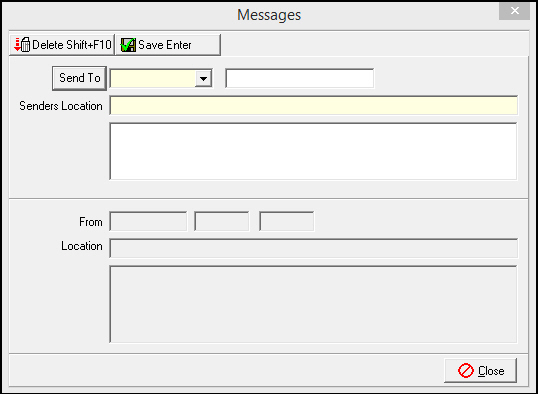
The following graphic shows Messages as the program opens.
Field Descriptions
The following table describes the fields used in Messages.
Field |
Description |
Send To |
Select user IDs of all users to whom you want to send this message. |
Distribution List (No label) |
Displays all user IDs selected for this message. |
Senders Location |
Terminal ID of the user sending the message. |
Message Text (No label) |
Area for typing text for the message. |
From |
User ID of the person who sent the message. |
Date (No label) |
Date the message was sent. |
Time (No label) |
Time the message was sent. |
Location |
Terminal ID of the person who sent the message. |
Message Text (No label) |
Text of the message. |
Creating a New Message
You can create a message and send it to one user or multiple users.
Use the following steps to create a new message:
1. In Messages, from the Send To menu, select the user ID of the person to whom you want to send a message.
2. If you want to send the message to only one user ID, continue to step 4; if you want to send the message to more than one person, choose Send To.
‰ The selected user ID appears in the Distribution List.

3. Repeat steps 1-2 to add user IDs to the distribution list.

Note: Leave the final user ID in the Send To field.
4. Type the terminal number of your location.
5. Type the text of the message.
6. Choose Save New Record.
‰ SBN delivers the message to your recipients.
7. To exit Messages (program #1804), choose Close.
Reading a Message
When you receive a message sent by a user in the SBN
community, the status bar will display a blinking Message
icon .
Use the following steps to read a message:
1. Double-click the blinking Messages icon.
‰ SBN opens Messages (program #1804), and displays the message in read-only mode in the fields in the lower pane of the window.
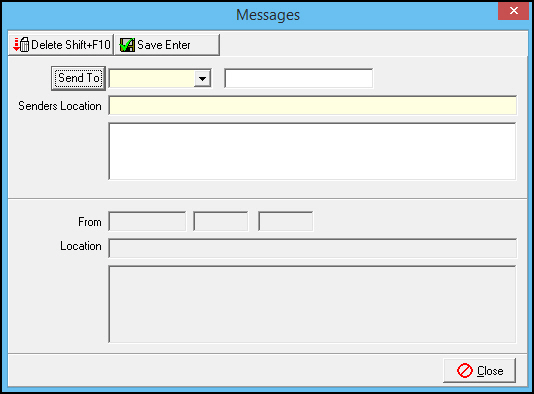
Note: If you have received more than one message, SBN displays the messages in chronological order.
2. When you finish reading the message you may choose either of the following actions:
l Choose Delete Record to delete the current message and read the next message.
Note: The status bar will continue to display the blinking Message icon until you have read and deleted all received messages.
l Choose Close to save the current message in read-only mode.
Note: SBN does not log the message. If you want to save it, choose Close. However, you will not be able to read subsequent messages until you delete the current message.
Button Functions
The following table displays the buttons, describes the shortcut keys, actions and functionality.
Button |
Name |
Shortcut Key |
Action |
Description |
|
Delete Record |
shift+f10 |
Delete selected message. |
|
|
Save New Record |
enter |
Save changes to selected record. |


Modifications and Updates to Messages
The following table lists modifications and updates to the Messages document.
Mod Number |
Date |
Description |
n/a |
09/02/14 |
Images updated. |