
Users
Users
Users
Module: System Administration
Overview
After you have created a master record in Personnel (program #1811), you can access Users (program #1501) to view and edit specific user information. You must be authorized to use this program.
Navigating to Users
Use the following steps to navigate to Users:
1. From the main SBN toolbar, select Menu.
2. From the drop-down menu, select Go To [ALT+F1].
3. In the Go To Program dialog box, type in "1501."
w The Users program opens.
The Users Window
The following graphic shows Users as the program opens. The upper pane displays previously defined users.
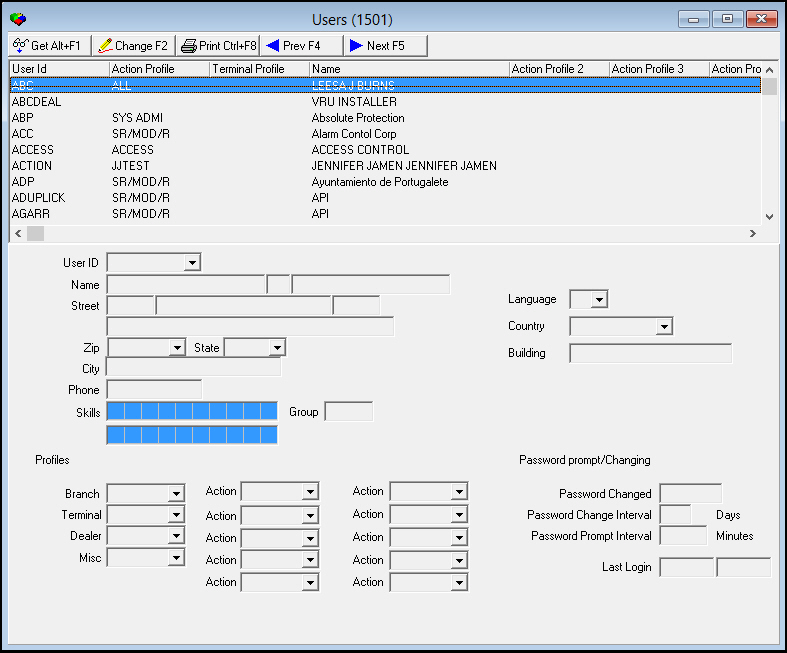
Field and Column Descriptions
The following table describes the fields and columns in Users.
Field/Column |
Description |
User Id |
User’s log on ID. |
Name |
User’s name. |
Language |
Option for choosing a language for users such as monitoring operators. When used, the alarm log displays the specified language for the following fields: l Event Name l OC Status l OC Type abbreviations O Please note that the user Language field in this program overrides the Language field defined for the customer in program #559. |
Street |
Two lines for the user’s street address. |
Zip |
User’s zip code. |
State |
User’s state abbreviation. (This field holds a maximum of 60 characters.) |
Country |
Select the country in which the user is located from the drop-down menu. |
Building |
Name of the user's building. Note: QAS address validation uses this field for UK addresses. |
City |
City where the user lives. |
Phone |
User’s telephone number. |
Skills |
Set of up to 20 skills for this user, such as fluency in a specific language, that determine which alarms the user sees in the Alarm Queue and can handle in Dispatch (program #537). (These menus originate from program #1862.) |
Group |
Defines the user group for default sort order preference and tab sequence. |
Profiles Section |
|
Branch |
Branch profile assigned to this user (This menu originates from program #1740.) |
Terminal |
Select the terminal profile for the user, which sets access to specific terminal numbers. (This menu originates from program #1504.) O If you do not select a profile, the user has access to all terminals. |
Dealer |
Dealer profile assigned to this user. (This menu originates from program #1743.) |
Miscellaneous |
Miscellaneous user profile assigned to this user. (This menu originates from program #1745.) |
Actions Section |
|
Action (1) |
Primary action profile assigned to the user ID. The primary action profile controls which programs and functions this user may access. (This menu originates from program #1502.) |
Action (2) |
Additional action profile assigned to the user ID. Adds actions to the primary profile. Action profiles control which programs and functions this user may access. (This menu originates from program #1502.) |
Action (3) |
Additional action profile assigned to the user ID. Adds actions to the primary profile. Action profiles control which programs and functions this user may access. (This menu originates from program #1502.) |
Action (4) |
Additional action profile assigned to the user ID. Adds actions to the primary profile. Action profiles control which programs and functions this user may access. (This menu originates from program #1502.) |
Action (5) |
Additional action profile assigned to the user ID. Adds actions to the primary profile. Action profiles control which programs and functions this user may access. (This menu originates from program #1502.) |
Action (6) |
An action profile that determines the user's access in the billing/monitoring split machine configuration. (Companies not using the billing/monitoring split should not use fields Action (6) through Action (10).) |
Action (7) |
An action profile that determines the user's access in the billing/monitoring split machine configuration. (Companies not using the billing/monitoring split should not use fields Action (6) through Action (10).) |
Action (8) |
An action profile that determines the user's access in the billing/monitoring split machine configuration. (Companies not using the billing/monitoring split should not use fields Action (6) through Action (10).) |
Action (9) |
An action profile that determines the user's access in the billing/monitoring split machine configuration. (Companies not using the billing/monitoring split should not use fields Action (6) through Action (10).) |
Action (10) |
An action profile that determines the user's access in the billing/monitoring split machine configuration. (Companies not using the billing/monitoring split should not use fields Action (6) through Action (10).) |
Password Prompt/Changing Section |
|
Password Changed |
Date the user’s password was last changed. |
Change Interval |
Number of days between required password changes. |
Prompt Interval |
Number of minutes between required re-entry of user’s password (when changing modules). |
Last Login |
Date and time the user last logged into SBN. |
Using Common Functions
See the reference document Common Functions in SBN for more information.
Button Functions
The following table displays the buttons, describes the shortcut keys, actions, and functionality.
Button |
Name |
Shortcut Key |
Action |
Description |
|
Get |
ALT+F1 |
1501/ 1 |
Get record. |
|
Change |
F2 |
1501/ 2 |
Change selected record. |
|
CTRL+F8 |
1501/ 6 |
Print selected records. |
|
|
Previous |
F4 |
1501/ 999 |
Select last record. |
|
Next |
F5 |
1501/ 999 |
Select next record. |





Modifications and Updates to Users
The following table lists modifications and updates to the Users document.
Mod Number |
Date |
Description |
n/a |
8/26/14 |
Images updated. |