
Communication Log Queue
Communication Log Queue
Communication Log Queue
Module: Account Management
Overview
Use the Communication Log Queue (program #535) to track communication between your business and customers. Communication relays into the Communication Log Queue and Communication Log (program #1888) for all appropriate parties to access, contribute to, and update the states of customer service issues. Only unresolved communication entries appear in the Communication Log Queue, which makes it an effective tool for identifying customer service priorities. The Communication Log Queue allows searches by a broad range of criteria, and allows you to view and edit entries created in the Communication Log.
While the Communication Log displays entries specifically for your user ID and your department, you can search for entries for all users and departments in the Communication Log Queue. You can also use the Communication Log Queue to search for entries for other branches and dealers and search by specific information, such as Follow-up Dates or Communication Codes.
Note: You cannot create new entries in the Communication Log Queue.
This document covers the following topics:
Navigating to The Communication Log Queue
The Communication Log Queue Window
Searching for Entries in the Communication Log Queue
Changing Entries in the Communication Log Queue
Viewing Installation Information
Sending Communication Log Queue Entries to Another User
Resolving Communication Log Queue Entries
Navigating to The Communication Log Queue
Use the following steps to access the Communication Log Queue from the main menu:
1. From the main SBN toolbar, select Menu.
2. From the drop-down menu, select Go To.
3. In the Go To Program dialog box, type in "535" and press Enter.
w The Communication Log Queue opens.
The Communication Log Queue Window
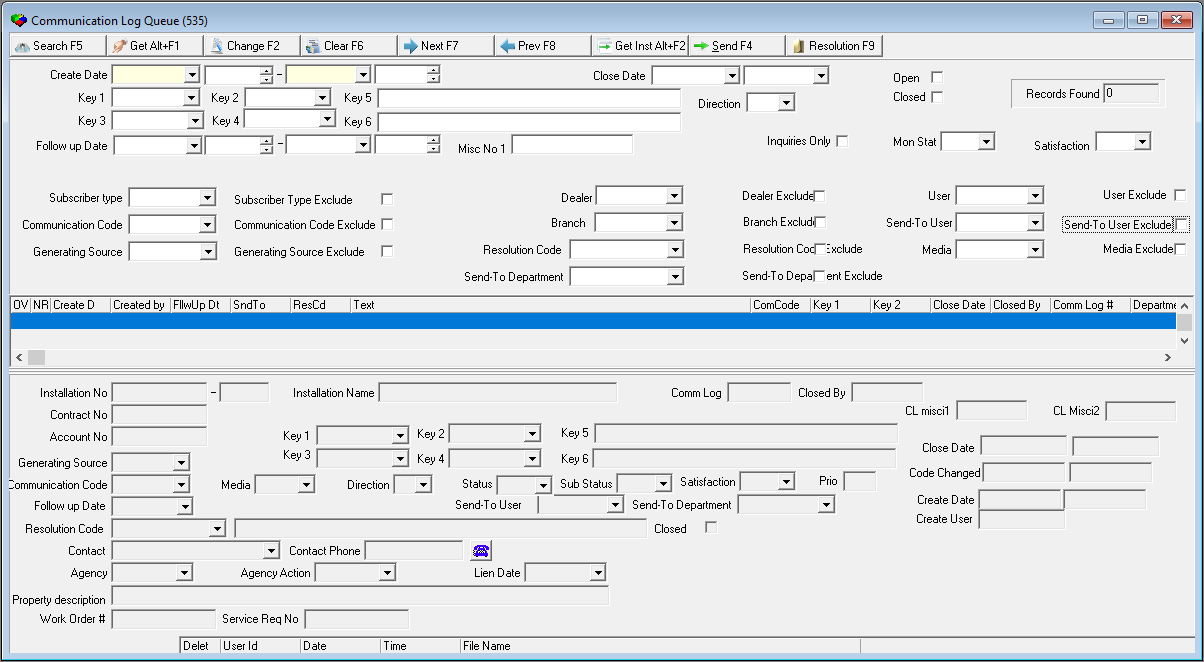
The Communication Log Queue window consists of three panes:
The Search Parameters pane - in which you can enter information to search for in communication entries.
The Search Results pane - where SBN displays communication entries that meet your search criteria when you choose Search.
The Communication Details pane - where SBN displays the details of a selected communication entry when you double-click or choose Get in the Results pane.
Note: All times for each entry correspond to the user's time zone.
The following graphic shows the Communication Log Queue as the program opens.
Field Descriptions — Search Parameters
The following table describes the search parameters in the Communication Log Queue.
Note: You may perform wildcard searches in certain fields. For more information about using wildcards, see Searches.
Field |
Wildcard Accepted |
Description |
Create Date / Time Range |
||
Create Date — From |
No |
You must select a range of log entry creation dates; select the beginning date of the range. |
Create
Time — From |
No |
You may select a range of log entry user creation times; select the beginning time. |
Create
Date — To |
No |
You must select a range of log entry creation dates; select the ending date of the range. |
Create
Time — To |
No |
You may select a range of log entry user creation times; select the ending time. |
Close Date — From |
No |
You may select a range of dates in which log entries were closed; select the beginning date of the range. |
Close Date — To (No label) |
No |
You may select a range of dates in which log entries were closed; select the ending date of the range. |
Key 1 |
Yes |
You may select a company-specific variable used for searching and reporting. (This menu originates from program #1519.) Note: The menu for this field appears in the user’s language. |
Key 2 |
Yes |
You may select a company-specific variable used for searching and reporting. (This menu originates from program #1519.) Note: The menu for this field appears in the user’s language. |
Key 5 |
Yes |
Company-specific variable used for searching and reporting; you may enter text in this field. |
Direction |
Yes |
You may select a code indicating the direction of the communication: l I —- Incoming if the communication entry originated from the customer l O —- Outgoing if the communication entry originated from the company |
Open |
No |
You may select this check box to search for communication entries that are open. |
Closed |
No |
You may select this check box to search for communication entries that are resolved and closed. |
Records Found |
No |
This read-only field displays the number of search results that match your selected search parameters. |
Key 3 |
Yes |
You may select a company-specific variable used for searching and reporting. (This menu originates from program #1519.) Note: The menu for this field appears in the user’s language. |
Key 4 |
Yes |
You may select a company-specific variable used for searching and reporting. (This menu originates from program #1519.) Note: The menu for this field appears in the user’s language. |
Key 6 |
Yes |
Company-specific variable used for searching and reporting; you may enter text in this field. |
Follow up Date — From |
No |
You may select a range of dates in which log entries must be resolved; select the beginning date of the range. |
Follow
up Date — To |
No |
You may select a range of dates in which log entries must be resolved; select the ending date of the range. |
Inquiries Only |
No |
When selected, this check box limits the search results to those log entries that are associated with a marketing inquiry only, (not an installation). This check box only returns results when used with Generating Source MKTG or QUSC. |
Mon Stat |
No |
Click the Monitoring Status drop-down picklist to search data by monitoring status. The picklist originates from Program #1540. |
Subscriber Type |
No |
You may select a subscriber type to limit the search results. |
Subscriber Type Exclude |
No |
Select this check box to exclude the selected subscriber type from the search. If you select this check box and the Subscriber Type field is blank, the search excludes all subscriber types. |
Dealer |
Yes |
You may select a dealer ID for the account associated with communication entries. If this field is blank, use the Dealer profile assigned to the user (in program #1537) for the search. |
Dealer Exclude |
No |
Select this check box to exclude the selected dealer from the search. If you select the check box and the Dealer field is blank, the search excludes all dealers. |
User |
Yes |
You may select the ID of a user who created log entries. |
User Exclude |
No |
Select this check box to exclude the selected user from the search. If you select this check box and the User field is blank, the search excludes all users. |
Communication Code |
Yes |
You may select a code for the type of communication entry. (This menu originates from program #1517.) Note: The menu for this field appears in the user’s language. |
Communication Code Exclude |
No |
Select this check box to exclude the selected communication code from the search. If you select this check box and the Communication Code field is blank, the search excludes all communication codes. |
Branch |
No |
You may select a branch ID for the account associated with communication entries. |
Branch Exclude |
No |
Select this check box to exclude the selected branch from the search. If you select this check box and the Branch field is blank, the search excludes all branches. |
Send-To User |
Yes |
You may select the ID of a user who received communication entries. |
Send-To User Exclude |
No |
Select this check box to exclude the selected Send-To User from the search. If you select this check box and the Send-To User field is blank, the search excludes all Send-To Users. |
Generating Source |
Yes |
You may select a code for the program from which the communication entry originated. (This menu originates from program #1518.) |
Generating Source Exclude |
No |
Select this check box to exclude the selected generating source from the search. If you select this check box and the Generating Source field is blank, the search excludes all generating sources. |
Resolution Code |
No |
Code that indicates how a user resolved a closed entry. |
Resolution Code Exclude |
No |
Select this check box to exclude the selected resolution code from the search. If you select this check box and the Resolution Code field is blank, the search excludes all resolution codes. |
Media |
Yes |
You may select a code for the media type. (This menu originates from program #1520.) |
Media Exclude |
No |
Select this check box to exclude the selected media type from the search. If you select this check box and the Media field is blank, the search excludes all media types. |
Send-To Department |
No |
You may select a department that received communication entries. (This menu originates from program #1590/28.) |
Send-To Department Exclude |
No |
Select this check box to exclude the selected department from the search. If you select this check box and the Send-To Department field is blank, the search excludes all departments. |
Satisfaction |
No |
Select a Satisfaction rating of 1-5. |
Column Descriptions — Search Results
The following table describes the columns in the results pane of the Communication Log Queue.
Columns |
Description |
Overdue Flag |
If this column displays an exclamation point (!), the follow-up date passed without a user resolving the communication entry. |
Not Yet Read Flag |
If this column displays an asterisk (*), the user has not yet read the communication entry. |
Create Date |
Date a user created the communication entry. |
Created By |
ID of the user who created the communication entry. |
Follow-Up Date |
Date set for resolution of the communication entry. |
Send-To User |
ID of the user to whom another user sent the communication entry. |
Resolution Code |
Code that indicates how a user resolved a closed entry. |
Text |
Text a user entered for the communication entry. |
Communication Code |
Code that identifies the type of communication entry. |
Key 1 |
Company-specific variable to use for searching and reporting. |
Key 2 |
Company-specific variable to use for searching and reporting. |
Close Date |
Date a user resolved and closed the communication entry. |
Closed By |
ID of the user who closed the communication entry. |
Comm Log # |
Communication Log ID number assigned to the entry. |
Department |
Department to which a user sent the communication entry. |
Installation Number |
Installation number associated with the communication entry. |
Installation Name |
Installation name associated with the communication entry. |
Source |
Code indicating from what program a user generated the communication entry. |
Duration |
Length of time in days, hours, minutes, and seconds since a user created the communication entry. |
Priority |
Priority level assigned to the entry. |
Branch |
Branch of the account associated with the communication entry. |
Dealer |
Dealer ID of the account associated with the communication entry. |
Monitoring Status |
Monitoring status (from program #559) of the account associated with the communication entry. |
Subscriber Type |
Subscriber type attached to the installation associated with the communication entry. |
Status |
Current status of the entry. |
Commlog Misc 1 |
Data entered in the first conditional field (defined in program #1519) for the communication entry. |
Commlog Misc 2 |
Data entered in the second conditional field (defined in program #1519) for the communication entry. |
Commlog Misc 3 |
Data entered in the third conditional field (defined in program #1519) for the communication entry. |
Sub Status |
Substatus of the entry in the Communication Log. |
Change User |
ID of the user who made the last change. |
Last Change Date |
Date of the last change. |
Satisfaction |
Displays the results associated with the satisfaction rating selected from the Search Parameters. |
Field Descriptions — Communication Details
The following table describes the fields in the details pane of the Communication Log Queue.
Field |
Description |
Installation No |
Installation number associated with this communication entry. |
Dealer (No label) |
ID of the dealer associated with the installation. |
Installation Name |
Customer name on the installation. |
Comm Log |
Communication Log ID number assigned to the entry in the Communication Log (program #1888). |
Closed By |
ID of the user who resolved and closed the communication entry (if the entry is closed). |
Contract No |
Contract number associated with this communication entry. |
Account No |
Billing account number associated with this communication entry. |
Key 1 |
Company-specific variable used for searching and reporting. (This menu originates from program #1519.) Note: This menu appears in the user’s language. |
Key 2 |
Company-specific variable used for searching and reporting. (This menu originates from program #1519.) Note: This menu appears in the user’s language. |
Key 5 |
Company defined variable used for searching and reporting; text may be entered. |
Generating Source |
Code indicating from what program this communication entry originated. These codes are system defined according to the module and program where the user came from. |
Key 3 |
Company-specific variable used for searching and reporting. (This menu originates from program #1519.) Note: This menu appears in the user’s language. |
Key 4 |
Company-specific variable used for searching and reporting. (This menu originates from program #1519.) Note: This menu appears in the user’s language. |
Key 6 |
Company defined variable used for searching and reporting; text may be entered. |
Communication Code |
Code indicating the type of communication entry. (This menu originates from program #1517.) Note: This menu appears in the user’s language. |
Media |
Code indicating the type of media used to communicate with the customer. (This menu originates from program #1520.) |
Direction |
Indicates if the communication was initiated by the customer (Incoming) or by the company (Outgoing). |
Status |
Status of the communication entry. |
Sub Status |
Substatus of the communication entry. |
Satisfaction |
Customer satisfaction level of the communication entry. |
Prio |
Priority level of the communication entry. |
Follow up Date |
Deadline to follow up on the communication. |
Send-To User |
User ID to whom another user sent the communication entry for further action. |
Send-To Department |
Department to which a user sent the communication entry for further action. (This menu originates from program #1590/28.) |
Resolution Code |
Resolution code associated with the entry. (This menu originates from program #1877.) Note: This menu appears in the user’s language. |
Resolution Description (No label) |
Text description of the resolution code associated with the entry. Note: This description appears in the user’s language. |
Closed |
If this check box is selected, the entry is resolved and closed. |
Contact |
Contact name for the communication entry. |
Contact Phone |
Phone number of the contact. If a user selected the contact from the menu, SBN automatically populates the phone number. |
Close Date |
Date a user closed the communication entry. |
Close Time (No label) |
Time a user closed the communication entry. |
Agency |
Collection agency associated with the entry, if any. |
Agency Action |
Action taken by the collection agency associated with the entry. |
Lien Date |
Lien date attached to the account, if applicable. |
Code Changed |
Date the communication code for the entry last changed. |
Code Change
Time |
Time the communication code for the entry last changed. |
Property Description |
Text description of the installation property. |
Create Date |
Date a user created the communication entry. |
Create Time (No label) |
Time a user created the communication entry. |
Create User |
User ID that created the communication entry. |
Communication Text |
Area for typing new text about the communication entry. Note: Action 535/6 allows a user to update an entry that another user created. |
Communication Text (No label) |
Text entered in the Communication Text field. |
Document Link Grid Note: For information about linking documents to Communication Log entries, see the Communication Log document in Utilities. |
|
Deleted |
Place an X in this column to delete the file link in the selected row. (This is the only column in this grid that you can edit in this program. All other columns in this grid can only be edited in the Communication Log (program #1888).) |
User ID |
User ID who added the file link in the selected row. |
Date |
Date the file link was added to the Communication Log entry in program #1888. |
Time |
Time the file link was added to the Communication Log entry in program #1888. |
File Name |
File path of the file linked to the Communication Log entry. |
Searching for Entries in the Communication Log Queue
You must perform a search for entries in the Communication Log Queue before you can view or edit entries.
Use the following steps to search the Communication Log Queue:
1. Enter your search parameters.
Note: You must select a range of Create Dates.
2. Choose Begin Search.
w SBN displays the results that match your search parameters sorted by the Create Date, with the most recent entry at the top of the list.
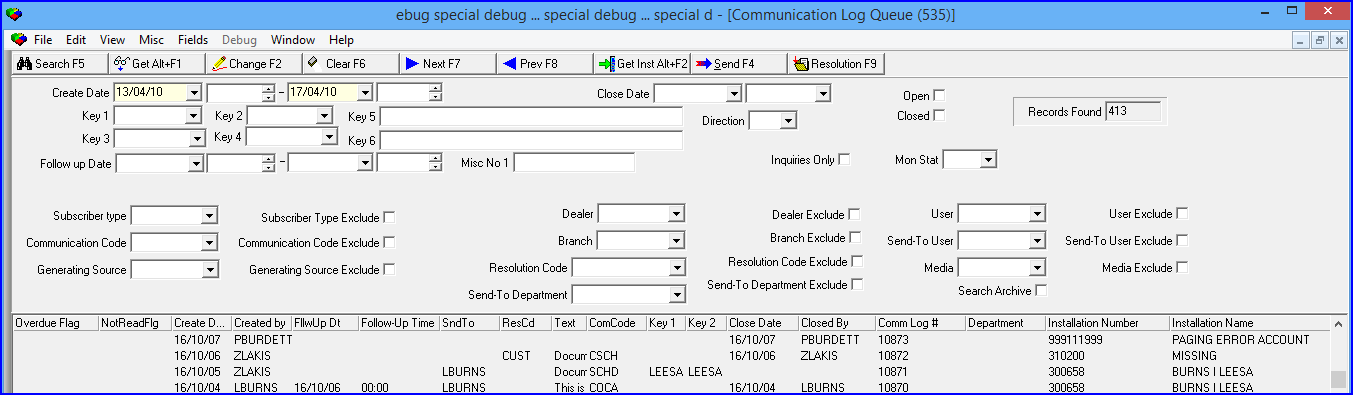
3. Choose Clear Search Screen to perform another search.
4. Repeat steps 1-2.
Changing Entries in the Communication Log Queue
You can edit certain fields in the Communication Log Queue and make changes to a communication entry without using the Communication Log (program #1888). Action 535/6 allows a user to update an entry created by another user.
Use the following steps to change an entry in the Communication Log Queue:
1. Select the entry you want to change.
2. Double-click your selection or choose Get Record.
3. Choose Change Record.
w Some fields in the details pane open for changes.
4. Make changes as needed.
5. Choose Save.
Viewing Installation Information
Use Get Installation to jump directly to Data Entry Master and Basics (program #559) with the customer's installation information displayed.
Sending Communication Log Queue Entries to Another User
You can send an entry in the Communication Log Queue to another user to ensure that the user will resolve the issue. Sent entries then appear in User mode when the user you sent the entry to views the Communication Log (program #1888).
Use the following steps to send entries to another user:
1. Select the entry you want to send to another user. Double-click your selection or choose Get Record.
2. Choose Send To Another User.
w The Communication Send dialog box opens.
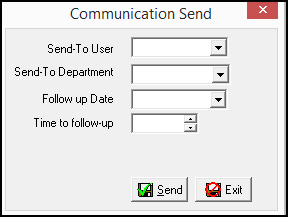
3. Complete the following fields:
In Send to User - you may select the ID of the user to whom you want to send the entry.
In Send To Department - you may select the department to which you want to send the entry.
In Follow Up Date - you may select a deadline date for the user to follow up on the entry.
4. Choose Send.
w SBN displays the user ID you sent the entry to in the Send To User field and column.
Resolving Communication Log Queue Entries
Show Resolution allows you to enter a resolution code and simultaneously close an entry, removing it from the Communication Log Queue. The menu of available resolution codes varies according to the communication code the user selected when creating the entry in the Communication Log (program #1888).
Note: The menu of resolution codes originates from program #1877. Attach specific resolution codes to communication codes in the sublevel of program #1517.
Use the following steps to select a communication resolution:
1. Select the entry you want to resolve. Double-click your selection or choose Get Record.
2. Choose Show Resolution.
w The Communication Resolution dialog box opens.
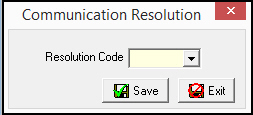
3. Select a resolution code for the entry.
4. Choose Save.
w SBN closes the entry and removes it from the Communication Log Queue.
Related Programs
The following table lists programs related to the Communication Log Queue.
Program |
Number |
Document Link |
Description |
Communication Log |
1888 |
Create, view, and edit customer communication entries that you can also access in the Communication Log Queue. |
|
Data Entry Master and Basics |
559 |
View installation details for a customer with a Communication Log Queue entry. |
|
Keys |
1519 |
Define and maintain codes and descriptions that appear in the menus for the Key 1, Key 2, Key 3, and Key 4 fields in the Communication Log Queue. |
|
Media |
1520 |
Define and maintain media codes to use in the Communication Log Queue to describe the type of communication media for an entry. |
|
Codes |
1517 |
Define and maintain communication codes to use in the Communication Log Queue to describe the type of communication for an entry. |
|
Sources |
1518 |
Define and maintain communication source codes to use in the Communication Log Queue to show from what program an entry originated. |
|
Resolution Codes |
1877 |
Create Resolution Codes to use in the Communication Log Queue to describe the resolution for an entry. |
|
Dealer Profiles |
1537 |
Define and maintain dealer profiles that appear in the Dealer menu of the Communication Log Queue. |
Button Functions
The following table displays the buttons, describes the shortcut keys, actions, and functionality.
Button |
Name |
Shortcut Key |
Action |
Description |
|
Begin Search |
f5 |
535/ 3 |
Search the Communication Log Queue. |
|
Get Record |
alt+f1 |
535/ 1 |
View details of the selected communication entry. |
|
Change Record |
f2 |
535/ 2 |
Change details of the selected communication entry. |
|
Clear Search Screen |
f6 |
535/ 4 |
Clear search parameters. |
|
Next Record |
f7 |
View details of the next communication entry in the search results pane. |
|
|
Previous Record |
f8 |
View details of the previous communication entry in the search results pane. |
|
|
Get Installation |
alt+f2 |
535/ 5 |
Jump directly to Data Entry Master (program #559) with the customer’s installation information displayed. |
|
Send to Another User |
f4 |
535/ 7 |
Send the selected entry to another user or department for follow-up. |
|
Show Resolution |
f9 |
535/ 8 |
Enter a Resolution Code for the selected entry and put it in closed status. |
|
Save |
Enter |
Save existing record. |
|
|
Exit |
Esc |
Exit without saving. |







Modifications and Updates to The Communication Log Queue
The following table lists modifications and updates to the Communication Log Queue document.
Mod Number |
Date |
Description |
n/a |
02/10/09 |
document rewritten |
07.02.21274, 08.03.08492 |
11/17/11 |
Added Exclude check boxes to Search Parameters pane. |
08.78.09055, 07.78.22310 |
03/01/13 |
Added an Inquiries Only check box. |
n/a |
07/17/14 |
Images updated. |
07.88.25760, 07.88.25748 |
04/04/18 |
Added three new columns: Sub Status, Change User, and Last Change Date. |
07.88.25793, 07.88.25792 |
05/17/18 |
The results from the "Send-To Department" will now also include the users of the Department who are assigned to the Send-To User field of the Communication Log. |
08.88.11348, 07.88.25812, 07.88.25809, 08.88.11345, 08.89.11444, 07.89.25931, 07.89.25933, 08.89.11449 |
07/19/18 |
Satisfaction Dropdown search parameter and Satisfaction Result fields added. Image updated. |