
VIP Priority Types
VIP Priority Types
VIP Priority Types
Module: System Administration
Overview
Use VIP Priority Types (program #1657) to define the menu of the VIP Prio Type field in the Basics tab of Data Entry (program #559). The VIP Prio Type field of Data Entry determines the priority adjustment of alarm signals on the installation with priorities that fall within the range defined for the selected VIP priority type.
This document covers the following topics:
Navigating to VIP Priority Types
Viewing the Details of a VIP Priority Type
Changing the Details of a VIP Priority Type
Restoring a Deleted VIP Priority Type
Navigating to VIP Priority Types
Use the following steps to navigate to VIP Priority Types:
1. From the main SBN toolbar, select Menu.
2. From the drop-down menu, select Go To [ALT+F1].
3. In the Go To Program dialog box, type in "1657."
w The VIP Priority Types program opens.
The VIP Priority Types Window
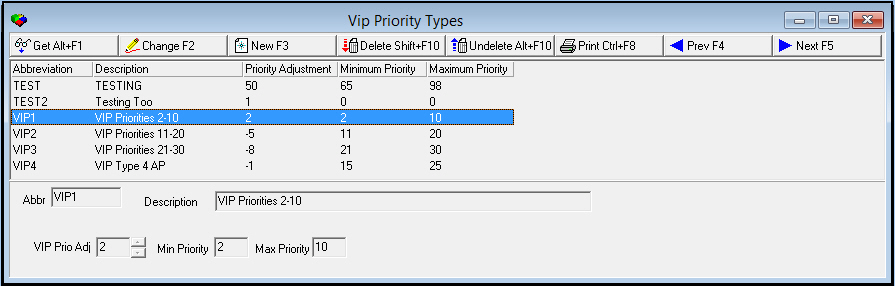
The following graphic shows VIP Priority Types as the program opens. The upper pane displays previously defined VIP Priority Types.
Field/Column Descriptions
The following table describes the fields and columns used in VIP Priority Types.
|
Field/Column |
Description |
|
Abbreviation |
Code to identify the VIP priority type. |
|
Description |
Text description of the VIP priority type. |
|
VIP Priority Adjustment |
Amount by which to increase or decrease the priority of alarm incidents. (This field accepts values between -10 and 10.) |
|
Minimum Priority |
Enter a range of alarm incident priorities that the selected priority type adjusts. Enter the minimum priority to adjust. (This field accepts values between 0 and 99.) For example, if you enter a priority range of 5 to 10 and a VIP Priority Adjustment of 2, if an alarm comes in with a priority of 6 on an installation with the selected VIP priority type, SBN adjusts the alarm priority to 8 in the Alarm Queue. |
|
Maximum Priority |
Enter a range of alarm incident priorities that the selected priority type adjusts. Enter the maximum priority to adjust. (This field accepts values between 0 and 99.) For example, if you enter a priority range of 5 to 10 and a VIP Priority Adjustment of 2, if an alarm comes in with a priority of 6 on an installation with the selected VIP priority type, SBN adjusts the alarm priority to 8 in the Alarm Queue. |
Viewing the Details of a VIP Priority Type
You can view the details of a VIP priority type in the fields in the lower pane.
Use the following steps to view the details of a VIP priority type:
1. Select the VIP priority type for which you want to view details from the upper pane.
2. Double-click your selection or choose Get.
w The fields in the lower pane display the details of the selected VIP priority type.
Adding a VIP Priority Type
Use the following steps to add a new VIP priority type:
1. In VIP Priority Types, choose New.
w The fields in the lower pane open for changes.
2. Complete all of the open fields.
3. Choose Save.
w SBN adds the VIP priority type to the list of defined VIP priority types in the upper pane.
Changing the Details of a VIP Priority Type
Use the following steps to change the details of a VIP Priority Type:
1. In VIP Priority Types, select the VIP priority type you want to change in the upper pane.
2. Choose Change.
w The fields that can be changed open for changes in the lower pane.
3. Enter changes, as needed.
4. Choose Save.
Deleting a VIP Priority Type
Use the following steps to delete a VIP priority type:
1. In VIP Priority Types, select the VIP priority type you want to delete.
2. Choose Delete.
w A Confirmation dialog box appears: "Delete XX. Are you sure?"
3. Choose Yes.
w SBN deletes the selected VIP priority type.
Restoring a Deleted VIP Priority Type
You can restore a deleted VIP priority type back into SBN.
Use the following steps to restore a deleted VIP priority type:
1. In VIP Priority Types, choose Undelete.
w The Undelete window appears.
2. In the Undelete window, find the VIP priority type you want to restore and double-click it.
w SBN restores the VIP priority type to the active list of defined VIP priority types.
Button Functions
The following table displays the buttons, describes the shortcut keys, actions, and functionality.
|
Button |
Name |
Shortcut Key |
Action |
Description |
|
|
Get |
ALT+F1 |
1657/ 1 |
View the details of a VIP priority type. |
|
|
Change |
F2 |
1657/ 2 |
Change selected record |
|
|
New |
F3 |
1657/ 3 |
Create a new record. |
|
|
Delete |
SHIFT+F10 |
1657/ 4 |
Delete selected record. |
|
|
Undelete |
ALT+F10 |
1657/ 5 |
Restore deleted record. |
|
|
|
CTRL+F8 |
1657/ 6 |
Print selected records. |
|
|
Previous |
F4 |
1657/ 1 |
Go to previous record. |
|
|
Next |
F5 |
1657/ 1 |
Go to next record. |








Modifications and Updates to VIP Priority Types
The following table lists modifications and updates to the VIP Priority Types document.
|
Mod Number |
Date |
Description |
|
n/a |
8/27/14 |
Images updated. |