
Queue Priorities
Queue Priorities
Queue Priorities
Module: System Administration
Overview
Use Queue Priorities (program #1725) to flag priorities for alarm incidents as visible. When a user selects the Visible check box in the Alarm Queue tab of Data Entry (program #559), SBN displays only those alarms in the queue with a priority that has an X in the Visible column of Queue Priorities. When a user selects the Hidden check box in the Alarm Queue, SBN displays only those alarms in the queue with a priority that does not have an X in the Visible column of Queue Priorities.
Note: SBN only applies the priority settings in Queue Priorities to the Alarm Queue when option mo206 is on. When this option is off, SBN displays all alarms in the Alarm Queue regardless of whether the Hidden, Visible, or All check box is selected.
Navigating to Queue Priorities
Use the following steps to navigate to Queue Priorities:
1. From the main SBN toolbar, select Menu.
2. From the drop-down menu, select Go To.
3. In the Go To Program dialog box, type in "1725" and press Enter.
w The Queue Priorities program opens.
The Queue Priorities Window
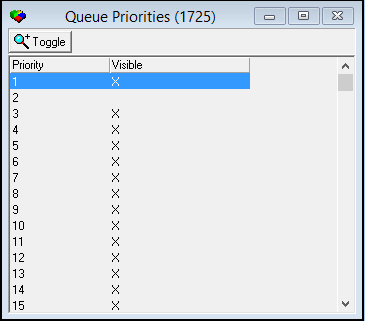
The following graphic shows Queue Priorities as the program opens.
Column Descriptions
The following table describes the columns used in Queue Priorities.
|
Field/Column |
Description |
|
Priority |
Alarm incident priority level. |
|
Visible |
If this column displays an X, alarms of the selected priority are visible when the Visible check box is selected in the Alarm Queue and not visible when the Hidden check box is selected. |
Changing Priority Visibility
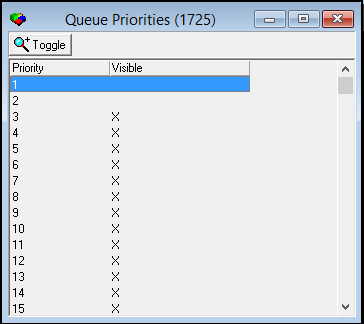
Use the following steps to flag priorities as visible in the Alarm Queue. SBN displays alarms of priorities with an X in the Visible column in the Alarm Queue when the Visible check box is selected in the Alarm Queue. SBN displays alarms of priorities with no X in the Alarm Queue when the Hidden check box is selected in the Alarm Queue.
1. Highlight the priority you want to change.
2. Double-click the priority or choose the Toggle button.
w The Visible column for the priority changes from X to blank or from blank to X.
Related Programs
The following table lists programs related to Queue Priorities.
|
Program |
Number |
Document Link |
Description |
|
Alarm Queue Tab |
N/A |
View incoming alarms that have not yet been resolved. Visibility settings from Queue Priorities are applied to the Alarm Queue. |
Button Functions
The following table displays the buttons and describes the actions and functionality.
|
Button |
Name |
Action |
Description |
|
|
Toggle |
1725/ 1 |
Toggle between visible and hidden for each priority. |

Modifications and Updates to Queue Priorities
The following table lists modifications and updates to the Queue Priorities document.
|
Mod Number |
Date |
Description |
|
07.02.20486, 08.03.08054 |
01/12/11 |
document created for new program |
|
n/a |
8/22/14 |
Images updated. |