
Common Properties
These properties are shared by all SBN Windows services. Each service exposes them through its Properties dialog, alongside any settings unique to that service. The settings on this page fall into a few common groups: Timer and Logging, the SBN Data Server connection, the APIEngine connection, and Email (sender details and one or more SMTP servers).
Timer and Logging
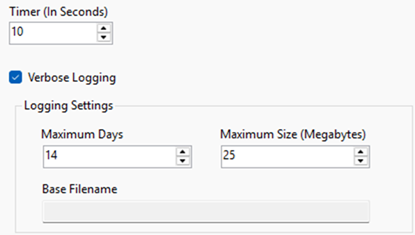
- Timer - Most services run on a timer. This value drives how often the service process executes.
- Verbose Logging - Adds additional logging, usually for debugging purposes.
- Maximum Days - How long to keep log files for this service.
- Maximum Size - Approximately how large a log file will get before being renamed so another log file can start. Log files are renamed _01, _02, etc.
- Base Filename - A read-only field indicating the name of the log file for this service.
SBN Data Server
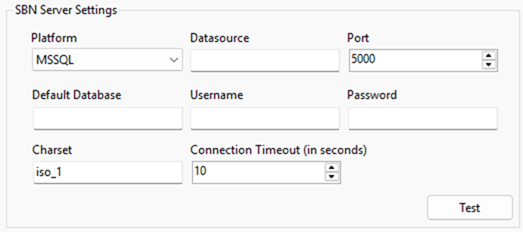
- Platform - The database platform: SYBASE or MSSQL (drop-down; defaults to SYBASE).
- Datasource - The name or IP address of the data server. If you use a named instance (MY_DATABASE, for example), then be sure the Windows machine running the service knows how to resolve the name to an IP address.
- Port - The port of the data server.
- Default Database - The location of the internal SBN stored procedures. This is typically sbnpro.
- Username - Database user this service should run under. In the cases where this MUST be an SBN User (opposed to just a database user) it will be indicated on the service.
- Password - Database password.
- Charset - This is almost always iso_1. Do not change this value unless you know what you are doing.
- Connection Timeout - How long the service will wait before failing to connect.
- TEST - Use this button to test the database connection.
APIEngine
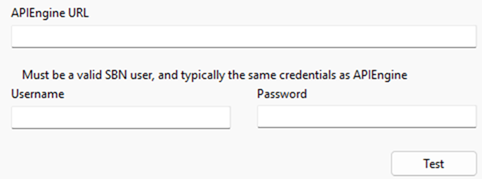
- APIEngine URL - The location of your company's APIEngine.
- Username - A valid SBN User.
- Password - The valid SBN User's password.
- TEST - Use the Test button to test the APIEngine connection.
Basics
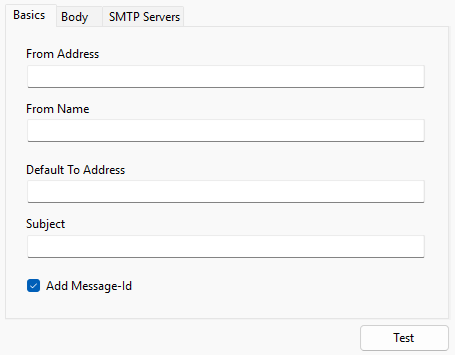
- From Address - Where the email comes from.
- From Name - Name to show on the email.
- Default To Address - Specify a default destination to be used when no email is provided.
- Subject - Specify a default subject to be used when no subject is provided.
- Add Message-Id - When checked, the service adds a unique Message-Id header to each outgoing email. Some mail servers require this to accept or correctly thread messages.
- TEST - Use the Test button to send an email. You must have Basics and SMTP Servers defined.
Body
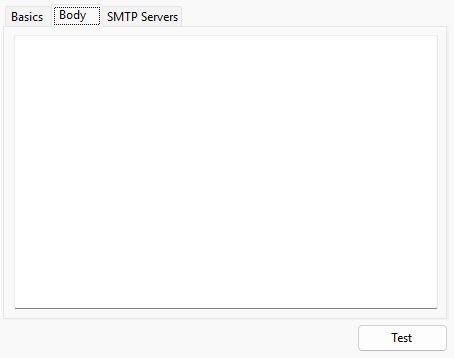
- Body - Specify a default body to be used when no subject is provided.
- TEST - Use the Test button to send an email. You must have Basics and SMTP Servers defined.
SMTP Servers
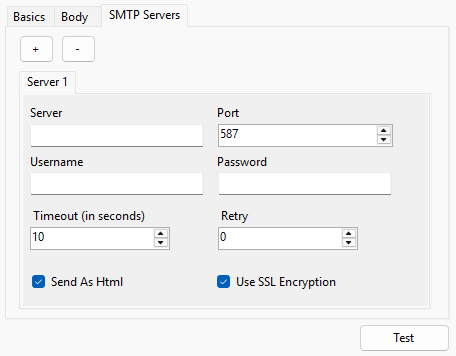
- Server - Name of your SMTP server.
- Port - Port of your SMTP server.
- Username - Username to access your SMTP server.
- Password - Password to access your SMTP server.
- Timeout - Time, in seconds before canceling the email attempt.
- Retry - How many times to retry a failed email. A value of zero means no retries.
- Send As Html - Check this box to send emails as HTML (Content-Type: text/html; charset=UTF-8). Otherwise emails are sent as plain text (Content-Type: text/plain; charset=UTF-8).
- Use SSL Encryption - Send email using SSL encryption.
- TEST - Use the Test button to send an email. You must have Basics and SMTP Servers defined.
NOTE: You may set up more than one SMTP server. Use the + and - buttons at the top to add or remove SMTP server definitions. The first tab is always the Primary server and cannot be deleted. Servers are tried in the order they are defined: if the first SMTP server fails (after exhausting all retries) the service tries the next one, and so on.
Was this helpful?