
Proposal Report
Proposal Report
Proposal Report
Report #: 2133
Module: Account Generation
Overview
Use the Proposal Report to generate a proposal letter for a specific inquiry.
To access this report, from Marketing and Marketing Basics choose Run Reports and select or choose Proposal Report (report #2133) from the main menu of SBN.
The Proposal Report
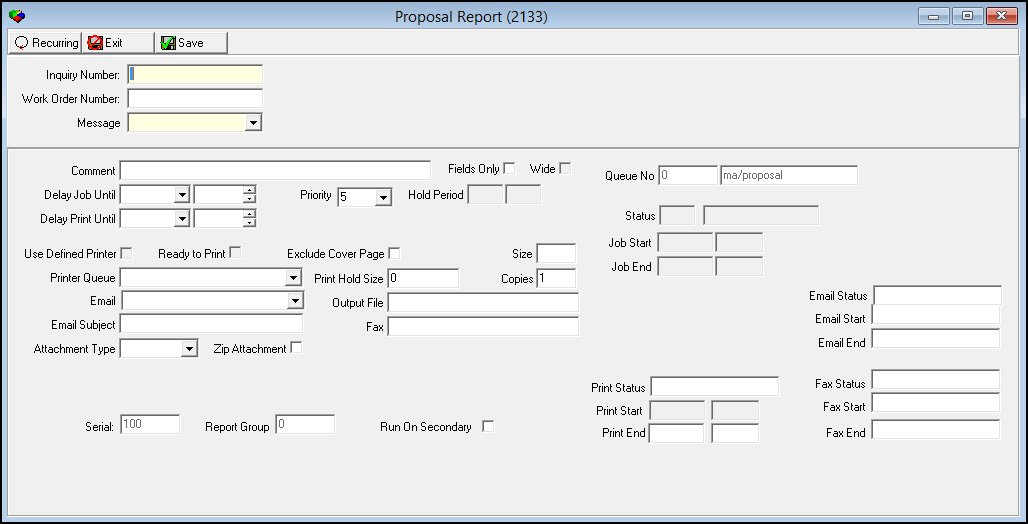
This window contains two panes: use the upper pane to define the contents of the report; use the lower pane to define the job output - how, when, and where you want to print the report.
Note: See Report Parameters Pane for information on the fields in the lower pane, which are the same in every report.
Field Descriptions
The following table describes the fields used in the upper pane of this report.
Field |
Description |
Inquiry Number |
You must type the inquiry number on which to report. O If you accessed this report from Marketing, SBN enters the inquiry number. |
Work Order Number |
If the inquiry contains multiple work order numbers, you may type a specific work order number on which to report. O If you leave this field blank, the report prints one page for each work order attached to the inquiry number. |
Report Message |
You must select a report message to print on the report. (This menu originates from program #1766.) |
Running and Viewing a Report
For information on running and viewing a report, see Common Functions in SBN.
Report Example
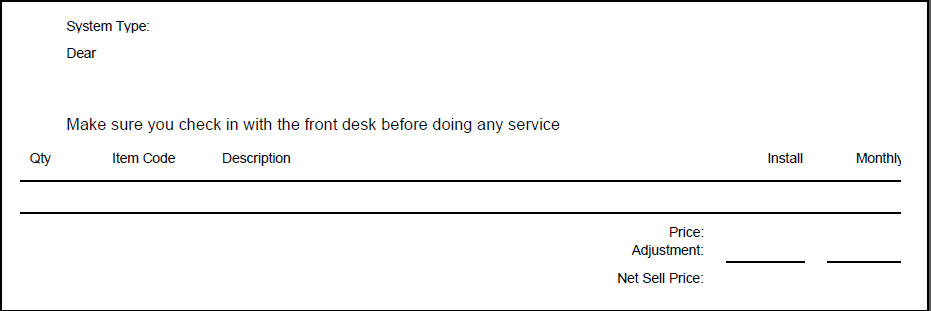
The following graphic shows an example of the output of the Proposal report.
Column Descriptions
The following table describes the columns used in the output of the Proposal report.
Column |
Description |
Date (No label) |
Displays the date on which the report runs. |
Name (No label) |
Displays the combined customer name. |
Address (No label) |
Displays the first line of the customer address. |
Additional Address (No label) |
Displays additional address line, if applicable. |
City, State, Zip (No label) |
Displays the city, state, and zip code of the customer address. |
System Type |
Displays the system type on which the proposal is based. |
Dear |
Displays the AKA field, if available, or displays the combined customer name. |
Report Message (No label) |
Displays the text of the selected report message. |
Qty |
Displays of the quantity of the selected item. |
Item Code |
Displays the item code of the selected item. |
Description |
Displays the text description of the selected item. |
Install |
Displays the one-time fee of the selected item. |
Monthly |
Displays the cycle fee of the selected item. |
Price |
Displays the total of all one-time fees and the total of all cycle fees. |
Adjustment |
Displays the adjustment applied to the total one-time fees and the adjustment applied to the total cycle fees. |
Net Sell Price |
Displays the difference between the price and adjustment for both one-time fees and cycle fees. |
Button Functions
The following table displays the buttons, describes the shortcut keys, actions, and functionality.
Button |
Name |
Shortcut Key |
Action |
Description |
|
Open fields for recurring/template reports |
alt+f1 |
Open fields for recurring/template reports. |
|
|
Exit without saving |
esc |
Exit without saving changes to selected record. |
|
|
Save Existing Record |
enter |
Save changes to selected record. |



Modifications and Updates to Proposal Report
The following table lists modifications and updates to the Proposal Report document.
Mod Number |
Date |
Description |
n/a |
07/14/14 |
Images updated. |