
Monitoring Events
Monitoring Events
Monitoring Events
Program #: 1621
Module: System Administration
Overview
Use Monitoring Events (program #1621) to define and maintain dealer and language definitions for all events that SBN posts in the Alarm Log.
Note: Actions 195/1-195/255 correspond to monitoring events. (For example, action 195/12 is for monitoring event 12 Alarm Take.) In order to use a monitoring event in Dispatch (program #537), you must enable its action in your action profile in program #1502.
Navigating to Monitoring Events
Use the following steps to navigate to Monitoring Events:
1. From the main SBN toolbar, select Menu.
2. From the drop-down menu, select Go To.
3. In the Go To Program dialog box, type in "1621" and press Enter.
w Monitoring Events opens.
The Monitoring Events Window
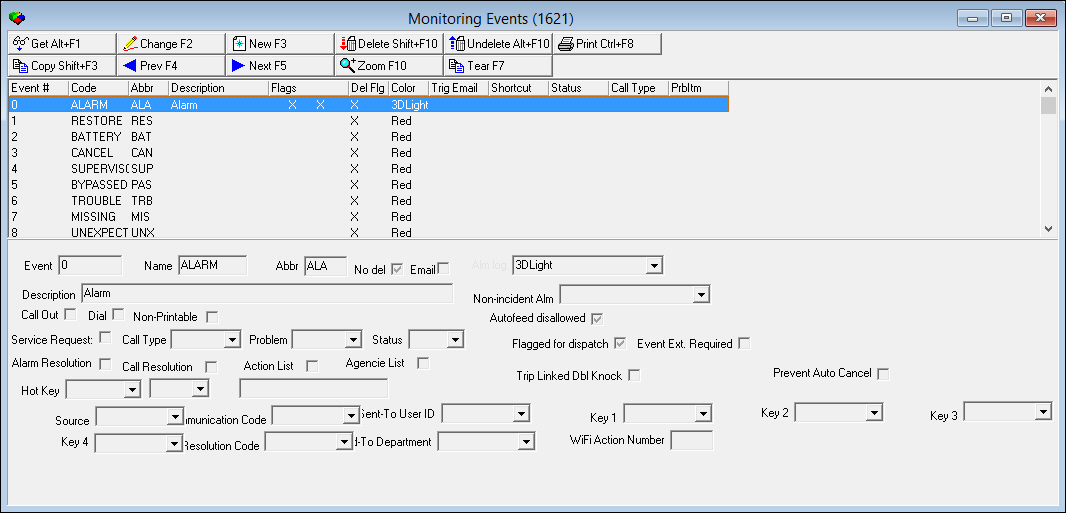
The following graphic shows Monitoring Events as the program opens. The main screen displays system defined monitoring events.
Field/Column Descriptions
The following table describes the fields and columns used in Monitoring Event Extensions.
Field/Column |
Description |
Upper Pane - Columns |
|
Event |
System-assigned event number. |
Code |
Alarm code that appears in the Alarm Log. |
Abbreviation |
Abbreviation of the alarm code that appears in the Alarm Log. |
Description |
Description of the alarm code. |
Flags |
Contains an 'X' when you select the Call Out check box. |
Delete Flag |
Contains an 'X' when you select the No Del check box. |
Color |
Color you select for the event in the Alm log drop-down menu. |
Trig Email |
Contains an 'X' when you select the Email check box. |
Shortcut |
Shortcut key assigned to the selected alarm resolution event. |
Status |
Default Status Code for service requests generated for this event. |
Call Type |
Default Call Type for service requests generated for this event. |
Problem Item |
Default Problem Code for service requests generated for this event. |
Call Resolution Shortcut |
Shortcut key assigned to the selected call resolution event. |
Lower Pane - Fields |
|
Event |
System-assigned event number. |
Name |
Alarm code that appears in the Alarm Log. |
Abbr |
Abbreviation of the alarm code that appears in the Alarm Log. |
No del |
No del check box. |
This check box must be selected for the monitoring event used to remove an alarm from the Alarm Queue in order for SBN to email action plan contacts on an installation for Action Plan Types 5 and 6. |
|
Almlog |
Defines the color used for the event in the Alarm Log. |
Description |
Description of the alarm code. |
Non-Incident Alm |
Defines the color used for the event in the Alarm Log when it is a log-only event and does not appear in the Alarm Queue. |
Call Out |
When selected, the Dispatch tab treats the event as a call out event. |
Dial |
When selected, the Dispatch tab activates the auto-dialer for this event. |
Non-Printable |
When selected, SBN does not include the event in alarm log reports (such as #2120 and #2114). Select the Include Non-Printable check box on the report if you decide to include the event when generating the report. |
Service Request |
Select this check box if you want SBN to automatically generate a service request when an operator chooses this event as an alarm resolution in Dispatch. If you select this check box, make selections in the Call Type, Problem, and Status drop-downs. Note: This box is grey unless you select the Alarm Resolution check box for this event. |
Call Type |
Indicates the default Call Type for service requests generated for this event. (This menu originates from program #1524.) Note: This field is grey unless you select the Service Request check box for this event. |
Problem |
Indicates the default Problem Code for service requests generated for this event. (This menu originates from program #1522.) |
Status |
Indicates the default Status Code for service requests generated for this event. (This menu generates from program #1525.) |
Flagged for Dispatch |
Select this check box to make SBN require the following events in the following order to resolve an alarm after the selected event is chosen in Dispatch (program #537): Guard Dispatch, Guard Arrived, and Guard Out. Note: Select this check box only on events 41 and 44. Consult IBS before selecting this check box on any other events. |
Event Ext. Required |
Select this check box to make the Event Extensions field in the Event Extensions dialog box of Dispatch (program #537) required for the selected event. Note: This check box is only for use with events flagged as alarm resolutions that have event extensions defined in program #1751. |
Alarm Resolution |
Select this check box to designate this event as an alarm resolution. If this check box is selected, this event appears in the Alarm Resolution menu in Dispatch (program #537) and all users can see the event in the appropriate dropdown. Note: If an event has this check box selected, only events with this check box selected appear in the Alarm Resolutions menu in Dispatch. If no events have this check box selected, the default alarm resolutions appear in the Alarm Resolutions menu in Dispatch. (See 'Using Alarm Resolutions' in the Dispatch document for the default alarm resolution list.) Actions 195/1-195/255 correspond to monitoring events. (For example, action 195/12 is for monitoring event 12 Alarm Take.) In order to use a monitoring event in Dispatch, you must enable its action in your action profile in program #1502. |
Call Resolution |
Select this check box to designate this event as a call resolution. If this check box is selected, this event appears in the Call Resolutions menu in Dispatch (program #537). Note: If an event has this check box selected, only events with this check box selected appear in the Call Resolutions menu in Dispatch. If no events have this check box selected, the default call resolutions appear in the Call Resolutions menu in Dispatch. (See 'Using Call Resolutions' in the Dispatch document for the default call resolution list.) Actions 195/1-195/255 correspond to monitoring events. (For example, action 195/12 is for monitoring event 12 Alarm Take.) In order to use a monitoring event in Dispatch, you must enable its action in your action profile in program #1502. |
Action List |
Select this check box to designate this event as a monitoring action. If this check box is selected, this event appears in the Monitoring Actions menu in Dispatch (program #537). Note: If an event has this check box selected, only events with this check box selected appear in the Monitoring Actions menu in Dispatch. If no events have this check box selected, the default monitoring actions appear in the Monitoring Actions menu in Dispatch. (See 'Using Monitoring Actions' in the Dispatch document for the default monitoring action list.) Actions 195/1-195/255 correspond to monitoring events. (For example, action 195/12 is for monitoring event 12 Alarm Take.) In order to use a monitoring event in Dispatch, you must enable its action in your action profile in program #1502. |
Agencies List |
Select this check box to designate this event as an agency function. If this check box is selected, this event appears in the Agency Functions menu in Dispatch (program #537). Note: If an event has this check box selected, only events with this check box selected appear in the Agencies Functions menu in Dispatch. If no events have this check box selected, the default agency functions appear in the Agencies Functions menu in Dispatch. (See 'Using Agency Functions' in the Dispatch document for the default agency functions list.) Actions 195/1-195/255 correspond to monitoring events. (For example, action 195/12 is for monitoring event 12 Alarm Take.) In order to use a monitoring event in Dispatch, you must enable its action in your action profile in program #1502. |
Trip Linked Dbl Knock |
Select this check box to indicate that when the selected event is generated on one zone with the Linked Dbl Knock check box selected in the Zones tab, SBN will only record the event in the Alarm Log. An alarm event of this type or another with this check box selected must be generated on both linked zones in order for the event to go to the Alarm Queue. |
Prevent Auto Cancel |
Select this check box to indicate that SBN does not remove alarms on Auto Removal zones from the Alarm Queue if this event is part of the alarm incident. (Auto Removal zone types have the Auto Removal check box selected in program #1733.) |
Hot Key |
Select the beginning half of the shortcut key for the selected event. |
Hot Key 2 (No label) |
Select the ending half of the shortcut key for the selected event. |
Hot Key |
This read-only field displays the shortcut key assigned to the selected event. |
Source |
If you want SBN to create an entry in the Communication Log (program #1888) when the selected event is used in Dispatch (program #537), select a Generating Source for the Communication Log entry. Note: SBN will not create a Communication Log entry for the event if this field is blank. SBN does not create Communication Log entries for events 0-9. |
Communication Code |
You may select a Communication Code that SBN uses for entries in the Communication Log (program #1888) when the selected event is used in Dispatch (program #537). Note: SBN will not create a Communication Log entry for the event if the Source field is blank. SBN does not create Communication Log entries for events 0-9. |
Send To User ID |
You may select a user ID that SBN sends entries in the Communication Log (program #1888) to when the selected event is used in Dispatch (program #537). Note: SBN will not create a Communication Log entry for the event if the Source field is blank. SBN does not create Communication Log entries for events 0-9. |
Key 1 |
You may select a Key 1 code that SBN uses for entries in the Communication Log (program #1888) when the selected event is used in Dispatch (program #537). This drop-down menu displays Key 1 codes defined for the selected Generating Source and Communication Code in Keys (program #1519). Note: SBN will not create a Communication Log entry for the event if the Source field is blank. SBN does not create Communication Log entries for events 0-9. |
Key 2 |
You may select a Key 2 code that SBN uses for entries in the Communication Log (program #1888) when the selected event is used in Dispatch (program #537). This drop-down menu displays Key 2 codes defined for the selected Generating Source and Communication Code in Keys (program #1519). Note: SBN will not create a Communication Log entry for the event if the Source field is blank. SBN does not create Communication Log entries for events 0-9. |
Key 3 |
You may select a Key 3 code that SBN uses for entries in the Communication Log (program #1888) when the selected event is used in Dispatch (program #537). This drop-down menu displays Key 3 codes defined for the selected Generating Source and Communication Code in Keys (program #1519). Note: SBN will not create a Communication Log entry for the event if the Source field is blank. SBN does not create Communication Log entries for events 0-9. |
Key 4 |
You may select a Key 4 code that SBN uses for entries in the Communication Log (program #1888) when the selected event is used in Dispatch (program #537). This drop-down menu displays Key 4 codes defined for the selected Generating Source and Communication Code in Keys (program #1519). Note: SBN will not create a Communication Log entry for the event if the Source field is blank. SBN does not create Communication Log entries for events 0-9. |
Resolution Code |
You may select a Resolution Code that SBN uses for entries in the Communication Log (program #1888) when the selected event is used in Dispatch (program #537). When you select a Resolution Code, SBN closes Communication Log entries for the selected event. Note: SBN will not create a Communication Log entry for the event if the Source field is blank. SBN does not create Communication Log entries for events 0-9. |
Send To Department |
You may select a department that SBN sends entries in the Communication Log (program #1888) to when the selected event is used in Dispatch (program #537). Note: SBN will not create a Communication Log entry for the event if the Source field is blank. SBN does not create Communication Log entries for events 0-9. |
WiFi Action Number |
Indicates the WiFi panel action code (Act01-Act30) assigned to this event. This feature is exclusive to Company 162. |
Using Common Functions
See the reference document Common Functions in SBN for more information.
Note: When you delete an event with a shortcut key assigned, SBN clears the shortcut to prevent accidental duplicates if you decide to restore the event.
Assigning Alarm Resolutions and Shortcut Keys
You can designate any event in Monitoring Events (program #1621) as an alarm resolution; all alarm resolution events appear in the Alarm Resolution menu in Dispatch (program #537). You can also assign any shortcut key to an alarm resolution to make handling an alarm in Dispatch easier for operators.
Note: Assign shortcut keys carefully. SBN only checks for duplicate shortcut keys on alarm resolution events.
Use the following steps to designate an alarm resolution:
1. Select the event you want to designate as an alarm resolution.
2. Double-click your selection or choose Get.
w The fields in the lower pane fill with the details of the selected event.
3. Choose Change.
w Some fields in the lower pane open for changes.
4. Complete the following fields:
Select the Alarm Resolution check box.
In Hot Key, select the first part of the shortcut key from the drop-down menu.
In Hot Key 2 (no label), select the end of the shortcut key from the drop-down menu.
5. Choose Save.
w SBN adds the selected event to the Alarm Resolution menu in Dispatch.
w The read-only field displays the assigned shortcut key.
Setting Up Service Requests
You can have SBN automatically generate service requests when an operator chooses specified events in Dispatch. To set up service requests for an event, you must designate the event as an alarm resolution by selecting the Alarm Resolution check box. The service request fields are initially grey.
Use the following steps to auto-generate service requests:
1. Select the event for which you want to generate service requests.
2. Double-click your selection or choose Get.
w The fields in the lower pane fill with the details of the selected event.
3. Choose Change.
w Some fields in the lower pane open for changes.
4. Complete the following fields:
Select the Service Request check box.
In Call Type select the default call type for generated service requests.
In Problem select the default problem code for generated service requests.
In Status select the default status code for generated service requests.
5. Choose Save.
w When an operator chooses this event, SBN creates a service request in the Service Log.
Zooming into the Sublevel
Monitoring Events contains a sublevel tab in which you may attach dealer specific definitions and multiple translations to the events to the dealer. Those events then appear according to the user's dealer profile and language. Only the dealer or dealers defined will see the appropriate Event or Events that a user defines. For example, if a user defines an event for Dealer "0000" and checks Alarm Resolution, Call Resolution, Action List, and Agency List then that Event the user defined will only appear for Dealer "0000" within those dropdowns on the Dispatch screen (Alarm Resolution, Call Resolution, Action List, and Agency List).
Note: Actions 1621/10-14 control access to the Translations tab and functions.
The Translations Tab
The following graphic shows the Translations tab. The tab displays translations previously attached to the selected monitoring event.
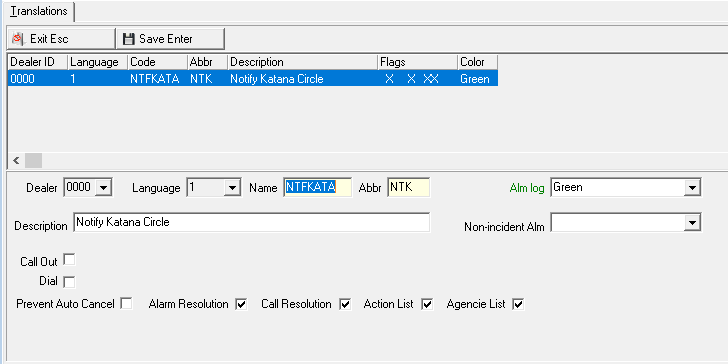
Note: Dealer field now allows wildcard (%) for Dealer IDs in the Translations tab when zoomed into a specific monitoring event. If a user has several dealers who start out with the same dealer abbreviation, they can add the wildcard (%) in the dealer field, and have that event applied to several of their dealers. This reduces the entries needed for specific dealer-based monitoring events.
Field/Column Descriptions
The following table describes the fields and columns used in the Translations tab.
Field/Column |
Description |
Dealer ID |
Dealer ID attached to the entry. Note: If you leave this field blank, the translation defined for the selected event displays for any installation that has the same language defined, regardless of the installation's assigned Dealer ID. |
Language Code |
Code that identifies the language of the associated translation. |
Name |
Alarm code that appears in the Alarm Log. |
Abbr |
Abbreviation of the Alarm Code that appears in the Alarm Log. |
Alm Log |
Defines the color used for the event in the Alarm Log. |
Description |
Text description, in the associated language, of the selected monitoring event. |
Call Out |
When selected, the Dispatch tab treats this event as a call out event. |
Dial |
When checked, the Dispatch tab will activate the auto-dialer for this event. When the translation meets either the dealer or language, this definition will override the Dial flag in the main tab. |
Prevent Auto Cancel |
Select this check box to indicate that SBN does not remove alarms on Auto Removal zones from the Alarm Queue if this event is part of the alarm incident. (Auto Removal zone types have the Auto Removal check box selected in program #1733.) |
Alarm Resolution |
Select this check box to designate this event as an alarm resolution. If this check box is selected, this event appears in the Alarm Resolution menu in Dispatch (program #537) for specifically defined Dealers. |
Call Resolution |
Select this check box to designate this event as a call resolution. If this check box is selected, this event appears in the Call Resolutions menu in Dispatch (program #537) for specifically defined Dealers |
Action List |
Select this check box to designate this event as a monitoring action. If this check box is selected, this event appears in the Monitoring Actions menu in Dispatch (program #537) for specifically defined Dealers. |
Agency List |
Select this check box to designate this event as an agency function. If this check box is selected, this event appears in the Agency Functions menu in Dispatch (program #537) for specifically defined Dealers. |
Button Functions
The following table displays the buttons, describes the shortcut keys, actions, and functionality.
Button |
Name |
Shortcut Key |
Action |
Description |
|
Get |
ALT+F1 |
1621/ 1 |
Get record. |
|
Change |
F2 |
1621/ 2 |
Change selected record. |
|
New |
F3 |
1621/ 3 |
Create new record. |
|
Delete |
SHIFT+F10 |
1621/ 4 |
Delete selected record. |
|
Undelete |
ALT+F10 |
1621/ 5 |
Restore deleted record. |
|
CTRL+F8 |
1621/ 6 |
Print selected records. |
|
|
Zoom |
F10 |
1621/10 |
Zoom in/out of sublevel. |
|
Copy |
SHIFT+F3 |
Copy current record. |
|
|
Tear |
F7 |
Lists details of the selected field. |
|
|
Previous |
F4 |
Select last record. |
|
|
Next |
F5 |
Select next record. |











Modifications and Updates to Monitoring Events
The following table lists modifications and updates to the Monitoring Events document.
Mod Number |
Date |
Description |
n/a |
08/20/14 |
Images updated. |
08.82.09877, 07.82.23748, 08.82.09858, 07.82.23707 |
03/04/15 |
Added WiFi Action Number field. |
08.89.11414, 07.89.25896, 08.89.11434, 07.89.25924 |
07/05/18 |
Added Alarm Resolution, Call Resolution, Action List, and Agencies List to lower pane. Images updated. |
07.93.26820, 08.93.12100 |
12/06/21 |
Wildcard (%) now allowed in the Dealer dropdown while zoomed into a specific Monitoring Event. Note added under image. |