
Number of Alarms Report
Number of Alarms Report
Number of Alarms
Module: Account Management
Overview
Use the Number of Alarms report to view the number of alarms that occurred in a specified period, sorted by zone type. User's branch restrictions apply.
You can choose to run the report three different ways. You can either select a Dealer from the drop-down menu, leave the Dealer field blank, or leave the Dealer field blank and select the Dealer Details check box. These three methods produce the following results, respectively:
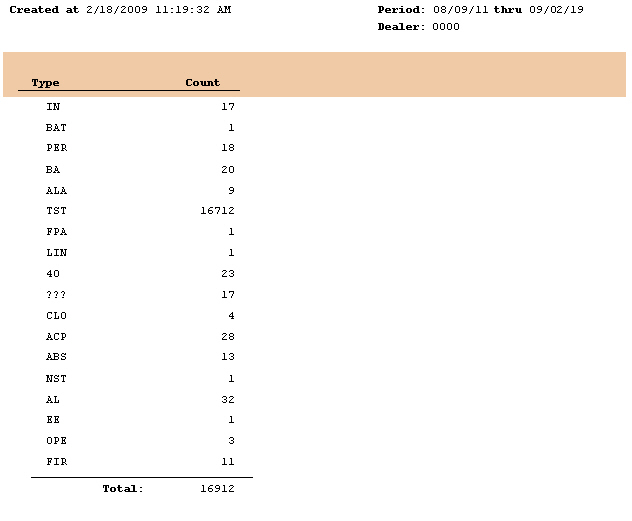
Alarm count for installations associated with a specified dealer
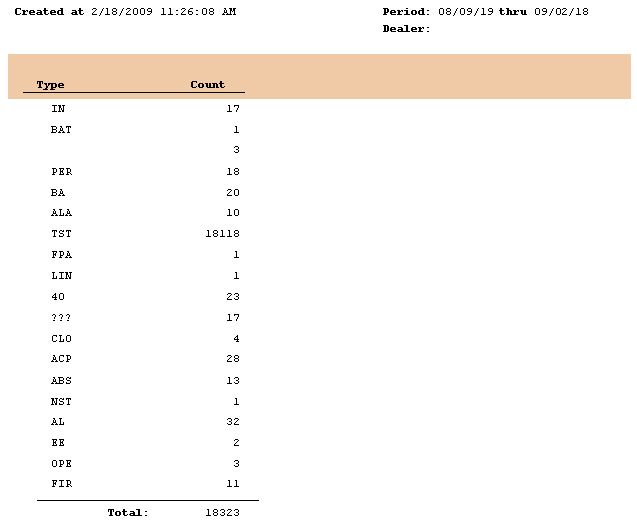
Total summary of alarms for all dealers
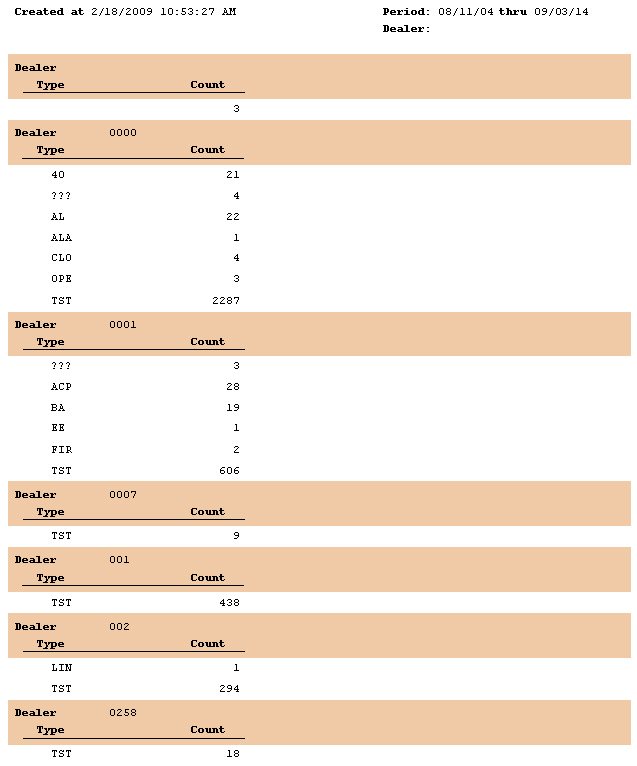
Individual alarm counts for installations associated with all dealers
This document covers the following topics:
Navigating to Number of Alarms
Navigating to Number of Alarms
Use the following steps to access the Number of Alarms Report:
1. From the main SBN toolbar, select Menu.
2. From the drop-down menu, select Go To.
3. In the Go To Program dialog box, type in "1990" and press ENTER.
w The Number of Alarms Report window opens.
Number of Alarms Options
You can manipulate the Number of Alarms Report functionality through the use of the following options. For detailed information on an option and its default setting, see SBN Options.
Option fe007 - When this option is on, SBN enables the fax gateway, allowing you to fax reports.
Option fe009 - When this option is on, select a valid email address in the Email field to which SBN emails the report.
The Number of Alarms Report
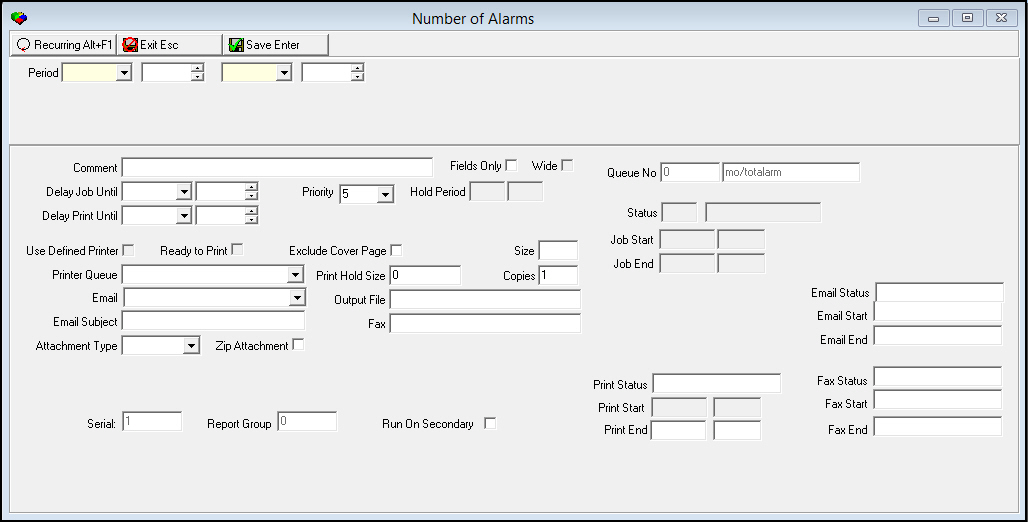
The Number of Alarms window contains two panes: use the upper pane to define the content of the report; use the lower pane to define the job output - how, when, and where you want to print the report.
Note: See Report Parameters Pane for information on the fields in the lower pane, which are the same in every report.
Field Descriptions - Report Content
The following table describes the fields used in the upper pane of the Number of Alarms report.
Field |
Description |
Period |
|
Date - From |
Limit the report to alarms that occurred during a specific date range. Select the beginning date of the range. |
Time - From |
Limit the report to alarms that occurred during a specific time range. Select the beginning time of the range. |
Date - To |
Select the ending date of the range. |
Time - To |
Select the ending time of the range. |
Running and Viewing a Report
Use the following steps to run and view a report:
1. In Number of Alarms, define the parameters in the upper and lower panes of the report.
2. Choose Save to save the report to the Report Queue.
3. In Report Queue (program #1558), choose Own to display the report list.
4. In the report list, locate the Number of Alarms Report.
5. When SBN displays 'DON' or 'RDY' in the Status column, the report is ready.
6. Double-click on Number of Alarms.
w The Number of Alarms window opens.
7. Choose Display Report.
w The Print Preview window opens.
Report Example 1
The following graphic shows an example of the alarm count for installations associated with a specified dealer output of the Number of Alarms report.
Report Example 2
The following graphic shows an example of the summary of alarms for all dealers output of the Number of Alarms report.
Report Example 3
The following graphic shows an example of the individual alarm counts for installations associated with all dealers output of the Number of Alarms report.
Column Descriptions
The following table describes the columns used in the output of the report.
Column |
Description |
Type |
Displays the zone type. |
Count |
The number of alarms for the zone type during the specified period. |
Dealer |
This field displays the dealer ID associated with the installations that experienced alarms during the specified period, if applicable. |
Total |
The total number of alarms during the specified period. |
Button Functions
The following table displays the buttons, describes the shortcut keys, actions, and functionality.
Button |
Name |
Shortcut Key |
Action |
Description |
|
Recurring |
Alt+F1 |
1990 |
Open fields for recurring/template reports. |
|
Exit |
Esc |
1990 |
Exit without saving. |
|
Save |
Enter |
1990 |
Save existing record. |



Modifications and Updates to Number of Alarms Report
The following table lists modifications and updates to the Number of Alarms Report document.
Mod Number |
Date |
Description |
n/a |
7/25/14 |
Images updated. |