
Currency Conversion
Currency Conversion
Currency Conversion
Program #: 1635
Module: Utilities
Overview
The Currency Conversion program allows users to define currency conversions for use throughout the Accounting module in programs and tabs including Contract Master (program #548), Work Orders, Cycle Fees, Invoice Status, Payment Status, and Invoice Manager (program #1557). Users can view active currency conversions and search for inactive past and future conversions.
Conversion entries are unique and not removable. Once you create a currency conversion entry, you may only change the conversion factor.
This document includes the following topics:
The Currency Conversion Window
Searching for Currency Conversions
Creating a New Currency Conversion
Changing a Currency Conversion
The Currency Conversion Window
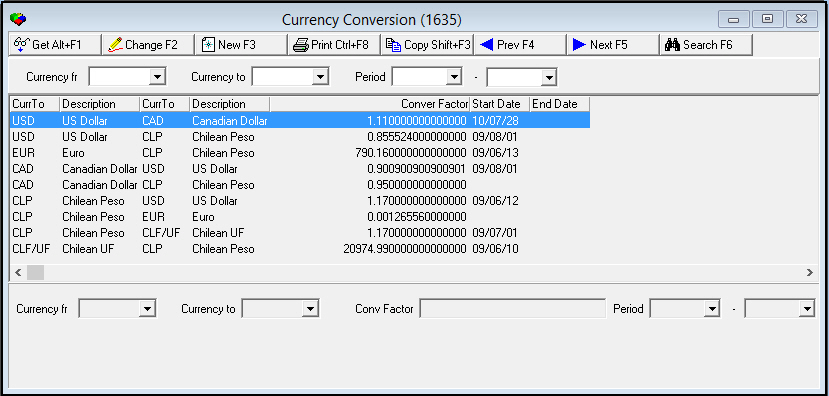
The Currency Conversion window contains three panes:
-
The upper pane contains search parameters
-
The middle pane displays search results
-
The lower pane displays conversion details
The following graphic shows Currency Conversion as the program opens. The default view of the Currency Conversion window displays currently active and future conversions in the search results pane.
Field Descriptions - Search Parameters
The following table describes the fields in the search parameters pane.
|
Field |
Description |
|
Currency From |
Currency type that SBN converts from; you may include this parameter in your search. |
|
Currency To |
Currency type that SBN converts to; you may include this parameter in your search. |
|
Conversion Period |
|
|
Start Date |
Date the conversion becomes active in SBN; you may include this parameter in your search. |
|
End Date |
Date the conversion becomes inactive in SBN; you may include this parameter in your search. |
Column Descriptions - Search Results
The following table describes the columns in the search results pane.
|
Column |
Description |
|
Currency To (1) |
Currency type that SBN converts from. |
|
Description |
Description of the currency that SBN converts from. |
|
Currency To (2) |
Currency type that SBN converts to. |
|
Description |
Description of the currency that SBN converts to. |
|
Conversion Factor |
Rate that SBN uses to convert from one currency to another. |
|
Start Date |
Date the conversion becomes active in SBN. |
|
End Date |
Date the conversion becomes inactive in SBN. |
Field Descriptions - Conversion Details
The following table describes the fields in the conversion details pane.
|
Field |
Description |
|
Currency From |
Currency type that SBN converts from. |
|
Currency To |
Currency type that SBN converts to. |
|
Conversion Factor |
Rate that SBN uses to convert from one currency to another. |
|
Conversion Period |
|
|
Start Date |
Date the conversion becomes active in SBN. |
|
End Date |
Date the conversion becomes inactive in SBN. |
Searching for Currency Conversions
You may search for conversions by currency type and/or date range.
Use the following steps to search for conversions:
1. Select your search parameters in the upper pane.
2. Choose Search.
w SBN displays the results in the middle pane of the window.
Creating a New Currency Conversion
You may create new currency conversions for use from today's date or for future dates. You cannot enter new conversions for a past date.
Use the following steps to create a conversion:
1. Choose New Record.
w The fields in the conversion details pane open.
2. Enter currencies to convert from and to, and a conversion factor.
3. Enter a date for the conversion to become active. You may enter a date for the conversion to become inactive, or leave the end date blank to make the conversion stay active indefinitely.
4. Choose Save.
Changing a Currency Conversion
You may change the conversion factors of existing conversions.
Use the following steps to change a conversion:
1. Select the conversion you want to change by double-clicking the line item in the search results pane, or by choosing Get Record.
w The conversion details appear in the fields in the lower pane.
2. Choose Change Record.
w The Conversion Factor field opens for changes.
3. Enter a new conversion factor.
4. Choose Save.
Printing Currency Conversions
You may print a list of conversion records currently displayed in the search results pane.
Use the following steps to print currency conversions:
1. Choose Print Selected Records.
w The Print window opens.
2. Select the printer to generate your output.
3. Choose OK.
w The printed output contains the same column labels and conversion records that appear in the search results pane of Currency Conversions.
Copying a Currency Conversion
You may use an existing currency conversion as a template when creating a new conversion.
Use the following steps to copy a conversion:
1. Select the conversion you want to copy by double-clicking the line item in the search results pane, or by choosing Get Record.
w The conversion details appear in the fields in the lower pane.
2. Choose Copy Current Record.
w The fields in the conversion details pane open for changes, but retain the details of the selected conversion.
3. Change any information needed for the new conversion.
4. Choose Save.
w The new conversion appears in the search results pane.
Button Functions
The following table displays the buttons, describes the shortcut keys, actions and functionality.
|
Button |
Name |
Shortcut Key |
Action |
Description |
|
|
Get Record |
alt+f1 |
1635/ 1 |
View details of the selected currency conversion. |
|
|
Change Record |
f2 |
1635/ 2 |
Change details of the selected currency conversion. |
|
|
New Record |
f3 |
1635/ 3 |
Create a new currency conversion. |
|
|
Print Selected Records |
ctrl+f8 |
1635/ 6 |
Print the current list of currency conversions in the search results pane. |
|
|
Copy Current Record |
SHIFT+F3 |
Copy the selected currency conversion. |
|
|
|
Previous Record |
f4 |
Go to the previous currency conversion. |
|
|
|
Next Record |
f5 |
Go to the next currency conversion. |
|
|
|
Search |
f6 |
Search for currency conversion records. |
|
|
|
Exit without saving |
esc |
Exit without saving changes to the selected record. |
|
|
|
Save Existing Record |
enter |
Save changes to the selected record. |










Modifications and Updates to Currency Conversion
The following table lists modifications and updates to the Currency Conversion document.
|
Mod Number |
Date |
Description |
|
07.02.16900 |
05/01/08 |
New program. Initial documentation. |
|
07.02.18634, 08.03.06868 |
07/23/09 |
Redesigned program to allow searches for previous conversions. |
|
n/a |
8/28/14 |
Images updated. |