
Monitoring Event Extensions
Monitoring Event Extensions
Monitoring Event Extensions
Program #: 1751
Module: System Administration
Overview
Use Monitoring Event Extensions (program #1751) to define and maintain links for monitoring event extensions so that Monitoring operators can select an extension code that explains each event that SBN posts in the Alarm Log.
Navigating to Monitoring Event Extensions
Use the following steps to navigate to Monitoring Event Extensions:
1. From the main SBN toolbar, select Menu.
2. From the drop-down menu, select Go To.
3. In the Go To Program dialog box, type in "1751" and press Enter.
w The Monitoring Events Extensions program opens.
The Monitoring Event Extensions Window
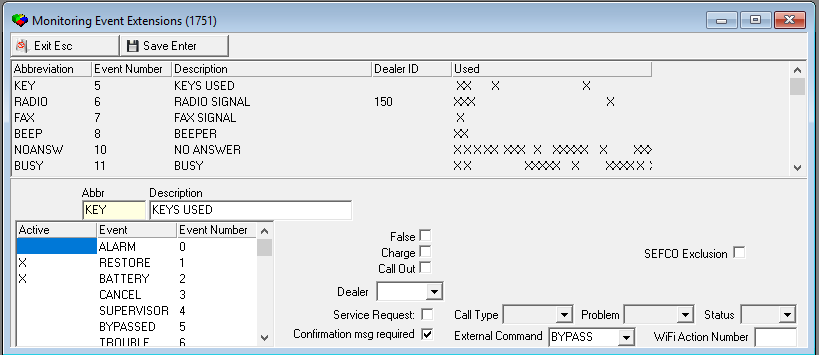
The following graphic shows Monitoring Event Extensions as the program opens. The upper pane displays previously defined monitoring event extensions.
Field/Column Descriptions
The following table describes the fields and columns used in Monitoring Event Extensions.
| Field/Column | Description |
| Abbreviation | Abbreviation for the selected event extension. |
| Event Number | Index number of the selected event extension. |
| Description | Text description of the selected event extension. |
| Dealer ID | Identifies the dealer associated with the selected event extension. |
| Used | Displays an X in the indexed position of each event extension that also has an X in Active column. |
| False | If option ba136 is on and this box displays a check mark, events with the selected extension increase the count of customer-caused false alarms. This counter alerts monitoring operators when a customer exceeds the false alarm limit. |
| Charge | If option ba136 is on and this box displays a check mark, events with the selected extension are chargeable to the customer based on Excessive Signal Billing. Initiate excessive signal billing by attaching a Signal Billing Type to an installation in the Data Entry window. |
| Call Out | If this box displays a check mark, events with this extension are valid for this disposition type. |
| Dealer | You may select a dealer ID to associate with an event extension. (This menu originates from program #1537.) |
| Service Request | Select this check box if you want SBN to automatically generate a service request when an operator chooses this event extension in Dispatch. If you select this check box, make selections in the Call Type, Problem, and Status drop-downs. |
| Call Type | Indicates the default Call Type for service requests generated for this event extension. (This menu originates from program #1524.) |
| Problem | Indicates the default Problem Code for service requests generated for this event extension. (This menu originates from program #1522.) |
| Status | Indicates the default Status Code for service requests generated for this event extension. (This menu generates from program #1525.) |
| Confirmation msg required | When this check box is selected, the following confirmation message is displayed after a user chooses the selected event extension in Dispatch (program #537):"'Confirm video clip emailed." |
| External Command | Indicates the type of external command to be used with the panel, including arming and disarming panels and bypassing zones. |
| WiFi Action Number | Indicates the WiFi panel action code (Act01-Act30) assigned to this event. This feature is exclusive to Company 162. |
| SEFCO | Signal Excess Fault Control excludes the event extension as required when checked. |
Using Common Functions
See the reference document Common Functions in SBN for more information.
Note: When you change abbreviations in the table, all logs automatically change. For example, if you change the abbreviation BEEP to PAGE, all log entries that had displayed BEEP change to display PAGE. The index is linked to the event number, not to the text.
Note: Any event extension flagged as �False� charges a false alarm to the account, regardless of the event to which it is attached.
Attaching an Event Extension to a Monitoring Event
Use the following steps to attach a monitoring event extension to a monitoring event:
1. Select the event extension you want to attach to an event.
2. Double-click your selection or choose Get.
w The fields in the lower pane of the window fill with the details of the selected event extension.
3. Choose Change.
w The fields in the lower pane of the window open for changes.
4. In the table, select the Active column heading.
5. On the line of the event to which you want to attach a monitoring event extension, double-click in the Active column.
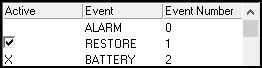
w An empty check box opens in the Active column on that line.
6. Enter a check mark in the check box.
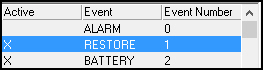
7. Choose Save.
SBN displays an X next to the monitoring event to which the extension is attached.
Setting Up Service Requests
You can have SBN automatically generate service requests when an operator chooses specified event extensions when disposing of an alarm in Dispatch.
Use the following steps to auto-generate service requests:
1. Select the event extension for which you want to generate service requests.
2. Double-click your selection or choose Get.
w The fields in the lower pane fill with the details of the selected event extension.
3. Choose Change.
w The fields in the lower pane open for changes.
4. Complete the following fields:
Select the Service Request check box.
In Call Type select the default call type for generated service requests.
In Problem select the default problem code for generated service requests.
In Status select the default status code for generated service requests.
5. Choose Save.
When an operator chooses this event extension, SBN creates a service request in the Service Log.
Sublevel - The Translations Tab
Monitoring Event Extensions contains a sublevel tab in which you may attach multiple translations to event extensions. Those event extensions then appear in the user's language.
Note: Actions 1751/10-14 control access to the Translations tab and functions.
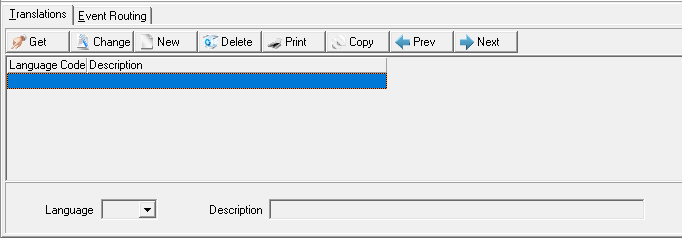
The following graphic shows the Translations tab. The tab displays translations previously attached to the selected monitoring event extensions.
Field/Column Descriptions
The following table describes the fields and columns used in the Translations tab.
| Field/Column | Description |
| Language Code |
Code that identifies the language of the associated translation. Note: Contact IBS before using language codes 11-17. |
| Description | Text description, in the associated language, of the selected monitoring event extension. |
Button Functions
The following table displays the buttons, describes the shortcut keys, actions, and functionality.
| Button | Name | Shortcut Key | Action | Description |
 |
Get | ALT+F1 | 1751/ 1 | Get record. |
 |
Change | F2 | 1751/ 2 | Change selected record. |
 |
New | F3 | 1751/ 3 | Create new record. |
 |
Delete | SHIFT+F10 | 1751/ 4 | Delete selected record. |
 |
Undelete | ALT+F10 | 1751/ 5 | Restore deleted record. |
 |
CTRL+F8 | 1751/ 6 | Print selected records. | |
 |
Zoom | F10 | 1751/ 999 | Zoom in/out of sublevel. |
 |
Tear | F7 | 1751/ 999 | Lists details of selected field. |
 |
Previous | F4 | 1751/ 7 | Select last record. |
 |
Next | F5 | 1751/ 8 | Select next record. |
Sublevel - The Event Routing Tab
Implemented in release 94.
Monitoring Event Extensions contains a sublevel tab in which you may control the Alarm Log event (under certain circumstances).
This enhancement allows more control over which event is logged when using the Event Extensions form via Dispatch.
See section Event Routing in Dispatch for full use of this feature.
Note: Actions 1751/10-14 control access to the Event Routing tab and functions.
The following graphic shows the Event Routing tab. The tab displays routing for the selected monitoring event extension.
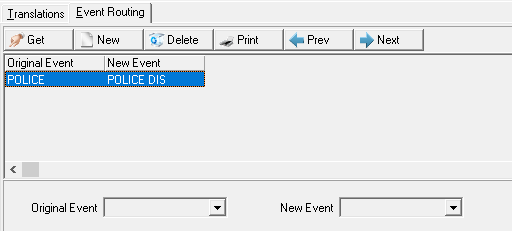
Field/Column Descriptions
The following table describes the fields and columns used in the Translations tab.
| Field/Column | Description |
| Original Event | The original event used when inserting into the Alarm Log. |
| New Event | The new event to be used when inserting into the Alarm Log. |
Button Functions
The following table displays the buttons, describes the shortcut keys, actions, and functionality.
| Button | Name | Shortcut Key | Action | Description |
|
|
Get | ALT+F1 | 1751/ 1 | Get record. |
|
|
New | F3 | 1751/ 3 | Create new record. |
|
|
Delete | SHIFT+F10 | 1751/ 4 | Delete selected record. |
|
|
CTRL+F8 | 1751/ 6 | Print selected records. | |
|
|
Previous | F4 | 1751/ 7 | Select last record. |
|
|
Next | F5 | 1751/ 8 | Select next record. |
Event Routing in Dispatch
This enhancement allows more control over which event is logged when using the Event Extensions form via Dispatch.
To setup, use the tab ‘Event Routing’ at the bottom of program 1751. In the below example
- Extension DISP1 was created.
- DISP1 is associated with event POLICE
- A new rule was create that says, “When associated with a event POLICE then reroute to event POLICE DIS.”
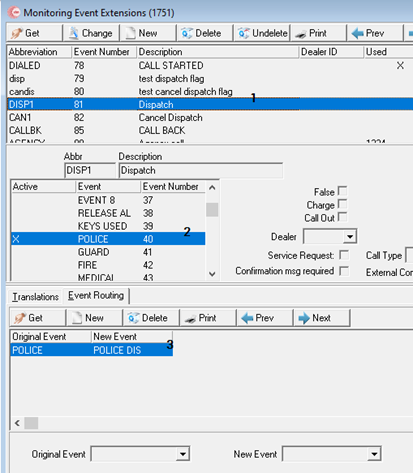
- A similar process for Extension CAN1, only this rule reroutes to event POLICE CAN
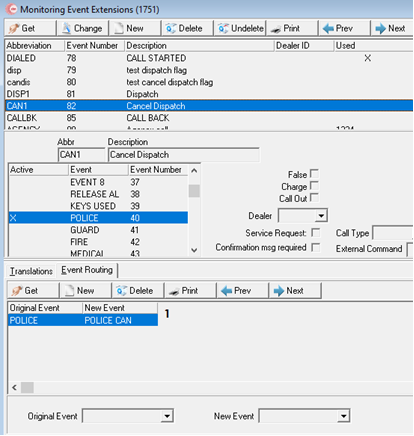
The Events Extensions form starts as usual. The default event is Police.
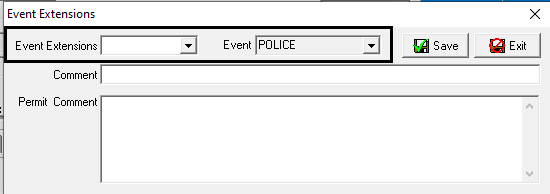
Depending on the selected Event Extension the event will be rerouted to Police Dis
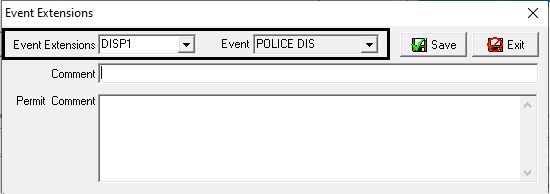
or Police Can
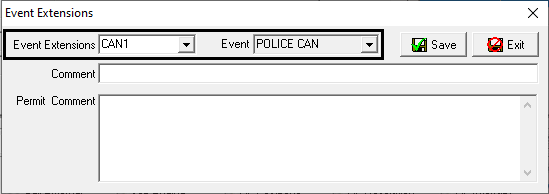
The Alarm Log will show the rerouted Event instead of the original event of Police.

Modifications and Updates to Monitoring Event Extensions
The following table lists modifications and updates to the Monitoring Event Extensions document.
| Mod Number | Date | Description |
|
08.80.09289, 07.79.22754 07.79.22727, 08.79.09276 |
07/03/13 | Added "Confirmation msg required" check box. |
| n/a | 08/20/14 | Images updated. |
| 08.82.09877, 07.82.23748, 08.82.09858, 07.82.23707 | 03/04/15 | Added WiFi Action Number field. |
| 08.88.11302, 07.88.25730, 08.88.11277, 07.88.25679 | 03/22/18 | Added New SEFCO checkbox and updated image. |
| 08.94.12519, 07.94.27414 | 04/15/24 | Added subtab Event Routing |