
Test Queue
Test Queue
Test Queue
Module: Account Management
Overview
Use the Test Queue to view a log of all activity in the Test and Runaway queues. You can view the Test and Runaway queues individually or combined by using the appropriate view. The Test Queue directly relates to the Insert Test tab, where you can place zones or groups into Test or Runaway mode.
This document covers the following topics:
Scrolling through the Test Queue
Changing the Display of the Test Queue
Viewing Installation Information
Viewing the Pending Test Window
Navigating to the Test Queue
Use one of the following methods to access the Test Queue tab:
-
Double-click the flashing Test symbol
 when it appears in the status bar of SBN.
 -
Double-click the flashing Runaway symbol
 when it appears in the status bar of SBN. (For more information, see SBN Status Bar.)
Use the following steps to navigate to the Test Queue tab:
1. From the main SBN toolbar, select Menu.
2. From the drop-down menu, select Go To.
3. In the Go To Program dialog box, type in "559" and press Enter.
w Data Entry Master and Basics opens.
4. Choose the Test Queue tab in the lower pane of Data Entry.
The Test Queue Tab
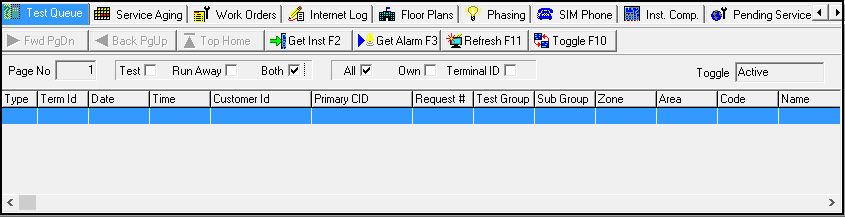
The following graphic shows the Test Queue tab with installations in test.
Column Descriptions - Installations in Test
The following table describes the columns used in the Test Queue tab.
|
Column |
Description |
|
Type |
Designates whether the incident is a test or runaway incident.
|
|
Terminal ID |
Terminal ID of the current owner of the alarm. |
|
Date |
Date the entry in the Test or Runaway queue expires. |
|
Time |
Time the entry in the Test or Runaway queue expires. SBN uses the Premises Time to remove the zone or group from test or runaway mode, which depends on the Time Zone defined for the selected installation in Data Entry Master (program #559) |
|
Customer ID |
Installation number for the installation placed in Test or Runaway mode. Note: If this column displays a %, the installation uses global zones. |
|
Primary CID |
Displays the first CID for the installation that a user inserted into test. |
|
Request Number |
Service request number used to place the installation in test. |
|
Test Group |
Test group placed in Test or Runaway mode. |
|
Test Sub Group |
Test sub group placed in Test or Runaway mode. |
|
Zone |
Zone placed in Test or Runaway mode. |
|
Area |
Abbreviation for designated area within a zone. |
|
Code |
Identifies the zone’s signal type. |
|
Name |
Name on the installation in Test or Runaway mode. |
|
Installer ID |
ID of the installer used in the Insert Test tab. |
|
Installation Number |
Installation number of the installation in Test or Runaway mode. |
|
Comment |
Comment from the Insert Test tab. |
|
User ID |
ID of the user who inserted the installation in Test or Runaway. |
|
Date |
Date a user placed the installation in Test or Runaway mode. |
Scrolling through the Test Queue
If the Test Queue tab displays more than one page, you can use the following to navigate through the pages:
-
Scroll Forward 1 Page
-
Scroll Backward 1 Page
-
Go To Top of Page
-
[ctrl+home] to jump to the top of the current page
Changing the Display of the Test Queue
You can change the display of the alarms in the Test Queue tab. When you select the parameters that sort the display, the view changes.

Field Descriptions - Sorting Parameters
The following table describes the sorting parameters used in the Test Queue tab.
|
Field/Column |
Description |
|
Page Number |
Current page number of the tab. |
|
Queue |
|
|
Test |
Select this check box to view the installations in Test mode. |
|
Run Away |
Select this check box to view the installations in Runaway mode. |
|
Both |
Select this check box to view the installations in both Test and Runaway mode. |
|
Terminal ID |
|
|
All |
Select this check box to view all installations that match the queue sorting parameter you selected. |
|
Own |
Select this check box to view all installations that match the queue sorting parameter with your terminal number. |
|
Terminal ID |
Select this check box to view all installations that match the queue sorting parameter you selected by the Terminal ID of the current owner of the alarm. |
|
Toggle |
Indicates whether the zones listed are currently in Test.
|
Viewing Installation Information
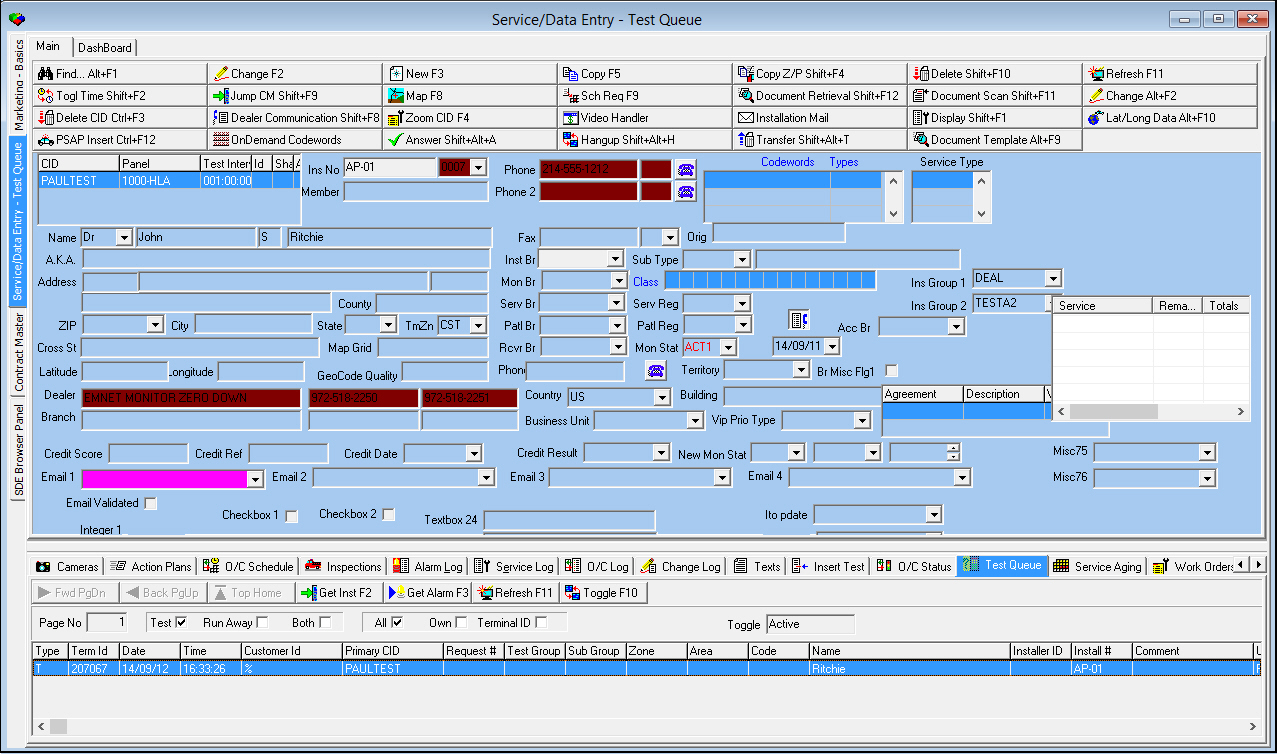
From the Test Queue tab you can view the information of the installation in the Test or Runaway Queue. SBN displays the installation information in Data Entry Master.
Use the following steps to view installation information:
1. Select the installation placed in the Test or Runaway Queue.
2. Choose Get Installation.
w The information of the installation in Test or Runaway mode displays in Data Entry Master.
Getting a Selected Alarm
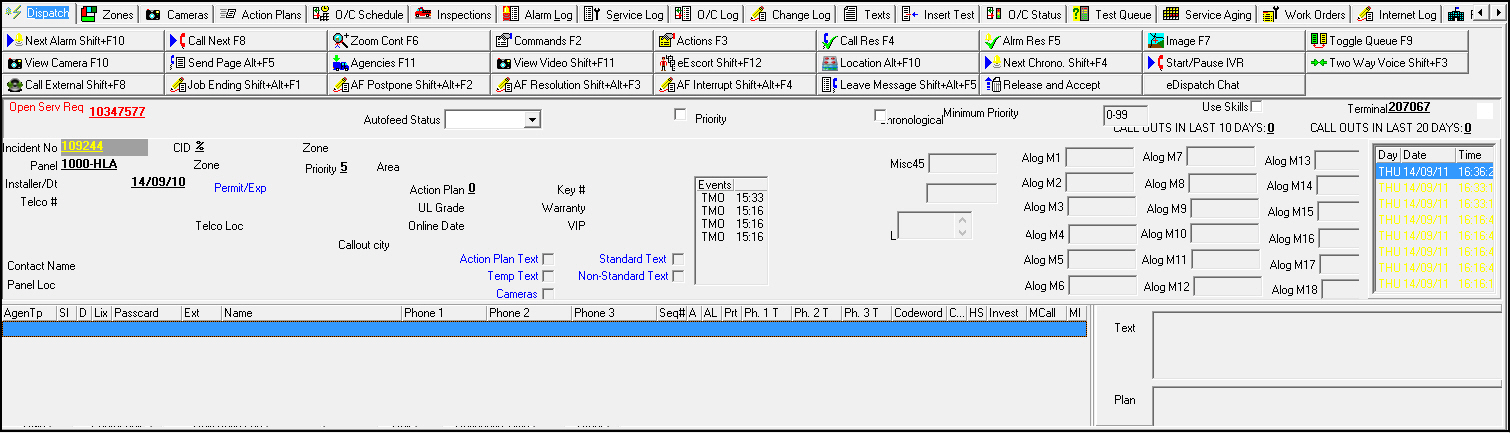
Use Get Selected Alarm from Queue to treat an alarm in Dispatch (program #537).
Use the following steps to get a selected alarm from the queue:
1. Select the installation for which you want to get the alarm.
2. Choose Get Selected Alarm.
w The Dispatch tab opens with the selected alarm displayed.
3. Treat the alarm if another user has not already treated the alarm.
w If another operator has already treated the alarm, you can take the alarm from the operator and then treat it. (For more information on how to treat alarms in Dispatch, see Dispatch.)
w If the alarm was not acknowledged prior to this action, SBN creates an acknowledge event in the Alarm Log.
Refreshing the Screen
Use SQL Refresh to update the Test Queue tab with the latest test zone data.
Viewing the Pending Test Window
Use Toggle Active/Inactive to move between the Test Queue window and the Pending Test window. The Pending Test window shows the zones or test groups for all installations that SBN has not inserted into the Test Queue because they are set to enter Test mode in the future. When you insert a zone or group into test in the future, Background Job 66 from Background Tasks (program #1712) must be active to insert the item into the Test or Runaway Queue.
When you enter the Pending Test window, only the Get Selected Alarm, Refresh, and Toggle Active/Inactive buttons are available.
The following graphic displays the Pending Test window with pending zones displayed.

Column Descriptions - Pending Test
The following table describes the columns used in the Pending Test window.
|
Column |
Description |
|
Start Date |
Date SBN will enter the zone or group in test. |
|
Start Time |
Time SBN will enter the zone or group in test. SBN uses the Premises Time to insert the zone or group into test or runaway mode, which depends on the Time Zone defined for the selected installation in Data Entry Master (program #559). |
|
End Date |
Date SBN will remove the zone or group from test. |
|
End Time |
Time SBN will remove the zone or group from test. SBN uses the Premises Time to remove the zone or group from test or runaway mode, which depends on the Time Zone defined for the selected installation in Data Entry Master (program #559). |
|
Terminal ID |
Terminal ID number of the operator that placed the customer in test or runaway mode. |
|
Customer ID |
The CID the user selected to place into test. |
|
Primary CID |
Primary CID for the installation that the user placed into test. |
|
Test Group |
Test group that is in test or runaway mode. |
|
Test Subgroup |
Subgroup number for the customer in test or runaway mode. (This is defined in the Zones tab.) |
|
Area |
Area attached to the zone. (This is defined in the Zones tab.) |
|
Code |
Code attached to the zone. (This is defined in the Zones tab.) |
|
Request Number |
Inspection ticket number for the customer in test or runaway mode, if applicable. |
|
Installation Number |
Installation number for the CID that the user placed into test or runaway mode. |
|
Comment |
Original comment for the customer being placed in test or runaway mode. |
|
User ID |
ID of the user who placed the zone or group into test or runaway mode. |
GUI Messages
Action 559/702 was added to provide GUI messages 13099 and 13100. If an installer calls and there is one and only one installation in the test queue, open the installation and go to the Alarm Log tab. If there is more than one installation in the test queue, the message "Installer has more than one installation in test" appears. If this message appears, open the Test Queue tab. If the phone call is not from an installer or the installer has no installation in the test queue, determine whether the phone call is from a customer.
Related Programs
The following table lists programs related to the Test Queue tab.
|
Program |
Number |
Document Link |
Description |
|
Insert Test Tab |
N/A |
Insert zones or test groups into Test or Runaway mode. |
|
|
Zones Tab |
N/A |
Set up zones to put into Test or Runaway Queue. |
|
|
Data Entry Master and Basics |
559 |
The program from which you can access the Test Queue. View installation information for selected alarms. |
|
|
Background Tasks |
1712 |
Activate Background Job 66 to insert items into test in the future. |
|
|
Dispatch Tab |
537 |
Handle any alarm signals in this tab that appear in the Test Queue after you choose Get Selected Alarm. |
Button Functions
The following table displays the buttons, describes the shortcut keys, actions, and functionality.
|
Button |
Name |
Shortcut Key |
Action |
Description |
|
|
Scroll Forward 1 Page |
PGDN |
559/301 |
Scroll forward one page. |
|
|
Scroll Backward 1 Page |
PGup |
559/302 |
Scroll back one page. |
|
|
Go to top of log |
home |
559/303 |
Go to top of log. |
|
|
Get Installation |
f2 |
559/304 |
View installation info in the Data Entry Master. |
|
|
Get Selected Alarm from Queue |
f3 |
559/305 |
Treat an alarm in the Dispatch tab. |
|
|
SQL Refresh |
f11 |
559/306 |
Update Test Queue tab. |
|
|
Toggle Active/Inactive |
F10 |
559/676 |
View the Pending Test window with zones waiting to go into the Test Queue. |
|
|
Exit |
Esc |
559 |
Exit without saving. |
|
|
Save |
Enter |
559 |
Save existing record. |






Modifications and Updates to Test Queue
The following table lists modifications and updates to the Test Queue document.
|
Mod Number |
Date |
Description |
|
n/a |
07/30/09 |
document rewritten |
|
07.02.18799, 08.03.06962 |
07/30/09 |
Added Toggle Active/Inactive button and Pending Test window. |
|
n/a |
08/27/14 |
Images updated. |