
Open Batches
Open Batches
Open Batches
Module: Accounting
Overview
Open Batches (program #1577) combines with Write-off Batches (program #1579) and Closed Batches (program #1507) to provide a complete system for posting and viewing batches of payments.
Use Open Batches to create new batches and to add and post payments to existing open batches. A payment batch remains open until all payments that have been added to a batch have been posted to that batch.
Note: When option bl164 is on and there is an overpayment on an invoice, SBN automatically applies the remaining credit to another invoice with a balance on the same billing account. When this option is off and there is an overpayment on an invoice, SBN credits the whole payment to the specified invoice, creating a credit balance (-) for that invoice. Option is dealer-based.
To access this program, select Open Batches (program #1577) from the main menu of SBN.
The Open Batches Window
The main Open Batches window uses three panes to display information:
Open Batches List
Open Batches Pane
Invoice Details Pane
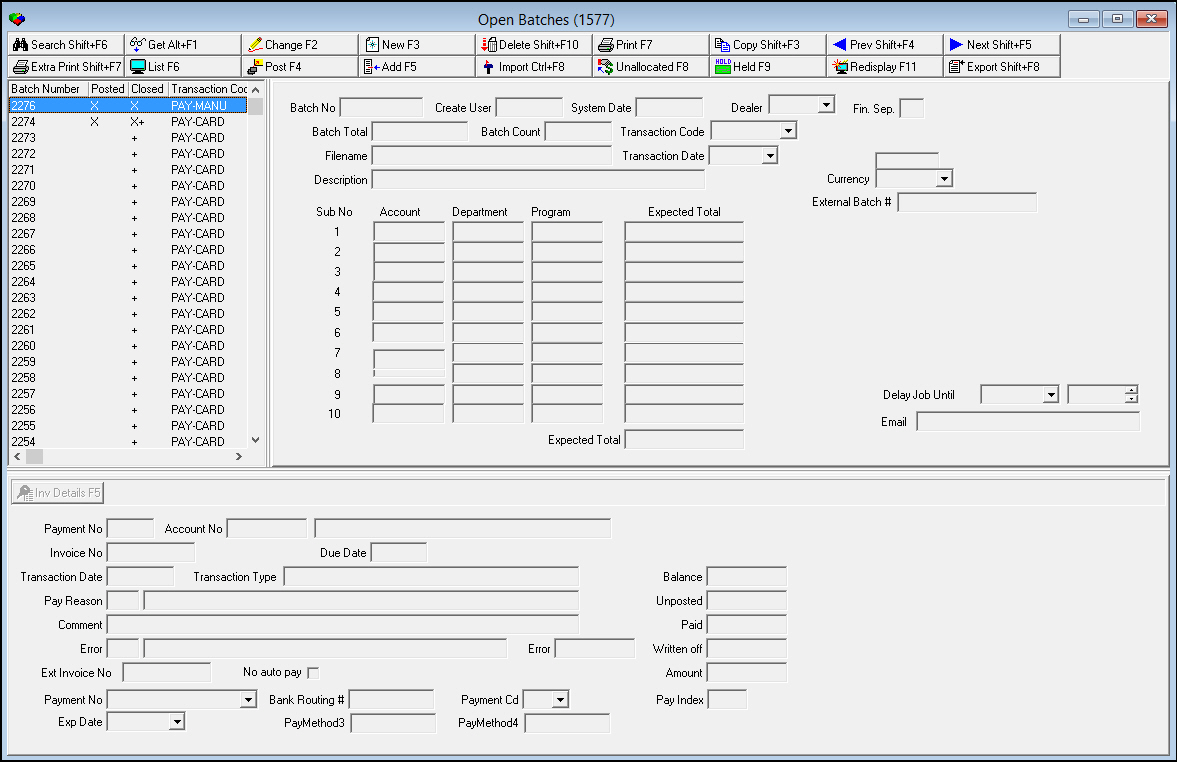
The Open Batches List
The following graphic shows the Open Batches List. The columns display all open payment batches.
Note: If your user profile contains a dealer ID, you see only those open batches associated with that dealer ID.
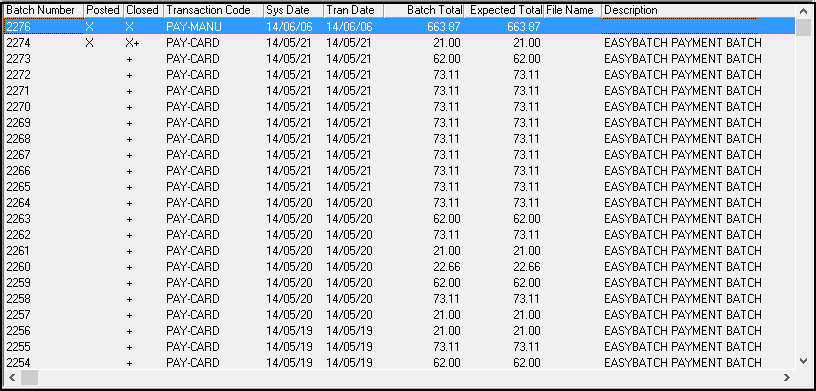
Column Descriptions — Open Batches List
The following table describes the columns used in the Open Batches List.
Column |
Description |
Batch Number |
SBN-assigned batch number to identify this batch of open payments. |
Posted |
If this column displays an X, a user attempted to post the batch but was unsuccessful. |
Closed |
If this column displays a +, the expected total and the actual total of the batch match and are ready to post. If this column displays an X, a user attempted to post the batch but was unsuccessful. |
Transaction Code |
Code for the type of transactions included in this batch. (This menu originates from program #1586.) |
System Date |
SBN-assigned date that on which this batch was created. |
Transaction Date |
User-entered date on which this payment transaction occurred. |
Batch Total |
Total amount of this batch. This information comes from the Expected Total Amount field below. |
Expected Total |
Total amount expected from all sub batches together. |
File Name |
If this batch has been exported to a file, the export file name displays. |
Description |
Free-form text description of this batch. |
Dealer ID |
ID of the dealer associated with the open batch. O If your user profile contains a dealer ID, you see only those open batches associated with that dealer ID |
Date |
Displays the date on which a delayed batch is scheduled to run. |
Time |
Displays the time at which a delayed batch is scheduled to run. |
Using Common Functions in the Open Batches List
See the reference document Common Functions in SBN for more information.
The Open Batches Pane
The following graphic shows the Open Batches Pane. The pane contains fields for entering or changing payment batch information.
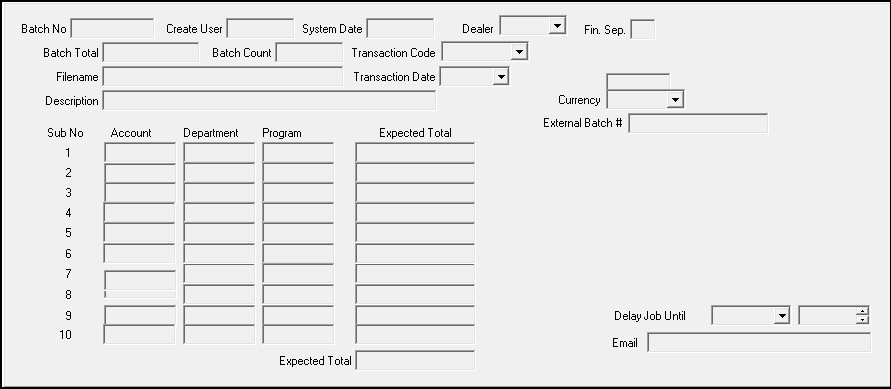
Field Descriptions — Open Batches Pane
The following table describes the fields used in the Open Batches pane of this window.
Field |
Description |
Batch No |
SBN-assigned batch number to identify this batch of open payments. |
Create User |
ID of the user who originally created this batch. |
System Date |
SBN-assigned date on which this batch was created. |
Dealer |
ID of the dealer associated with the open batch. O If your user profile contains a dealer ID, you see only those open batches associated with that dealer ID. O If option ba325 is on, this field becomes required. O You may not change the dealer ID on a payment after you add the payment. |
Fin Sep |
This field is active when option ba278 is on. Financial Separation; use with Securitas Partner Invoicing. You may enter a flag in this field to limit batches based on the Fin Sep flag in Branch Profiles (program #1530) for the associated branch: l X — use only accounts associated with branches flagged to use Financial Separation l blank — use only account not associated with branches flagged to use Financial Separation l % — Use all accounts regardless of the Financial Separation flag for their associated branches Note: When you post a batch of payments, SBN does not post payments on accounts with a different Financial Separation flag selection but displays error 21, "Payment Financial Separation flag differs from batch Financial Separation flag." SBN only posts payments on the accounts with a matching Financial Separation flag selection. |
Batch Total |
Total amount of this batch. This information comes from the Expected Total Amount field below. |
Batch Count |
Total amount of all transactions in the batch. |
Transaction Code |
Code for the type of transactions included in this batch. (This menu originates from program #1586.) |
Filename |
Filename of the batch data, if exported. |
Transaction Date |
User-entered date on which this payment transaction occurred. Note: If option bl115 is on, SBN displays a warning if you try to save a batch with a transaction date is X number of months greater than the fiscal date. If option bl208 is on, SBN displays an error message when you attempt to save a Transaction Date prior to the Fiscal Close Date, and when you attempt to post a payment batch with a Transaction Date prior to the Fiscal Close Date. SBN will not allow you to proceed unless the Transaction Date is after the Fiscal Close Date. |
Description |
Free-form text description of this batch. |
External Batch # |
External batch number applied to a posted batch. (This field only appears if option bl189 is on.) |
Sub No |
Number used to identify up to 10 sub batches. |
GL Acc # |
General ledger account number for this batch. Only those entries used by Accounts Receivable appear in the menu. (This menu originates from program #1835.) O Option bl058 must be off for the menu to appear. |
Expected Total |
Total amount expected from each sub batch. |
Expected Total (Amount) |
Total amount expected from all sub batches together. |
Delay Job Until |
|
Delay — Date |
You may select a future date and time to run the batch. O Option bl147 must be on for this to appear. |
Delay —Time |
You may select a future date and time to run the batch. O Option bl147 must be on for this to appear. |
You may type an email address to which SBN sends a notice when the delayed batch runs. The email includes
|
|
Note: When starting a new batch in the Open Batches Pane, make sure to select the desired currency in the Currency dropdown menu before adding any new invoices. If the currency should need to be changed on the batch at a later time, it cannot be changed on every invoice in the batch at once. The selected currency will then need to be changed on each invoice.
The Invoice Details Pane
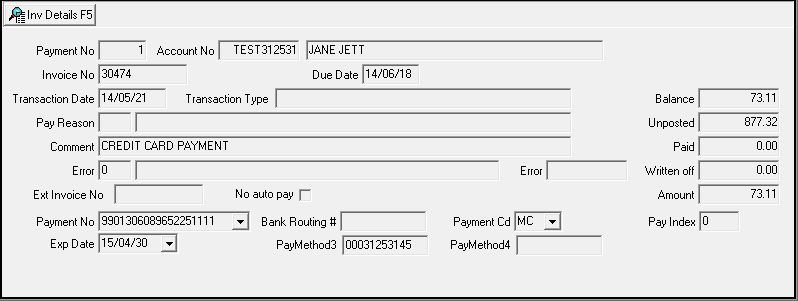
The following graphic shows the Invoice Details pane with information displayed.
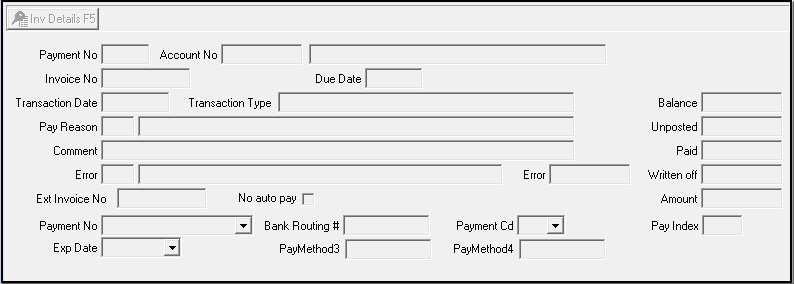
Field Descriptions — Invoice Details Pane
The following table describes the fields used in the Invoice Details pane.
Field |
Description |
Payment No |
SBN-generated index number for this invoice. (This field displays up to 30 characters.) |
Account No |
Account number to which this invoice refers. |
Account
Name |
Name of the primary person on the account to which this invoice refers. |
Invoice No |
SBN-assigned invoice number for this invoice. |
Due Date |
Date that payment is due for this invoice. |
Transaction Date |
Date that this invoice transaction occurred. |
Transaction Type |
Type of transaction entered for this invoice on the transaction date. |
Pay Reason |
Code to define the reason for payment for this invoice. |
Pay
Reason Text |
Free-form text that explains the pay reason. |
Comment |
Free format text for this invoice. |
Error |
If an error occurred during posting, this field displays a numerical code that identifies the error. For more information, see Transaction Error Codes. |
Error Text (No Label) |
Text description of the error code, if any. For more information, see Transaction Error Codes. |
Error (External) |
If an external error occurred during the import process, this field displays text supplied by the external application. |
Ext Invoice No |
External invoice number. |
No auto pay |
Do not allow automatic payments for the selected batch. |
Payment No |
Pick-list for payment information saved for this account. Selecting an item in the pick-list automatically fills the appropriate fields. |
Bank Routing # |
Routing number of the bank on the account. |
Payment Cd |
Payment code that designates which type of credit card/direct debit you are using. |
Exp Date |
Expiration date listed on credit card. |
PayMethod3 |
Customer-defined field. This field allows you to enter credit card or bank account numbers that are not already linked to the selected account. |
PayMethod4 |
Customer-defined field. This field allows you to enter credit card or bank account numbers that are not already linked to the selected account. |
Balance |
Open balance on this invoice. |
Unposted |
Amount of any unposted payments for this invoice. |
Paid |
Total of all previous payments for this invoice. |
Written Off |
Total amount previously written-off of this invoice. |
Amount |
Amount that was written-off of this invoice. |
Transaction Error Codes
The following table describes the transaction errors that may occur during posting. If a transaction error occurs, you will need to correct it.
Error Code |
Description |
-1 |
Payment is being held |
0 |
No description. No error. |
1 |
Total payout exceeds credit balance. |
2 |
Payment on a written-off invoice. |
3 |
Resulting balance on credit positive. |
4 |
Invalid invoice number. |
5 |
Invalid account number. |
6 |
Resulting balance on credit exceeds credit amount. |
7 |
Payout on invoice larger than available amount. |
8 |
Zero payment. |
9 |
The data record was flagged as bad in received file. |
10 |
A non-digit found in a digit field. |
11 |
Check-digit error. |
12 |
Write-off does not match invoice balance. |
13 |
Invoice has unposted payments. |
14 |
Cancel write-off on non-written off invoice. |
15 |
Calculated cancel write-off does not match write-off. |
16 |
Open credits on contracts to be written off. |
17 |
Written-off invoices exist. Apply payment per invoice. |
18 |
Unallocated payment. |
19 |
Payment awaiting invoice generation. |
20 |
Invoice has been paid/partially paid. |
21 |
Payment Financial Separation flag differs from batch Financial Separation flag. |
92 |
Invoice has scheduled payments. |
The Invoice Details Window
When SBN displays information in the Invoice Details pane of Open Batches, you can choose Invoice Details to open the Invoice Details window. Use option bl032 to define the default view of the Invoice Details window.
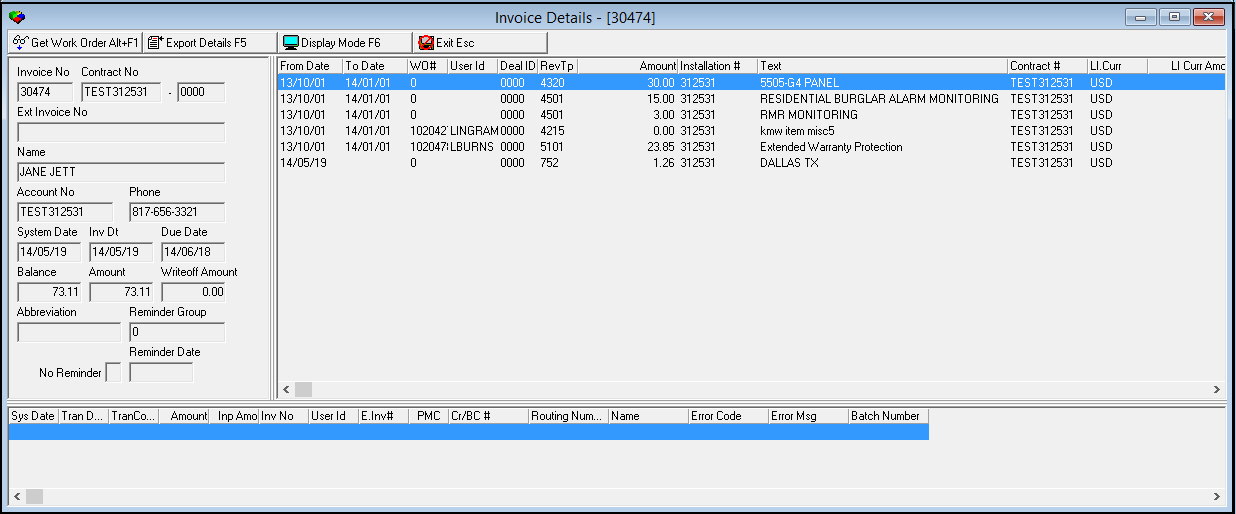
The following graphics shows the Invoice Details window with information displayed.
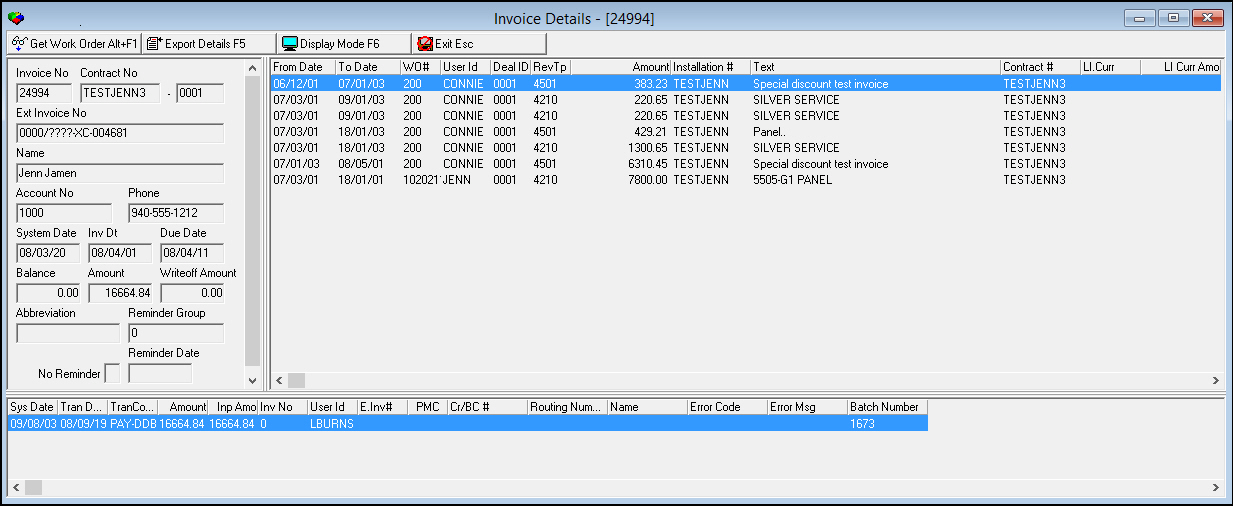
Choose Change in the Open Batches pane to enter or change Invoice Details for each batch.
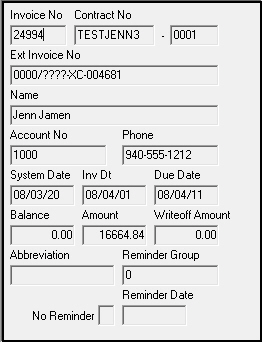
Field Descriptions — Invoice Details
The following table describes the fields used in the Invoice Details window.
Field |
Description |
Invoice No |
Invoice number of the selected invoice. |
Contract No |
Contract number for the invoice. |
Dealer ID (No label) |
Dealer ID of the contract. |
Name |
Billing Account name. |
Account No |
Account number of the selected invoice. |
Phone |
Phone number for the billing account. |
System Date |
System date of when the invoice was created. |
Inv Date |
Date printed on the invoice. |
Due Date |
Date the invoice is due. |
Balance |
Total unpaid balance of the invoice. |
Amount |
Total amount of the selected invoice. |
Writeoff Amount |
Total amount written off of the selected invoice. |
Status |
If this field displays a c, the invoice has been sent to collections. |
Reminder Group |
Code for the last reminder group sent to the customer. |
No Reminder |
If this field displays an x, reminder notices are not sent with this invoice. |
Reminder Date |
Last date a reminder was sent for the current invoice. |
Column Descriptions — Invoice Details
The following table describes the columns used in the Invoice Details window.
Column |
Description |
From Date |
Start date of fee for the current revenue line. |
To Date |
End date of fee for the current revenue line. |
Work Order Number |
Work order number associated with the fee of the current revenue line. |
User ID |
ID of the person who created the invoice |
Dealer ID |
ID of the dealer associated with the installation. |
Revenue Type |
Revenue type associated with the line on the invoice. |
Amount |
Amount of the revenue line. |
Installation Number |
Installation number associated with the revenue line. |
Text |
Text contained on the invoice for the revenue line. |
Payment Details
You can add or change payments
By account
By invoice
By check
Each of the three methods uses a different dialog box for entering information. For more information on adding and changing payments, see Entering New Payments or Changing Payments.
Note: SBN display a warning if you try to add a payment by account or by invoice that is associated with a contract that has a status flagged for a payment warning.
Payments by Account Number
The following graphic displays Payments by Account Number screen.

Field Descriptions - Payments by Account Number
The following table describes the fields used in the Pay by Account dialog box.
Field |
Description |
Account Number |
Account number to which payment applies. |
Work Order No |
Work order number associated with the invoice. |
Balance |
Open balance of the invoice. |
Inquiry No |
Enter an inquiry number and press tab. SBN then looks up the account or accounts associated with this inquiry. |
Amount |
The payment amount to apply to the invoice. |
Reason |
Reason code for the payment. (This menu originates from program #1521.) |
Hold |
Enter a check mark in this box to place the payment on hold. The payment does not post, and is visible in the Held Payments window. |
Unposted |
Total amount of unposted payments for the account. |
Name |
Name of the account holder. |
Last Payment Date |
Last date a payment was received on the account. |
Comment |
Text comment to associate with the payment. |
No Auto Pay |
Prevents this payment from auto-applying to open invoices. Note: This field fills based on the default defined in the account details in Contract Master. |
Check # |
Customer's check number used to make the payment. |
PMisc1 |
Text field for defining bank drawer information. |
PMisc2 |
Text field for defining bank information. |
PMisc3 |
Text field for defining bank branch information. |
PMisc4 |
Text field for defining bank state information. |
Contract No |
Contract number which payment applies. |
Installation NO |
Installation number which payment applies. |
Payments by Invoice Number
The following graphic shows the Payment by Invoice dialog box.
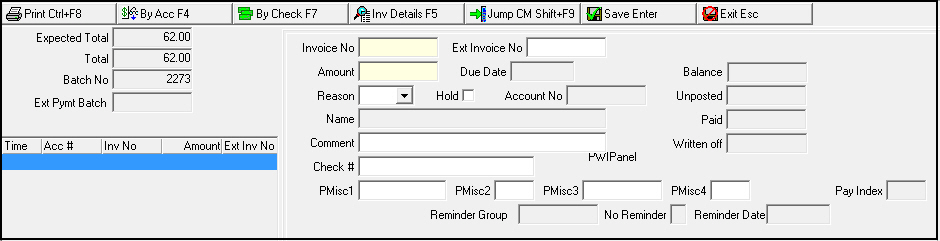
Field Descriptions — Payments by Invoice Number
The following table describes the fields used in the Pay by Invoice dialog box
Field |
Description |
Invoice Number |
Invoice number to which the payment applies. |
Ext Invoice No |
Customer-defined external invoice number. |
Amount |
Amount of the payment. |
Due Date |
Due date of the invoice. |
Balance |
Open balance of the selected invoice. |
Reason |
Reason code for the payment. (This menu originates from program #1521.) |
Hold |
Enter a check mark in this box to place the payment on hold. The payment does not post, and is visible in the Held Payments window. |
Account No |
Account number associated with the current invoice. |
Unposted |
Total amount of unposted payments for the account. |
Name |
Name of account holder. |
Paid |
Amount of payments previously posted to the current invoice. |
Comment |
Text comment to associate with the payment. |
Written Off |
Total amount written off the current invoice. |
Check # |
Customers’ check number used to make the payment. |
PMisc1 |
Text field for defining bank information. |
PMisc2 |
Text field for defining bank information. |
PMisc3 |
Text field for defining bank information. |
PMisc4 |
Text field for defining bank information. |
Reminder Group |
Code for the last reminder group sent to the customer. |
No Reminder |
If this box displays an x, reminder notices are not sent with this invoice. |
Reminder Date |
Last date a reminder was sent for the current invoice. |
Field/Column Descriptions — Payments by Check Number
The following table describes the fields used in the Pay by Check dialog box.
Field |
Description |
Check # |
Customers’ check number used to make the payment. |
PMisc1 (No label) |
Text field for defining bank drawer information. |
PMisc2 (No label) |
Text field for defining bank information. |
PMisc3 (No label) |
Text field for defining bank branch information. |
PMisc4 (No label) |
Text field for defining bank state information. |
Amount |
Amount of the payment. |
Amount Left |
Total unpaid amount remaining for the current invoice. |
Subtotal |
SBN-calculated amount of the check total. You cannot save the Pay by Check dialog box until the subtotal matches the entire balance of the check. |
Column Descriptions — Payments by Check Number
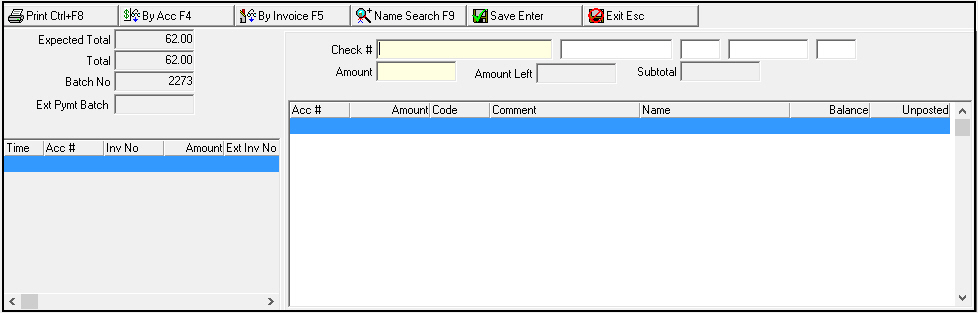
The following table describes the columns used in the Pay by Check dialog box.
Column |
Description |
Acc # |
Type the account number. |
Amount |
Type the payment amount. |
Code |
Select the payment reason. (This menu originates from program #1521.) |
Comment |
Text area for typing comments. |
Name |
Name on the account. |
Balance |
Total balance left on the current invoice. |
Unposted |
Total amount of payments unposted for the current invoice. |
Accessing the Payment Register Report
From Open Batches you can access the Payment Register Report to print details of a selected batch.
Use the following steps to access the Payment Register Report:
1. In Open Batches from the Open Batches List, select the batch for which you want to print details.
2. Choose Extra Print (Reprint Report Locally).
‰ The Payment Register Report opens with the selected batch number in the Batch No field.
3. Complete the fields. For more information see Payment Register Report.
Working with Open Batch Functions
You can perform several functions from the Open Batches window.
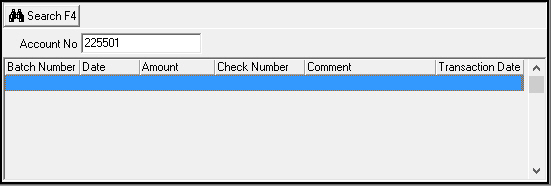
Searching for Payments by Account Number
Use the following steps to search for open batches for an account number:
1. Choose Search.
‰ The search window appears.

2. Type the account number.
3. Choose Search.
‰ The results appear in the search window.
Creating a New Batch
You can create a new batch from Open Batches (program #1577).
Note: See Field Descriptions — Open Batches Pane of this document for details on the fields in this pane.
Note: If option bl115 is on and your transaction date exceeds the number of months from the fiscal date defined in the option.
Note: When starting a new batch in the Open Batches Pane, make sure to select the desired currency in the Currency dropdown menu before adding any new invoices. If the currency should need to be changed on the batch at a later time, it cannot be changed on every invoice in the batch at once. The selected currency will then need to be changed on each invoice.
Creating a Delayed Batch
Use the following steps to create a delayed batch that runs at a specified later date and time:
1. In Open Invoices, choose New Record.
‰ The fields in the Open Batches pane open.
2. Complete the fields, as needed.
3. In Delay Job Until —
l Select the date and time at which you want to run the batch
l Type the email address to which you want SBN to send a notice when the batch runs
4. Choose Save.
‰ The Open Batches List displays the date and time selected for the delayed batch.
‰ At the specified date and time, SBN runs the delayed batch and sends an email notice.
Changing Batch Details
You can change batch details from Open Batches.
Deleting Batches
You can delete an open batch, but first you must delete all payments within that batch.
Use the following steps to delete an open batch:
1. From the Open Batches List, select the batch you want to delete.
2. Choose List Details.
3. In the List Details pane, choose Search.
‰ Payments in the selected batch appear in the List Details pane.
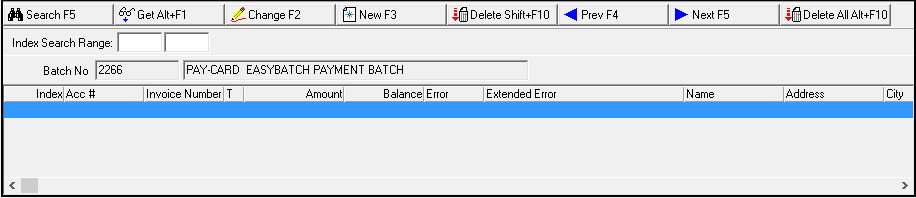
4. In the List Details pane, choose Delete All.
‰ SBN asks you to confirm that you want to delete all payments.
5. Choose Yes.
6. From the main window of Open Batches, choose Delete Record.
‰ SBN asks you to confirm that you want to delete that batch.
7. Choose Yes.
‰ SBN deletes the batch.
Listing Batch Details
From the Open Batches window, you can get details on any payments that have been added to a batch. Once you have completed the search and the list details appear, you can view information in the Invoice Details in the lower pane of the window.
Use the following steps to get details on a batch:
1. From the Open Batches List, select the batch for which you want details.
2. Double-click your selection or choose Get Record.
3. Choose List Details.
‰ The List Details pane appears without any information displayed.
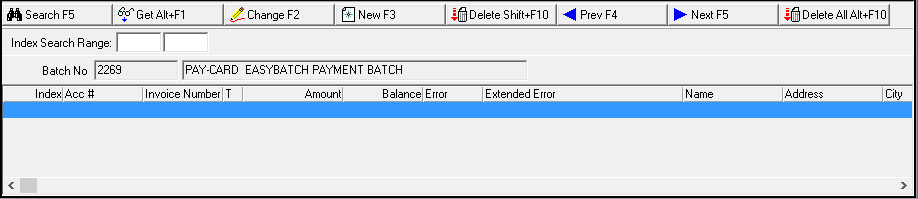
4. Type an Index Search Range to limit the number of payments returned from the search.
5. Choose Search to find any payments on the selected batch.
‰ SBN displays the search results.
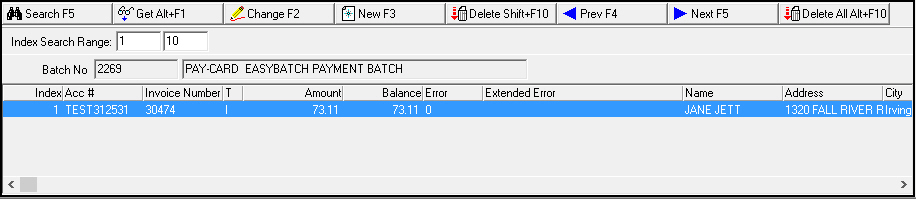
Note: The Unposted column displays the total unposted amount for all unposted payments for the selected invoice.
6. Select the payment for which you want to view details.
7. Double-click your selection or choose Get Record.
‰ The Invoice Details pane becomes available.
8. Choose Invoice Details.
‰ The Invoice Details window appears.
Note: See Working with Invoice Details for more details on the functions available from this window.
9. Choose Exit to return to the main window.
Working with List Details
Use the List Details pane to create, change, or delete payments. When you create or change payments, you can view payment details by account or by invoice. Both the New and Change panes open in Invoice mode. The New pane also contains a By Check mode for entering a payment by check number. You may enter positive or negative payment amounts.
Entering New Payments
From the List Details pane, you can enter new payments on a batch. For more information on viewing invoices in the List Details pane see Listing Batch Details. The following graphic shows the List Details pane with information displayed.
Use the following steps to enter a new payment on a batch:
1. From the List Details pane, choose New Record.
‰ The New Payment pane in Invoice appears.
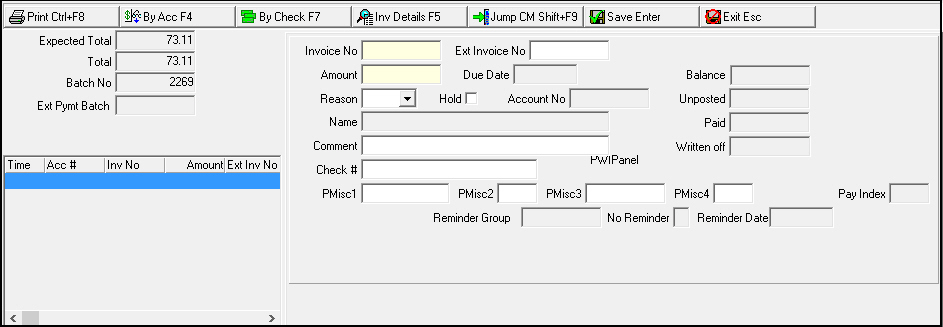
Note: When you type an external invoice number and press [TAB], SBN defaults most of the fields in this pane with information based on the external invoice number.
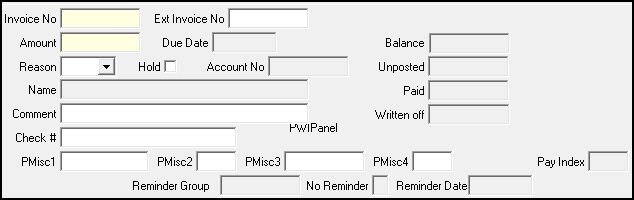
2. To change to Account mode, choose By Acc.
‰ The pane changes to account mode.
3. To change to Check mode, choose By Check.
‰ The pane changes to check mode.
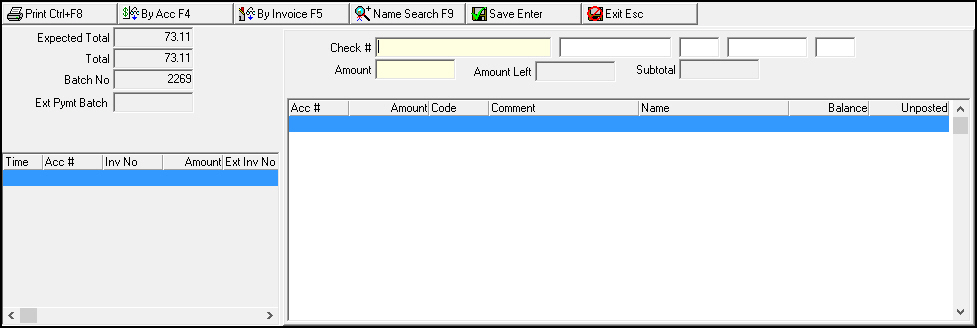
4. Type the payment information in the fields in the upper right of the pane.
5. Choose Save.
‰ If the invoice you select has scheduled payments, the Scheduled Payments window opens.
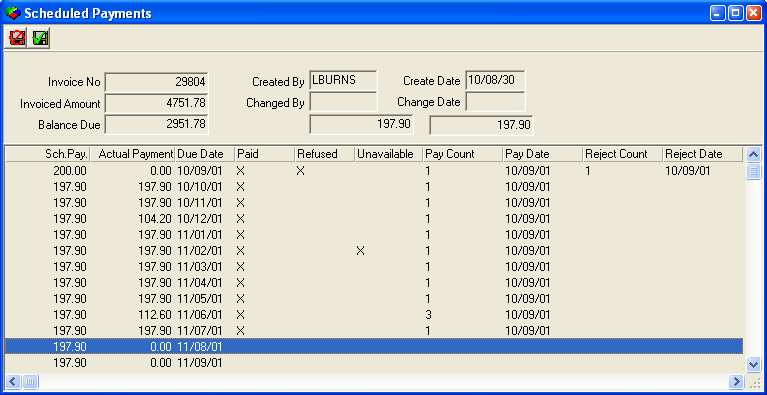
6. Double-click the scheduled payment you want to make.
Note: You may double-click scheduled payments that have already been paid or refused/rejected. The only scheduled payments SBN does not allow you to make payments toward are those with an X in the Unavailable column, as those payments are included in batches that have not yet been posted.
7. Choose Save.
‰ The Scheduled Payments window closes.
8. Choose Save or Exit to close the New Payment pane.
Note: Create payment schedules in the Invoice Status tab of Contract Master (program #548).
Changing Payments
From the List Details pane, you can change payment information that has already been entered and saved in SBN.
Use the following steps to change payment information:
1. From the List Details pane, choose Change Record.
‰ The Change Payment pane appears.
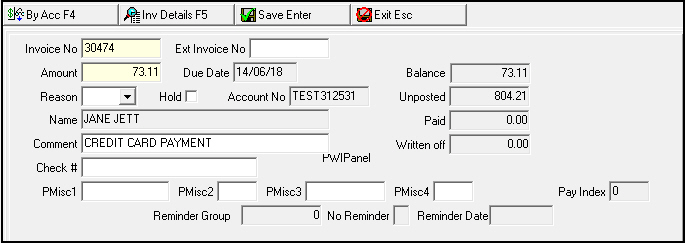
2. To change to Account mode, choose By Acc.
‰ The pane changes to account mode.
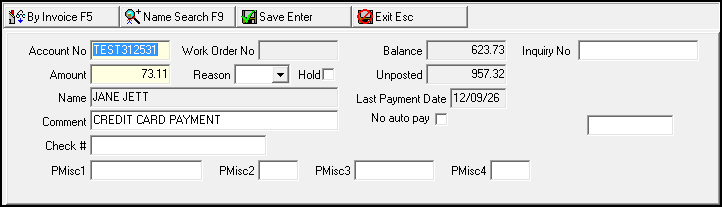
3. Change the payment information.
4. Choose Save.
If you choose to edit a payment on an invoice with scheduled payments, the Scheduled Payments window opens.
Use the following steps to change payment information on an invoice with scheduled payments.
1. From the List Details pane, choose Change Record.
‰ The Change Payment pane appears. SBN displays a warning message: "Account has scheduled payments."
2. Choose OK.
3. Change the payment information.
4. Choose Save.
‰ The Scheduled Payments window opens.
5. Double-click the scheduled payment you want to change.
Note: You may double-click scheduled payments that have already been paid or refused/rejected. The only scheduled payments SBN does not allow you to make payments toward are those with an X in the Unavailable column, as those payments are included in batches that have not yet been posted.
6. Choose Save.
‰ The Scheduled Payments window closes.
Searching for an Account
When the Change Payment pane is in Account Mode, you can search for an account
By name
By known information
Use the following steps to search for an account by name:
1. From the Change Payment pane, choose Name Search.
Note: If the Name Search button is not available, toggle the view of the Change Payment pane by choosing By Account.
‰ The Name Search dialog box appears.
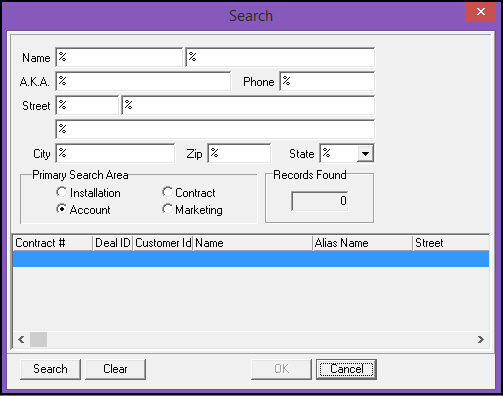
2. Type the known information of the account for which you are looking.
3. Choose Search.
‰ The results display in the lower pane of the dialog box. SBN restricts the results to those that are associated with the same dealer ID that is in the user’s profile.
4. From the results, select the account to which you want to add a payment.
5. Choose OK.
‰ SBN fills the New Payment fields with the information of the account you have selected.
6. Complete the payment information.
7. Choose Save.
Applying Payments Across Invoices
Use the following steps to apply a payment across invoices:
1. In Account mode, complete the payment information in the fields in the upper right side of the pane.
2. Choose Lookup Invoice.
‰ The invoices associated with the selected account appear in the lower section of the pane.
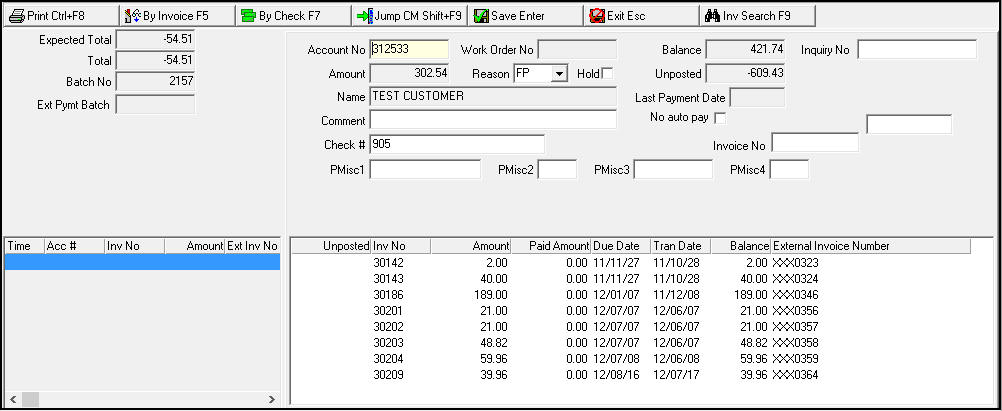
3. In the results, find the invoice to which you want to apply the payment, whole or part.
4. In the Unposted column, add the amount of the payment you want to apply to an invoice.
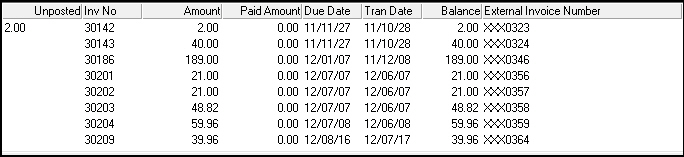
5. When you have finished applying the payment, choose Save.
Deleting Payments
Use the following steps to delete individual payments or all payments listed:
1. From the List Details pane, select the specific payment you want to delete.
2. Choose Delete Record.
‰ SBN asks you to confirm your selection.
3. Choose Yes.
4. To delete all payments listed from the search in the List Details pane, choose Delete All.
‰ SBN asks you to confirm that you want to delete all payments.
5. Choose Yes.
Working with Invoice Details
After choosing Invoice Details, more functions are available for each invoice.
Getting a Work Order
From the Invoice Details window, you can jump to the Work Orders module to view a work order for the invoice you have selected.
Use the following steps to view a work order:
1. From the Invoice Details window, select the work order you want to view.
2. Choose Get Work Order.
‰ The Work Orders window appears.
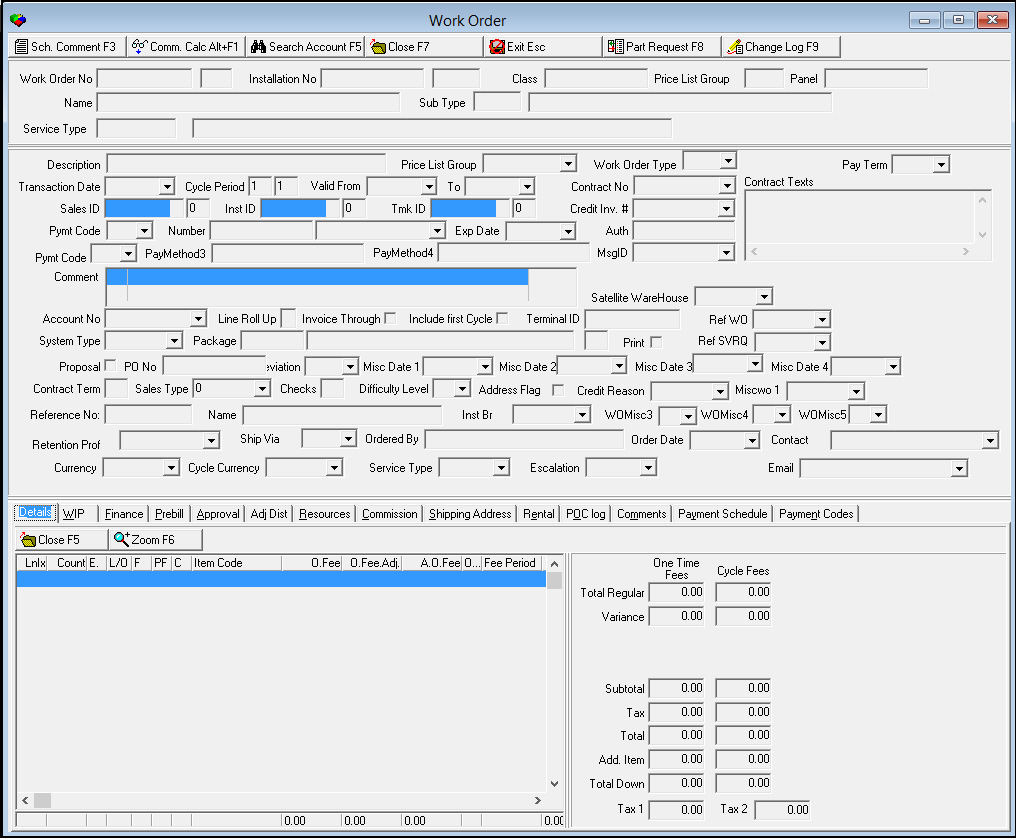
Note: See Work Orders for more details on this window.
3. Choose Exit to return to Open Batches.
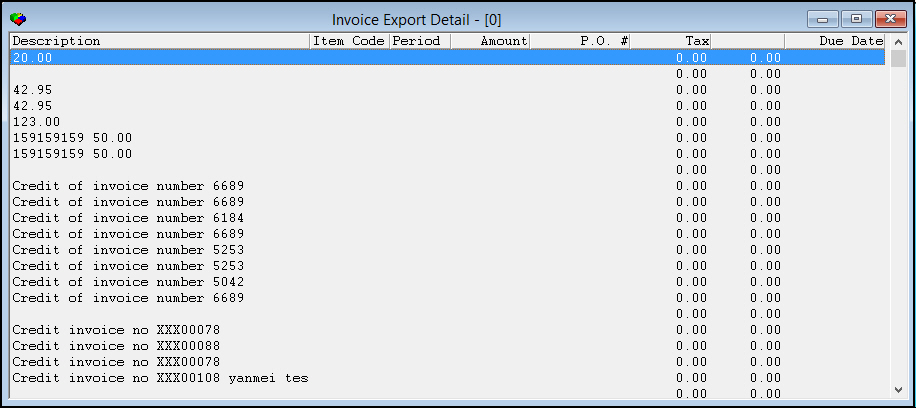
Viewing Export Details
From the Invoice Details window you can view any export details available for the selected invoice. Choose Export Details, and the Export Details window opens.
The following graphic shows the Export Details window with information displayed.
Adding Payments to a Batch
Use the following steps to add a payment to any batch:
1. From the Open Batches List in the main window of Open Batches, choose the batch to which you want to add a payment.
2. Choose Add.
3. Choose Search to find any payments on the selected batch.
Note: If the batch in which you are looking for payments displays many payments, you can search for a range of index numbers by typing them in the Index Search Range fields and then choosing Search.
4. Select the invoice on which you want to make a payment.
5. Choose Add again.
‰ The New Payment dialog box appears.
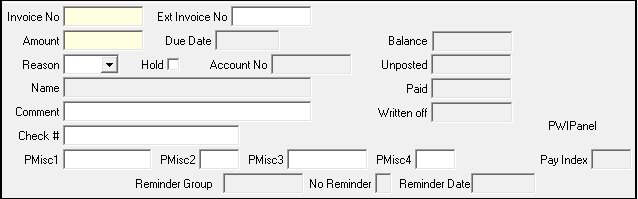
6. Type the payment information in the fields.
7. Choose Save.
Posting Batches
Use the following steps to post payments that you have added to a batch:
1. From the Open Batches List in the main Open Batches window, select the batch that you want to post.
2. Choose Post Batch.
Note: If option bl208 is on, SBN displays an error message when you attempt to post a payment batch with a Transaction Date prior to the Fiscal Close Date. SBN will not allow you to proceed unless the Transaction Date is after the Fiscal Close Date.
‰ The Post Batch dialog box appears.
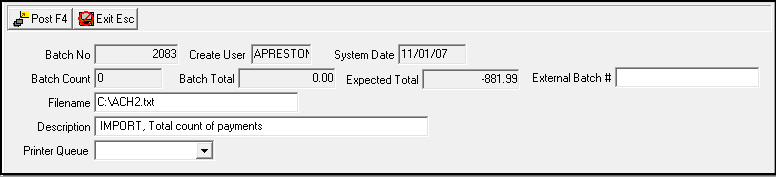
‰ SBN defaults the appropriate information into the fields; you can override the defaults, if necessary.
Note: You may enter any number in the External Batch # field. This field only appears if option bl189 is on. When option bl189 is off, the External Batch # field does not appear and SBN automatically applies an external batch number to posted batches from program #1625.
3. Choose Post Batch in the Post Batch dialog box.
‰ SBN displays the posting procedure.
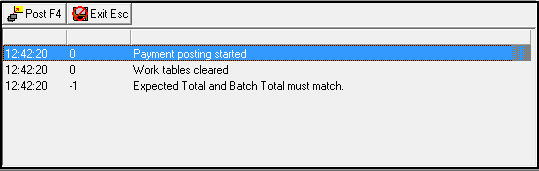
Note: The posting procedure shows the pending amount and number of accounts left to process in the batch. If action 548/317 is on, you may post a Quick Pay batch with today's date. When 548/317 is off, you can only post a Quick Pay batch with a future date.
4. Choose Exit to return to the main window of Open Batches.
Note: Imported payments are now flagged, thus requiring manual intervention in Open Batches prior to invoicing.
Note: External batch numbers are created for payment batches posted on accounts with written-off invoices.
Note: SBN does not post payments on accounts with a different Financial Separation flag selection from your batch parameters, but displays error 21, "Payment Financial Separation flag differs from batch Financial Separation flag." SBN only posts payments on the accounts with a matching Financial Separation flag selection.
Importing Batches
From the main window of Open Batches, you can import a batch to an existing file. You can also use this feature to email or print batch information.
Use the following steps to import a batch:
1. From the main window of Open Batches, choose Import Batch.
‰ The Import Batches window appears. The window displays the types of payment imports applicable to your company.
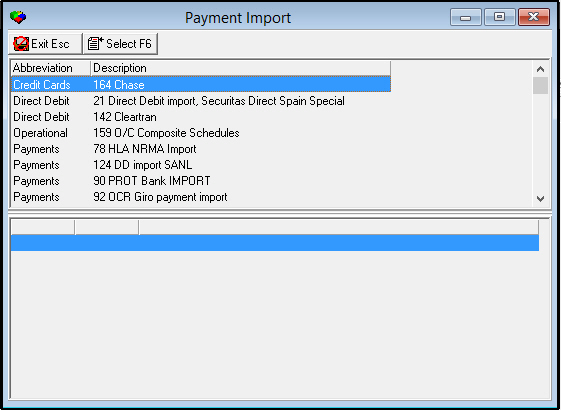
2. Choose the payment import type you want to run.
3. Choose Select Export.
‰ The Payment Import dialog box appears.
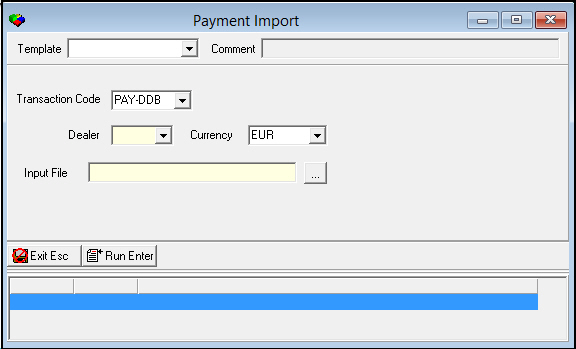
4. Complete the fields.
Note: You may choose  to search for a file in the Input File field. The
Template menu
originates from program #1591. Templates defined for the selected import
type appear in the menu.
to search for a file in the Input File field. The
Template menu
originates from program #1591. Templates defined for the selected import
type appear in the menu.
5. Choose Run Export.
6. Choose Save.
Working with Unallocated Payments
Use Open Batches to view and change unallocated payments.
Viewing Unallocated Payments
To view unallocated payments, choose Unallocated Payments. The right pane of the main window of Open Batches displays the list of unallocated payments.
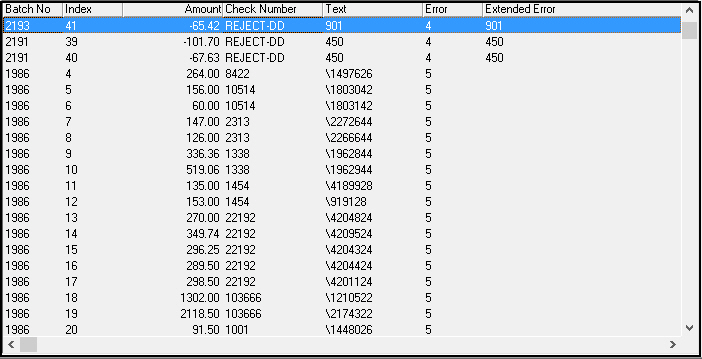
Changing Unallocated Payment Information
You can change the details of the unallocated payments.
Use the following steps to change unallocated payment information:
1. In the Unallocated Payments pane, choose Change Record.
‰ Fields in the Invoice Details pane of the window open for changes.
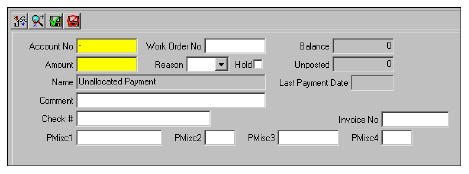
2. Enter the changes, as needed.
3. Choose Save.
Working with Held Payments
Use Open Batches to view and change Held payment information.
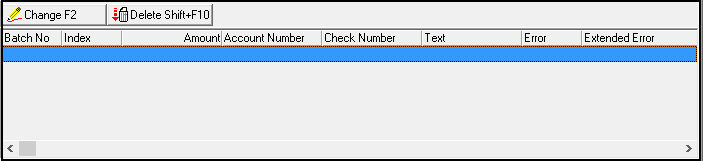
Viewing Held Payments
You can view all held payments in SBN. To view held payments, choose Held Payments. The right pane of the window displays the list of held payments.
Changing Held Payment Information
You can change the details of the held payments.
Use the following steps to change held payment information:
1. When in the Held Payments pane, choose Change Record.
‰ Fields in the Invoice Details pane of the window open for changes.
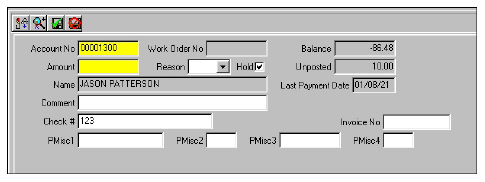
2. Enter changes, as needed.
3. Choose Save.
Exporting Quick-Pay Batches
Use Export to export Quick-Pay batch payment data out of SBN. Customer-specific export options can be implemented. You can only export batches if option bl157 is on and the transaction date is the current day or older.
Note: Actions 1577/20, 60-65 must be on to use this function. Only Company 156 is currently supported for this function.
Button Functions
The following table displays the buttons, describes the shortcut keys, actions, and functionality.
Button |
Name |
Shortcut Key |
Action |
Description |
|
Search |
shift+f6 |
1577 |
Search for open batches. |
|
Get Record |
alt+f1 |
1577/ 1 |
View details of selected batch. |
|
Change Record |
f2 |
1577/ 2 |
Change details of selected batch. |
|
New Record |
f3 |
1577/ 3 |
Create a new batch. |
|
Delete Record |
shift+f10 |
1577/ 4 |
Delete selected batch. |
|
Print selected records |
f7 |
1577/ 6 |
Print selected records. |
|
Copy current record |
shift+f3 |
1577 |
Copy current record. |
|
Previous Record |
shift+f4 |
1577 |
Go to previous record. |
|
Next Record |
shift+f5 |
1577 |
Go to next record. |
|
Reprint Report Locally |
shift+f7 |
1577/ 9 |
Reprint report locally. |
|
List Details |
f6 |
1577/ 8 |
Display details of a batch. |
|
Post Batch |
f4 |
1577/ 5 |
Post payments to a batch. |
|
Add |
f5 |
1577/ 7 |
Add a payment to a batch. |
|
Import Batch |
ctrl+f8 |
1577/19 |
Import a batch to an existing file. |
|
Unallocated payments |
f8 |
1577/10 |
Display unallocated payments. |
|
Held payments |
f9 |
1577/30 |
Display held payments. |
|
Redisplay Screen |
f11 |
1577 |
Refresh screen. |
|
Export |
SHIFT+F8 |
1577/20 |
Export Quick-Pay payment information out of SBN. |
|
Exit without saving |
esc |
1577 |
Exit without saving changes to selected record. |
|
Save Existing Record |
enter |
1577 |
Save changes to selected record. |




















Modifications and Updates to Open Batches
The following table lists modifications and updates to the Open Batches document.
Mod Number |
Date |
Description |
n/a |
08/05/14 |
Images updated. |
n/a |
09/04/14 |
Note added about setting the currency at the beginning of a new batch. |
07.92.26477, 08.92.11889, 07.92.26479, 08.92.11890 |
08/31/20 |
New option bl233. When on if you try to post a batch with a date other than todays date you receive message “Transaction date is not equal todays date. Proceed?�" |
07.93.27101 |
12/19/22 |
Added email addresses for imports 106,167, and 192 |
08.93.12325, 08.93.12323, 07.93.27166 |
04/03/22 |
Added contract number and installation number to Account Payment screen. |
F1 Help
| Delphi Forms | blexporttemplatesform |
| Program Numbers | 1591 |