
Archived Uniform Alarm Log History Report
Archived Uniform Alarm Log History Report
Archived Uniform Alarm Log History Report
Module: Account Management
Overview
Use the Archived Uniform Alarm Log History (report# 2126) to display both active data and archived data from the Alarm Log and the Open/Close Log. This is the only report that works with archived data stored in tables.
Note: This report is not intended to replace Alarm Activity (report #2005). Because this report pulls both active and archived data, it may take several minutes to run.
Navigating to Archived Uniform Alarm Log History
Use the following steps to navigate to the Archived Uniform Alarm Log History report:
1. From the main SBN toolbar, select Menu.
2. From the drop-down menu, select Go To.
3. In the Go To Program dialog box, type in "2126" and press Enter.
w The Archived Uniform Alarm Log History report opens.
The Archived Uniform Alarm Log History Report
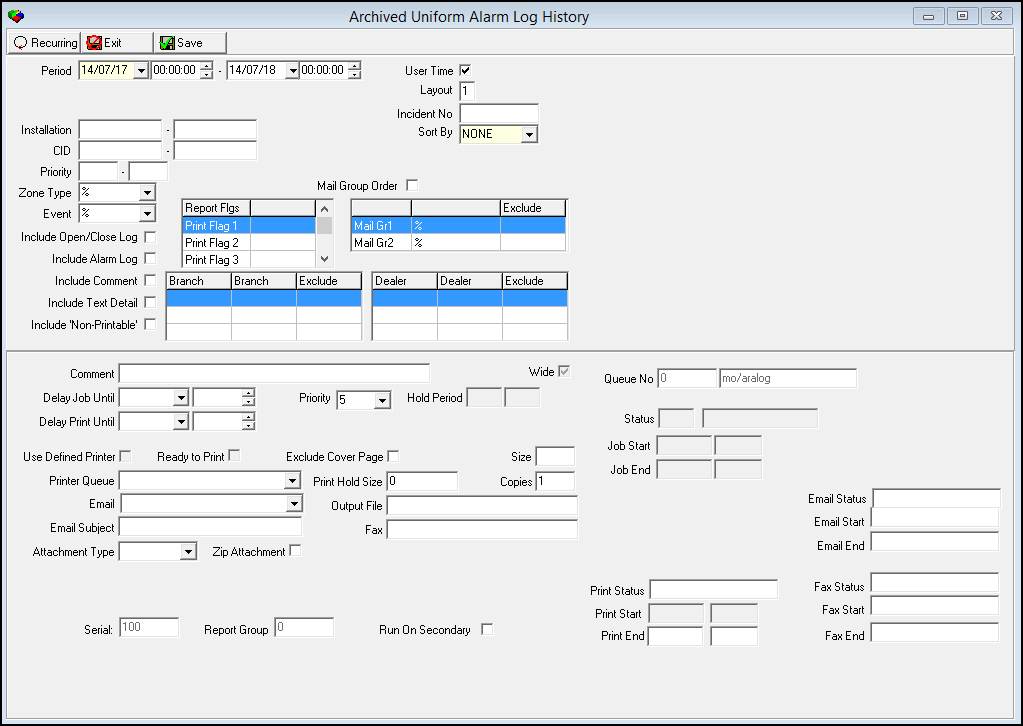
This window contains two panes: in the upper pane you define the content of the report; in the lower pane you define the job output - how, when, and where you want the report printed.
Note: See Report Parameters Pane for information on the fields in the lower pane, which are the same in every report.
Field Descriptions
The following table describes the fields used in the upper pane of this report.
Note: You can use wildcard characters in selected fields. For more information about using wildcards, see Searches.
|
Field |
Wildcards |
Description |
|
Period |
||
|
Date (From) |
No |
You must select a date on which Alarm Log entries occurred to include in the report. |
|
Time (From) |
No |
You may select a range of time in which Alarm Log entries occurred to include in the report. Select the beginning time of the range. |
|
Date (To) |
No |
You may select a range of dates in which Alarm Log entries occurred to include in the report. Select an ending date for the range. |
|
Time (To) |
No |
You may select a range of time in which Alarm Log entries occurred to include in the report. Select an ending time of the range. |
|
User Time |
No |
Enter a check mark in this box to display report results in the user's time. Note: Remove the default check from this box to run the report and display data according to the premises time. |
|
Layout |
No |
This field defaults to , the core layout. You may type a customer-defined layout code. |
|
Incident No |
No |
You may type a specific incident number in this field. The report prints the Archived Uniform Alarm Log History for that incident regardless of other selected parameters. O If you leave this field blank, the report includes all archived incidents that match the other selected parameters. |
|
Sort By |
No |
You must select a sorting parameter for this report. |
|
Installation (From) |
No |
You may type a range of installation numbers to include in the report. Type the beginning installation number of the range. |
|
Installation (To) |
No |
You may type a range of installation numbers to include in the report. Type the ending installation number of the range. |
|
CID (From) |
No |
You may type a range of CIDs to include in the report. Type the beginning CID of the range. |
|
CID (To) |
No |
You may type a range of CIDs to include in the report. Type the ending CID of the range. |
|
Priority (From) |
No |
You may type a range of priorities to include in the report. Type the beginning priority of the range. |
|
Priority (To) |
No |
You may type a range of priorities to include in the report. Type the ending priority of the range. |
|
Zone Type |
Yes |
You may select a specific zone type to include in the report. (This list originates from program #1733.) O Use the default % wildcard to include all zone types in the report. |
|
Event |
Yes |
You may select a specific event to include in the report. O Use the default % wildcard to include all events in the report. |
|
Mail Group Order |
No |
Enter a check mark in this box to display report results in Mail Group order rather than CID and date order. |
|
Report Flags |
||
|
Print Flag 1 - 10 |
No |
You may include records with that match up to 10 specific report flags by clicking in the right of the field that corresponds to the print flag and then selecting the appropriate code. (This menu originates from program #1555.) |
|
Mail Group Flags |
||
|
Mail Grp 1 |
Yes |
You may either use the default % wildcard to include all records that match Mail Group 1 in the report or click in the right of the field to expose a menu and select a specific Mail Group 1. |
|
Mail Grp 2 |
Yes |
You may either use the default % wildcard to include all records that match Mail Group 2 in the report or click in the right of the field to expose a menu and select a specific Mail Group 2. |
|
Exclude |
No |
You may exclude specific mail groups by selecting the mail group and then entering a check mark in the corresponding Exclude box. |
|
Include Flags |
||
|
Include Open / Close Log |
No |
Enter a check mark in this box to include Open / Close Log data in the report. |
|
Include Alarm Log |
No |
Enter a check mark in this box to include Alarm Log data in this report. |
|
Include Comments |
No |
Enter a check mark in this box to include comments in this report. |
|
Include Text Detail |
No |
Enter a check mark in this box to include the text detail of events in this report. |
|
Include Non-printable |
No |
Enter a check mark in this box to include items marked non-printable in Monitoring in this report. |
|
Branches |
||
|
Branch |
No |
You may select up to three ranges of branches to limit the report to branches within the ranges; select the beginning branch number of a range. (These menus originate from program #1530.) O If you leave the fields blank, the report includes all branches in your user profile. O Branch restrictions apply. |
|
Branch |
No |
You may select up to three ranges of branches to limit the report to branches within the ranges; select the ending branch number of a range. (These menus originate from program #1530.) O If you leave the fields blank, the report includes all branches in your user profile. O Branch restrictions apply. |
|
Exclude |
No |
You may exclude ranges of branches from the report by selecting the ranges and then entering a check mark in the corresponding Exclude box. |
|
Dealers |
||
|
Dealer |
No |
You may select up to three ranges of dealer IDs to limit the report to dealer IDs within the ranges; select the beginning dealer ID of a range. (These menus originate from program #1537.) O If you leave the fields blank, the report includes all dealers in your user profile. O Branch restrictions apply. |
|
Dealer |
No |
You may select up to three ranges of dealer IDs to limit the report to dealer IDs within the ranges; select the ending dealer ID of the range. (These menus originate from program #1537.) O If you leave the fields blank, the report includes all dealers in your user profile. O Branch restrictions apply. |
|
Exclude |
No |
You may exclude ranges of dealer IDs from the report by selecting the ranges and then entering a check mark in the corresponding Exclude box. |
Running and Viewing a Report
For information on running and viewing a report, see Common Functions in SBN.
Report Example 1
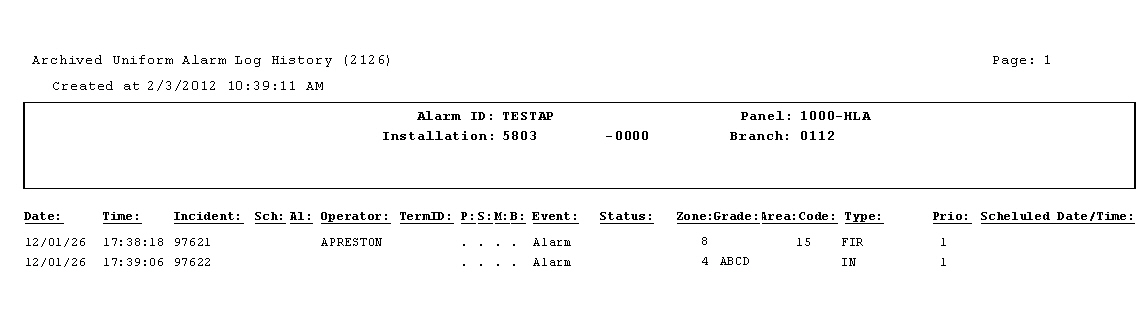
The following graphic shows an example of the output of the Archived Uniform Alarm Log History report including both the Open/Close Log and Alarm Log.
Column Descriptions
The following table describes the columns used in the output of the report.
|
Column |
Description |
|
Header Information |
|
|
Alarm ID |
CID of the installation. |
|
Panel |
Panel of the CID. |
|
Installation |
Installation ID and dealer assigned to the installation. |
|
Branch |
Installation branch. |
|
Data Columns |
|
|
Date |
Date of the log item. |
|
Time |
Time of the log item. |
|
Incident |
Incident number for the log item. |
|
Sch |
Open/Close schedule number of the log item. |
|
Al |
If this column displays an X, an alarm occurred. |
|
Operator |
Operator ID of person who entered log item or handled alarm. |
|
Term ID |
Terminal ID of operator who handled alarm. |
|
P |
If this column displays an X, the event does not print when you generate a report. |
|
S |
If this column displays an X, a supervisor marked the incident so it does not print when you generate a consumer report. |
|
M |
If this column displays an X, you must manually select the date and time for this event. |
|
B |
CID number from which the signal was received, if received from an account with multiple CIDs.
Note: When option ba219 is on, SBN uses base 0 for the CID index in the log. This means that if base 0 is being used, the first CID is index 0. When option ba219 is off, the first CID is index 1. |
|
Event |
Event code of the log item. |
|
Status |
Open/Close status (Unknown, Scheduled, Log Only, Unscheduled, Missing, Status Set). |
|
Zone |
Zone ID reporting. |
|
Grade |
UL grade of the zone. |
|
Area |
Area ID of zone reported. |
|
Code |
Code of zone reported. |
|
Type |
Type of alarm reported. |
|
Prio |
Priority (1-99) of the signal received. |
|
Scheduled Date/Time |
Scheduled Open/Close date and time for event. |
Report Example 2
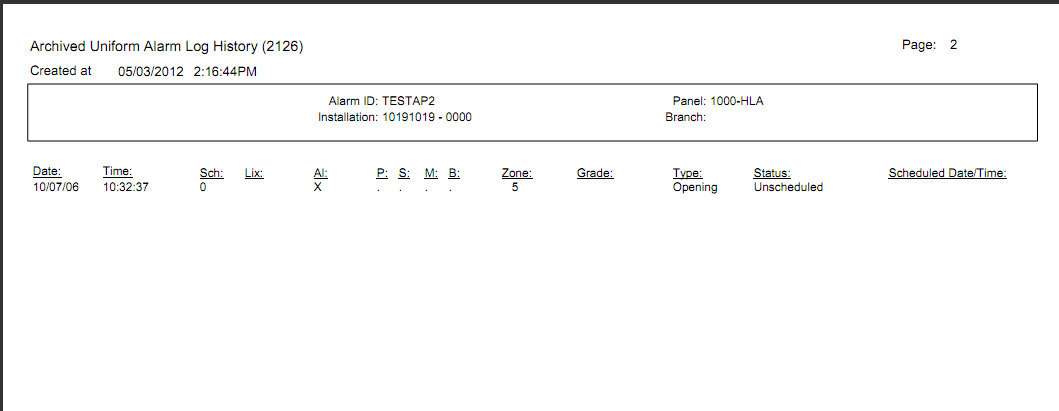
The following graphic shows an example of the Archived Uniform Alarm Log History report including only the Open/Close Log.
Column Descriptions
The following table describes the columns used in the Open/Close Log Only layout of the report.
|
Column |
Description |
|
Header Information |
|
|
Alarm ID |
CID of the installation. |
|
Panel |
Panel of the CID. |
|
Installation |
Installation ID and dealer assigned to the installation. |
|
Branch |
Installation branch. |
|
Data Columns |
|
|
Date |
Date of the log item. |
|
Time |
Time of the log item. |
|
Sch |
Open/Close schedule number of the log item. |
|
Lix |
Line Index |
|
Al |
If this column displays an X, an alarm occurred. |
|
P |
If this column displays an X, the event does not print when you generate a report. |
|
S |
If this column displays an X, a supervisor marked the incident so it does not print when you generate a consumer report. |
|
M |
If this column displays an X, you must manually select the date and time for this event. |
|
B |
CID number from which the signal was received, if received from an account with multiple CIDs.
Note: When option ba219 is on, SBN uses base 0 for the CID index in the log. This means that if base 0 is being used, the first CID is index 0. When option ba219 is off, the first CID is index 1. |
|
Zone |
Zone ID reporting. |
|
Grade |
UL grade of the zone. |
|
Type |
Type of signal reported |
|
Status |
Status of signal received. |
|
Scheduled Date/Time |
Scheduled Open/Close date and time for event. |
Report Example 3
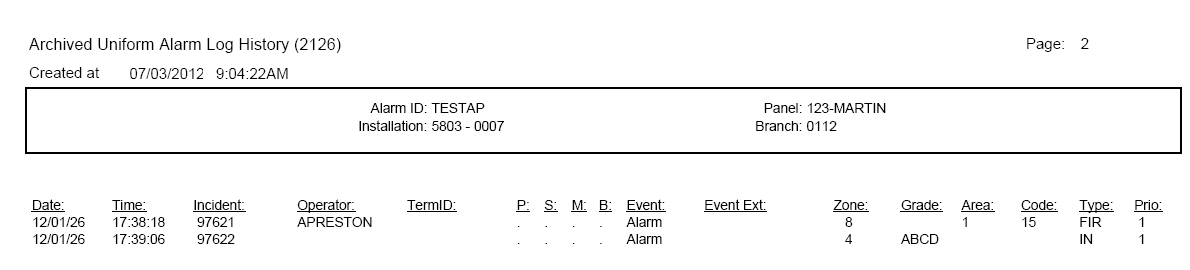
The following graphic shows an example of the Archived Uniform Alarm Log History report including only the Alarm Log.
Column Descriptions
The following table describes the columns used in the Alarm Log Only layout of the report.
|
Column |
Description |
|
Header Information |
|
|
Alarm ID |
CID of the installation. |
|
Panel |
Panel of the CID. |
|
Installation |
Installation ID and dealer assigned to the installation. |
|
Branch |
Installation branch. |
|
Data Columns |
|
|
Date |
Date of the log item. |
|
Time |
Time of the log item. |
|
Incident |
Incident number for the log item. |
|
Operator |
Operator ID of person who entered log item or handled alarm. |
|
Term ID |
Terminal ID of operator who handled alarm. |
|
P |
If this column displays an X, the event does not print when you generate a report. |
|
S |
If this column displays an X, a supervisor marked the incident so it does not print when you generate a consumer report. |
|
M |
If this column displays an X, you must manually select the date and time for this event. |
|
B |
CID number from which the signal was received, if received from an account with multiple CIDs.
Note: When option ba219 is on, SBN uses base 0 for the CID index in the log. This means that if base 0 is being used, the first CID is index 0. When option ba219 is off, the first CID is index 1. |
|
Event |
Event code of the log item. |
|
Event Ext |
Event extension of the log item. |
|
Zone |
Zone ID reporting. |
|
Grade |
UL grade of the zone. |
|
Area |
Area ID of zone reported. |
|
Code |
Code of zone reported. |
|
Type |
Type of alarm reported. |
|
Prio |
Priority (1-99) of the signal received. |
Button Functions
The following table displays the buttons, describes the shortcut keys, actions, and functionality.
|
Button |
Name |
Shortcut Key |
Action |
Description |
|
|
Recurring |
Alt+F1 |
2126 |
Open fields for recurring/template reports. |
|
|
Exit |
Esc |
2126 |
Exit without saving. |
|
|
Save |
Enter |
2126 |
Save existing record. |



Modifications and Updates to Archived Uniform Alarm Log History Report
The following table lists modifications and updates to the Archived Uniform Alarm Log History Report document.
|
Mod Number |
Date |
Description |
|
n/a |
07/17/14 |
Images updated. |