
Personnel
Personnel
Personnel
Module: System Administration
Overview
Use Personnel (program #1811) to define and maintain valid system users, calculate commissions, and track payroll information.
In Personnel you can create a master record for each employee with basic identification information and use tabs in the sublevel to create one or more sub records that define the employee’s position and duties. You may also create sub records for an employee in one or more of the following programs:
Installers (program #1543)
Sales Persons (program #1539)
Users (program #1501)
Telemarketers (program #1750)
Technicians (program #1864)
Note: Action 212 controls access to Social Security information for employees. Action 210 controls access to Payroll data.
Note: Action 559/700 is used to control department and user mode in Communication Log. When this action is on, you can toggle between all departments assigned to you.
Note: If option ba386 is on, SBN uses the commission type that was in place for the resource at the time the work order was saved last. If off, commission calculation will use the value in effect when the commission calculation takes place (The time depends on various options comaappr and comasave, etc). Option temp108 controls character conversion; this option defaults to on and is company-specific.
This document covers the following topics:
Before You Begin: Adding Users
Searching for an Existing Employee
Viewing the Details of an Employee
Changing the Details of an Employee
Before You Begin: Adding Users
You must first add users to the server. All SBN users need to have a login in the server and be valid on Sybase.
From isql �exec sp_addlogin ’user’, ’password’, default database� or command i_adduser from the operating system. You must define users in Sybase Central in uppercase letters if the user is going to be defined in SBN. The User ID can be up to 8 characters. If a User ID is added in lowercase or has more than 8 characters, it cannot be used in SBN.
Note: The default database should be set to the database that holds your stored procedures.
From Add User Login (program #564).
Note: To add users from Add User Login (program #564), your database administrator must provide you with the correct password.
After you add the user to the public group, which gives the user access to the different stored procedures in SBN, you must define the user in Personnel (program #1811).
The Personnel Window
The Personnel window contains three panes:
The upper pane — contains search parameters
The middle pane — displays previously defined employees or search results
The lower pane — contains fields that display details of a selected employee
The following graphic shows the Personnel window with details displayed.
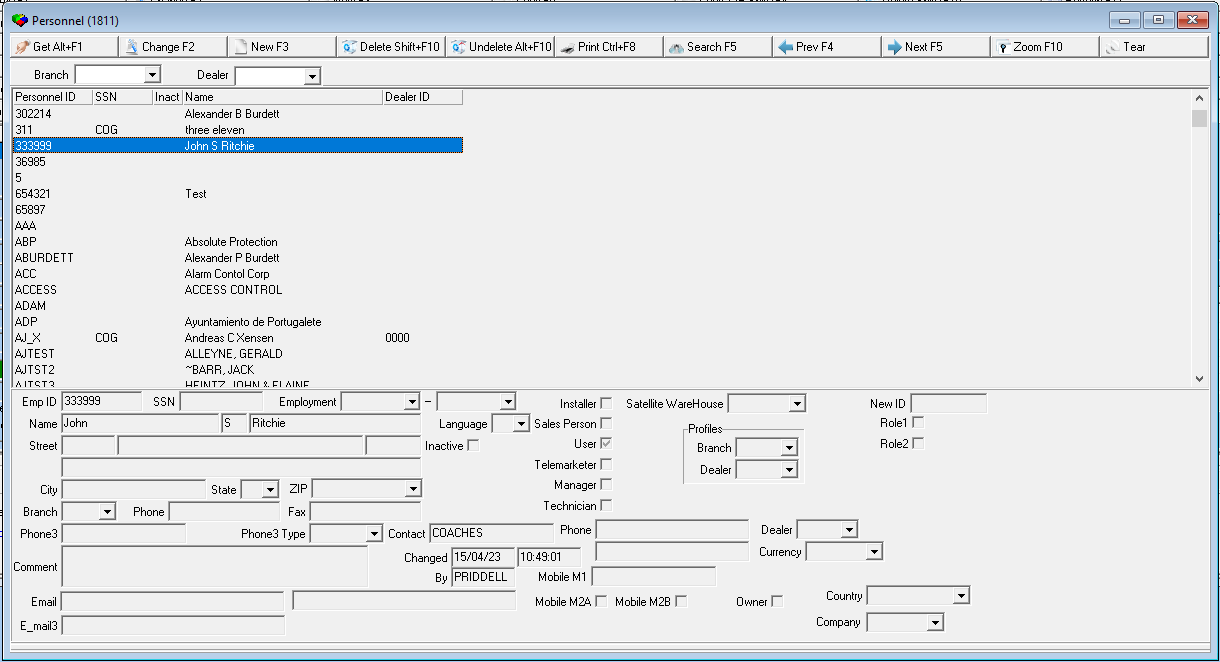
Column Descriptions — Middle Pane
The following table describes the columns used in the middle pane of the main window of Personnel.
Column |
Description |
Personnel ID |
Customer-defined ID for this employee. |
Social Security Number |
Employee’s social security number. |
Inactive |
If this column displays a check mark, this employee has been terminated or is inactive. Selecting the Inactive check box prohibits a user from logging back into SBN the next time login is attempted. A message also appears stating "This SBN Login is disabled." |
Name |
Employee’s first name, middle initial, and last name. |
Dealer |
Displays the default dealer associated with the selected employee. Throughout SBN menus for selecting resources display only
|
Field Descriptions — Upper and Lower Panes
The following table describes the fields used in the main window of Personnel.
Field |
Description |
Search Parameters (Upper pane) |
|
Branch |
You may search for personnel by the branch with which they are associated. Select the branch for which you want to view associated personnel. |
Dealer |
You may search for personnel by the dealer ID with which they are associated. Select the ID of the dealer for whom you want to view associated personnel. |
Detail Fields (Lower pane) |
|
Employee ID |
Customer-defined ID for this employee. This field can hold a maximum of 8 characters. |
Social Security Number |
Employee’s social security number. |
Employment Start Date |
Employee’s first date of employment. |
Employment End Date |
Employee’s last date of employment, if applicable. |
Installer |
If this box displays a check mark, this employee has been set up as an Installer in program #1543. |
Sales Person |
If this box displays a check mark, this employee has been set up as a sales person in program #1539. |
User |
If this box displays a check mark, this employee has been set up as a system user in program #1501. |
Telemarketer |
If this box displays a check mark, this employee has been set up as a telemarketer in program #1750. |
Manager |
If this box displays a check mark, this employee has been set up as a manager in this program. |
Technician |
If this box displays a check mark, this employee has been set up as a technician in program #1864. |
Satellite Warehouse |
Satellite warehouse with which this resource is attached. If you attach data in program #1605, it displays here. (Use options sys015 and in002 to set up this field.) |
Profiles |
|
Branch |
You may select a branch ID to include in the profile. (This menu originates from program #1530.) |
Dealer |
You may select a dealer ID to include in the profile. (This menu originates from program #1743.) Note: In Required Fields (program #1843), you can make this a required field. |
Name |
Employee’s first name, middle initial, and last name. |
Language |
Primary language this employee uses. If you define the Language field, the Alarm Log displays in the specified language for the following fields: l Event Name l O/C Status l O/C Type O The User Language field overrides the language field defined for the customer in program #0559. |
Street |
Employee’s home street number, street name and apartment number, if applicable. O You can type additional address information on the line below the street address. |
Inactive |
If this box displays a check mark, this employee has been terminated or is inactive. This does not delete the record, but eliminates the employee from menus throughout SBN. |
City |
City in which this employee lives. |
State |
State in which this employee lives. (This field holds a maximum of 60 characters.) |
Zip |
Zip code in which this employee lives. |
Country |
Select the country in which this employee lives from the drop-down menu. Note: The country selected in this field serves as the default value that appears in the Country field when this user creates or edits an installation in Data Entry Master (program #559). |
Company |
Select the company in which this employee is linked to. (This menu originates from Installer Companies (#1536). |
Phone |
Employee’s primary phone number. |
Fax |
Employee’s fax number. |
Phone3 |
Employee's secondary phone number. |
Phone3 Type |
Type of secondary phone number for this employee, such as pager, mobile phone, etc. (This menu originates from program #1840.) |
Contact |
Name of the person to contact if this employee has an emergency. |
Phone |
Phone number for this emergency contact. O You can type an additional phone number on the line below. |
Dealer |
You may select the dealer ID to use as the default dealer for this employee. Menus for selecting resources display only: l Those resources associated with the same dealer ID as the work order l Those resources not associated with any dealer ID Affected menus: l Data Entry q Data Entry Basics Tab: Installer, Sales, and Orig. Installer q Service Log Tab: Tech ID and Inst ID l Work Orders q WIP Tab: Installer ID q Resources Tab: Installer ID, Sales Person ID, and Telemarketer ID q Commissions Tab: Installer ID, Sales Person ID, Telemarketer ID, Technician ID, and Manager ID |
Comment |
Additional text about the emergency contact. |
Changed |
Date and time the employee record last changed. |
Currency |
Currency type in which the employee is paid. (This menu originates from program #1635.) Note: If you do not assign a contract or billing account to a work order, the work order Currency and Cycle Currency fields default to the currencies defined in the Currency and Secondary Currency fields of program #1533 for the sale price list of the work order's Price List Group (defined in program #1771). If the sale price list has no primary currency defined, then the Cycle Currency field of the work order is blank, and the work order Currency field defaults to the currency defined in the user's profile in Personnel (program #1811). |
By |
User who last changed this employee’s record. |
Mobile M1 |
Field used for Mobile SBN options. |
Email addresses for the employee. Note: If the employee has the Can Approve SRs check box selected in the Users tab, SBN sends notification emails to the address in the first Email field when Software Requests that the user creates are put in Clq status and require approval. Contact IBS if you want to use the formal SR approval process described in the Software Request Approval By Designated Users section of the Software Request Web Version document. |
|
Mobile M2A |
Field used for Mobile SBN options. |
Mobile M2B |
Field used for Mobile SBN options. |
Owner |
If this box displays a check mark, the selected person owns an installation and has access to certain functions for that installation. |
New ID |
Added New ID field to 1811. Works similar to field in the sub tab and allows the user to change the personnel ID for an existing record. |
Role 1 |
When checked, adds the user ID to the Role 1 drop-down list in the Phasing tab. |
Role 2 |
When checked, adds the user ID to the Role 2 drop-down list in the Phasing tab. |
Searching for an Existing Employee
You may search for an existing employee by:
Branch — the results display those employees associated with the selected branch
Dealer — the results display those employees
q Associated with the selected dealer ID, regardless of branch
q Not associated with any dealer ID
A combination of Branch and Dealer — the results display both those employees
q Associated with the selected branch
and also...
q Associated with the selected dealer ID
q Not associated with any dealer ID
Use the following steps to search for an existing employee:
1. Select the your search parameters in the upper pane of the window.
2. Choose Search.
w SBN displays a list of all employees that match your search parameters.
Viewing the Details of an Employee
You can view the details of a employee in the fields in the lower pane.
Use the following steps to view the details of an employee:
1. In Personnel, select the personnel ID for which you want to view details from the upper pane.
2. Double-click your selection or choose Get.
w The fields in the lower pane display the details of the selected employee.
Adding an Employee
When your company hires a new employee, immediately assign them a user ID and set them up as a user in SBN — an employee must have a user ID to log into SBN.
Note: After you add a new employee, you may want to zoom into the sublevel to add details to employee profile.
Use the following steps to add a new employee:
1. In Personnel, choose New.
w The fields in the lower pane open for changes.
2. Complete the Emp ID field. Complete the other fields, as desired.
3. Choose Save.
w SBN adds the employee to the list of defined personnel in the upper pane.
Changing the Details of an Employee
Use the following steps to change the details of an employee:
1. In Personnel, select the personnel ID you want to change from the upper pane.
2. Choose Change.
w The fields that can be changed open for changes in the lower pane.
3. Enter changes, as needed.
4. Choose Save.
Deleting an Employee
You must delete the employee’s details from the tabs in the sublevel of Personnel before you can delete the employee’s main record. In addition, an employee cannot be deleted if he or she is associated with recurring reports.
If the employee belongs to a paging group in Paging Groups (program #1841), SBN displays the following message before allowing you to delete the employee's main record.
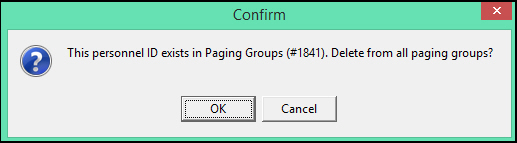
If you choose OK, SBN deletes the employee from all paging groups and allows you to delete the employee ID from Personnel. If you choose Cancel, SBN does not delete the employee and displays a confirmation message.
Use the following steps to delete an employee:
1. Select the employee you want to delete.
2. Choose Delete.
w A Confirmation dialog box appears: "Delete XXX. Are you sure?"
3. Choose Yes.
w SBN deletes the selected employee.
Zooming into the Sublevel
Choose Zoom to view the sublevel. To set up a new employee as an Installer, Sales Person, User, Telemarketer, Manager, or Technician you can create a sub record under the corresponding tab in the sublevel of this program. You may create sub records for an employee in one or more of the following tabs:
Note: You can create sub records for an employee by using the program listed in the Overview that corresponds to the resource type you want to create.
The Installer Tab
The following graphic shows the Installer tab of Personnel (program #1811). You can also set up installers in Installers (program #1543). The columns show any installer information on the selected employee. The fields show details about installer information for the selected employee.
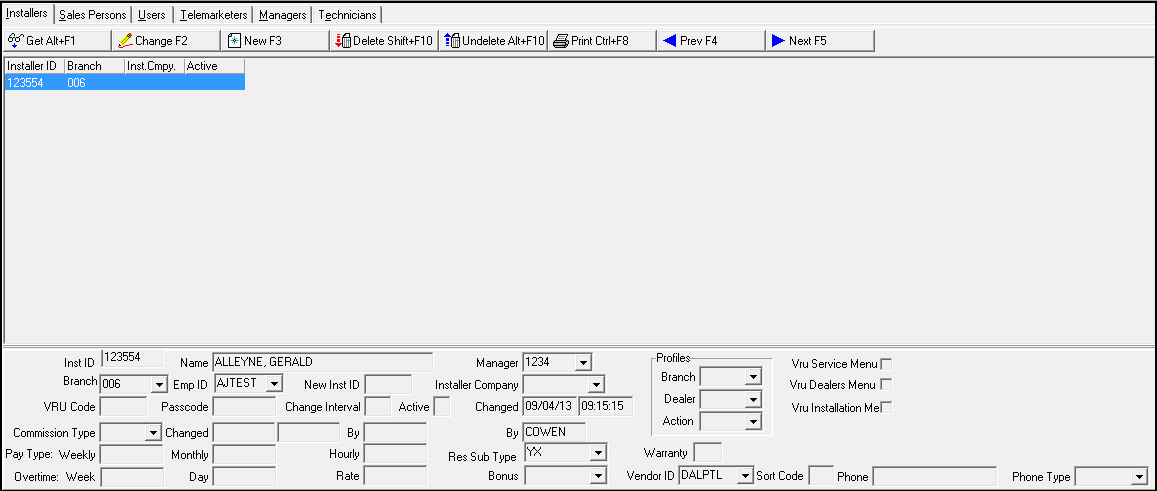
Field/Column Descriptions — Installer Tab
The following table describes the fields and columns used in the Installer tab.
Field/Column |
Description |
Installer ID |
Installer ID assigned to this employee. |
Branch |
Branch at which this Installer ID is valid. If this field is blank, this Installer is valid at all branches. |
Installer Company |
Installer company affiliated with this installer ID. O This field only applies to subcontractors. |
Active |
If this field is blank, the employee is an active employee in the company. If this field displays a (-) dash, the employee has been terminated or is inactive. O When marked inactive, the ID no longer appears in menus throughout SBN. |
Inst ID |
Installer ID assigned to this employee. |
Name |
Employee name associated with this installer ID. |
Manager |
Installation manager for the specified employee. |
Profiles |
|
Branch |
You may select a branch ID to include in the employee’s profile. (This menu originates from program #1530.) |
Dealer |
You may select a dealer ID to include in the employee’s profile. (This menu originates from program #1743.) |
Branch |
ID of the branch associated with the employee. |
Emp ID |
Employee ID associated with the specified installer ID. Use this field to reassign the specified installer ID to a different employee. |
New Inst ID |
New employee ID associated with the specified installer ID. Use this field to replace the existing installer ID with a new one. After you save this record, SBN moves the data in from this field to the Installer ID field and clears this field. |
Installer Company |
Installer company affiliated with this installer ID. O This field only applies to subcontractors. |
Branch Profile |
Branch access profile assigned to this user ID. The branch access profile controls which branch records the user may access. (This menu originates from program #1740.) |
VRU Code |
VRU code assigned to this employee; reserved for use with implementation of voice recognition. |
Passcode |
Passcode assigned to this employee. This field is reserved for use with implementation of voice recognition. |
Change Interval |
Number of days after which SBN prompts users to change their passcodes. |
Active |
If this field is blank, the employee is an active employee in the company. If this field displays a (-) dash, the employee has been terminated or is inactive. O When marked inactive, the ID no longer appears in menus throughout SBN. |
Changed |
Date and time that this employee’s VRU code and passcode last changed. |
By |
ID of the user who last changed this employee’s VRU code or passcode. |
Dealer |
Dealer access profile that is assigned to this user ID. The dealer access profile defines which dealer records the user may access. (This menu originates from program #1743.) |
Commission Type |
Type of commission for this employee. |
Changed |
Date and time that this employee’s commission type last changed. |
By |
ID of the user who last changed this employee's commission type. |
Res Sub Type |
ID of the resource type assigned to the individual installer. If an installer has a subtype, the labor rate used will be looked up using the sub type to determine which of the rates in the labor rate program to use. (Dropdown defined in Resource Sub Types program # 1626). |
Pay Type Select only one pay type. |
|
Weekly |
Weekly salary for this employee, if paid weekly. |
Monthly |
Monthly salary for this employee, if paid monthly. |
Hourly |
Hourly rate for this employee, if paid hourly. |
Overtime Use the following fields only if the pay type is hourly. |
|
Week |
Minimum number of hours this employee must work in a week before becoming eligible for overtime. |
Day |
Minimum number of hours this employee must work in a day before becoming eligible for overtime. |
Rate |
Percentage of pay rate received by this employee for working overtime. |
Warranty |
You may enter a warranty period, in months. When a user creates a new service request from the Service Log in Data Entry SBN checks the Original Installer (on the Data Entry Basics tab). If the original installer has a warranty period defined in this tab, SBN then compares the original installation date with the current date. If the installation is still within the defined warranty period, SBN displays the following message: Installation still under warranty by installer. |
Bonus |
Bonus type assigned to this employee. |
Vendor ID |
Vendor ID attached to the installer. (This menu originates from #1758.) O An installer ID may be associated with only one vendor ID; however, a vendor ID may be attached to multiple installer IDs. |
Sort Code |
Code (0-9) that may be used to determine Resource ID (Installers) sort order in Scheduling (program #563) Detail View. |
The Sales Persons Tab
The following graphic shows the Sales Persons tab of Personnel (program #1811). You can also set up sales persons in Sales Persons (program #1539). The columns show any sales person information on the selected employee. The fields show details about sales person information for the selected employee
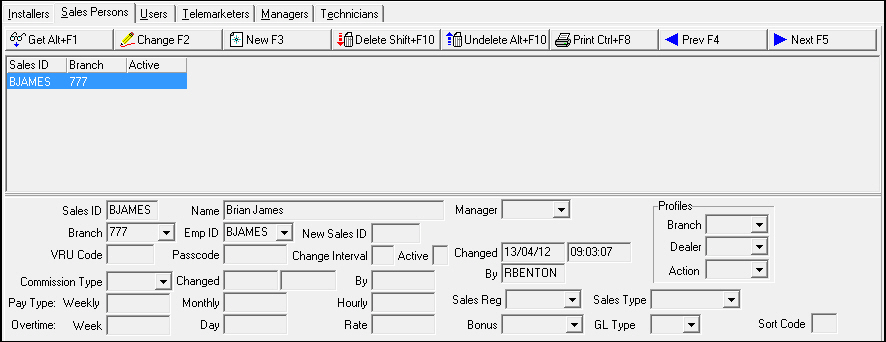
Field/Column Descriptions — Sales Persons Tab
The following table describes the fields and columns used in the Sales Person tab.
Field/Column |
Description |
Sales ID |
Sales ID assigned to this employee. |
Branch |
Branch at which this Sales Person ID is valid. If this field is blank, this Sales Person is valid at all branches. |
Active |
If this field is blank, the employee is an active employee in the company. If this field displays a (-) dash, the employee has been terminated or is inactive. O When marked inactive, the ID no longer appears in menus throughout SBN. |
Sales ID |
Sales ID assigned to this employee. |
Name |
Employee name associated with this Sales Person ID. |
Manager |
Sales manager of the specified employee. |
Profiles |
|
Branch |
You may select a branch ID to include in the employee’s profile. (This menu originates from program #1530.) |
Dealer |
You may select a dealer ID to include in the employee’s profile. (This menu originates from program #1743.) |
Branch |
Branch at which this sales ID is valid. If this field is blank, this sales ID is valid at all branches. |
Emp ID |
Employee ID associated with the specified sales person ID. Use this field to reassign the specified sales person ID to a different employee. |
New Sales ID |
New employee ID associated with the specified sales ID. Use this field to replace the existing sales ID with a new one. After you save information in this field, the data in this field moves to the Sales ID field, and this field becomes blank again. |
VRU code |
VRU code assigned to this employee; reserved for use with implementation of voice recognition. |
Passcode |
Passcode assigned to this employee; reserved for use with implementation of voice recognition. |
Change Interval |
Number of days after which SBN prompts users to change their passcode. |
Active |
If this field is blank, the employee is an active employee in the company. If this field displays a (-) dash, the employee has been terminated or is inactive. O When marked inactive, the ID no longer appears in menus throughout SBN. |
Changed |
Date and time that this employee’s VRU code and passcode last changed. |
By |
ID of the user who last changed this employee’s VRU code or passcode. |
Commission Type |
Type of commission for this employee. |
Pay Type Select only one pay type. |
|
Weekly |
Weekly salary for this employee, if paid weekly. |
Monthly |
Monthly salary for this employee, if paid monthly. |
Hourly |
Hourly rate for this employee, if paid hourly. |
Overtime You may only use the following fields if pay type entered is hourly. |
|
Week |
Minimum number of hours this employee must work in a week before becoming eligible for overtime. |
Day |
Minimum number of hours this employee must work in a day before becoming eligible for overtime. |
Rate |
Percentage of pay rate received by this employee for working overtime. |
Sales Reg |
Sales Region assigned to this employee. |
Sales Type |
Sales Type assigned to this employee. (This menu originated from program #1704/20.) |
Bonus |
Bonus type assigned to this employee. |
GL Type |
GL type associated with this employee. O When option ba275 is set, this GL type appears on the contract when the sales person is defined in the Data Entry Basics tab. |
Sort Code |
Code (0-9) that may be used to determine Resource ID (Sales Person) sort order in Scheduling (program #563) Detail View. |
Sales Persons Tab Field Changes Recorded in the General Change Log
The General Change Log (program #1749) records changes to several fields in the Sales Persons tab including the Sales ID, Commission Type, Branch, Delete Flag, Branch Profile, Dealer Profile, Sales Region, Sales Type, Commission Type, Manager, VRU Code and VRU passcode fields. The sales profile that was changed appears as a line item in the General Change Log with a list of field IDs, displaying the data in the fields before and after the changes.
The Users Tab
The following graphic shows the Users tab of Personnel (program #1811). You can also set up users in Users (program #1501). The columns show any user information on the selected employee. The fields show details about user information for the selected employee.
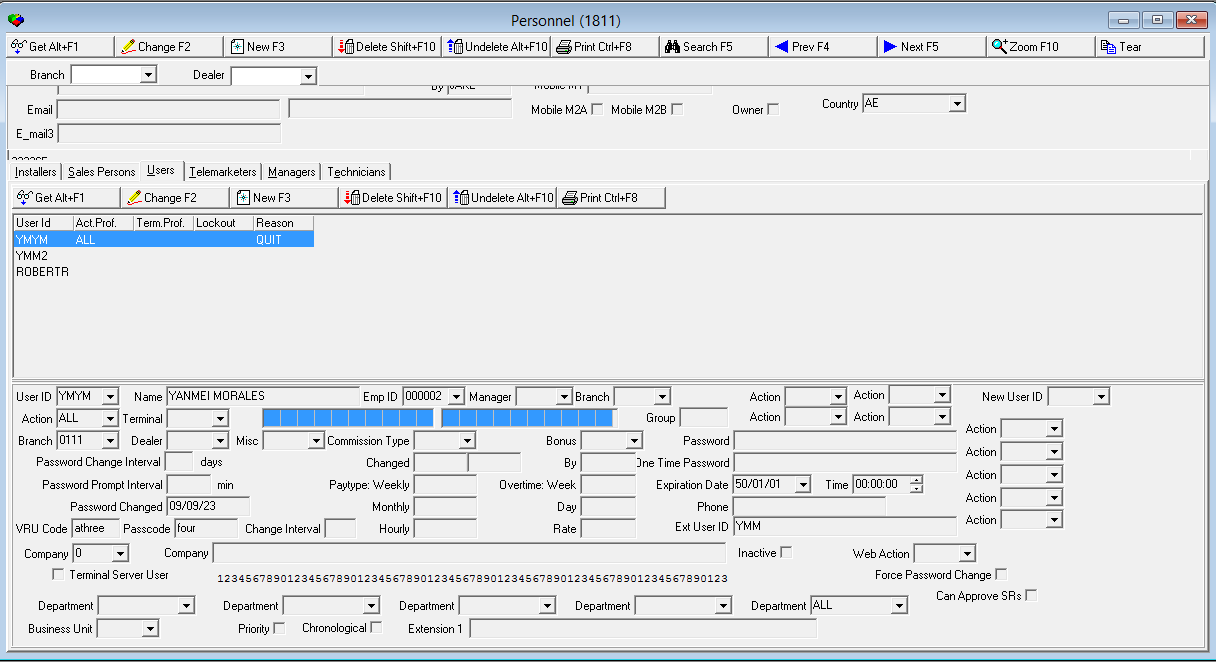
Note: The Lock/Unlock button appears when action 1811/37 is active in a user's action profile in program #1502 and when sso_role is included in the user's Sybase Central login. Use this button to unlock a user profile that displays an X in the Lockout column.
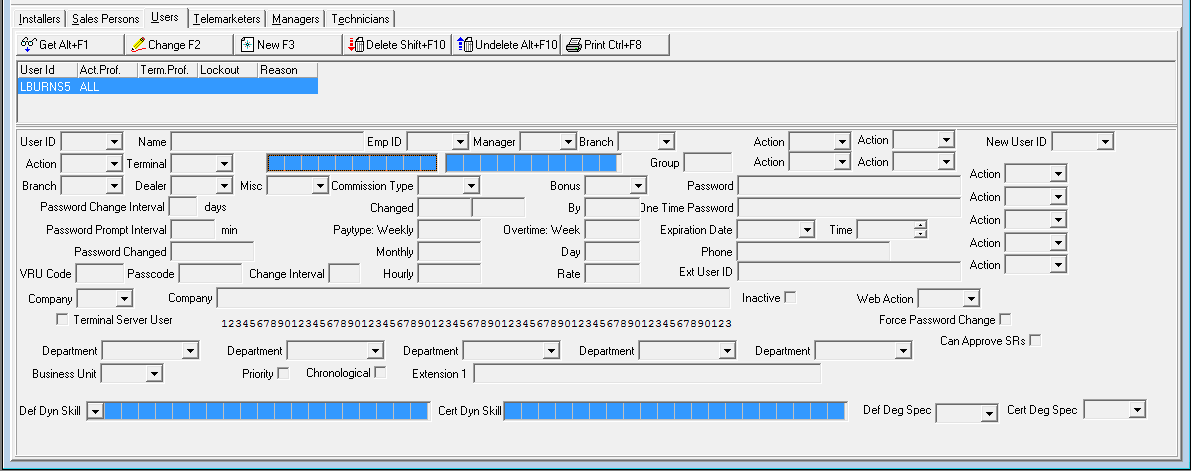
Adding a User
Use the following steps to add a new user:
1. Choose New Record.
w Fields in the User window open.
2. Complete the required fields.
Note: When you choose User ID, you see a list of all logins on the server that are not currently linked to user IDs in SBN.
3. Choose Save.
w SBN adds the entry to the list of defined users.
Field/Column Descriptions — Users Tab
The following table describes the fields and columns used in the Users tab.
Field/Column |
Description |
User ID |
User ID assigned to this employee. |
Action Profile |
Primary action profile assigned to this employee’s user ID. The action profile controls which programs and functions this user may access. (This menu originates from program #1502.) |
Terminal Profile |
Select the terminal profile for the user, which controls access to specific terminal numbers. (This menu originates from program #1504.) Note: If leave this field blank, the user can access all terminals. |
Lockout |
When an X displays in this column, the user cannot log into SBN. Note: Only a user with access to action 1811/37 and sso_role included in his/her Sybase Central login can unlock the user. |
User ID |
User ID assigned to this employee. |
Name |
Employee name associated with this user ID. |
Emp ID |
Employee ID associated with the specified user ID. Use this field to reassign the specified user ID to a different employee. |
Manager |
Manager of the specified employee. |
Branch |
Branch at which this user ID is valid. If this field is blank, this User is valid at all branches. |
Action 2-5 |
Action profile assigned to this employee’s user ID. Adds actions to the primary profile. The action profile controls which programs and functions this user may access. (This menu originates from program #1502.) Note: For more detailed information on actions, see the Action Profiles document. |
New User ID |
New User ID associated with the specified user ID. Use this field to replace the existing user ID with a new one. After you save information in this field, the data in this field moves to the User ID field, and this field becomes blank again. |
Terminal |
This field is not currently used in program #1811. |
Skills |
Set of up to 20 skills for this user, such as fluency in a specific language, that determine which alarms the user sees in the Alarm Queue and can handle in Dispatch (program #537). (These menus originate from program #1862.) |
Group |
Defines the user group for default sort order preference and tab sequence. |
Branch |
Branch access profile assigned to this user ID. The branch access profile controls which branch records the user may access. (This menu originates from program #1740.) |
Dealer |
Dealer access profile that is assigned to this user ID. The dealer access profile defines which dealer records the user may access. (This menu originates from program #1743.) |
Misc |
Miscellaneous user access profile assigned to this user ID. The miscellaneous user access profile controls a variety of actions and functions that are available to this user. (This menu originates from program #1745.) O If you select a Miscellaneous User Access profile that is defined with a time zone different than the one from which the user operates, the user’s time stamps may not display accurately. |
Commission Type |
Type of commission for this employee. |
Bonus |
Bonus type assigned to this employee. |
Password |
Password for the user/partner. |
Password Change Intervals/Days |
Number of days after which SBN prompts users to change their password. |
Changed — Date |
Date that this employee’s commission type last changed. |
Changed
— Time |
Time that this employee’s commission type last changed. |
By |
ID of the user who last changed this employee record. |
One Time Password |
One-time password granted to the user/partner. |
Password Prompt Interval/Min |
Number of minutes after which SBN prompts users to re-type their passwords. If this field is left blank, the user can remain logged on to SBN indefinitely. |
Pay Type |
|
Weekly |
Weekly salary for this employee, if paid weekly. |
Monthly |
Monthly salary for this employee, if paid monthly. |
Hourly |
Hourly rate for this employee, if paid hourly. |
Overtime You may only use the following fields if pay type entered is hourly. |
|
Week |
Minimum number of hours this employee must work in a week before becoming eligible for overtime. |
Day |
Minimum number of hours this employee must work in a day before becoming eligible for overtime. |
Rate |
Percentage of pay rate received by this employee for working overtime. |
Expiration Date |
Date on which the one-time password expires. |
Expiration Time |
Time at which the one-time password expires. |
Password Changed |
Date when the user last changed their password. |
Phone |
Phone number to authenticate password. |
VRU Code |
VRU code assigned to this employee. |
Passcode |
Passcode assigned to this employee. |
Change Interval |
Required interval for changing the password for this user. |
Ext User ID |
Non-Sybase external user ID. |
Company |
Select the company with which the selected user is associated. |
Company |
Text description of the company with which the selected user is associated. |
Inactive |
If this check box is selected, the contact or user/partner is inactive, and the user cannot log in to SBN. The user name no longer appears in menus, but the record remains in SBN. |
Force Password Change |
If the Force Password Change check box is then selected, the user (associated with active the user id) is forced to change their password next time they login to SBN. Note: This check box only displays if 1502/7 (new action) is activated. |
Terminal Server User |
If this box displays a check mark, access is restricted for users who log into SBN through Terminal Services. O In order for SBN to perform the verification, the following registry key must be set: HKEY_LOCAL_MACHINE/IBS/SBN/GENERAL/TerminalServerInstallation. |
Action 6-10 |
Action profiles to determine user's access in the billing/monitoring split machine configuration. Companies not using the billing/monitoring split should not use these action profiles. |
Department 1-5 |
Departments assigned to the selected employee. (These menus originate from program #1590/28.) |
Can Approve SRs |
If this box displays a check mark, the selected user can approve quoted hours on SRs for companies selected in the Company field of this tab. Note: This check box is for IBS use only. Contact IBS if you want to use the formal SR approval process described in the Software Request Approval By Designated Users section of the Software Request Web Version document. |
Business Unit |
You may select a business unit access profile for the selected user ID. (This menu originates from program #1647.) Note: When option ba480 is on, SBN only allows users to access contracts and installations associated with the business unit types included in the user's selected business unit access profile. When option ba480 is off, the business unit access restriction is not active. |
Priority |
Select this check box in order for SBN to select the Priority check box by default in the Alarm Queue tab of program #559 for the selected user. |
Chronological |
Select this check box in order for SBN to select the Chronological check box by default in the Alarm Queue tab of program #559 for the selected user. |
Reason Code |
The Reason Code dropdown box allow you to select employee’s status. |
Extension 1 |
This will be filled by ALF with the extension number a user has when logging in on their phone. (Only applicable to Company #162) |
Users Tab Field Changes Recorded in the General Change Log
The General Change Log (program #1749) records changes to several fields in the Users tab. The user profile that was changed appears as a line item in the General Change Log with a list of field IDs, displaying the data in the fields before and after the changes.
The following table lists the fields for which the General Change Log records changes with the field IDs that appear in the General Change Log.
Users Tab Field |
Field ID Used in General Change Log |
Action Profile |
Apr |
Action 2-10 |
Apr2 - Apr10 |
Phone |
Autphone |
Inactive |
Disbld |
Expiration Date |
OT_ext_psw_expdt |
Ext User ID |
Ext_userid |
Department |
Dept |
Terminal |
Tpr |
Password Change Interval |
Pswdy |
Password Prompt Interval |
Pswmin |
Branch |
Brpr |
Skills |
Skl |
Group |
Ugrp |
Terminal Server User |
Tsu |
Company Profile |
Cmpy |
Company (Text Description) |
Cmpacc |
The Telemarketers Tab
The following graphic shows the Telemarketers tab of Personnel (program #1811). You can also set up telemarketers in Telemarketers (program #1750).
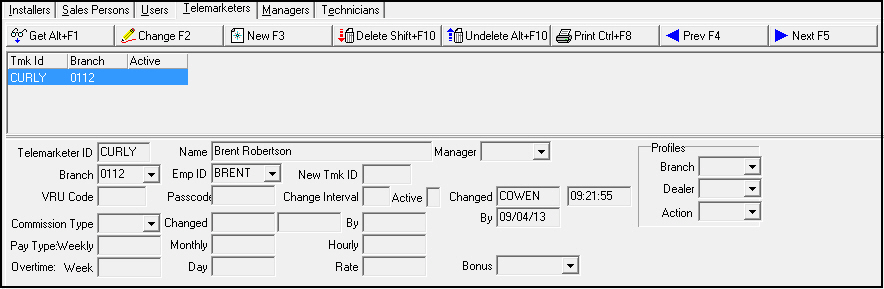
Field/Column Descriptions — Telemarketers Tab
The following table describes the fields and columns used in the Telemarketers tab.
Field/Column |
Description |
Telemarketer ID |
Telemarketer ID assigned to this employee. |
Branch |
Branch at which this Telemarketer ID is valid. If this field is blank, this Telemarketer is valid at all branches. |
Active |
If this field is blank, the employee is an active employee in the company. If this field displays a (-) dash, the employee has been terminated or is inactive. O When marked inactive, the ID no longer appears in menus throughout SBN. |
Telemarketer ID |
Telemarketer ID assigned to this employee. |
Name |
Employee name associated with this Telemarketer ID. |
Manager |
Manager of the specified employee. |
Profiles |
|
Branch |
You may select a branch ID to include in the employee’s profile. (This menu originates from program #1530.) |
Dealer |
You may select a dealer ID to include in the employee’s profile. (This menu originates from program #1743.) |
Branch |
Branch at which this Telemarketer ID is valid. If this field is blank, this Telemarketer is valid at all branches. |
Emp ID |
Employee ID associated with the specified Telemarketer ID. Use this field to reassign the specified Telemarketer ID to a different employee. |
New Tmk ID |
New employee ID associated with the specified Telemarketer ID. Use this field to replace the existing Telemarketer ID with a new one. After you save the information in this field, the data in this field moves to the Telemarketer ID field, and this field becomes blank again. |
VRU Code |
VRU code assigned to this employee. |
Passcode |
Passcode assigned to this employee. |
Change Interval |
Number of days after which SBN prompts employees to change their passcodes. |
Active |
If this field is blank, the employee is an active employee in the company. If this field displays a (-) dash, the employee has been terminated or is inactive. O When marked inactive, the ID no longer appears in menus throughout SBN. |
Changed |
Date and time that this employee’s VRU code and passcode last changed. |
By |
ID of the user who last changed this employee’s VRU code or passcode. |
Commission Type |
Type of commission for this employee. |
Changed |
Date and time that this employee’s commission type last changed. |
By |
ID of the user who last changed this employee’s commission type. |
Pay Type Select only one pay type. |
|
Weekly |
Weekly salary for this employee, if paid weekly. |
Monthly |
Monthly salary for this employee, if paid monthly. |
Hourly |
Hourly rate for this employee, if hourly. |
Overtime You may only use the following fields if pay type entered is hourly. |
|
Week |
Minimum number of hours this employee must work in a week before becoming eligible for overtime. |
Day |
Minimum number of hours this employee must work in a day before becoming eligible for overtime. |
Rate |
Percentage of pay rate received by this employee for working overtime. |
Bonus |
Bonus type assigned to this employee. |
The Managers Tab
The following graphic shows the Managers tab of Personnel (program #1811). You can set up a manager in this program only. The fields in the upper pane of the Manager tab display the manager IDs associated with the selected employee. The fields in the lower pane of the tab display details about each manager ID associated with the selected employee.
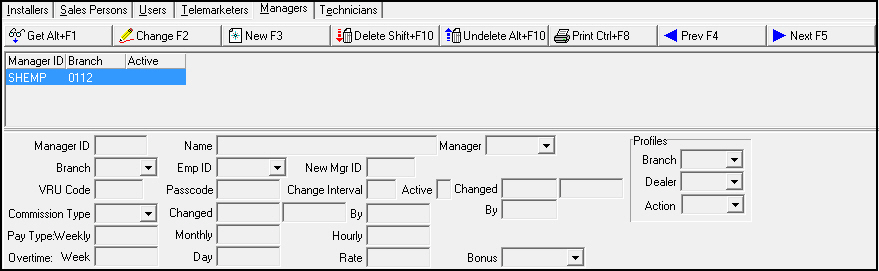
Field/Column Descriptions — Managers Tab
The following table describes the field and columns used in the Managers tab.
Field/Column |
Description |
Manager ID |
Manager ID assigned to this employee. |
Branch |
Branch at which this Manager ID is valid. If this field is blank, this Manager is valid at all branches. |
Active |
If this field is blank, the employee is an active employee in the company. If this field displays a (-) dash, the employee has been terminated or is inactive. O When marked inactive, the ID no longer appears in menus throughout SBN. |
Manager ID |
Manager ID that is assigned to this employee. |
Name |
Employee name associated with this Manager ID. |
Manager |
Manager of the specified employee. |
Profiles |
|
Branch |
You may select a branch ID to include in the employee’s profile. (This menu originates from program #1530.) |
Dealer |
You may select a dealer ID to include in the employee’s profile. (This menu originates from program #1743.) |
Branch |
Branch at which this Manager ID is valid. If this field is blank, this Manager is valid at all branches. |
Emp ID |
Employee ID associated with the specified Manager ID. Use this field to reassign the specified Manager ID to a different employee. |
New Mgr ID |
New employee ID associated with the specified Manager ID. Use this field to replace the existing Manager ID with a new one. After you save the information in this field, the data in this field moves to the Manager ID field, and this field becomes blank again. |
VRU Code |
VRU code assigned to this employee. |
Passcode |
Passcode assigned to this employee. |
Change Interval |
Number of days after which SBN prompts users to change their passcode. |
Changed |
Date and time that this employee’s VRU code and passcode were last changed. |
By |
ID of the user who last changed this employee’s VRU code or passcode. |
Commission Type |
Type of commission for this employee. |
Changed |
Date and time that this employee’s commission type last changed. |
By |
ID of the user who last changed this employee’s commission type. |
Pay Type Select only one pay type. |
|
Weekly |
Weekly salary for this employee, if paid weekly. |
Monthly |
Monthly salary for this employee, if paid monthly. |
Hourly |
Hourly rate for this employee, if paid hourly. |
Overtime You may only use the following fields if pay type entered is hourly. |
|
Week |
Minimum number of hours this employee must work in a week before being eligible for overtime. |
Day |
Minimum number of hours this employee must work in a day before being eligible for overtime. |
Rate |
Percentage of pay rate received by this employee for working overtime. |
Bonus |
Bonus type assigned to this employee. |
The Technicians Tab
The following graphic shows the Technicians tab of Personnel (program #1811). You may also set up technicians in Technicians (program #1864). The columns display any technician information on the selected employee. The fields show details about technician information for the selected employee.
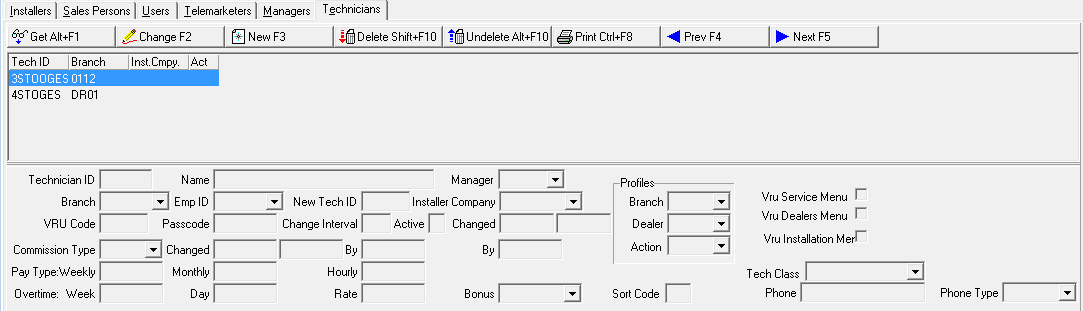
Field/Column Descriptions — Technicians Tab
The following table describes the fields and columns used in the Technicians tab.
Field/Column |
Description |
Technician ID |
Technician ID assigned to this employee. |
Branch |
Branch at which this Technician ID is valid. If this field is blank, this Technician is valid at all branches. |
Installer Company |
Company name for a subcontracting technician. |
Active |
If this field is blank, the employee is an active employee in the company. If this field displays a (-) dash, the employee has been terminated or is inactive.
|
Technician ID |
Technician ID assigned to this employee. |
Name |
Employee name associated with this Technician ID. |
Manager |
Manager of the specified employee. |
Profiles |
|
Branch |
You may select a branch ID to include in the employee’s profile. (This menu originates from program #1530.) |
Dealer |
You may select a dealer ID to include in the employee’s profile. (This menu originates from program #1743.) |
Branch |
Branch at which this Technician ID is valid. If this field is blank, this Technician is valid at all branches. |
Emp ID |
Employee ID associated with the specified Technician ID. Use this field to reassign the specified Technician ID to a different employee. |
New Tech ID |
New employee ID associated with the specified Technician ID. Use this field to replace the existing Technician ID with a new one. After you save the information in this field, the data in this field moves to the Technician ID field, and this field becomes blank again. |
Installer Company |
Company name for a subcontracting technician. |
VRU Code |
VRU code assigned to this employee. |
Passcode |
Passcode assigned to this employee. |
Change Interval |
Number of days after which SBN prompts the user to change their passcode. |
Active |
If this field is blank, the employee is an active employee in the company. If this field displays a (-) dash, the employee has been terminated or is inactive.
|
Changed |
Date and time that this employee’s VRU code and passcode last changed. |
By |
ID of the user who last changed this employee’s VRU code or passcode. |
Commission Type |
Type of commission for this employee. |
Changed |
Date and time that this employee’s commission type last changed. |
By |
ID of the user who last changed this employee’s commission type. |
Pay Type Select only one pay type. |
|
Weekly |
Weekly salary for this employee, if paid weekly. |
Monthly |
Monthly salary for this employee, if paid monthly. |
Hourly |
Hourly rate for this employee, if paid hourly. |
Overtime You may only use the following fields if pay type entered is hourly. |
|
Week |
Minimum number of hours this employee must work in a week before becoming eligible for overtime. |
Day |
Minimum number of hours this employee must work in a day before becoming eligible for overtime. |
Rate |
Percentage of pay rate received by this employee for working overtime. |
Bonus |
Bonus type assigned to this employee. |
Profiles |
|
Branch |
Branch Profile for this employee. The branch profile controls which parts of the customer database this employee can access. With this profile, you can restrict users to a certain branch, a group of branches, or prevent them from looking at accounts associated with a given branch. (This menu originates from program #1740.) |
Dealer |
Dealer profile for this employee. The Branch and Dealer profiles control which parts of the customer database this employee can access. If you leave Branch/Dealer profiles blank, the user can access the entire database. (This menu originates from program #1743.) |
Action |
Action profile for this employee. The Action profile controls which programs and functions this employee can access. (This menu originates from program #1502.) |
Sort Code |
Code (0-9) that may be used to determine Resource ID (Technician) sort order in Scheduling (program #0563) Detail View. |
Tech Class |
Technician class for this employee. (This menu originates from program #1590/70.) |
Button Functions
The following table displays the buttons, describes the shortcut keys, actions, and functionality.
Button |
Name |
Shortcut Key |
Action |
Description |
|
Get |
ALT+F1 |
1811/ 1 |
Get record. |
|
Change |
F2 |
1811/ 2 |
Change selected record. |
|
New |
F3 |
1811/ 3 |
Create new record. |
|
Delete |
SHIFT+F10 |
1811/ 4 |
Delete selected record. |
|
Undelete |
ALT+F10 |
1811/ 5 |
Restore deleted record. |
|
CTRL+F8 |
1811/ 6 |
Print selected records. |
|
|
Search |
F6 |
1811/ 7 |
Search for existing Agencies. |
|
Zoom |
F10 |
1811/10 |
Zoom in/out of sublevel. |
|
Tear |
[ ] |
1811/10 |
Lists details of selected field. |
|
Previous |
F4 |
1811/ 8 |
Select last record. |
|
Next |
F5 |
1811/ 9 |
Select next record. |











Modifications and Updates to Personnel
The following table lists modifications and updates to the Personnel document.
Mod Number |
Date |
Description |
07.79.23022, 08.79.09450 |
11/08/13 |
Added Priority and Chronological check boxes to Users tab |
n/a |
08/22/14 |
Images updated. |
n/a |
08/16/17 |
Image updated. |
08.86.10815, 08.86.10811, 08.86.10810, 08.86.10809, 08.86.10808, 07.86.25119, 07.86.25109, 07.86.25107 |
08/16/17 |
Added Extension 1 text field to Users tab. (Applicable only to Company #162). |
07.93.26822, 08.93.12110, 07.93.26823, 08.93.12111 |
12/20/20 |
New Company dropdown added within Personnel (#1811) on the top pane. Images updated. |