
SIM Phone
SIM Phone
SIM Phone
Module: Account Management
Overview
Use the SIM Phone tab in Data Entry (program #559) to manage SIM card information for Global System for Mobile communications (GSM) phone numbers tied to panels on the selected installation. Action 559/460 control access to this tab.
You must use SIM (program #1618) to add SIM card data to SBN. Five ATOM stored procedures import and maintain entries in this program. Use these APIs with large files of SIM entries provided by the cellular company to insert SIM card entries into the table. Use the following procedures:
This document covers the following topics:
Scrolling through SIM Phone Entries
Navigating to SIM Phone
Use the following steps to navigate to the SIM Phone tab:
1. From the main SBN toolbar, select Menu.
2. From the drop-down menu, select Go To.
3. In the Go To Program dialog box, type in "559" and press Enter.
w Data Entry Master and Basics opens.
4. Choose the SIM Phone tab in the lower pane of Data Entry.
The SIM Phone Tab
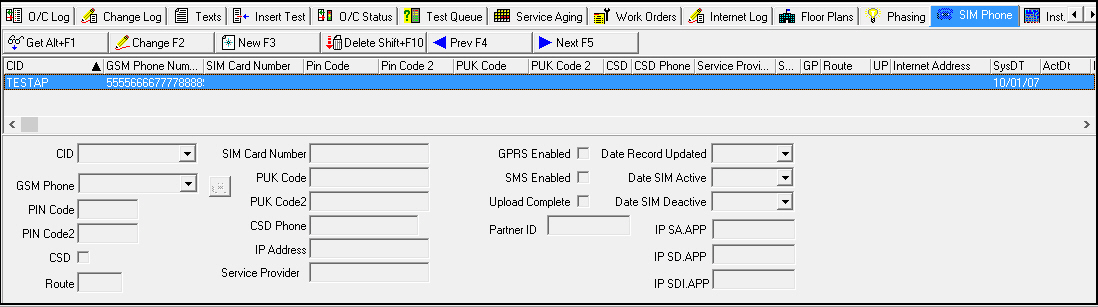
The following graphic shows the SIM Phone tab with information displayed.
Field/Column Descriptions
The following table describes the fields and columns used in the SIM Phone tab.
|
Column |
Description |
|
CID |
Customer ID attached to the GSM panel. |
|
GSM Phone Number |
Panel phone number. The button beside this field activates the auto-dialer and places a call to the panel phone number. Note: Option ba398 controls the index of the GSM field. When off, the GSM Number for this SIM card must be unique. |
|
SIM Card Number |
Number assigned to the SIM card. |
|
Pin Code |
This field holds up to four alphanumeric characters. |
|
Pin Code 2 |
This field holds up to eight alphanumeric characters. |
|
PUK Code |
This field holds up to 20 alphanumeric characters. |
|
PUK Code 2 |
This field holds up to 20 alphanumeric characters. |
|
CSD |
If this check box is selected, Circuit Switch Data (CSD) is active. |
|
CSD Phone |
This field holds up to 20 alphanumeric characters. |
|
Service Provider |
Name of the cellular service provider for this SIM card. |
|
SMS Enabled |
If this check box is selected, Short Message Service (SMS) is active. |
|
GPRS Enabled |
If this check box is selected, General Packet Radio Service (GPRS) is active. |
|
Date Record Updated |
Date the record was last updated. If you leave the Date Record Updated field blank, SBN automatically enters today's date. |
|
Route |
This field holds up to four alphanumeric characters.. |
|
Upload Complete |
If this check box is selected, the upload of the SIM card information to the installation is complete. |
|
IP Address |
Internet address. Note: Option ba398 controls the index of the IP Address field. When on, the IP Address for this SIM card must be unique. |
|
System Date |
Date a user last updated the entry. Note: If you leave this field blank, SBN automatically enters today's date. |
|
Active Date |
Date a user activated the SIM card. |
|
Deactive Date |
Date a user deactivated the SIM card. |
|
Partner ID |
Customer-defined field. This field holds up to ten characters. |
|
IP.SA.APP |
Customer-defined field for additional IP addresses. |
|
IP.SD.APP |
Customer-defined field for additional IP addresses. |
|
IP.SDI.APP |
Customer-defined field for additional IP addresses. |
Scrolling through SIM Phone Entries
You may easily navigate through the list of SIM Phone entries by choosing:
-
Next Record to move forward through the list, or
-
Previous Record to move backwards through the list.
Viewing SIM Phone Details
You can view the details of an entry in the lower pane fields.
Use the following steps to view the details of a SIM Phone:
1. Select the entry for which you want to view the details.
2. Double-click your selection or choose Get.
w The fields below display the details of the selected SIM Phone.
Changing SIM Phone Details
You can change all details of an SIM Phone entry except for the GSM Phone Number.
Note: When option ba320 is on, SBN compares the caller ID to the SIM Card Number. When off, SBN compares the caller ID to the panel phone number stored in the CID grid in Data Entry Master (program #559).
Use the following steps to change the details of a SIM Phone:
1. Select the SIM Phone entry you want to change.
2. Choose Change.
w The fields in the lower pane open for changes.
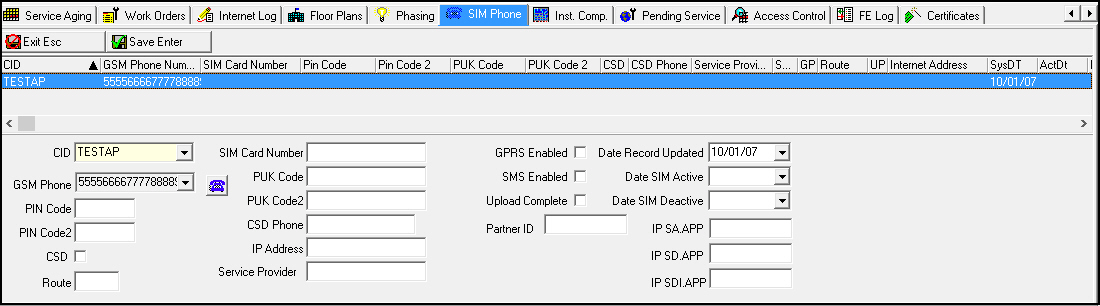
3. Enter changes, as needed.
4. Choose Save.
Deleting a SIM Phone Entry
You can delete a SIM Phone entry from the selected installation.
Use the following steps to delete a SIM Phone from the selected installation:
1. Select the entry you want to delete.
2. Choose Delete.
w A Confirmation dialog box appears: Are you Sure?
3. Choose Yes.
w SBN deletes the SIM Phone from the installation.
Related Programs
The following table lists programs related to the SIM Phone tab.
|
Program |
Number |
Document Link |
Description |
|
SIM |
1618 |
Define and update SIM card entries. Use the five ATOM procedures to import SIM card data into the program. |
|
|
Data Entry Master and Basics |
559 |
The program from which you can access the SIM Phone tab. |
Button Functions
The following table displays the buttons, describes the shortcut keys, actions, and functionality.
|
Button |
Name |
Shortcut Key |
Action |
Description |
|
|
Get Record |
Alt+F1 |
559/461 |
View SIM Phone details. |
|
|
Change Record |
F2 |
559/462 |
Change selected SIM Phone entry. |
|
|
New Record |
F3 |
559/463 |
Create a new SIM Phone entry. |
|
|
Delete Record |
shift+F10 |
559/464 |
Delete selected SIM Phone from the installation. |
|
|
Previous Record |
F4 |
559 |
Select last record. |
|
|
Next Record |
F5 |
559 |
Select next record. |
|
|
Exit |
Esc |
559 |
Exit without saving. |
|
|
Save |
Enter |
559 |
Save existing record. |








Modifications and Updates to SIM Phone
The following table lists modifications and updates to the SIM Phone document.
|
Mod Number |
Date |
Description |
|
n/a |
06/30/09 |
document rewritten |
|
07.02.19027, 08.03.07084 |
10/01/09 |
Added New button. |
|
07.02.19304, 07.02.19315 |
01/07/10 |
If a user leaves the Date Record Updated field blank, SBN automatically enters today's date. |
|
07.02.19808, 08.03.07604 |
06/29/10 |
Added auto-dialer button for the GSM Phone field. |
|
n/a |
7/29/14 |
Images updated. |