
Cancel Contract Queue
Cancel Contract Queue
Cancel Contract Queue
Program #: 1869
Module: Accounting
Overview
Use the Cancel Contract Queue (program #1869) to search for and view all contracts currently being cancelled or recently cancelled.
The Cancel Contract Queue
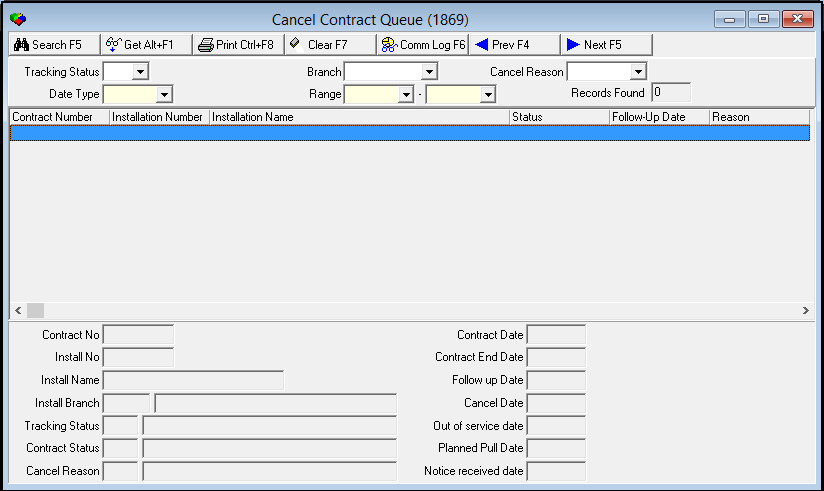
The following graphic shows the Cancel Contract Queue as the program opens. The window contain three panes:
The upper pane, in which you select search parameters for cancelled contracts
The middle pane, which displays the results that match your search parameters
The lower pane, which displays information about selected cancelled contracts
Field Descriptions - Search Parameters
The following table describes the search parameters used in the upper pane of the Cancel Contract Queue.
Field |
Description |
Tracking Status |
You may search for contracts by tracking status. (This menu originates from program #1580.) |
Branch |
You may search for contracts by installation branch associated with the contract. (This menu originates from program #1530.) |
Cancel Reason |
You may search for contracts by cancel reason. (This menu originates from program #1582.) |
Date Type |
You may search for contracts by type of date selected in Contract Master. |
Range (From) |
You may search for contracts cancelled within a range of dates. Select a beginning date for the range. |
(Range
- To) |
You may search for contracts cancelled within a range of dates. Select an ending date for the range. |
Records Found |
The number of contracts that match your search parameters. |
Column Descriptions - Search Results
The following table describes the columns used in the search results pane of the Cancel Contract Queue.
Column |
Description |
Contract Number |
Contract number of the cancelled contract. |
Installation Number |
Installation number attached to the contract. |
Installation Name |
Customer name for the installation attached to the contract. |
Status |
Current contract status, if applicable. |
Follow-up Date |
Follow-up date selected when contract was cancelled, if applicable. |
Reason |
Cancel reason code selected when contract was cancelled, if applicable. |
Field Descriptions - Details
The following table describes the fields used in the detail pane of the Cancel Contract Queue.
Field |
Description |
Contract Number |
Contract number of the cancelled contract. |
Installation Number |
Installation number attached to the contract. |
Installation Name |
Customer name for the installation attached to the contract. |
Install Branch |
Identifies the installation branch associated with the contract. |
Installation
Branch Name |
The name of the installation branch. |
Tracking Status |
Tracking status code selected in Contract Master. |
Tracking Status Description (No label) |
Text description of the tracking status. |
Contract Status |
Code that identifies the current status of the contract. |
Contract Status Description (No label) |
Text description of the contract status. |
Cancel Reason |
Identifies the reason for the cancel that was selected in Contract Master. |
Cancel Reason Description (No label) |
Text description of the cancel reason. |
Contract Date |
Start date of the contract. |
Contract End Date |
Scheduled end date of the contract. |
Follow up Date |
Follow-up date selected when contract was cancelled. |
Cancel Date |
Date the contract was cancelled. |
Out of Service Date |
Date selected when service terminated for the contract; used to calculate the contract’s remaining balance and to reverse any deferred cycle, installment, and/or pre bill invoicing. |
Planned Pull Date |
Date selected in Contract Master to determine when you plan to pull the equipment. |
Notice Received Date |
Date you received a notice of discontinuance for the contract. |
Searching for Cancelled Contracts
The Contract Cancel Queue displays cancelled contracts after you perform a search.
Use the following steps to search for cancelled contracts:
1. In Contract Cancel Queue, select your search parameters.
Note: For more information on the parameters, see Field Descriptions - Search Parameters.
2. Choose Search.
w The middle pane of the window displays the search results.
3. To perform another search, choose Clear Screen to clear the search parameters.
4. Repeat Steps 1-2.
Viewing Details of a Cancelled Contract
After you perform a search, you may view the details of a cancelled contract in the pane below the search results.
For more information on viewing details of an entry, see Common Functions in SBN.
Displaying the Communication Log
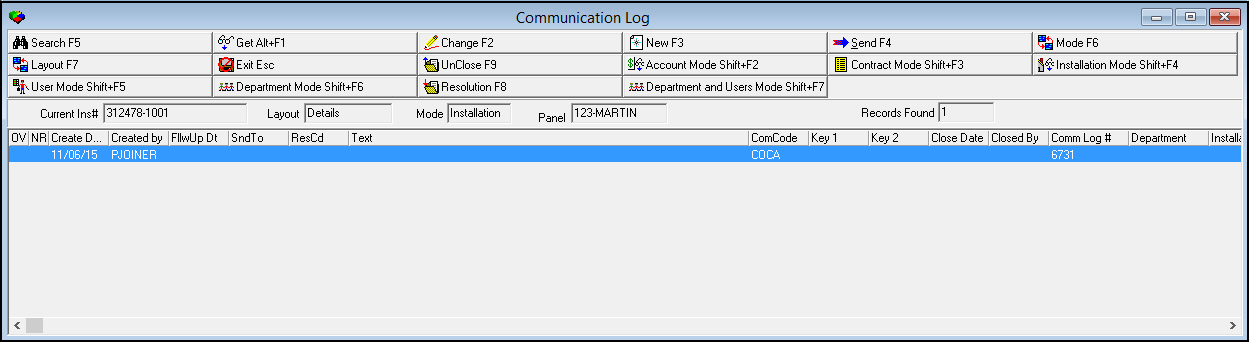
You can easily view all communications for a contract by displaying the Communication Log.
Use the following steps to view the Communication Log:
1. In Contract Cancel Queue (program #1869), perform a search for cancelled contracts.
2. Select the cancelled contract for which you want to view details.
3. Choose Communication Log.
w SBN displays the Communication Log for the selected contract.
Button Functions
The following table displays the buttons, describes the shortcut keys, actions, and functionality.
Button |
Name |
Shortcut Key |
Action |
Description |
|
Search |
f5 |
1869/ 7 |
Search for cancelled contracts. |
|
Get Record |
alt+f1 |
1869/ 1 |
View details of selected report. |
|
Print selected records |
ctrl+f8 |
1869/ 6 |
Print selected records. |
|
Clear Search Screen |
f7 |
Clear search parameters. |
|
|
Communication Log |
f6 |
1869/ 8 |
View all communications for a contract. |
|
Previous Record |
f4 |
Go to previous record. |
|
|
Next Record |
f5 |
Go to next record. |
|
|
Exit without saving |
ESC |
Exit without saving changes. |
|
|
Save New Record |
ENTER |
Save existing changes to record. |









Modifications and Updates to Cancel Contract Queue
The following table lists modifications and updates to the Cancel Contract Queue document.
Mod Number |
Date |
Description |
n/a |
7/31/14 |
Images updated. |