
Fiscal Aging Totals Report
Fiscal Aging Totals Report
Fiscal Aging Totals Report
Module: Accounting
Overview
Use the Fiscal Aging Totals report to list balances for each aging category for a specified fiscal period. You may run this report for either the current fiscal period or a previous fiscal period. Reports can also be run for specific branches, dealers, and / or ranges of both.
Note: This report will not work when option bl196 is off. When bl196 is off, SBN does not update fiscal control tables when a fiscal period is closed.
To access this report, select Fiscal Aging Totals (report #2123) from the main menu of SBN.
The Fiscal Aging Totals Report
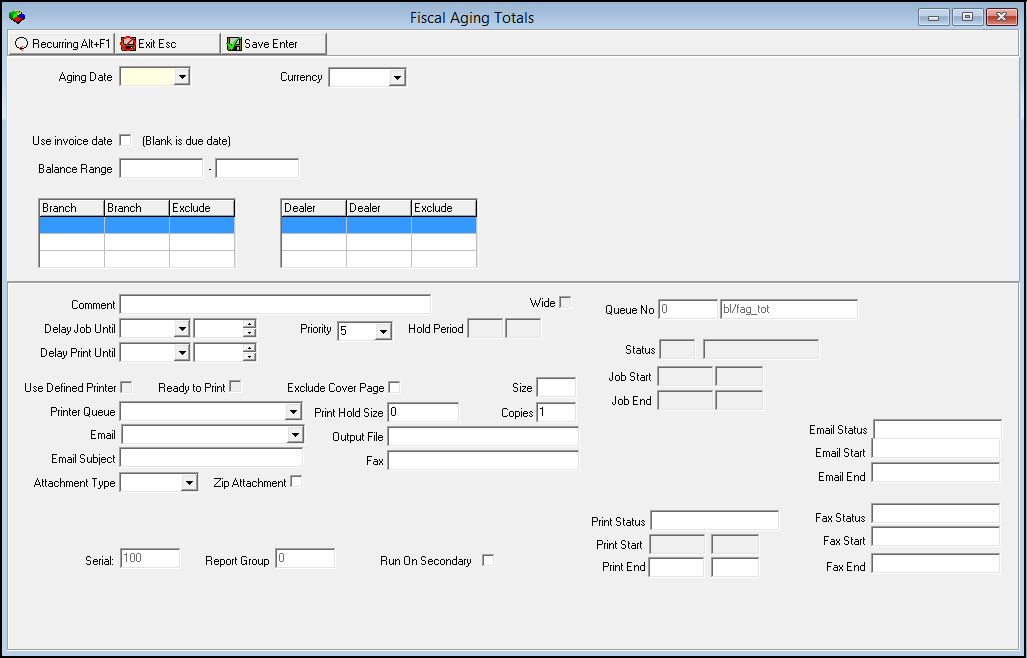
This window contains two panes: use the upper pane to define the contents of the report; use the lower pane to define the job output - how, when, and where you want the report printed.
Note: See Report Parameters Pane for information on the fields in the lower pane, which are the same in every report.
Field Descriptions
The following table describes the fields used in the upper pane of this report.
Field |
Description |
Aging Date |
You must select an aging date. Select the first day of the month on which you want to report. O This field defaults to the current month. |
Use Invoice Date |
Enter a check mark in this box to use the invoice date to determine the aging category for an invoice. O If you leave this field blank, the report uses the due date to determine the aging category. |
Balance Range |
|
Balance minimum (No label) |
You may type a range of balances to limit the report to contracts with an account balance within that range. Type the minimum balance of the range. |
Balance maximum |
You may type a range of balances to limit the report to contracts with an account balance within that range. Type the maximum account balance of the range. |
Days Past Due Range |
|
Minimum Days Past Due (No label) |
You may type a range of days past due to limit the report to contracts past due within that range. Type the minimum number of days past due of the range. |
Maximum Days Past Due (No label) |
You may type a range of days past due to limit the report to contracts past due within that range. Type the maximum number of days past due of the range. |
Branch |
You may select the appropriate branch, or range of branches, from the drop-down list. |
Dealer |
You may select the appropriate dealer, or range of dealers, from the drop-down list. Note: A dealer restriction exists whereby the dealer listed within the billing accounts must match the dealer listed in the dealer table. |
Exclude |
You may choose to exclude a branch or dealer for reporting purposes. Double-click in the column associated with the dealer or branch you want to exclude. A checkbox will appear selected. |
Running and Viewing a Report
For information on running and viewing a report, see Common Functions in SBN.
Report Example
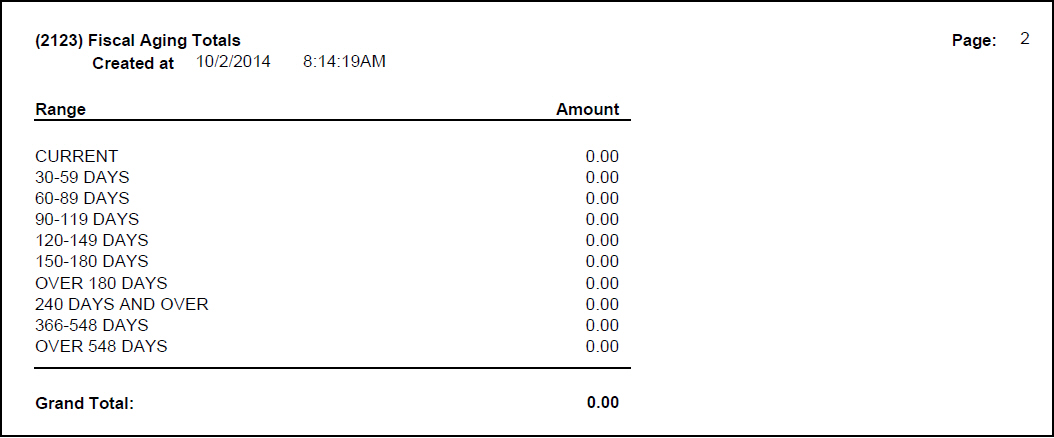
The following graphic shows an example of the output of the Fiscal Aging Totals Report.
Column Descriptions
The following table describes the columns used in the output of the report.
Column |
Description |
Range |
Displays the customer-defined aging categories. |
Amount |
Displays the open balance for each aging category. The report calculates the amount from: l Invoices l Open credits l Open balances l Write-offs l Payments |
Grand Total |
Total of all open balances for all aging categories. |
Button Functions
The following table displays the buttons, describes the shortcut keys, actions, and functionality.
Button |
Name |
Shortcut Key |
Action |
Description |
|
Open fields for recurring/template reports |
alt+f1 |
Open fields for recurring/template reports. |
|
|
Exit without saving |
esc |
Exit without saving changes to selected record. |
|
|
Save Existing Record |
enter |
Save changes to selected record. |



Modifications and Updates to Fiscal Aging Totals Report
The following table lists modifications and updates to the Fiscal Aging Totals Report document.
Mod Number |
Date |
Description |
n/a |
8/04/14 |
Images updated. |