
SBN Menu Navigation
The navigation panel on the left of SBN is the home base for moving around the application. It groups everything you'll use day-to-day into three areas: the Main Menu, Recent, and Custom 1–10. A narrow strip of icons (the "rail") down the left edge switches between these areas and exposes a few utility actions.
[IMAGE: full screenshot of the navigation panel with the rail on the left and Main Menu, Recent, Custom 1 visible on the right]
The icon rail
The rail is divided into three groups, separated by extra spacing so you can see them at a glance.
Group | Icons | What they do |
|---|---|---|
Utility
| Collapse, Settings, Themes, Help | Toggle the panel, adjust nav preferences, switch the application theme, or open help (F1 also works). |
Navigation
| Main Menu, Recent | Switch which section of the panel is showing. |
Custom shortcuts
|
| Jump between your ten custom shortcut shelves. |



Main Menu
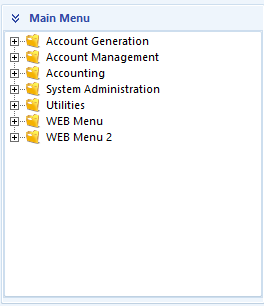
The Main Menu is a tree of folders that mirrors the product's modules: Account Generation, Account Management, Accounting, System Administration, Utilities, WEB Menu. Expand a folder to see the programs it contains; double-click a program to open it.
Recent
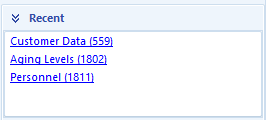
Recent is a flat list of programs you opened recently, most recent at the top. Click any entry to open the program again. The list survives across logins — closing SBN does not clear it.
Custom 1–10
Custom slots are your personal shortcut shelves. You start with ten empty slots, accessed via the 1–10 icons on the rail. Drag any program from the Main Menu or Recent into the active Custom slot to add it as a shortcut.
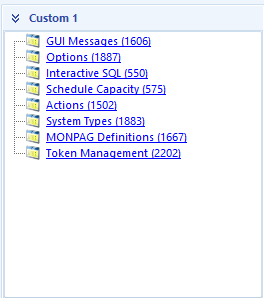
Each slot can be renamed via right-click → Rename slot…. Individual entries can be removed (right-click → Delete) or renamed (right-click → Rename (F2)).
Note: Custom slots hold programs as flat entries — there are no sub-folders. The same applies to Recent: entries are programs, not groupings. If you want to organize shortcuts by category, use the ten separate Custom slots.
Searching for a program by name or number
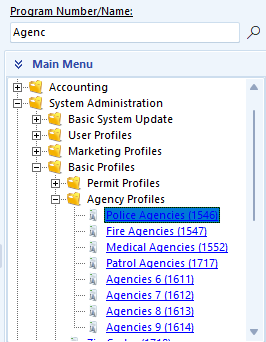
The Program Number box at the top of the navigation panel is the fastest way to open any program. Type a program number or part of its name, press Enter, and SBN opens it.
By number
Every program in SBN has a numeric action ID. Type the number into the box and press Enter — the program opens immediately. This is the canonical way to open a program when you know the number.

By name
If you don't remember the number, type any part of the program's name. Partial matches are fine; capitalization is ignored.

Press Enter to open the top match, or click the magnifying-glass icon on the right of the box to open a chooser when multiple programs match.
Toggling between number and name search
Alt+F3 flips the search box between number mode and name mode. Number mode accepts digits only; name mode accepts any text. The placeholder text inside the box tells you which mode you're in.
Themes
SBN ships with a catalog of visual themes — light, dark, branded, and accent variants. Switching themes changes the appearance of every form in the application; data and behaviour are unchanged.
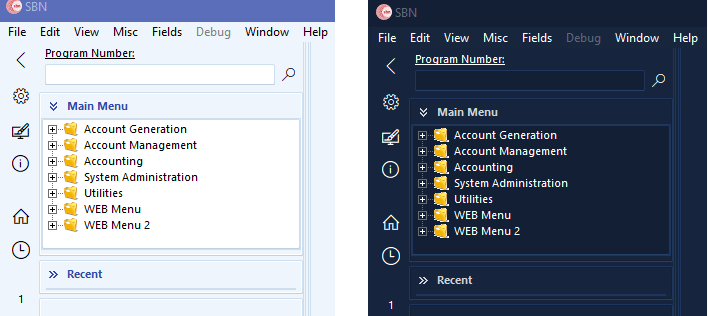
Switching themes
Click the paintbrush icon (Themes) on the icon rail. A menu lists every installed theme; click any entry to switch.
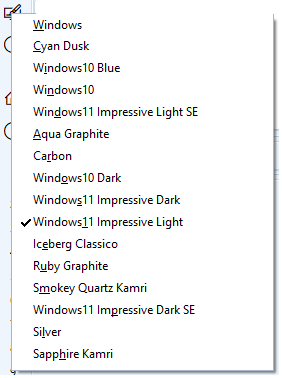
The currently-active theme has a checkmark in front of its name. SBN remembers your choice — the next time you launch, the same theme is applied before the login form appears.
When the menu won't apply a theme
If any program is open inside SBN when you click a theme, you'll see:
Close all forms before changing styles.
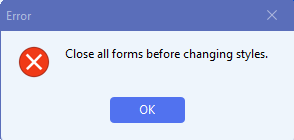
This is intentional — repainting an entire open program mid-edit can lose unsaved state. Close the open program(s) and try again. You only see this when you actively pick a theme; the startup theme load doesn't trigger it.