
Options
Options
Options
Module: Utilities
Overview
Use Options (program #1887) to view all SBN options and their settings.
SBN supports two types of options: conditional compilation options and value options. Conditional options must be set to either on or off with a + or - in the Active column of this program. Value options apply limits based on the value entered, such as a number of days or an amount of money.
Dynamic options contain a sublevel tab in which can you attach dealer IDs or translations. Translations will appear in the language defined in the user’s profile. You may attach both translations and dealer IDs to value options. However, you may attach only dealer IDs to conditional options.
To access this program, select Options (program #1887) from the main menu of SBN.
The Options Window
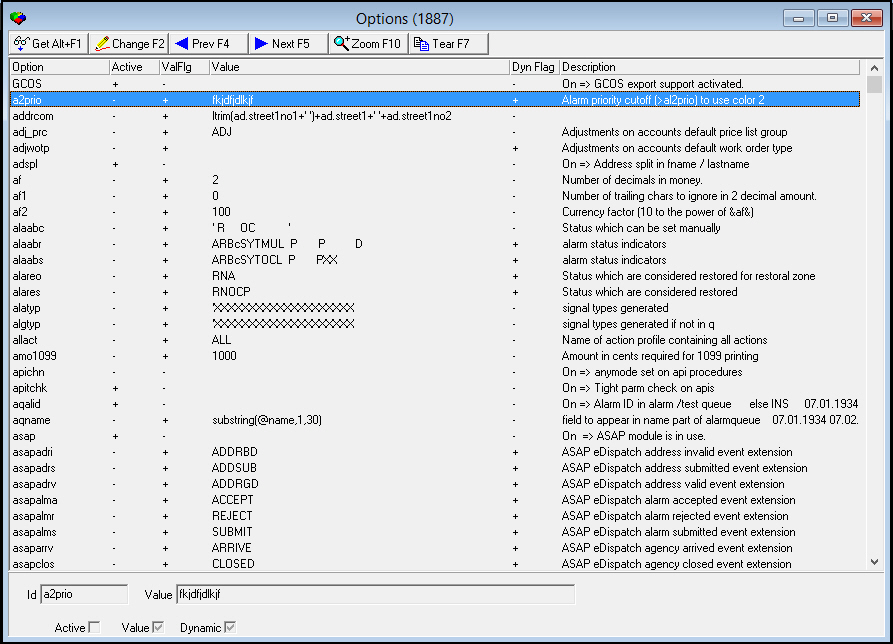
The following graphic shows Options as the program opens. The upper pane displays previously defined options.
Field/Column Descriptions
The following table describes the fields and columns used in Options.
Field/Column |
Description |
Option |
Option ID. |
Active |
Displays:
O All value options display a - in this column. |
Value Flag |
Displays:
O All conditional options display a - in this column. |
Value |
The current value assigned to a value option. O This field accepts up to 255 characters. |
Dynamic Flag |
If this column displays a +, the option is dynamic and you can change it within the program window. |
Description |
Text description of the option’s function. |
Using Common Functions
See the reference document Common Functions in SBN for more information.
Changing Dynamic Options
Both conditional and value options may be dynamic — options that you can change. If an option does not contain a + in the Dynamic column, you must enter an SR to have IBS make changes to the option.
Use the following steps to change a dynamic option:
1. In Options, select the option you want to change.
2. Double-click your selection or choose Get Record.
3. Choose Change Record.
‰ Fields in the lower pane open for changes.
On a Conditional option, the Active field opens.

On a Value option, the Value text field opens.

4. Enter changes.
Zooming into the Sublevel
Dynamic options contain a sublevel tab in which can you attach dealer IDs or translations. Translations will appear in the language defined in the user’s profile. You may attach both translations and dealer IDs to value options. However, you may attach only dealer IDs to conditional options.
Note: Not all dynamic options will pick up translations automatically. Some options require SQL updates to utilize translations. If an option does not display the correct translation, please contact IBS for support.
Note: Actions 1887/10-14 control access to the sublevel tab and functions.
The Dealer / Translations Tab
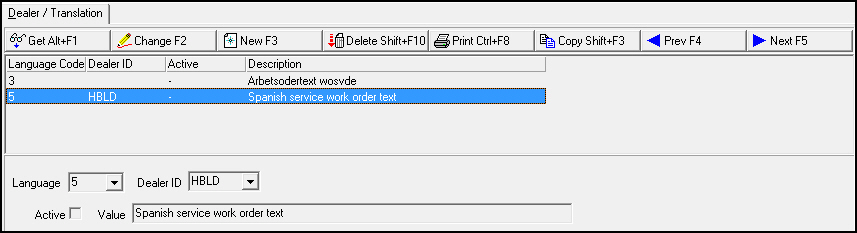
The following graphic shows the Dealer / Translation tab. The tab displays previously defined translations and previously associated dealers.
Field/Column Descriptions
The following table describes the fields and columns used in the Dealer / Translations tab.
Field/Column |
Description |
Language Code |
Code that identifies the language of the associated translation. |
Dealer ID |
ID of the dealer attached to the option. |
Active |
Identifies the status of active options:
|
Description / Value |
Translated text of the value. O This field accepts up to 255 characters. |
Changing the Details of a Dynamic Option
After you add details to a dynamic option, you may change
The translation of a value
The status of an active option
Use the following steps to change the details of a dynamic option:
1. In the Dealer / Translations tab, select the option for which you want to change the details.
2. Double-click your selection or choose Get Record.
3. Choose Change Record.
‰ Fields in the lower pane open for changes.
On a Conditional option, the Active field opens.
On a Value option, the Value text field opens.
4. Enter changes, as needed.
5. Choose Save.
Adding Details to a Dynamic Option
You can add details to a dynamic option.
Use the following steps to add details to a dynamic option:
1. In Options (program #1887), select the dynamic option to which you want to add details.
2. Choose Zoom in/out of Sublevel.
‰ The Dealer / Translations tab appears.
3. In the Dealer / Translations tab, choose New Record.
If the dynamic option is a Value option, the Language, Dealer ID, and Value fields open in the lower pane of the window.

On a Value option, the Value text field opens.

4. Complete fields.
‰ Choose Save. SBN adds the details to the selected dynamic option.
5. Repeat steps 3-5 for each dealer ID, translation, or Active status you want to attach to the selected dynamic option.
Button Functions
The following table displays the buttons, describes the shortcut keys, actions and functionality.
Button |
Name |
Shortcut Key |
Action |
Description |
|
Get Record |
alt+f1 |
1887/ 1 |
View details of selected option. |
|
Change Record |
f2 |
1887/ 2 |
Change details of selected option. |
|
Previous Record |
f4 |
Go to next record. |
|
|
Next Record |
f5 |
Go to previous record. |
|
|
Zoom in/out of sublevel |
f10 |
1887/10 |
Access Dealer/Translations tab. |
|
Tear Away Selected Tab |
f7 |
View tab in separate window. |
|
|
New Record |
f3 |
1887/13 |
Create new record. |
|
Delete Record |
shift+f10 |
1887/14 |
Delete selected record. |
|
Exit without saving |
esc |
Exit without saving changes to selected record. |
|
|
Save Existing Record |
enter |
Save changes to selected record. |










Modifications and Updates to Options
The following table lists modifications and updates to the Options document.
Mod Number |
Date |
Description |
n/a |
09/02/14 |
Images updated. |
07.87.25365 |
06/01/17 |
mo257 option added to allow alarms to be seen in ascending order if in chronological mode if enabled. |
08.88.11244, 07.88.25650, 07.88.25668, 08.88.11257 |
02/05/18 |
New "ba532" option. When on, it does not automatically check the QC complete box for Patrol tickets in program #705. |
08.88.11295, 07.88.25708, 08.88.11289, 07.88.25695 |
03/08/18 |
New "tm026" option. When on, it will store the Super User action profile to use. |
08.88.11302, 07.88.25730, 08.88.11277, 07.88.25679 |
03/22/18 |
ma048 and ma049 added. ma048 when On will use the SEFCO calculation. ma049 is the SEFCO calculation control values. |
08.89.11366, 07.89.25845, 08.89.11365, 07.89.25844 |
05/17/18 |
Added two new options: albgcol (Alarm Log Background Color) and aqbgcol (Alarm Queue Background Color) that can change the background colors of either section to a different default color. |
07.88.25823, 07.88.25817 |
05/17/18 |
Added options tm027-tm034. These options help to generate a Communication Log when a new inquiry is created. |
08.89.11392, 07.89.25878, 07.89.25871, 08.89.11384 |
06/08/18 |
Added options ba536. When On, it protects misc_date 1 and 2 fields if the Work Order is approved. Added Option ba537. When On, it will open specific fields within the Work Order. |