
SIM
SIM
SIM
Module: Utilities
Overview
Use SIM (program #1618) to view, update, and define SIM card entries. Option ba320 controls the SIM Caller ID functionality that you will use to tie SIM card entries to panels. When a SIM entry matches a CID, SBN enters the GSM phone number into the Panel Phone in the CID entry. It also copies all of the SIM data into the SIM Phone tab in Data Entry. You can change SIM data in the SIM Phone tab. For more information, see the SIM Phone.
Five ATOM stored procedures import and maintain entries in this program. Use these APIs with large files of SIM entries provided by the cellular company to insert SIM card entries into the table. Please use the following procedures:
For more information on these procedures, please refer to the ATOM documentation.
Navigating to SIM
Use the following steps to navigate to SIM:
1. From the main SBN toolbar, select Menu.
2. From the drop-down menu, select Go To.
3. In the Go To Program dialog box, type in "1618" and press Enter.
w The SIM program opens.
The SIM Window
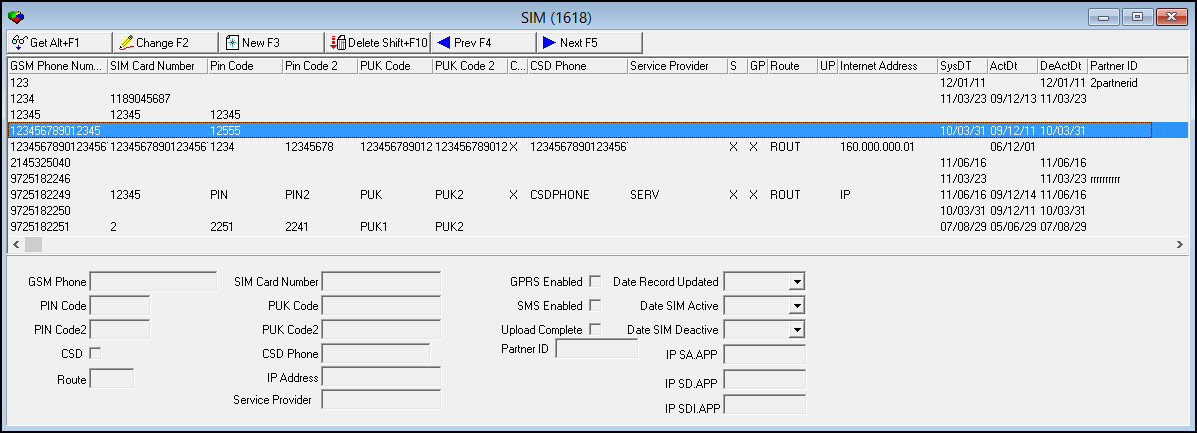
The following graphic shows SIM as the program opens. The program displays all SIM information imported or entered into the program.
Field/Column Descriptions
The following table describes the fields and columns used in the SIM Phone tab.
|
Field/Column |
Description |
|
GSM Phone Number |
Panel phone number. |
|
SIM Card Number |
Number assigned to the SIM card. |
|
Pin Code |
This field holds up to four alphanumeric characters. |
|
Pin Code 2 |
This field holds up to eight alphanumeric characters. |
|
PUK Code |
This field holds up to 20 alphanumeric characters. |
|
PUK Code 2 |
This field holds up to 20 alphanumeric characters. |
|
CSD |
An X indicates the CSD is active. |
|
CSD Phone |
CSD phone number. |
|
Service Provider |
Name of the cellular service provider for this SIM card. |
|
SMS Enabled |
An X indicates the SMS is active. |
|
GPRS Enabled |
An X indicates the GRPS is active. |
|
Route |
Four character code. |
|
Upload Complete |
An X indicates the upload of the SIM card information to the installation is complete. |
|
IP Address |
Internet address. |
|
System Date |
Date a user last updated the record. |
|
Active Date |
Date a user activated the SIM card. |
|
Deactive Date |
Date a user deactivated the SIM card. |
|
Partner ID |
This field holds up to 10 alphanumeric characters. |
|
IP SA.APP |
Customer-defined field for additional IP addresses. |
|
IP SD.APP |
Customer-defined field for additional IP addresses. |
|
IP SDI.APP |
Customer-defined field for additional IP addresses. |
Navigating through SIM Entries
You can easily navigate through the list of SIM entries.
Use the following steps to navigate through the list of entries:
-
Choose Next Record to move forward through the list of entries.
-
Choose Previous Record to move backward through the list of entries.
Viewing the Definition of a SIM Entry
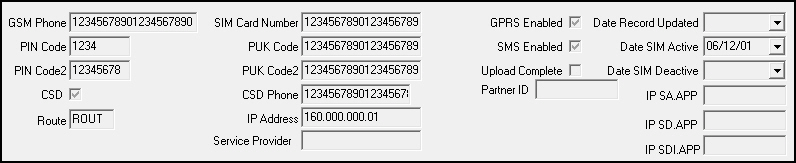
You can view the definition of a SIM entry in the fields below the display list.
Use the following steps to view the definition of SIM entries:
1. Select the entry for which you want to view the definition.
2. Double-click your selection or choose Get.
w The fields in the lower pane of the window fill with the definition of the selected entry.
Changing a SIM Entry
Use the following steps to change an entry:
1. Select the entry you want to change.
2. Double-click your selection or choose Get.
w The fields in the lower pane of the window fill with the definition of the selected entry.
3. Choose Change.
w Fields in the lower pane of the window open.
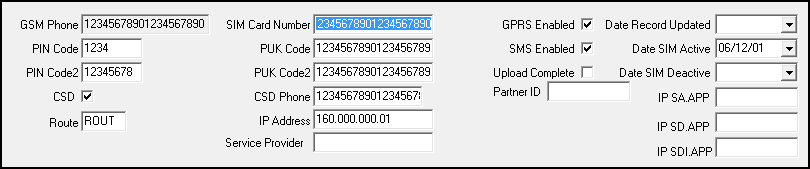
4. Enter changes in the fields, as needed.
5. Choose Save.
Creating a New SIM Entry
You can create a new SIM entry.
Use the following steps to create a new SIM entry:
1. Choose New Record.
w The fields in the lower pane of the window open.
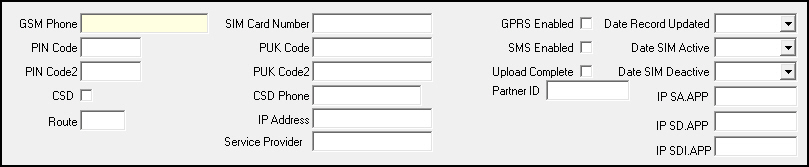
2. Complete the fields.
3. Choose Save.
w SBN adds the new entry to the list of existing SIMs.
Deleting a SIM Entry
Use the following steps to delete a SIM entry:
1. Select the SIM entry you want to delete.
2. Choose Delete.
w SBN asks you to confirm your selection.
3. Choose Yes.
w SBN deletes the selected entry from SIM (program #1618).
Button Functions
The following table displays the buttons, describes the shortcut keys, actions and functionality.
|
Button |
Name |
Shortcut Key |
Action |
Description |
|
|
Get Record |
alt+f1 |
1618/ 1 |
View details of selected entry. |
|
|
Change Record |
f2 |
1618/ 2 |
Change details of selected entry. |
|
|
New Record |
f3 |
1618/ 3 |
Create new entry. |
|
|
Delete Record |
shift+f10 |
1618/ 4 |
Delete selected entry. |
|
|
Previous Record |
f4 |
1618 |
Go to previous record. |
|
|
Next Record |
f5 |
1618 |
Go to next record. |
|
|
Exit without saving |
esc |
1618 |
Exit without saving changes to selected record. |
|
|
Save Existing Record |
enter |
1618 |
Save changes to selected record. |








Modifications and Updates to SIM
The following table lists modifications and updates to the SIM document.
|
Mod Number |
Date |
Description |
|
n/a |
09/02/14 |
Images updated. |