
Disposition Report
Disposition Report
Disposition Report
Module: Account Management
Overview
Use the Disposition report to generate statistics on dispositions and event actions, sorted by
Hour
User
Branch
User’s branch restrictions apply.
Dispositions include
False
Real
Cancelled
Out of test
Undetermined
Down cmplt
User error
Service
Open / Close
Out of run
Event 120
To access this report, select Disposition Report (report #1980) from the main menu of SBN.
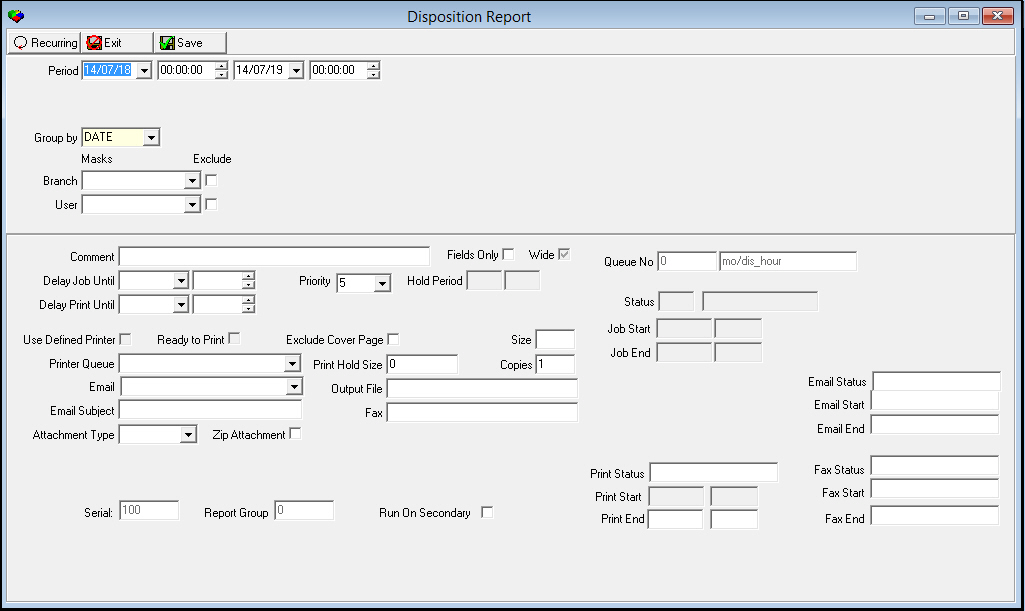
The Disposition Report
This window contains two panes: use the upper pane to define the content of the report; use the lower pane to define the job output - how, when, and where you want to print the report.
Note: See Report Parameters Pane for information on the fields in the lower pane, which are the same in every report
Field Descriptions
The following table describes the fields used in the upper pane of the Disposition Report.
Note: You can use wildcard characters in selected fields. For more information on using wildcards, see Searches.
Field |
Wildcards Allowed |
Description |
Period |
This report displays data based on the report user’s time, as defined in the user’s Misc. Profile. If the report user’s profile does not include a time zone, SBN defaults to the time zone specified in options gmtofs0 and dstofs0. O Do not run this report across a period in which Daylight Savings Time changes; instead, run two reports. |
|
Date
- From |
No |
You must select a date or a range of dates to limit the report to dispositions that occurred during that range. Select the beginning date of the range. O This field defaults to the current date. |
Time
- From |
No |
You may select a range of time to limit the report to dispositions that occurred during that range. Select the beginning time of the range. |
Date
- To |
No |
You may select a range of dates to limit the report to dispositions that occurred during that range. Select the ending date of the range. O This field defaults to tomorrow’s date. |
Time
- To |
No |
You may select a range of time to limit the report to dispositions that occurred during that range. Select the ending time of the range. |
Group by |
No |
You must select a sorting parameter for this report: l Date l User l Branch |
Branch |
Yes |
You may select a specific branch to limit the report to dispositions associated with that branch or use the % wildcard to include all branches. (This menu originates from program #1530). |
Exclude |
No |
You may exclude a specific branch from this report by selecting the branch number and then entering a check mark in this box. |
User |
Yes |
You may select a specific user ID to limit the report to dispositions associated with that user or use the % wildcard to include all user IDs. (This menu originates from program #1501). |
Exclude |
No |
You may exclude a specific user ID from this report by selecting the user ID and then entering a check mark in this box. |
Running and Viewing a Report
For information on running and viewing a report, see Common Functions in SBN.
Report Example
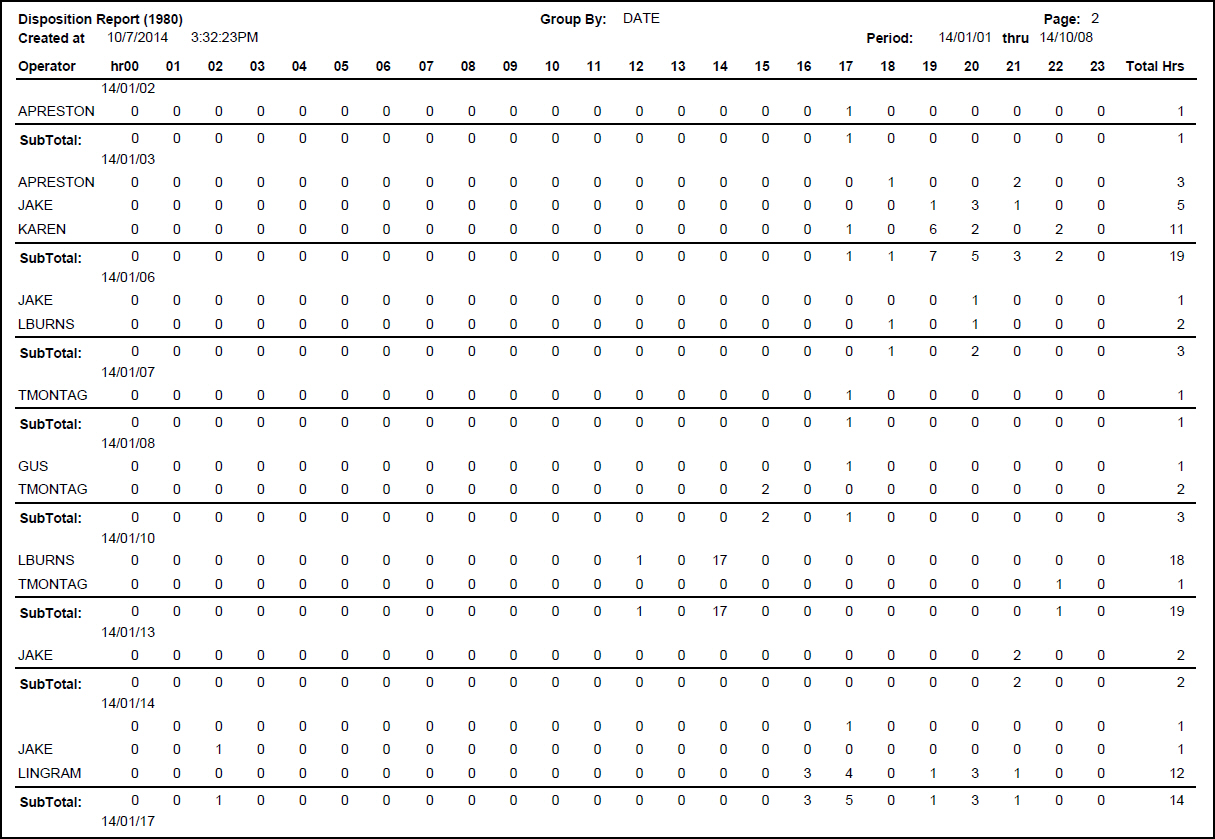
The following graphic shows an example of the output of the Disposition Report, sorted by date.
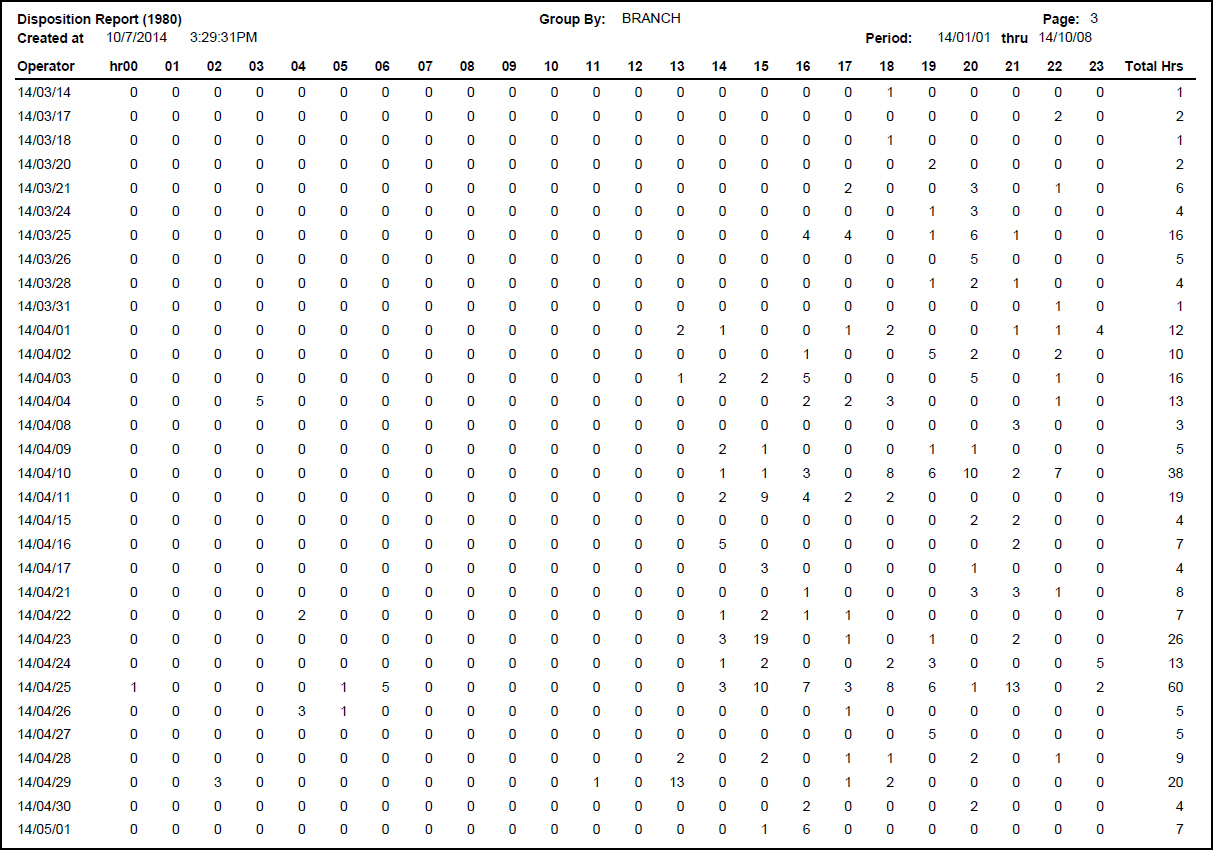
The following graphic shows an example of the output of the Disposition Report, sorted by branch.
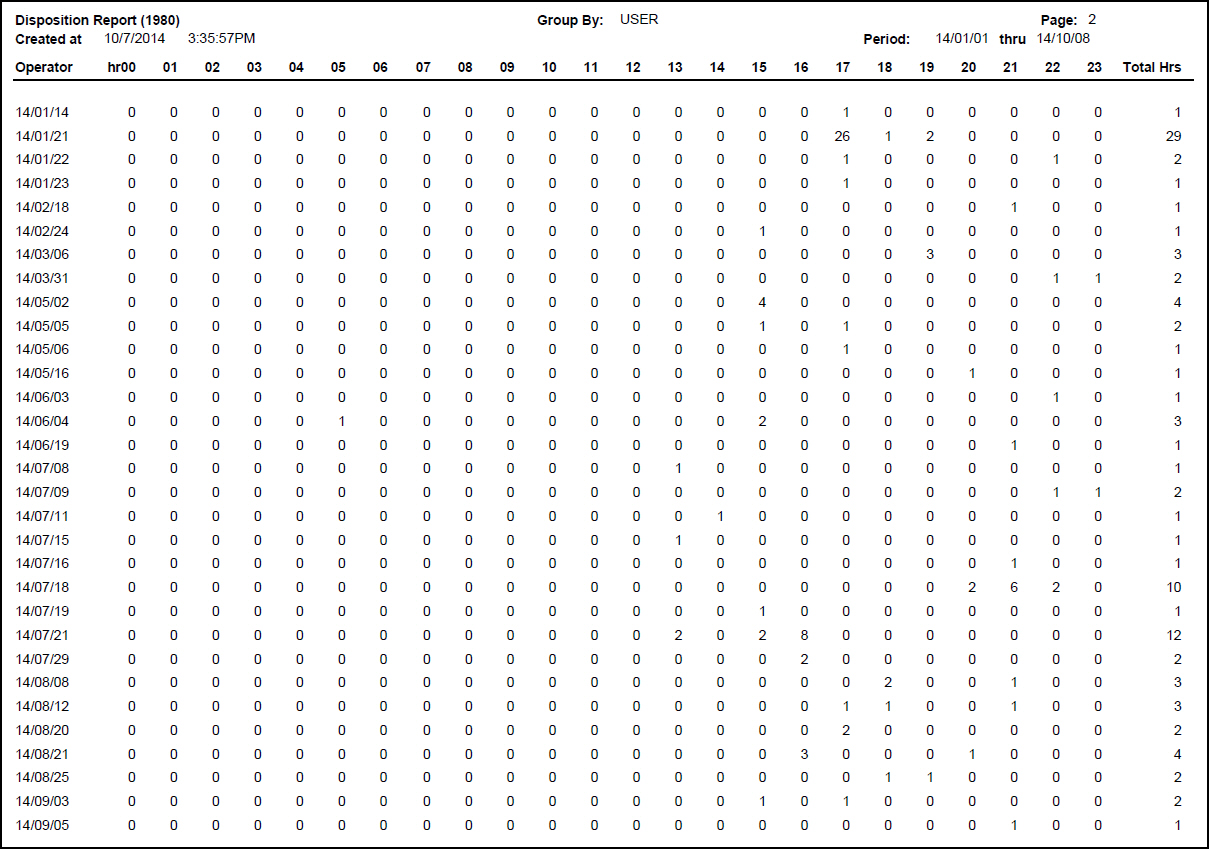
The following graphic shows the output of the Disposition Report, sorted by user.
Column Descriptions
The following table describes the columns used in the output of the report.
Column |
Description |
Operator |
This column displays either l Date l Branch l User name |
hr 00 - 24 |
The Hour columns are numbered 00 - 24 and display the number of dispositions that occurred during that hour. |
Total hrs |
The total count of dispositions for the operator, branch, or user for the specified date. |
Subtotal |
The total count of dispositions for each selected hour, for each date. |
Total |
Grand total counts of dispositions for the reporting period. |
Button Functions
The following table displays the buttons, describes the shortcut keys, actions, and functionality.
Button |
Name |
Shortcut Key |
Action |
Description |
|
Recurring |
Alt+F1 |
1980 |
Open fields for recurring/template reports. |
|
Exit |
Esc |
1980 |
Exit without saving. |
|
Save |
Enter |
1980 |
Save existing record. |



Modifications and Updates to Disposition Report
The following table lists modifications and updates to the Disposition Report document.
Mod Number |
Date |
Description |
07.80.23136, 07.80.23134 |
3/19/14 |
Added Event 120 to Disposition list. |
n/a |
7/18/14 |
Images updated. |