
Autofeed Console
Autofeed Console
Autofeed Console
Program #: 532
Module: Utilities
Overview
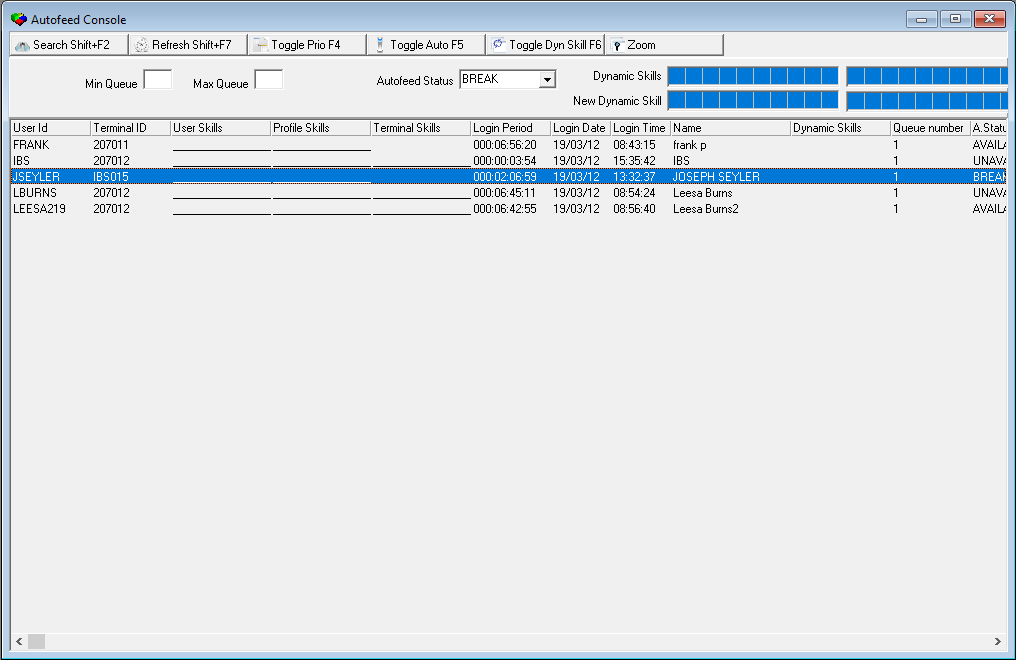
Autofeed Console mode displays the alarm autofeed status of all users who currently have Dispatch (program #537) open.
You may change the alarm autofeed status of a selected user by selecting a status in the Autofeed Status field of this window and choosing the Toggle Auto button. Use the Toggle Prio button to toggle between setting the priority or chronological sort for alarm autofeed in Dispatch for the selected terminal.
This program contains a sublevel in which users who have access can further define rules. These rules can determine anything from number of operators that must be in Autofeed at a given time or day to the percentage of operators that can be out of Autofeed based off their Autofeed Status.
Navigating to Autofeed Console
Use the following steps to navigate to Autofeed Console:
1. From the main SBN toolbar, select Menu.
2. From the drop-down menu, select Go To.
3. In the Go To Program dialog box, type in "532" and press Enter.
w Autofeed Console opens.
The Autofeed Console Window
The following graphic shows Autofeed Console.
Field/Column Descriptions
The following table describes the fields and columns used in Autofeed Console.
Field/Column |
Description |
| Top Pane | |
| Min Queue | Minimum Alarm queue number. |
| Max Queue | Maximum Alarm queue number. |
| Autofeed Status | You may select an alarm autofeed status to change the selected terminal to when you choose the Toggle Auto button. SBN will apply the status to the selected terminal in Dispatch (program #537) after the number of seconds defined by option mo242. |
| Dynamic Skills | Dynamic skill level of each user. |
| New Dynamic Skills | Dynamic skill level of each user. Select a dynamic skill level for a monitoring session in the Session Skills fields of the Alarm Queue tab in program #559. |
| Bottom Grid | |
| User ID | ID of each user currently logged into SBN. |
| Terminal ID | Terminal where operator is located. |
| User Skills | Skill set for each user. |
| Profile Skills | Skill set for each user's action profile. |
| Terminals Skills | Skill set for each user's terminal. |
| Login Period | Indicates how long each user has been logged into the current SBN session in ddd:hh:mm:ss format. |
| Login Date | Date when each user logged into the current SBN session. |
| Login Time | Time when each user logged into the current SBN session. |
| Name | Name of each user. (Names originate from #1811) |
| Dynamic Skills | Dynamic skill level of each user. Select a dynamic skill level for a monitoring session in the Session Skills fields of the Alarm Queue tab in program #559. |
| Queue Number | Alarm queue number each user is currently viewing in the Alarm Queue tab of program #559. |
| Autofeed Status | Each user's current alarm autofeed status. Select an autofeed status for a monitoring session in Dispatch (program #537) or in this program using the Toggle Auto button. |
| Session Number | Unique SBN session number for each user. |
| Priority Sort | An X in this column indicates that the user has the Priority check box selected in Dispatch (program #537). When this column is blank, it indicates that the user has the Chronological check box selected in Dispatch. |
| Server Process ID | Sybase login ID number. |
Zooming into the lower pane of the Autofeed Console
Use the following steps to zoom into lower pane.
1. Select the Zoom button at the top of the window.
w The bottom pane opens displaying the Rules tab.
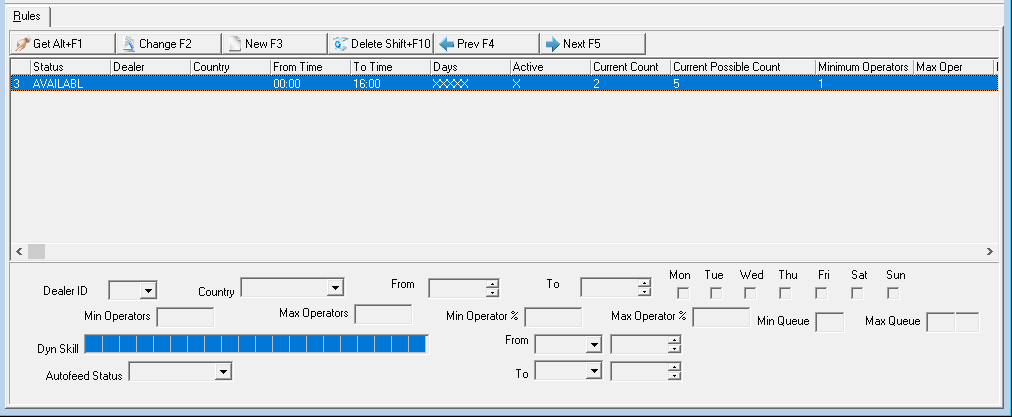
Field/Column Descriptions
The following table describes the fields and columns used in Autofeed Console.
Field/Column |
Description |
| Rules | |
| Status | Autofeed Status in which the rule applies. |
| Dealer | Specific Dealer ID the rule may be applied to. |
| Country | Country the rule may be applied to. |
| From Time | Start time in which the rule begins (HH:MM) |
| To Time | End Time in which the rules ends (HH:MM) |
| Days | Days rules are Active (Example: XX XX X indicates MT TF S are when the rule is active where XXXXX indicates MTWTF) |
| Active | "X" indicates rule is currently active. |
| Current Count | Number of operators currently in Autofeed. |
| Current Possible Count | Number of operators currently logged into SBN that may be placed in Autofeed. |
| Minimum Operators | Minimum number of operators. |
| Maximum Operators | Maximum number of operators. |
| Minimum Operators % | Minimum percentage of operators. |
| Maximum Operators % | Maximum percentage of operators. |
| Minimum Queue | Minimum queue number where a rule applies. |
| Maximum Queue | Maximum queue number where a rule applies. |
| Dynamic Skills | Specific Dynamic Skills that can be applied to a specific rule. |
| From Date | From Date (YY:MM:DD) |
| From Time | From Time (HH:MM:SS) |
| To Date | To Date (YY:MM:DD) |
| To Time | From Time (HH:MM:SS) |
| Bottom Pane | |
| Dealer ID | Specific Dealer ID the rule may be applied to. |
| Country | Country the rule may be applied to. |
| From | Start time (HH:MM) |
| To | End Time (HH:MM) |
| Days (M-F) | Select each day the rule will apply. (If none are checked, the rule will be applied every day). |
| Min Operators | Minimum number of operators. |
| Max Operators | Maximum number of operators. |
| Min Operator % | Minimum percentage of operators. |
| Max Operator % | Maximum percentage of operators. |
| Min Queue | Minimum queue number where signals can come from for a specific rule. |
| Max Queue | Maximum queue number where signals can come from for a specific rule. |
| Dyn Skill | Specific Dynamic Skills that can be applied to a specific rule. |
| From (Date) | From Date (YY:MM:DD) |
| From (Time) | From Time (HH:MM:SS) |
| To (Date) | To Date (YY:MM:DD) |
| To (Time) | From Time (HH:MM:SS) |
Example of a rule within Autofeed Console
The following is a rule about minimal operators required to be in Autofeed.
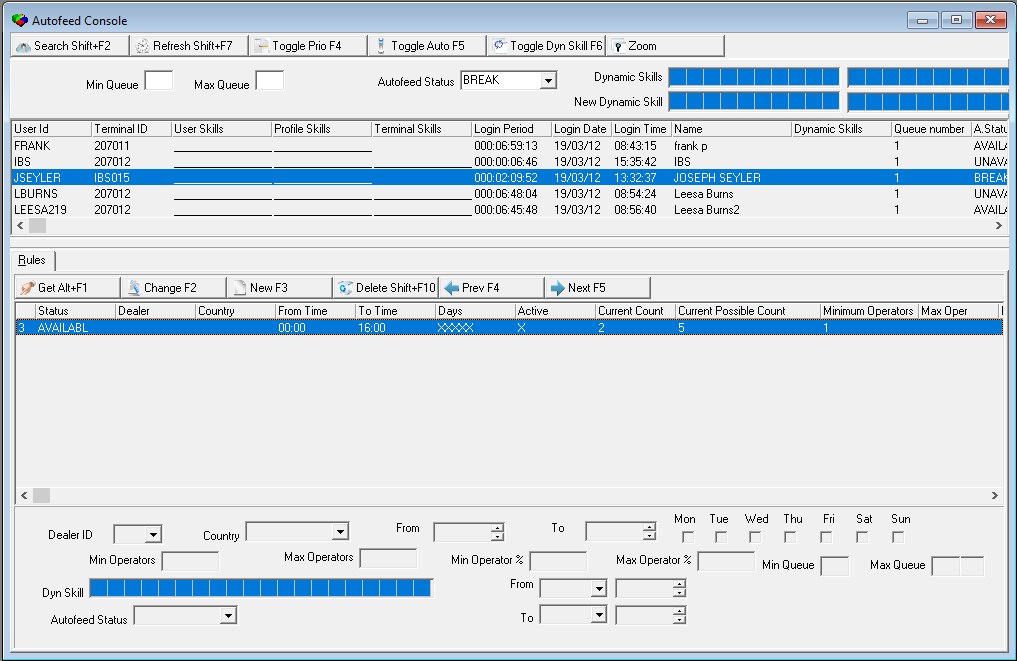
1. Select the Zoom button to view the Rules tab.
w The field opens displaying the Rules page.
2. Select the New button.
w The fields in the bottom pane can now be edited.
3. In the Min Operators field, define the minimal number of operators your company would allow to be in autofeed. (Any number greater than "0".)
4. In the Autofeed Status, define the field as Available. (Note: Autofeed Statuses are defined within program #1668).
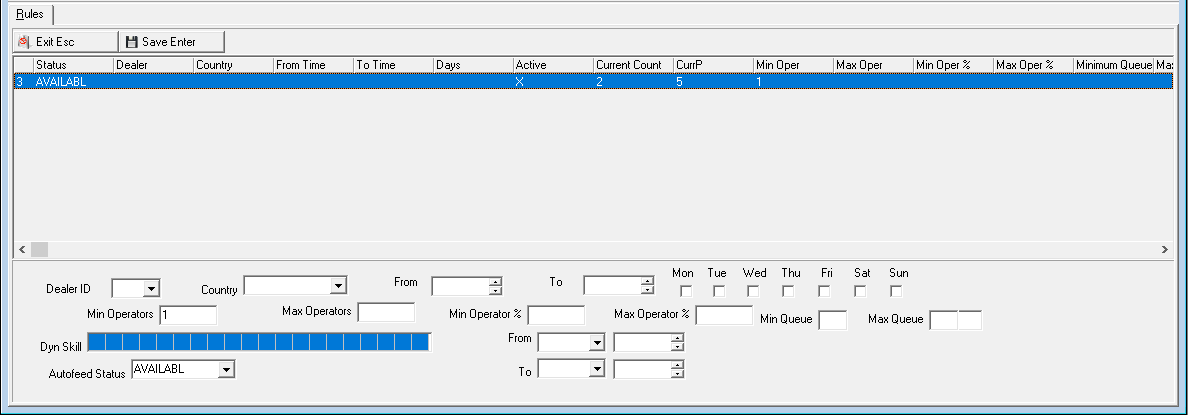
5. Based off what is defined as your minimal number of operators available, if too many operators are on Break or Unavailable, the rule will highlight to yellow to warn the user that the rule is close to being broken.
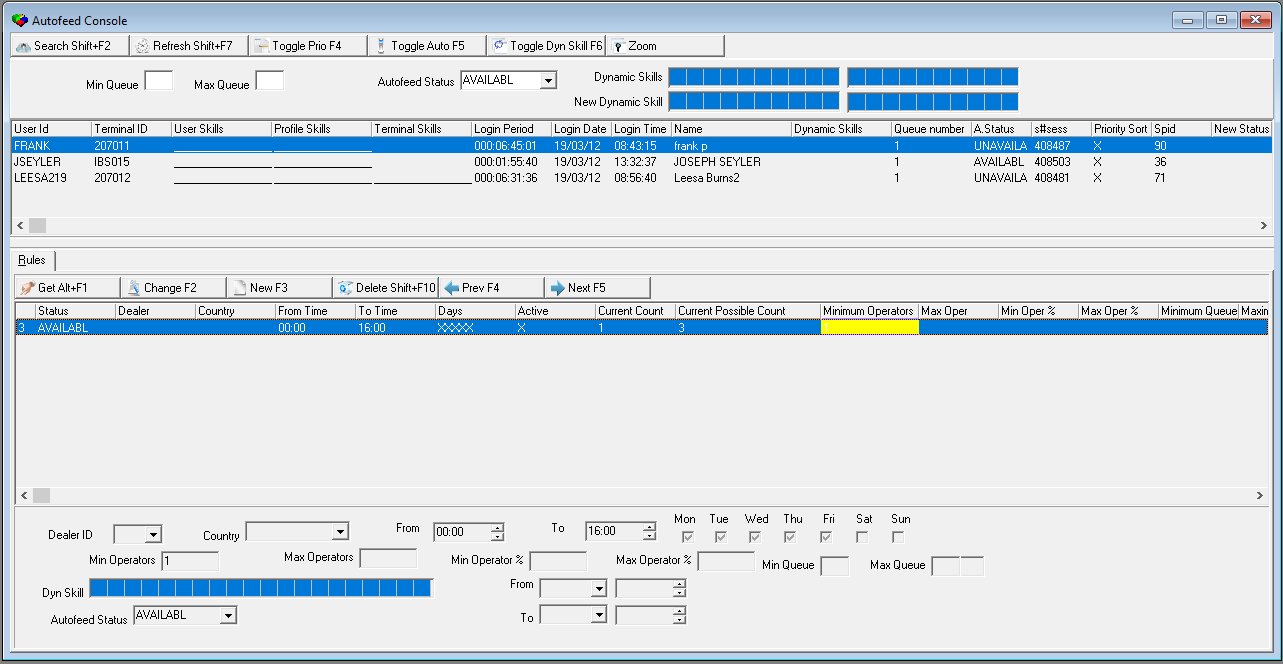
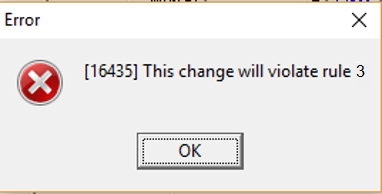
6. If the minimal number of operators who are supposed to be in Autofeed at a given time becomes less than the defined minimal set within the rule, the following error message will appear indicating the change made violates the rule. The Rule will go from yellow to red.
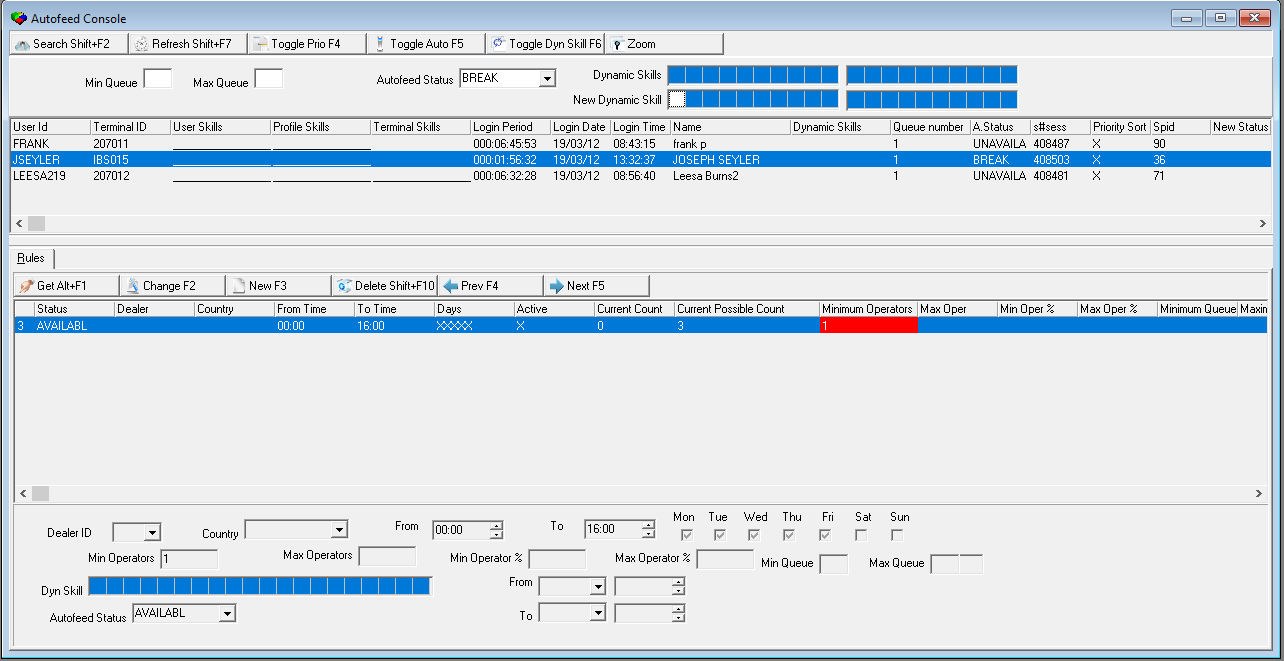
Note: If a User or an operator does not have the correct authority to break a rule then that person will not be able to change the Autofeed Status of themselves or other employees until the conditions defined for the broken rule are met.
Note: The Autofeed Status in Dispatch #537 can be grayed out for certain operators so they cannot change their status. (This is controlled with Action Profiles #1502). Only associates with proper authority to break defined rules can change the status for the Autofeed Console (#532).
Deleting a rule within Autofeed Console
Use the following steps to delete an Autofeed Rule:
1. Select the Autofeed rule you want to delete.
2. Double-click your selection or choose Get Record.
3. Choose Delete button.
w A confirmation dialog box opens.
4. Choose Yes.
w SBN removes the Autofeed rule from the list.
Button Functions
The following table displays the buttons, describes the shortcut keys, actions and functionality.
Button |
Name |
Shortcut Key |
Action |
Description |
|
Get | Shift +F2 |
532/1 | Get |
|
Set Timer Interval | Shift+f7 |
532/2 | Define how often, in seconds, the display automatically refreshes. |
|
Toggle Sort | f4 |
532/3 | Toggle between setting the Priority or Chronological sort for alarm autofeed in Dispatch (program #537) for the selected terminal. |
|
Toggle Autofeed Status | f5 |
532/4 | Change the alarm autofeed status of the selected terminal to the status selected in the Autofeed Status field. |
|
Toggle Dynamic Skill | f6 |
532/5 | Toggle between each of the four modes to view and enter skill sets. |
|
Zoom | Zoom to sublevel to display rules. |
||
|
Get | ALT+F1 |
Get |
|
|
Change | f2 |
Change an existing rule. |
|
|
New | F3 |
Create a new rule. |
|
|
Delete | enter |
Delete an existing rule. |
|
|
Previous |
f4 |
Previous rule. |
|
|
Next |
f5 |
Next rule. |
|
|
Save |
Enter |
Save a new rule. |
|
|
Exit |
Escape |
Exit without saving rule. |

Modifications and Updates to Autofeed Console
The following table lists modifications and updates to the Autofeed Console document.
Mod Number |
Date |
Description |
N/A |
03/12/19 |
Document created. |