
Financial Groups
Financial Groups
Financial Groups
Module: System Administration
Overview
Use Financial Groups (program #1868) to define financial groups for Reporting, Invoicing, and Collections. Menus of financial groups - Group 1 and Group 2 fields - appear in Contract Master (program #548).
Examples for Use
Different companies may use financial groups in different ways. The following examples are only two of many possible ways to use financial groups.
Company A has a retail client who owns a chain of stores. By defining a financial group for the retail client, Company A can now invoice all of the retail client’s accounts in one batch, run reports for only the retail client’s accounts, and assign the retail client’s accounts to one collector.
Company B associates every account with a dealer ID. By defining different financial groups with different dealer IDs, Company B can now easily assign those groups to different collectors.
Navigating to Financial Groups
Use the following steps to navigate to Financial Groups:
1. From the main SBN toolbar, select Menu.
2. From the drop-down menu, select Go To [ALT+F1].
3. In the Go To Program dialog box, type in "1868."
w The Financial Groups program opens.
The Financial Groups Window
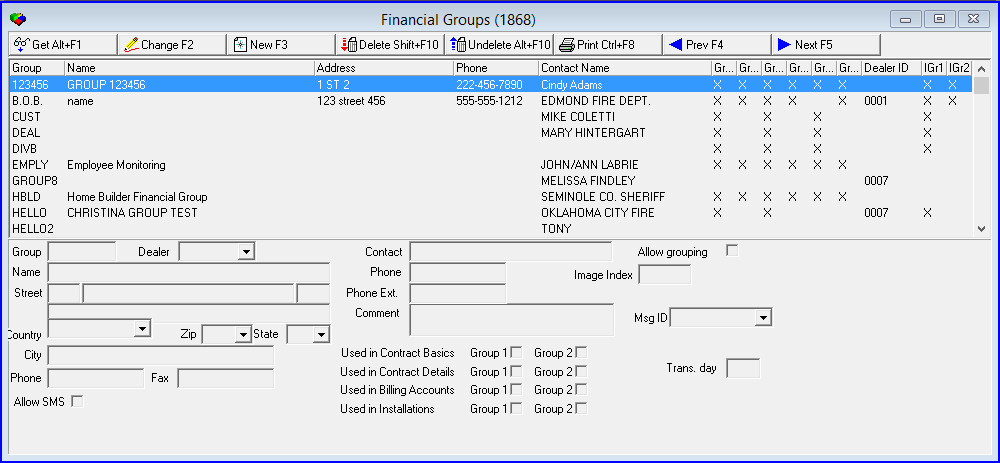
The following graphic shows Financial Groups as the program opens. The upper pane displays previously defined financial groups.
Field/Column Descriptions
The following table describes the fields and columns used in Financial Groups.
Field/Column |
Description |
Group |
Identifies the selected financial group. |
Dealer |
You may associate a dealer with a financial group. (This list originates from program #1537.) |
Name |
Text description of the selected financial group. |
Street (Number) |
Street number (part of the address for the selected financial group). |
Street Name (No label) |
Street name (part of the address for the selected financial group). |
Suite Number (No label) |
Suite number, if applicable (part of the address for the selected financial group). |
Additional Street (No label) |
Additional street address information, if applicable (part of the address for the selected financial group). |
Country |
Select the country in which the financial group is located from the drop-down menu. |
Zip |
Zip code (part of the address for the selected financial group). |
State |
State in which the financial group is located. (This field holds a maximum of 60 characters.) |
City |
City (part of the address for the selected financial group). |
Phone |
Phone number for the selected financial group. |
Fax |
Fax number for the selected financial group. |
Allow SMS |
The checkbox allows the user to opt-out of SMS. The checkbox will be checked by default for all existing and new records. The user will need to uncheck the box to opt-out of SMS. |
Contact |
Name of the contact for the selected financial group. |
Phone |
Phone number for the selected financial group. |
Phone Ext. |
Extension for the phone number, if applicable. |
Comment |
Free-form text about the financial group or the contact. |
Used in Contract Basics Group 1 |
Enter a check mark to include the selected financial group in the menu of Group 1 in Contract Basics. |
Used in Contract Basics Group 2 |
Enter a check mark to include the selected financial group in the menu of Group 2 in Contract Basics. |
Used in Contract Details Group 1 |
Enter a check mark to include the selected financial group in the menu of Group 1 in Contract Details. |
Used in Contract Details Group 2 |
Enter a check mark to include the selected financial group in the menu of Group 2 in Contract Details. |
Used in Billing Accounts Group 1 |
Enter a check mark to include the selected financial group in the menu of Group 1 in Billing Accounts. |
Used in Billing Accounts Group 2 |
Enter a check mark to include the selected financial group in the menu of Group 2 in Billing Accounts. |
Used in Installations |
Enter a check mark to include the selected financial group in the menu of Group 1 in Installations. |
Used in Installations |
Enter a check mark to include the selected financial group in the menu of Group 2 in Installations. |
Allow Grouping |
Enter a check mark in this field to include invoices and payments associated with the selected revenue group to display in Group Mode in Invoice Status and Payment Status. O To use this feature: l Define option ba361. l Turn on option ba358 and flag the revenue group as Used in Billing Accounts - Group 1 or... l Turn on option ba359 and flag the revenue group as Used in Billing Accounts - Group 2 |
Image Index |
Index number of the graphic to use in the Contract Master tree view, when displaying by Group icons. |
Msg ID |
Attach a Message ID (program #1766) to the selected financial group. This message appears in Contract Master (program #548) when you save a work order for a contract that is linked to the selected financial group. |
Trans. Day |
The transaction day for the work order generated. Enter the exact day of the current month. |
Undelete Record
To undelete a previous record, select the undelete button.
Use the following steps to undelete a record:
1. Select the Undelete button.
w The list of deleted records appear.
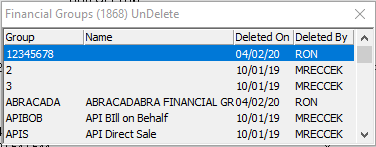
2. Choose Deleted Record you want to restore.
w The deleted record reappears in the main Financial Group window.
Field/Column |
Description |
Group |
Dealer associated with a financial group. (This list originates from program #1537.) |
Name |
Text description of the financial group. |
Deleted On |
Date the entry was deleted. |
Deleted By |
Person who deleted the entry. |
Using Common Functions
See the reference document Common Functions in SBN for more information.
Button Functions
The following table displays the buttons, describes the shortcut keys, actions, and functionality.
Button |
Name |
Shortcut Key |
Action |
Description |
|
Get |
ALT+F1 |
1868/ 1 |
Get record. |
|
Change |
F2 |
1868/ 2 |
Change selected record. |
|
New |
F3 |
1868/ 3 |
Create new record. |
|
Delete |
SHIFT+F10 |
1868/ 4 |
Delete selected record. |
|
Undelete |
ALT+F10 |
1868/ 5 |
Restore deleted record. |
|
CTRL+F8 |
1868/ 6 |
Print selected records. |
|
|
Previous |
F4 |
1868/ 999 |
Select last record. |
|
Next |
F5 |
1868/ 999 |
Select next record. |








Modifications and Updates to Financial Groups
The following table lists modifications and updates to the Financial Groups document.
Mod Number |
Date |
Description |
n/a |
08/18/14 |
Images updated. |
07.82.23721, 07.81.23632, 08.81.09815, 07.81.23605, 08.81.09792 |
10/31/14 |
Added Transaction Day field. |
07.91.26187, 07.91.26189 |
05/28/19 |
Undelete section added as well as the two new columns inside of Undelete screen: Deleted On and Deleted By. |