
Cycle Fees
Cycle Fees
Cycle Fees
Module: Accounting
Overview
Use Cycle Fees to add and change cycle fee information for the selected contract. A cycle fee is a fee that is regularly charged to the customer through an invoice. You can set up cycle fees in this program or through work orders. For more details on setting up Cycle Fees through work orders, see the Work Orders documentation.
The main tab displays general information about current cycle fees for this contract. Your default view of the Cycle Fees tab is determined by options bl032 and bl107. To switch the view of this tab between the individual line item view (Detail view), the summary view (Roll-up view), or any other view use Toggle Mode. See the Moving Cycle Fees section of this document for more details.
To access this program, select Contract Master (program #548) from the main menu of SBN and then choose the Cycle Fees tab.
This document includes the following topics:
Changing the View of the Cycle Fees Tab
Viewing Details of a Cycle Fee
Changing Cycle Fee Information
Deleting Valid To Dates for All Cycle Fees
Creating Cycle Fee Credit Periods
The Cycle Fees Tab
The following graphic displays the Cycle Fees tab in Roll-up view. The columns on this tab display cycle fees that have been previously set up for this contract through the Work Orders program or using this program as well as the new "Work Order #" column.
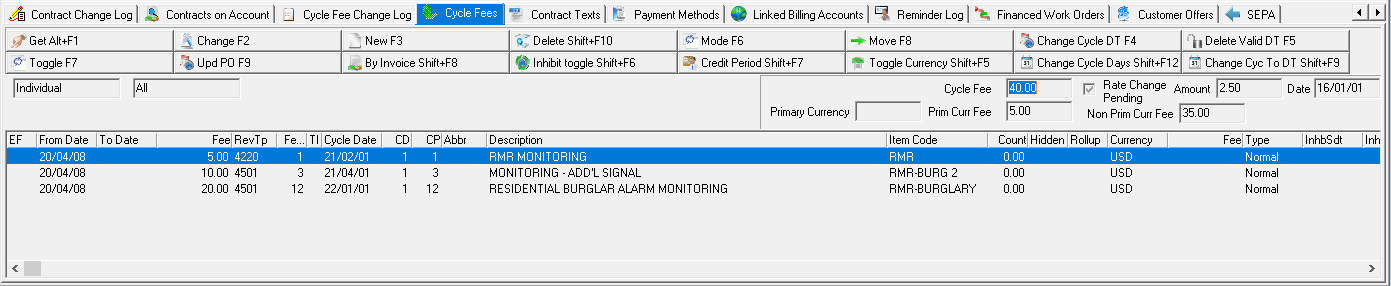
Field/Column Descriptions
The following table describes the fields and columns used in the Cycle Fees tab.
Field/Column |
Description |
Cycle Fee |
Sum of all cycle fees on the account. Note: SBN does not allow you to enter a amount that is lower than or greater than the values specified in the Min. Cycle Fee and Max. Cycle Fee fields in Items (program #1535). |
Rate Change Pending |
If this box displays a check mark, a rate change is pending on this installation. (This box defaults from program #1588.) |
Primary Currency |
Primary currency type of the account, as assigned in the Currency field of the Billing Accounts tab of Contract Master (program #548). |
Primary Currency Fee |
Sum of all cycle fees entered in the primary currency type of the account. (This amount appears in the primary currency.) |
Non Primary Currency Fee |
Sum of all cycle fees entered in a currency other than the primary currency type of the account. (This amount appears in the currency selected for these particular fees.) |
Amount |
Amount of rate change. (This field originates from program #1588) |
Date |
Date of last rate change. (This field originates from program #1588) |
End Flag |
Enter a check mark in this box to invoice this fee until the date it expires. O You can use this field when a customer cancels a contract early and you invoice the cycle fee until the contract ends. |
From Date |
Date that this cycle fee becomes active. |
To Date |
Date that this cycle fee expires. |
Fee (1) |
Amount of this cycle fee in the primary currency for the account. |
Revenue Type |
Code for the type of fee being charged to the customer. (This menu originates from program #1512.) |
Fee Period |
Period of time covered by this cycle fee, in months. |
Tax Included |
If this box displays a check mark, the cycle fee rate includes tax. O SBN reduces the revenue amount by the amount of included tax. |
Cycle Date |
Last invoiced date for this cycle fee. |
Cycle Day |
Day of the month on which this cycle fee is invoiced. |
Cycle Period |
Frequency, in months, for invoicing this cycle fee. |
Abbreviation |
Text Abbreviation for special text that replaces the item description when invoicing this cycle fee. (This menu originates from program #1544.) |
Description |
Description of the cycle fee item that replaces either the item description or the text abbreviation description when invoicing this cycle fee. |
Item Code |
Item code to which this cycle fee applies. (This menu originates from program #1535.) Note: If the selected item has details entered in the Communication Log tab of program #1535, SBN creates an entry in the Communication Log (program #1888) when a user cancels a cycle fee for the item on the contract type entered in the Communication Log tab. |
Count |
When users toggle to Detail view, this column displays the item count associated with the selected cycle fee. |
Hidden |
An X in this column indicates this cycle fee description does not appear on the customer invoice. The fee is added with other cycle fees, and the total appears on the invoice as one line item with the description of the fee that has the Rollup check box selected. |
Rollup |
An X in this column indicates this cycle fee description appears on the customer invoice. The fee is added with other cycle fees, and the total appears on the invoice as one line item with the description of this cycle fee. |
Currency |
This column displays the currency type selected for any fees entered in a currency other than the primary currency for the account. |
Fee (2) |
Amount of this cycle fee in the currency selected for this particular fee. |
Type |
Indicates whether the fee is a Normal, Arrears, or Permit cycle fee. |
Inhibit Start Date |
The start date of a fee inhibition as set in the Inhibit Toggle window. |
Inhibit End Date |
The end date of a fee inhibition as set in the Inhibit Toggle window. |
Work Order # |
Sequence number of the work order associated with the installation. |
Item Description |
Description of the cycle fee item. |
Comment |
Additional comments about the billing account. |
Changing the View of the Cycle Fees Tab
The Cycle Fees tab contains three buttons to change the view of the tab.
For Direct Debit customers, if you attempt to change a cycle fee, the following warning message appears.
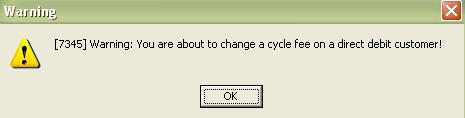
Choose OK to continue with the change.
Use Toggle Mode to change the view between
Roll-Up view (Revenue Mode)
Detail view (Individual Mode)
Revenue Work Order Date Mode
Revenue Rental Mode
The Roll-up view displays all cycle fees in a summary format. The Detail view provides several functions for each line so that you can add, change, or delete cycle fees. The Revenue Work Order Date Mode displays cycle fees in a summary format disregarding Cycle Dates and Valid To Dates. The Revenue Rental mode displays only rental service cycle fees. The following graphic shows the Cycle Fees tab in Detail view.
Note: Options bl032 and bl107 control the default view for the Cycle Fees tab.
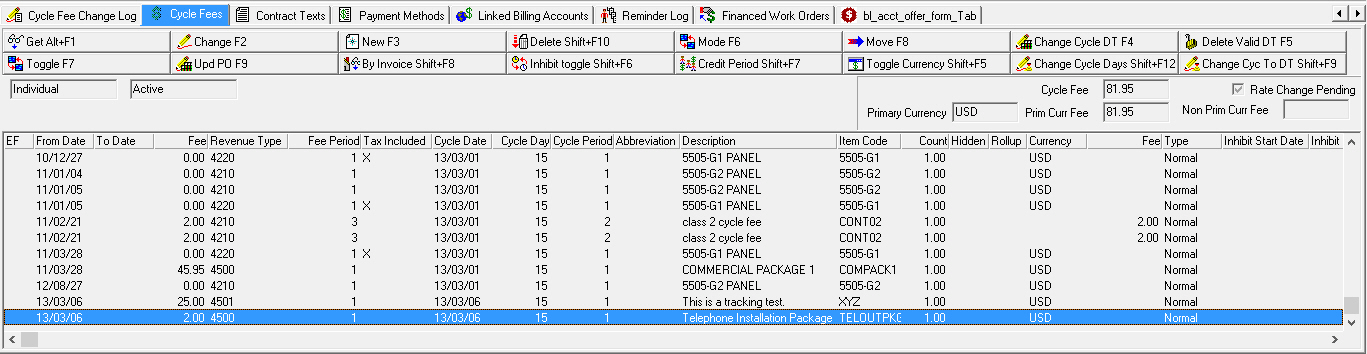
Use Toggle between Active/Inactive to change the view between active cycle fee lines and all cycle fee lines.
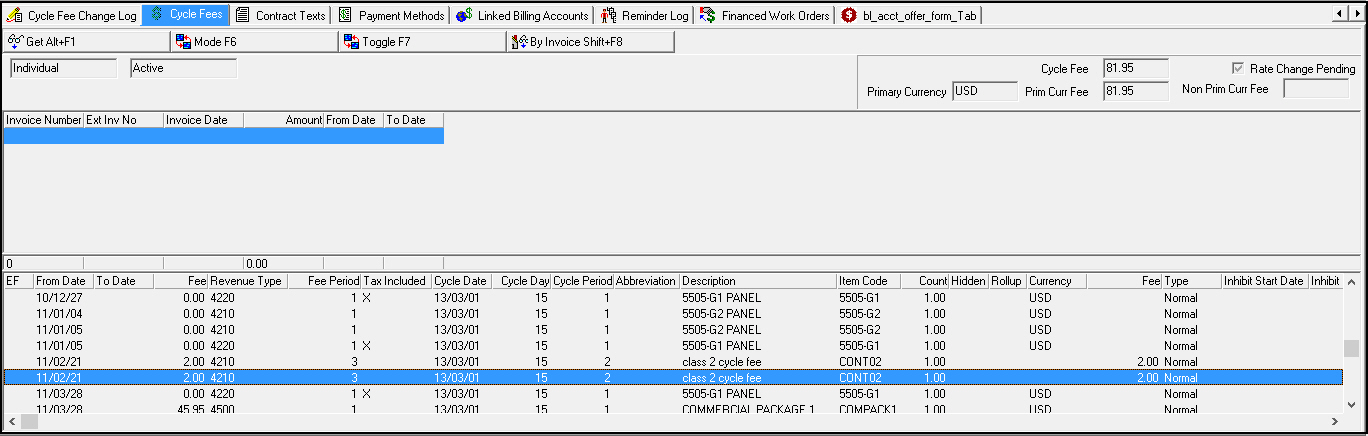
Use By Invoice to display an additional pane listing all invoices for a selected cycle fee.
The following graphic displays the Cycle Fees tab with a list of invoices associated with the selected cycle fee.
Variable Cycle Fees
You may set up variable cycle fees that increase over time according to how much an item is used. The item you create a variable cycle fee for should have type 21, 22, or 23 entered in the Counter ID field of program #1535. Type 21 counts SMS messages for the item, 22 counts email notifications, and 23 counts alarm signals. (These types originate from program #1601.) Set up the price points, number of units per price point, and fees at each price point in program #1533 for the item in the OC Included Units, OC Count/Unit, OC Price Points, and OC Fee/Unit fields of the Details tab. The base cycle fee covers the number of free units in the OC Included Units field. After the usage exceeds the number of free units, the amount in the OC Fee/Unit < PP1 field is charged up to Price Point 1, then the amount in the OC Fee/Unit < PP2 field is charged up to Price Point 2. Beyond Price Point 2, the customer is charged the amount in the OC Fee/Unit > PP2 field.
Viewing Details of a Cycle Fee
From the Cycle Fees tab, you can get more detailed information about cycle fees for this contract or account. You must be in Detail view to complete this procedure. If you are in Roll-up view and want to view details for a cycle fee, choose Toggle.
For more information on viewing details, see Common Functions in SBN.
The Cycle Fee Details Pane
The following graphic displays the Cycle Fee Details pane. This pane opens when you choose Get Record from the Cycle Fees tab.

Field Descriptions - Details
The following table describes the fields used in the Cycle Fee Details pane.
Field |
Description |
Adjustment |
Amount of the adjustment made to this cycle fee. |
Reason |
Reason you are making this change. |
PO No |
Purchase number associated with the selected cycle fee; appears on the customer’s invoice. This field is now expanded to 60 characters. O This field inherits the PO number from the associated work order when the work order is invoiced. |
Currency |
Currency type selected for this cycle fee. (This menu originates from program #1635.) |
Cycle Fee |
The corrected cycle fee including any changes made in the New or Adjustment fields. |
Global Rate |
Sum of all global rate adjustments made to this cycle fee. (This information originates from program #1588.) |
Global Date |
Last date a global rate adjustment was made to this cycle fee. (This information originates from program #1588.) |
Fee Total |
Total cycle fee, including pending rate changes from program #1588. |
Cycle Date |
Last invoiced date for this cycle fee. |
Amortization |
If the selected cycle fee is for a rental contract, this field indicates the amortized amount. (For information about rental contracts, see the Creating a Rental Contract section of the Contract Master document.) |
Tax Included |
If this box displays a check mark, the cycle fee includes tax. O SBN reduces the revenue amount by the amount of included tax. |
Invoice to End |
If this box displays a check mark, the To Date field fills and the next billing cycle invoices to the end of the contract term. |
Arrears Fee |
Select this check box to indicate that the cycle fee is an arrears fee. Note: Selecting this check box changes the Cycle Period to 1. 1 is the only valid Cycle Period for arrears fees. |
Permit |
Select this check box to indicate that the cycle fee is for a permit associated with an agency from an installation action plan. When you select this check box, a Permit field appears with a menu of permits on the account that have not been linked to cycle fees. Note: The date you enter for the Cycle Date in this tab changes the Effective Date of the selected permit in program #1716. |
Valid Date Range |
|
Valid-From date |
The first date that the cycle fee is valid. |
Valid-To date |
The last date that the cycle fee is valid. Note: If you select the To-Date Required check box in Items (program #1535), SBN requires you to enter a Valid-To date in Change or New mode. |
Interest |
If the selected cycle fee is for a rental contract, this field indicates the amount of interest. (For information about rental contracts, see the Creating a Rental Contract section of the Contract Master document.) |
Cycle Day |
Day of the month on which this cycle fee is invoiced. |
Cycle Period |
Frequency, in months, for invoicing this cycle fee. |
Revenue Type |
Code for the type of fee being charged to the customer. (This menu originates from program #1512.) Note: SBN filters this menu by the dealer ID assigned to the billing account. |
Fee Period |
Period of time covered by the cycle fee, in months. |
Price List Group |
Groups of equipment that you can choose to compute cycle fee rates. |
Permit |
Select an agency permit for the cycle fee to cover. The drop-down menu displays permits associated with agencies from installation action plans on the account that have not been linked to cycle fees. Note: This field only appears if you select the Permit check box. The date you enter for the Cycle Date in this tab changes the Effective Date of the selected permit in program #1716. |
Permit Number |
This read-only field displays the ID number entered for the selected permit in the Permits window of the Data Entry (program #559) Basics tab. |
Item Count |
Quantity of the item invoiced in this cycle fee. |
Item Code |
Code to identify the item invoiced in this cycle fee. |
Abbreviation |
Text Abbreviation for special text that replaces the item description when invoicing this cycle fee. (This menu originates from program #1544.) |
Text |
Text description of the abbreviation used when invoicing this cycle fee. |
Inhibit Date Range |
|
Inhibit Date-From |
Range of dates during which the cycle fee does not appear on customer invoices. This is the beginning date of the range. This field has an entry in Required Fields (#1843) to control access to setting and changing the date range. |
Inhibit Date-To (no label) |
Range of dates during which the cycle fee does not appear on customer invoices. This is the ending date of the range. This field has an entry in Required Fields (#1843) to control access to setting and changing the date range. |
Rollup |
Select this box if you want this cycle fee description to appear on the customer invoice. Other cycle fees for this account are added to this fee, and the total displays on the invoice as one line item with this cycle fee description. |
Hidden |
Select this box if you do not want this cycle fee description to appear on the customer invoice. This fee is added to other cycle fees for this account, and the total displays on the invoice as one line item with the description of the cycle fee that has the Rollup check box selected. |
Vendor ID |
You may associate a vendor ID with this cycle fee. This is a company defined field used for reporting. |
Vendor Name |
Name of the vendor associated with this cycle fee. This is a company defined field used for reporting. |
Cost |
You may associate a specific cost amount with this cycle fee. This is a company defined field used for reporting. |
Text |
Free-form text field for users to add additional notes and messages. |
Inhibit From Dt Reason |
Code and description why the installation has a date to inhibit its contract from automatically escalating. |
Inhibit To Dt Reason |
Code and description why the installation has a date to inhibit its contract from automatically escalating. |
Inhibit From Dt Chg Date |
The last user to change the Inhibit Date. This matches the Change Log for Inhibit Date. |
Inhibit From Dt Chg User |
The last user to change the Inhibit Date or Inhibit Reason fields |
Inhibit To Dt Chg User |
The user the Inhibit Date was changed to. |
Changing Cycle Fee Information
You can change information on previously defined cycle fees with the following exceptions:
If your action profile does not include action 548/181, SBN displays an error message when you attempt to change cycle fee information for an account that uses direct deposit as the payment method.
If a rate change for cycle fees is pending when you choose New or Change Record, SBN displays one of the following messages:
q If your action profile includes action 548/182, SBN displays the following warning.
q If your user profile does not include action 548/182, SBN displays the following message and prevents you from changing contract details.
You cannot change cycle fee information from the Roll-up View window; you must be in Detail view to complete this procedure. You cannot delete or move rental contract cycle fees to other contracts, and you cannot change the cycle dates of rental contract cycle fees. SBN logs only financial entries (cycle fees) in the Cycle Fee Change Log. All other changes are recorded in the Contract Change Log.
Changing the Purchase Order Number of Cycle Fees
You can change the purchase order number of a selected cycle fee or of all active cycle fees.
Use the following steps to change the PO number:
1. Choose Update PO for one/all Cycle Fees.
w The Updated PO Number dialog box appears.
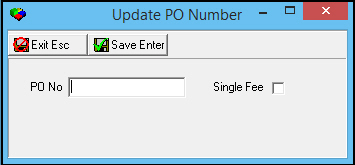
2. Type the new PO number in the PO No field.
w If you want to update only the selected cycle fee, enter a check mark in the Single Fee field. Otherwise, all active cycle fees are updated. Inactive fees are not updated.
3. Choose Save.
Adding a Cycle Fee Inhibit Period
You can add an inhibit period to a cycle fee during which the fee is suspended and does not appear on customer invoices. You may add an inhibit period by entering a range of dates in the Inhibit Date fields of the Cycle Fee Details window, or by using the Inhibit Toggle button. The Inhibit Toggle button allows you to add an inhibit period to one cycle fee or to all active cycle fees.
You may save the beginning date of an inhibit period to one or all cycle fees and add the end date at a later time. Adding a beginning inhibit date with no end date suspends the cycle fee from appearing on any invoices until you add an end date. The fee will then appear on invoices after the end date.
Use the following steps to add an inhibit period to a cycle fee in the Cycle Fee Details window:
1. Select the cycle fee to which you want to add an inhibit period.
2. Choose Change Record.
w The Cycle Fee Details window opens with some fields open for changes.
3. In the Inhibit Date fields, enter a range of dates during which to suspend the cycle fee.
4. Choose Save.
w SBN attaches the inhibit period to the cycle fee. When you invoice this account in program #1557 during the inhibit period, SBN will not include the cycle fee on the customer invoice.
Note: Entering an Inhibit Period requires entering a reason in the Inhibit Reason field in Contract Master, program #559.
Use the following steps to add an inhibit period to cycle fees using the Inhibit Toggle button:
1. Select a cycle fee to which you want to add an inhibit period.
2. Choose Inhibit Toggle.
w The Inhibit Toggle window opens.

3. In the Inhibit Date fields, enter a range of dates during which to suspend the cycle fee.
4. Select the Single Fee check box if you want to attach the inhibit period to only the selected cycle fee. SBN attaches the inhibit period to all active cycle fees if you do not select this check box.
5. Choose Save.
w SBN attaches the inhibit period to the cycle fee(s) according to your selections. SBN changes the cycle date of the inhibited fee(s) to match the end date of the inhibit period. When you invoice this account in program #1557 during the inhibit period, SBN will not include the cycle fee(s) on the customer invoice.
Note: You may not add an inhibit period that begins before the cycle date of a cycle fee in the Inhibit Toggle window. When you try to save an inhibit period that begins before the cycle date for a single fee, SBN displays an "Invalid Date" error message. When you save an inhibit period for all cycle fees that begins before the cycle date of any fees, SBN does not display an error message, but only attaches the inhibit period to fees with cycle dates prior to the inhibit period. If the cycle dates of all cycle fees occur after the inhibit period you entered, SBN does not attach the inhibit period to any cycle fees.
Deleting a Cycle Fee Inhibit Period
You can delete cycle fee inhibit periods by deleting the dates in the Inhibit Date fields of the Cycle Fee Details window, or by using the Inhibit Toggle button to enter blank dates for one or all active cycle fees.
Use the following steps to delete cycle fee inhibit periods using the Inhibit Toggle button:
1. Select a cycle fee from which you want to delete an inhibit period.
2. Choose Inhibit Toggle.
w The Inhibit Toggle window opens.
3. Leave the Inhibit Date fields blank.
4. Select the Single Fee check box if you want to remove an inhibit period from only the selected cycle fee. SBN removes the inhibit periods from all cycle fees if you do not select this check box.
5. Choose Save.
w SBN removes the inhibit periods from the cycle fee(s).
Deleting a Cycle Fee
You can delete a cycle fee in the Cycle Fees window.
Note: IBS does not recommend deleting cycle fees. It is preferable to allow the cycle fee to expire instead of deleting it.
Use the following steps to delete a new cycle fee:
1. Access the Cycle Fees tab for the account.
2. Select the cycle fee you want to delete.
3. Choose the Delete Record button.
w The cycle fee is deleted, and SBN displays the deletion on the Contract Change Log tab.
Entering a New Cycle Fee
You can enter a new cycle fee in the cycle fee grid.
Use the following steps to enter a new cycle fee:
1. Choose New Record.
w The New Cycle Fee grid opens.
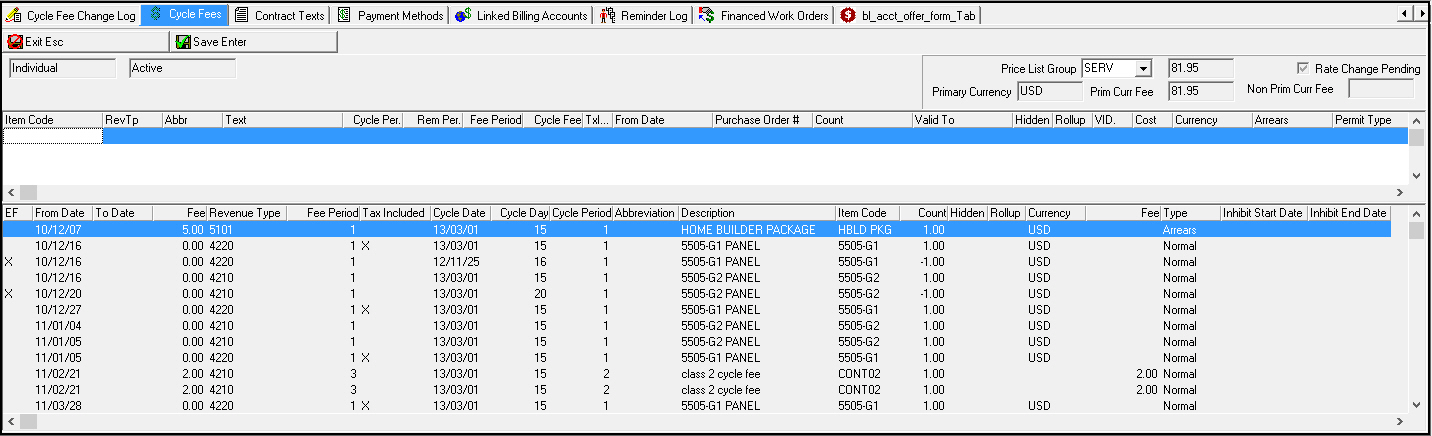
2. Complete the fields.
w When you select an item code, SBN automatically fills the following fields:
Text
Fee period
Cycle fee
Tax included flag
3. Choose Save.
Note: When option bl213 is set to a value, when a cycle fee is created in the Cycle Fees tab with a valid From Date that is more days in the past than the value of option bl213, SBN displays a warning message. Option 213 is dealer-based.
Note: If the Positive check box is selected in Items (program #1535), SBN forces the cycle fee to be positive on the Cycle Fees tab. If the Negative check box is selected on Items, SBN forces the cycle fee to be negative on the Cycle Fees tab.
Note: You can change the value in the Cycle Fee column, but you will receive an error message if the amount is outside the minimum or maximum range specified by the values in the Min. Cycle Fee and Max. Cycle Fee fields on the Item Price List tab of program #1535.
Column Descriptions - New Cycle Fee Grid
The following table describes the columns used in the New Cycle Fee grid.
Field/Column |
Description |
Item Code |
Select the item code to which this cycle fee applies. |
Revenue Type |
Select the revenue type for fee being charged to the customer. (This menu originates from program #1512.) |
Abbreviation |
You may select a text abbreviation for special text to replace the item description on the invoice for this cycle fee. (This menu originates from program #1544.) |
Text |
Description of the cycle fee item that replaces either the item description or the text abbreviation description when invoicing this cycle fee. |
Cycle Period |
Frequency, in months, for invoicing this cycle fee. |
Remaining Period |
Displays the remaining number of months for the contract. Note: Use either Valid To or Remaining Period to determine when cycle fees will end. Do not have entries in both of these fields. |
Fee Period |
Period of time covered by the cycle fee, in months. |
Cycle Fee |
The cycle fee associated with the selected item code. Note: You will receive an error message if the amount you enter is outside the minimum or maximum range specified by the values in the Min. Cycle Fee and Max. Cycle Fee fields on the Item Price List tab of program #1535. |
Tax Included |
If this field displays an X, the price of the selected item includes tax. |
From Date |
Select the beginning valid date of the cycle fee. |
Purchase Order # |
You may type the number of the purchase order associated with the selected cycle fee; this number appears on the customer’s invoice. |
Count |
Type the count of the selected item. If you leave this field blank, SBN enters a default count of 1. O This column only records item count, it does not affect cycle fees. |
Valid To |
You may enter an ending date when the cycle fee will no longer be valid. Note: Use either Valid To or Remaining Period to determine when cycle fees will end. Do not have entries in both of these fields. |
Hidden |
Select this check box to indicate this cycle fee description will not appear on the customer invoice. SBN will add the fee with other cycle fees, and the total will appear on the invoice as one line item with the description of the fee that has the Rollup check box selected. |
Rollup |
Select this check box to indicate this cycle fee description will appear on the customer invoice. SBN will add the fee with other cycle fees, and the total will appear on the invoice as one line item with the description of this cycle fee. |
Vendor ID |
You may associate a vendor ID with this cycle fee. This is a company defined field used for reporting. |
Cost |
You may associate a specific cost amount with this cycle fee. This is a company defined field used for reporting. |
Currency |
You may associate a specific currency type with this cycle fee. This menu originates from program #1635. |
Arrears |
Select this check box to indicate that the cycle fee is an arrears fee. Note: Selecting this check box changes the Cycle Period to 1. 1 is the only valid Cycle Period for arrears fees. |
Permit Type |
Select this check box to indicate that the cycle fee is for a permit associated with an agency from an installation action plan. When you select this check box, a Permit field appears in the Cycle Fee Details window with a menu of permits on the account that have not been linked to cycle fees. Note: The date you enter for the Cycle Date in this tab changes the Effective Date of the selected permit in program #1716. |
Moving Cycle Fees
From the Cycle Fees tab, you can move cycle fees for the selected contract to another contract by using Move Cycle Fees. You may move all the cycle fees or a single cycle fee. SBN does not allow you to move rental contract cycle fees.
Note: To move cycle fees to a contract linked to the current contract, you must select a valid contract number in the To Contract field. To move cycle fees to a contract not linked to the current contract, your action profile must include action 548/180. You must select the contract number (in the To Contract field) to which to you want to move cycle fees and you must type a valid installation number in the Ins No field.
When you move a cycle fee, the Data Entry Change Log of the originating installation and the Contract Change Log of the originating contract display:
The name of the originating installation/contract and the indexed placement of the cycle fee before the move
The name of the destination contract/installation, the dealer ID, and the new indexed placement of the cycle fee in the destination contract/installation
The Move Cycle Fees Dialog Box
Use the Move Cycle Fees Dialog Box to define the cycle fees to move.
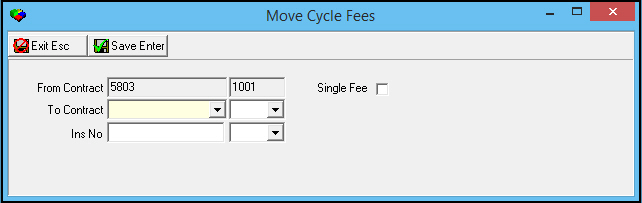
Field Descriptions - Move Cycle Fees
The following table describes the fields and columns used in the Move Cycle Fees Dialog Box.
Field |
Description |
From Contract |
This field defaults with the number of the contract you currently have open. |
Dealer |
This field defaults with ID of the dealer associated with the contract you currently have open. |
Single Fee |
If this field displays a check mark, SBN moves only the cycle fee highlighted when you selected Move Cycle Fees. O If you leave this field blank, SBN moves all cycle fees from the Contract/Installation you currently have open. |
To Contract |
You must select a contract to which SBN moves cycle fees. O This contract number may be the same as the default From Contract if you type an installation number that differs from the installation you currently have open; otherwise SBN displays a warning message. |
Dealer |
You may select the ID of the dealer associated with the To Contract number. (This menu originates from program #1537.) |
Installation No |
You may type the specific installation number to which you want to move cycle fees. O You may not move cycle fees to the same From Contract/Installation number that you currently have open. |
Dealer |
You may select the ID of the dealer associated with the Installation number. (This menu originates from program #1537.) |
Use the following steps to move all cycle fees:
1. Choose Move Cycle Fees.
w The Move Cycle Fees dialog box appears.
2. Complete the fields, as needed. Do not select the Single Fee check box.
Note: You may use the unlabeled fields to select Dealer IDs.
3. Choose Save.
Note: SBN displays a warning if:
The From Contract and Installation number are the same as the To Contract and Installation number.
The From Contract is the same as the To Contract and the Installation number is blank.
Use the following steps to move a single cycle fee:
1. Select the single cycle fee you want to move.
2. Choose Move Cycle Fees.
w The Move Cycle Fees dialog box appears.
3. Select the Single Fee check box.
4. Complete the fields, as needed.
5. Choose Save.
w SBN moves the highlighted cycle fee to the selected contract or typed installation number.
Note: SBN displays a warning if:
The From Contract and Installation number are the same as the To Contract and Installation number.
The From Contract is the same as the To Contract and the Installation number is blank.
Changing All Cycle Dates
You change the cycle date for all active cycle fees simultaneously. When you change the cycle date using Change Cycle Date, SBN records the changes to each cycle fee in the Cycle Fee Change Log tab. SBN does not allow you to change the cycle dates of rental contract cycle fees.
Note: If a Valid-From Date on a cycle fee is in the future, the cycle fee is inactive.
Note: This function does not change cycle dates on inactive cycle fees. If you want to change cycle dates on inactive cycle fees, you must manually change those cycle dates.
Use the following steps to change all cycle dates:
1. Choose Change Cycle Date.
w The Cycle Date window appears.
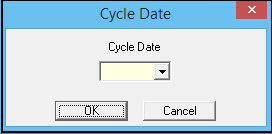
2. In Cycle Date, select a date from the calendar.
3. Choose OK.
w SBN updates all active cycle fee dates to the new date.
Note: Option bl211 defines the maximum number of days in the past to which you can set a cycle date. When action 548/321 is on and option bl211 is set to a value, SBN displays a warning message when you select a cycle date that is more than the number of days in the past than the value of option bl211. When action 548/321 is off and option bl211 is set to a value, SBN displays an error message when you select a cycle date that is more than the number of days in the past than the value of option bl211 and you cannot continue.
Deleting Valid To Dates for All Cycle Fees
You can delete the Valid To dates attached to all of the cycle fees listed in the Cycle Fees tab.
Use the following steps to delete all valid to dates:
1. Choose Delete Valid To Date.
w SBN asks you to confirm the deletion.
2. Choose Yes.
w SBN deletes all Valid To dates from the cycle fees. The Cycle Fees Change Log displays the items affected by the deletion.
Creating Cycle Fee Credit Periods
You can create credit periods for cycle fees during which credits appear on invoices along with the fees, allowing customers to see for which cycle fees their account is being credited. You may create credit periods for one or all active cycle fees. To make changes to a credit period, select the period you want to change and choose Change Record. To delete a credit period, select the period and choose Delete Record.
Use the following steps to create cycle fee credit periods:
1. Select a cycle fee for which you want to create a credit period.
2. Choose Credit Period.
w The Credit Period window opens.
3. In the Period fields, enter a range of dates during which to credit the account for the cycle fee amount.
4. Select the Single Fee check box if you want to create a credit period for only the selected cycle fee. SBN creates credits for all active cycle fees for the selected dates if you do not select this check box.
5. Choose Save.
w The credits you created appear in the Cycle Fees tab as fees with negative amounts. The From and To Date columns display the dates you entered for the credit period.
Button Functions
The following table displays the buttons, describes the shortcut keys, actions, and functionality.
Button |
Name |
Shortcut Key |
Action |
Description |
|
Get Record |
alt+f1 |
548/171 |
View details of selected cycle fee. |
|
Change Record |
f2 |
548/172 |
Change details of selected cycle fee. |
|
New Record |
f3 |
548/173 |
Enter a new cycle fee. |
|
Delete Record |
shift+f10 |
548/174 |
Delete selected cycle fee. |
|
Toggle Mode |
f6 |
548/175 |
Change the view of this tab between the Detail view, Roll-up view, Revenue Work Order Date view, and Revenue Rental view. |
|
Move cycle fees |
f8 |
548/176 |
Move cycle fees for selected contract to another contract. |
|
Change Cycle Date |
f4 |
548/177 |
Change cycle date for all active cycle fees. |
|
Delete Valid To Date |
f5 |
548/178 |
Delete Valid To dates attached to all of the cycle fees. |
|
Toggle between active/inactive |
f7 |
548/179 |
Change the view between active cycle fee lines and all cycle fee lines. |
|
Update PO for one/all Cycle Fees |
F9 |
548/183 |
Update PO for one or all cycle fees. Inactive fees are not updated. |
|
By Invoice |
SHIFT+F8 |
548/184 |
Change the view to display a list of invoices for a selected cycle fee. |
|
Inhibit Toggle |
shift+F6 |
548/187 |
Attach inhibit periods to one or all cycle fees during which the fees do not appear on invoices. |
|
Credit Period |
shift+F |
548/188 |
Create credit periods for one or all cycle fees during which credits appear on invoices. |
|
Toggle Currency |
shift+F5 |
548/194 |
Change cycle fees from the currency type selected for each fee to the primary currency for the account, or from the primary currency back to the selected cycle fee currency. |
|
Change Cycle To Date |
shift+F9 |
548/196 |
Change the Valid To date of all active cycle fees. |
|
Exit without saving |
esc |
Exit without saving changes to selected record. |
|
|
Save Existing Record |
enter |
Save changes to selected record. |

















Modifications and Updates to Cycle Fees
The following table lists modifications and updates to the Cycle Fees document.
Mod Number |
Date |
Description |
07.79.227828, 098.79.09278 |
07/08/13 |
Added note that the Cycle Fee field was affected by the addition of the Min. Cycle Fee and Max. Cycle Fee fields in Items (program #1535). |
n/a |
08/04/14 |
Images updated. |
07.81.23604, 08.82.09775, 07.81.23567 |
09/18/14 |
Inhibit Start Date and Inhibit End Date columns added. |
07.87.25329, 07.87.25325 |
06/15/17 |
Work Order number column added. |
08.89.11542, 07.89.26029 |
10/19/18 |
Free-form text field for users to add additional notes and messages. Images updated. |
n/a |
10/23/18 |
Item Description and Comment columns added to Cycle Fee's. Image updated. |
08.93.12061, 07.93.26778, 07.93.26779, 08.93.12064 |
11/16/21 |
New Amount and Date fields added. Images updated. |