
Agreements
Program #: 1643
Module: Utilities
Overview
Use Agreements (program #1643) to define service agreements used in the Agreements grids of Data Entry Master (program #559) and Contract Master (program #548).
Navigating to Agreements
Use the following steps to access the Agreements program:
1. From the main SBN toolbar, select Menu.
2. From the drop-down menu, select Go To.
3. In the Go To Program dialog box, type in "1643" and press ENTER.
w The Agreements window opens.
The Agreements Window
The following graphic shows Agreements as the program opens.
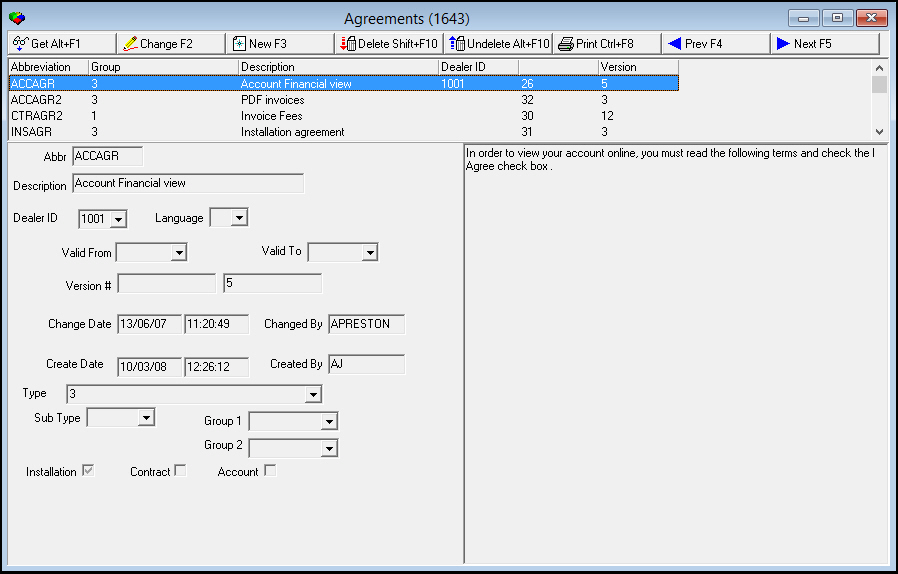
Field/Column Descriptions
The following table describes the fields and columns used in Agreements.
|
Field/Column |
Description |
|
Upper Pane - Columns |
|
|
Abbreviation |
Abbreviation that identifies the service agreement. |
|
Group |
Type of service agreement. |
|
Description |
Text description of the service agreement. |
|
Dealer ID |
Dealer associated with the service agreement. The agreement appears in the Agreement field drop-down menu only on accounts associated with the selected dealer. If this column is blank, the agreement appears in the Agreement menu for all accounts regardless of dealer. |
|
Version |
Number of times the agreement has been changed. SBN automatically updates this column when a user saves changes to agreement text. |
|
Lower Pane - Fields |
|
|
Abbreviation |
Abbreviation that identifies the selected service agreement. This field accepts up to 10 characters. |
|
Description |
Text description of the selected service agreement. This field accepts up to 30 characters. |
|
Dealer ID |
Dealer associated with the selected service agreement. (This menu originates from program #1537.) The agreement appears in the Agreement field drop-down menu only on accounts associated with the selected dealer. If this column is blank, the agreement appears in the Agreement menu for all accounts regardless of dealer. |
|
Language |
Language in which the selected service agreement appears. (Contact IBS before using language codes 11-17.) The agreement only appears in the Agreement field drop-down menu for users with the selected language defined in program #1811. |
|
Valid From |
Date on which the selected agreement becomes valid. |
|
Valid To |
Date on which the selected agreement is no longer valid. |
|
Version # |
Customer-defined number or text that identifies the selected agreement version. This field accepts up to 10 characters. |
|
Version (No label) |
Number of times the selected agreement has been changed. SBN automatically updates this field when a user saves changes to agreement text. |
|
Change Date |
Date on which the selected agreement was last changed. |
|
Change Time (No label) |
Time at which the selected agreement was last changed. |
|
Changed By |
User ID that last changed the selected agreement. |
|
Create Date |
Date on which the selected agreement was created. |
|
Create Time (No label) |
Time at which the selected agreement was created. |
|
Created By |
User ID that created the selected agreement. |
|
Type |
Type of service agreement. (This menu originates from program #1644.) |
|
Sub Type |
Subscriber type associated with the selected agreement. (This menu originates from program #1534.) The agreement appears in the Agreement field drop-down menu only on accounts associated with the selected subscriber type. If this column is blank, the agreement appears in the Agreement menu for all accounts regardless of subscriber type. |
|
Group 1 |
First financial group associated with the selected agreement. (This menu originates from program #1868.) The agreement appears in the Agreement field drop-down menu only on accounts associated with the selected group. If this column is blank, the agreement appears in the Agreement menu for all accounts regardless of assigned group. |
|
Group 2 |
Second financial group associated with the selected agreement. (This menu originates from program #1868.) The agreement appears in the Agreement field drop-down menu only on accounts associated with the selected group. If this column is blank, the agreement appears in the Agreement menu for all accounts regardless of assigned group. |
|
Installation |
Select this check box if the selected agreement is exclusively for installations and should appear only in Data Entry (program #559). Note: If the Installation, Contract, and Account check boxes are all blank, the agreement is available in Data Entry and the Contract and Billing Accounts tabs of Contract Master. |
|
Contract |
Select this check box if the selected agreement is exclusively for contracts and should appear only in the Contract tab of Contract Master (program #548). Note: If the Installation, Contract, and Account check boxes are all blank, the agreement is available in Data Entry and the Contract and Billing Accounts tabs of Contract Master. |
|
Account |
Select this check box if the selected agreement is exclusively for billing accounts and should appear only in the Billing Accounts tab of Contract Master (program #548). Note: If the Installation, Contract, and Account check boxes are all blank, the agreement is available in Data Entry and the Contract and Billing Accounts tabs of Contract Master. |
|
Agreement Text (No label) |
Text of the selected service agreement. When you save changes to this field, SBN updates the Version, Change Date, Change Time, and Changed By fields. |
Viewing Details of a Service Agreement
Use the following steps to view service agreement details:
1. Select the service agreement you want to view.
2. Choose Get Record.
w The service agreement details appear in the fields in the lower pane.
Creating a Service Agreement
Use the following steps to create a new service agreement:
1. Choose New Record.
w The fields in the lower pane open for changes.
2. Enter details for the service agreement.
3. Choose Save.
w The new agreement appears in the list in the upper pane.
Changing a Service Agreement
Use the following steps to change a service agreement:
1. From the upper pane, select the service agreement you want to change by double-clicking or choosing Get Record.
w The agreement details appear in the lower pane.
2. Choose Change Record.
w The fields in the lower pane open for changes.
3. Change agreement details as necessary.
4. Choose Save.
Deleting a Service Agreement
Use the following steps to delete a service agreement:
1. From the upper pane, select the service agreement you want to delete by double-clicking or choosing Get Record.
w The agreement details appear in the lower pane.
2. Choose Delete Record.
w A confirm dialog box opens: "Are you sure?"
3. Choose Yes.
4. SBN removes the service agreement from the list in the upper pane.
Restoring a Deleted Service Agreement
Use the following steps to restore deleted service agreements:
1. Choose Select Record to Undelete.
w The Undelete window appears.
2. In the Undelete window, find the service agreement you want to restore and double-click it, or choose [ENTER].
w SBN restores the service agreement to the list in the upper pane.
Related Programs
The following table lists programs related to Agreements.
|
Program |
Number |
Document Link |
Description |
|
Data Entry/Customer Service |
559 |
Enter customer contact and monitoring information about alarm system installations. Attach service agreements to installations. |
|
|
Contract Master |
548 |
Enter and manage contract information for billing and payment information for each installation, contract, or account. Attach service agreements to contracts and billing accounts. |
|
|
Dashboard |
251 |
View information from several SBN programs in one screen. Service agreements on installations, contracts, and accounts appear in the Dashboard Agreements tab. |
Button Functions
The following table displays the buttons, describes the shortcut keys, actions and functionality.
|
Button |
Name |
Shortcut Key |
Action |
Description |
|
|
Get Record |
alt+f1 |
1643/ 1 |
View details of selected service agreement. |
|
|
Change Record |
f2 |
1643/ 2 |
Change details of selected service agreement. |
|
|
New Record |
f3 |
1643/ 3 |
Create new service agreement. |
|
|
Delete Record |
shift+f10 |
1643/ 4 |
Delete selected service agreement. |
|
|
Undelete |
alt+f10 |
1643/ 5 |
Restore deleted service agreements. |
|
|
Print Selected Records |
ctrl+f8 |
1643/ 6 |
Print selected service agreement. |
|
|
Previous Record |
f4 |
|
Go to previous service agreement. |
|
|
Next Record |
f5 |
|
Go to next service agreement. |
|
|
Exit without saving |
esc |
|
Exit without saving changes to selected record. |
|
|
Save Existing Record |
enter |
|
Save changes to selected record. |










Modifications and Updates to Agreements
The following table lists modifications and updates to the Agreements document.
|
Mod Number |
Date |
Description |
|
n/a |
8/27/14 |
Images updated. |
|
|
|
|
|
|
|
|