
Inventory Movement by Branch Report
Inventory Movement by Branch Report
Inventory Movement by Branch Report
Report #: 2020
Module: Account Generation
Overview
Use the Inventory Movement by Branch report to view receipts to and releases from inventory for items, by transaction date. User’s branch restrictions apply. To access this report, select Inventory Movement by Branch Report (report #2020) from the main menu of SBN.
The Inventory Movement by Branch Report
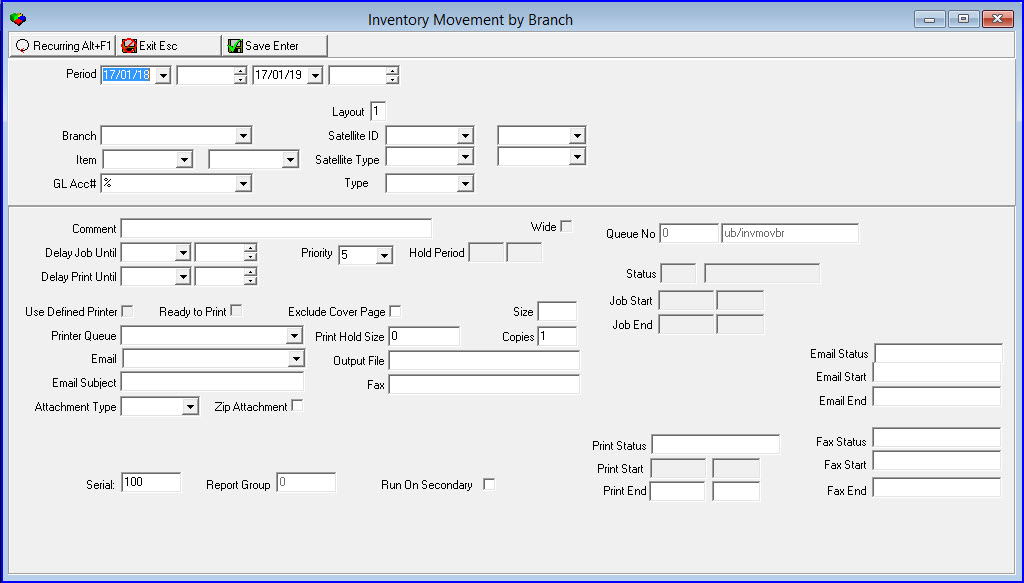
This window contains two panes: use the upper pane to define the contents of the report; use the lower pane to define the job output - how, when, and where you want to print the report.
Note: See Report Parameters Pane for information on the fields in the lower pane, which are the same in every report.
Field Descriptions
The following table describes the fields used in the upper pane of the Inventory Movement by Branch Report.
Note: You can use wildcard characters in selected fields. For more information on using wildcards, see Searches.
Field |
Wildcards Accepted |
Description |
Period Range(s) |
||
Date
- From |
No |
You may select a range of dates to limit the report to inventory transactions within that range. Select the beginning date of the range. O This field defaults to today’s date. |
Time
- From |
No |
You may select a range of times to limit the report to inventory transactions within that range. Select the beginning time of the range. |
Date
- To |
No |
You may select a range of dates to limit the report to inventory transactions within that range. Select the ending date of the range. O This field defaults to tomorrow’s date. |
Time
- To |
No |
You may select a range of times to limit the report to inventory transactions within that range. Select the ending time of the range. |
Layout |
No |
Type the number of the layout you want to use. The default layout is (1). Layout (1) prints the original report format. Layout 2 prints a spreadsheet report format. |
Branch |
No |
You may select a specific inventory branch limit the report to inventory transactions associated with that branch. (This menu originates from program #1530.) O If you leave this field blank, the report includes all branches. O Branch restrictions apply. |
Item |
No |
You may select a specific item code to limit the report to inventory transactions for that item. (This menu originates from program #1535.) O If you leave this field blank, the report includes all items. |
Item (2) |
No |
You can select a secondary item code higher than Item (1) to work in conjunction with Item (1) to specify range for the report. |
GL Acc# |
Yes |
You may select a specific GL account number to limit the report to inventory transactions associated with that account number. (This menu originates from program #1835.) |
Layout |
No |
Type the number of the layout you want to use. The default layout is 1. |
Satellite ID |
No |
When making a selection, the branch column will display the selected satellite ID, this won't change the field labels. If a % is entered all the satellite IDs will display on the report. |
Satellite ID (2) |
No |
You can select a secondary Satellite ID higher than Satellite ID (1) to work in conjunction with Satellite ID (1) to specify a Satellite ID range for the report. |
Satellite Type |
No |
You may select a Satellite Type to limit the report to inventory log transaction date associated with an account number. |
Satellite Type (2) |
No |
Select a secondary Satellite Types higher than Satellite (1) to specify a range of satellite types based on the inventory log transaction dates. |
Type |
No |
Select the Inventory Transaction type that you would like to see on the report. |
Note: The secondary fields section must be higher than the first field selection or an error message will display "Ending range cannot be less than the starting range".
Running and Viewing a Report
For information on running and viewing a report, see Common Functions in SBN.
Report Example
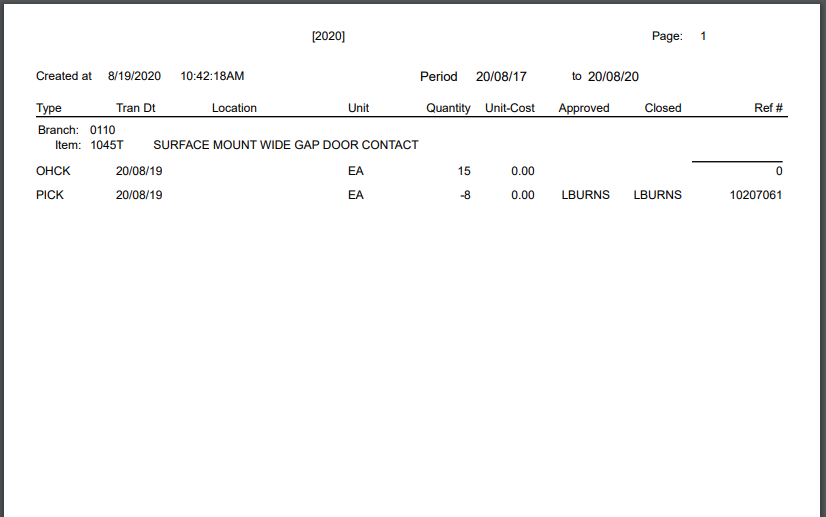
The following graphic shows an example of the output of the Inventory Movement by Branch report when selecting Layout 1.
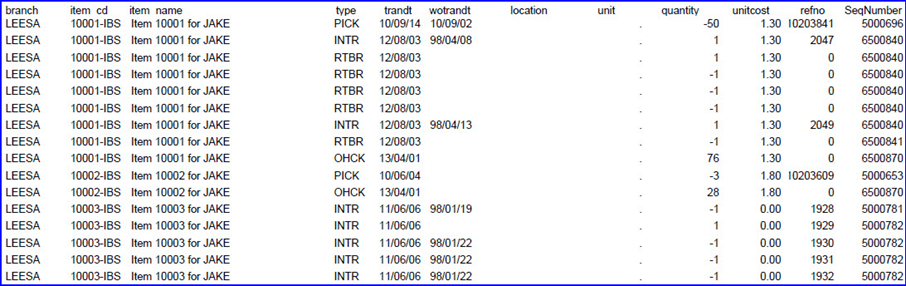
The following graphic shows an example of the output of the Inventory Movement by Branch report when selecting Layout 2.
Column Descriptions
The following table describes the columns used in the output of the report.
Column |
Description |
Branch |
ID of the branch associated with the following inventory transactions. |
Item CD |
Item code. |
Item
Description |
Text description of the item. |
Type |
Identifies the type of the selected transaction. |
Trandt |
Date of the selected transaction. |
Wotrandt |
Work order transaction date |
Location |
Physical location of the item in the warehouse. |
Unit |
Unit of measure for the item. |
Quantity |
Quantity of the item in the selected transaction. |
Unit-Cost |
Standard branch cost of the item. |
Approved |
User who approved the Work Order. |
Closed |
User who closed the Work Order. |
Ref# |
Reference number associated with the transaction: l PICK transactions display the associated work order number. l RECE transactions display the associated purchase order number. |
Install Number |
Installation Number. (Layout 2 only). |
Subscriber Type |
Subscriber Type associated with the installation. (Layout 2 only). |
Button Functions
The following table displays the buttons, describes the shortcut keys, actions, and functionality.
Button |
Name |
Shortcut Key |
Action |
Description |
|
Open fields for recurring/template reports |
alt+f1 |
Open fields for recurring/template reports. |
|
|
Exit without saving |
esc |
Exit without saving changes to selected record. |
|
|
Save Existing Record |
enter |
Save changes to selected record. |



Modifications and Updates to Inventory Movement by Branch Report
The following table lists modifications and updates to the Inventory Movement by Branch Report document.
Mod Number |
Date |
Description |
n/a |
07/14/14 |
Images updated. |
07.91.26328, 08.91.11782, 07.91.26317 |
01/10/20 |
Installation Number and Subscriber Type fields added (Layout 2 only). |
07.92.26469, 08.92.11879, 07.92.26474, 08.92.11888 |
09/01/20 |
Two new columns: Approved and Closed. These columns show who opened the work order and who closed it. Images updated. |