
Marketing and Marketing Basics
Marketing and Marketing Basics
Marketing and Marketing Basics
Program #: 562
Module: Account Generation
Overview
Telemarketing and sales departments use Marketing and Marketing Basics (program #562) to:
Make sales
Track leads and prospects
Successfully market alarm systems
Set up promotions and packages
Check credit scores
Track referrals
Feed outbound calls
Receive and send initial work orders
Feed into a new installation
Feed into Scheduling
In Marketing (along with related programs listed at the end of this document), you may schedule and track installations, sales visits, service calls, and routine maintenance calls. Other functions include running marketing reports, paying customers for sales referrals, checking credit scores, setting up promotions, and paging sales personnel.
This document describes both the main Marketing window and the Marketing Basics tab.
This document covers the following topics:
Customizing the Order of Program Tabs in Marketing
Searching for Marketing Inquiries
Entering a New Marketing Inquiry
Jumping to Data Entry/Customer Service
Using Derived Channel Communication
Creating a Separate Mailing Address for an Inquiry
Exporting Marketing Data Into Document Templates
Navigating to Marketing
Use the following steps to access the Marketing program:
1. From the main SBN toolbar, select Menu.
2. From the drop-down menu, select Go To.
3. In the Go To Program dialog box, type in "562" and press Enter.
w Marketing and Marketing Basics opens.
Marketing Options
You can manipulate the Marketing window and functionality by using a number of options. The settings of the following options control different aspects of Marketing and how it relates to other programs. For detailed information on an option and its default setting, see SBN Options.
Option ba204 – When on, SBN checks the phone number entered into a new Marketing inquiry against the Phone 2 field in existing inquiries and displays a warning if it finds duplicates. SBN searches for exact matches. For example, if a user enters the number 972-518-2250 in a new inquiry, the search will not match that number with an inquiry that contains the phone number 9725182250.
Option ba317 – When on, you may search by email address in the Basic Search dialog box. SBN also checks the email address entered into a new Marketing inquiry against existing inquiries and displays a warning message if it finds duplicates.
Option ba357 – When on, SBN checks the phone number entered into a new Marketing inquiry against the Fax field in existing inquiries and will display a warning if it finds duplicates. SBN searches for exact matches. For example, if a user enters the number 972-518-2250 in a new inquiry, the search will not match that number with an inquiry that contains the phone number 9725182250.
Option ba364 – When on, the Branch menu in the New Inquiry window defaults with the branch or branches associated with the territory to which the zip code is attached. Use Territories (program #1616) to attach branches and zip codes to territories.
Option sv045 – Defines the default status of a service request that SBN automatically generates when you save a new account.
Option temp162 - When on and when copying an inquiry, information in the Credit Source, Credit Ref, Credit Date, and Credit Result fields will not be copied over.
Option tm004 – When on and you choose New Referral, the Sales ID attached to the base Marketing record defaults into the new record.
Option tm005 – Defines the default status of an inquiry in the Event Log tab after you choose Jump to Data Entry/Customer Service from a Marketing inquiry.
Option tm006 – When on and you choose Jump to Data Entry/Customer Service and create a new installation, SBN creates an action plan for that account. SBN populates that action plan with the Contacts from the Marketing Basics tab and the new installation's default action plan will contain the default agencies.
Option tm012 – When on and a sales schedule request is unallocated or reassigned in Scheduling (program #563), SBN sends a paging message to the salesperson and records event "APP CAN" in the Event Log tab of Marketing (program #562).
Option tm013 – When on and a dynamic grouping is entered in this specific format, "<dealer>|<Inst Br>|<Mon Br>" (Dealer Number/Installation Branch/Monitoring Branch), you can enter a new record in the Marketing - Basics program (program #562) and select the dealer number from the Member Dealer dropdown menu, and it will insert your installation and monitoring branch information from your record in the Customer Data program (program #559) record when you click the "Jump DE" button. If the value is blank when clicking "Jump DE," the install branch and monitoring branch remain blank. If an Installation Branch value entered in the option and if you enter a new inquiry in program #562 without choosing a dealer, then the installation branch will auto-populate with the same branch as chosen in the Marketing - Basics program record for the sales branch. You must make sure the branches are valid for the given dealer, otherwise the installation will not save. You can include as many of these groupings in the option as you like, as long as the total length does not exceed the standard 255.
Option tm014 – When on, the Credit Check web service is enabled.
Option tm015 – Defines the number of days until the next credit check; a blank entry is "never".
Option tm016 – Defines a new status/event in Events (program #1856) if the customer refuses a credit check.
Option tm017 – Defines a string prefixed to a Marketing (program #562) inquiry number to generate a TransUnion UserReference number.
Option tm018 – When on, a Credit Check queue notification is logged in the TM Event log.
Option tminpos – Defines the default cursor position in Marketing after you enter information in the New Record dialog box.
Option tm019 – (RSED) New dynamic options in Program #1887, Acton, Customer call or Contractor these are entered in the Event Log Tab
Option tm020 – (NSLD) New dynamic options in Program #1887, Acton, Customer call or Contractor these are entered in the Event Log Tab
Option tm021 – (EMAIL) New dynamic options in Program #1887, Acton, Customer call or Contractor these are entered in the Event Log Tab
Option tm022 – (URL) New dynamic options in Program #1887, Customer call or Contractor these are entered in the Event Log Tab
Option tm023 – (COMP) New dynamic options in Program #1887, Acton, Customer call or Contractor these are entered in the Event Log Tab.
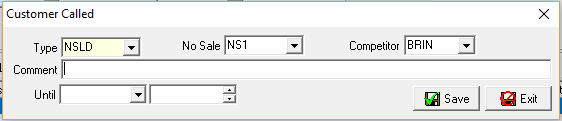
Note: "%" symbol may be entered into this option which will display the Competitor dropdown menu for all No Sale types. (For the Competitor menu to be displayed, it is applicable to what the Type dropdown option tm020 is set to- not just option tm020 being set to "NSLD."
Option tm027 - Source for comlog entry generated in new 562 inquiry (leave blank to turn off feature).
Option tm028 - Code for comlong entry generated in new 562 inquiry.
Option tm029 - Key1 for comlong entry generated in new 562 inquiry.
Option tm030 - Key2 for comlong entry generated in new 562 inquiry.
Option tm031 - Key3 for comlong entry generated in new 562 inquiry.
Option tm032 - Key4 for comlong entry generated in new 562 inquiry.
Option tm033 - sent_user for comlog entry generated in new 562 inquiry.
Option tm034 - sent_dept for comlog entry generated in new 562 inquiry.
The Marketing Window
The following graphic shows the main window of Marketing.
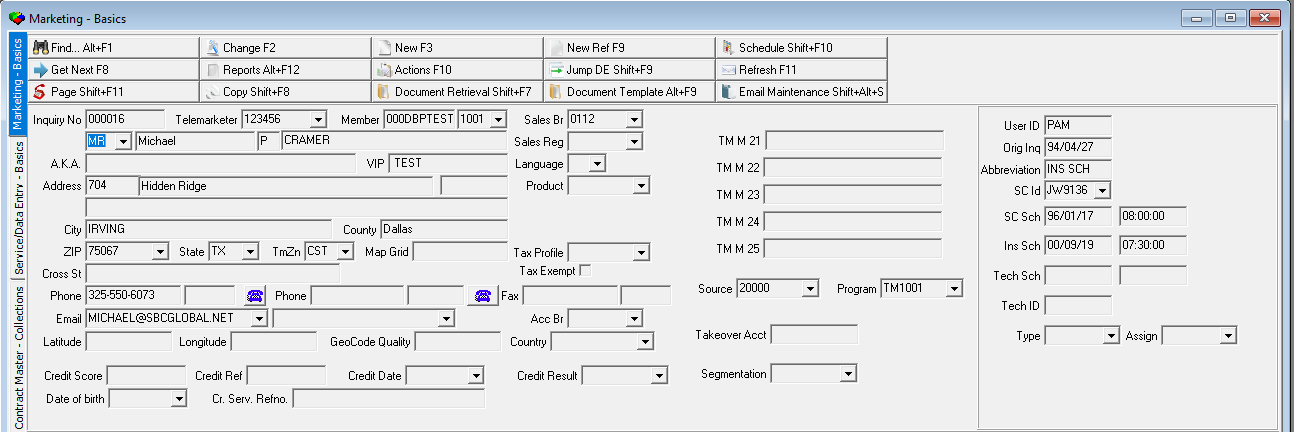
Field Descriptions - Marketing Main
The following table describes the fields in the main window of Marketing.
Field |
Description |
Inquiry No |
SBN-assigned number to track the lead. |
Telemarketer |
Telemarketer ID; generally the person who makes the initial telephone contact with the lead. (This menu originates from program #1750.) |
Member |
Searchable customer or member number for an association with which your company has a marketing alliance. |
Dealer ID |
Dealer ID number; represents the servicing dealer for this installation. The Dealer ID number may also identify how your company acquired the account. (This menu originates from program #1537.) |
Sales Branch |
Branch responsible for the marketing efforts of this lead. (This menu originates from program #1530.) Note: This field may fill with a default based on the ZIP Code field, which originates from program #1718. Note: If program #1718 has a sales branch set up for the zip code you entered, the Sales Branch field in the New Inquiry dialog box defaults to that branch. If your action profile includes action 562/12 you can override the default. If your action profile includes actions 562/12 and 562/13, the settings in Required Fields (program #1843) apply and you cannot change this field if it is protected. |
Name |
Four fields that contain the name of the homeowner or business: l If the account is residential, you may type a title for the homeowner. (This menu originates from program #1704/57.) l If the account is residential, you may type a first name for the homeowner. If the account is commercial, leave this field blank. This field accepts up to 40 characters. l If the account is residential, you may type a middle initial for the homeowner. If the account is commercial, leave this field blank. l If the account is residential, type a last name for the homeowner. If the account is commercial, type the name of the business. This field accepts up to 60 characters. These fields fill with defaults in the New Inquiry window, but you can modify them when the window is in Change mode. |
Sales Reg |
Geographic subdivisions within a sales branch. (This menu originates from the Sales Regions tab of program #1530 for the branch selected for the marketing inquiry.) Note: This field may fill with a default based on the Zip field, which originates from program #1718. Note: If program #1718 has a sales region set up for the zip code you entered, the Sales Region field in the New Inquiry dialog box defaults to that region. If your action profile includes action 562/12 you can override the default. If your action profile includes actions 562/12 and 562/13, the settings in Required Fields (program #1843) apply and you cannot change this field if it is protected. |
A.K.A. |
Also Known As or Alias. Optional field for a customer who might use a nickname or more than one name. This field accepts up to 35 characters. |
VIP |
Optional VIP number. This field accepts up to 10 characters. |
Language |
Language code that provides the ability to print reports in languages other than English. Note: Functionality is currently limited to French only and reports 2005 and 2033. |
Address |
Street number, street name, and apartment or suite number for the alarm premises. Note: Street name field accepts up to 60 characters. |
Product |
Type of product associated with the inquiry. (This menu originates from program #1583.) Note: Your action profile must include action 562/12 to change this field. |
Additional Street Address (No label) |
Additional line for the street address. This field accepts up to 40 characters. |
Program |
Type of sales program used to approach the prospect. (This menu originates from program #1701.) For example: l Direct sale l Telemarketing l Mass mailer Note: Your action profile must include action 562/12 to change this field. |
City |
City of the homeowner or business. This field holds up to 50 characters. Note: This field may fill with a default city based on the Zip field, which originates from program #1718. |
County |
County of the homeowner or business. (This menu originates from program #1710.) This field accepts up to 50 characters. Note: This field may fill with a default county based on the Zip field, which originates from program #1718. You can override the default. |
Source |
Source for how the prospect heard about the company. (This menu originates from program #1710.) Note: This field fills with a default in the New Inquiry window. If your action profile includes action 562/12, you can modify this field when the window is in Change mode. |
Zip |
Zip code of the homeowner or business. (This menu originates from program #1718.) Note: This field fills with a default in the New Inquiry window. Note: SBN can use a valid zip code to create defaults for: l City l County l State l Time Zone l Branch When customer-specific option temp162 is on, SBN does not allow you to make changes to this field if a work order associated with the installation is scheduled in program #563. |
State |
State of the homeowner or business. (This menu originates from program #1510.) Note: This field holds a maximum of 60 characters. Note: This field may fill with a default state based on the Zip code field, which originates from program #1718. You can override the default. |
TmZn |
Time zone of the homeowner or business. (This menu originates from program #1739.) Note: This field may fill with a default time zone based on the Zip field, which originates from program #1718. You can override the default. |
Map Grid |
Map coordinates for the homeowner or business site. This field accepts up to 10 characters. |
Tax Profile |
Code for the tax profile for this inquiry. Use this code so that the tax appears correctly on the work order inside Marketing before you enter a contract. (This menu originates from program #1514.) Note: This does not affect billing. The Tax Profile in Contract Master overrides the selection in Marketing. |
Tax Exempt |
If this box displays a check mark, this installation is tax-exempt. This allows the tax to appear correctly on the work order inside Marketing before you enter a contract. Note: This does not affect billing. The Tax Exempt flag in Contract Master overrides the selection in Marketing. |
Cross Street |
Nearest major cross street to the homeowner or business site; used for dispatch information. This field accepts up to 35 characters. |
Phone |
Primary phone number for the homeowner or business. Note: When you choose AutoDial next to the Phone field, a Called Customer dialog box opens. Use this dialog box to enter the outcome of the call and type a comment regarding the call that appears in the Event Log tab. |
Phone
1 Extension |
Extension for the primary phone. |
Secondary
Phone |
Optional secondary phone number for the homeowner or business. |
Secondary Phone Extension (No label) |
Extension for the secondary phone. |
Fax |
Optional fax number for the homeowner or business. |
Fax
Extension |
Extension for the fax number. |
Email 1 |
Email address for the homeowner or business. (This menu originates from program #1898.) Note: SBN saves all email addresses in uppercase. |
Email 2 |
Secondary email address for the homeowner or business. (This menu originates from program #1898.) Note: SBN saves all email addresses in uppercase. |
Access Branch |
You may select an access branch to associate with this inquiry record. (This menu originates from program #1530.) Note: Use Access Branch with Securitas Partner Invoicing. |
Latitude |
Latitude of the home or business address. Range is 0º to (+/-) 90º. For example: 34.33896. This field accepts up to 12 characters. Note: When your company integrates with MapPoint, if the Latitude/Longitude fields contain coordinates, MapPoint displays a push pin at those coordinates on the image it displays. If these fields are blank, MapPoint displays a map zoomed into the installation address. Note: If you choose Jump to Data Entry/Cust Serv, SBN fills the Latitude field in the Data Entry Master screen with the data from this field. |
Longitude |
Longitude of the home or business address. Range is 0º to (+/-) 180º. For example: -79.43433. This field accepts up to 12 characters. Note: When your company integrates with MapPoint, if the Latitude/Longitude fields contain coordinates, MapPoint displays a push pin at those coordinates on the image it displays. If these fields are blank, MapPoint displays a map zoomed into the installation address. Note: If you choose Jump to Data Entry/Cust Serv, SBN fills the Longitude field in the Data Entry Master screen with the data from this field. |
GeoCode Quality |
You may type a rating for the geocode of the inquiry address. This field accepts up to 12 characters. Note: If you choose Jump to Data Entry/Cust Serv, SBN fills the Geocode Quality field in that screen with the data from this field. See Jumping to Data Entry/Customer Service. |
Country |
Country in which the home or business is located. (This menu originates from program #1865.) Note: This field defaults to the country value defined for your user ID in Personnel (program #1811). |
Credit Score |
Credit score of the homeowner. This field accepts up to four digits. Note: If you choose Jump to Data Entry/Cust Serv, SBN fills the Credit Score field in that screen with the data from this field. |
Credit Ref |
Credit reference for the homeowner. Note: If you choose Jump to Data Entry/Cust Serv, SBN fills the Credit Ref field in that screen with the data from this field. |
Credit Date |
Date the credit score was received. SBN updates this field when a user changes the Credit Score or Credit Result. Note: If you choose Jump to Data Entry/Cust Serv, SBN fills the Credit Date field in that screen with the data from this field. |
Credit Result |
Select a credit result for the homeowner. (This menu originates from program #1590/66.) Note: If you choose Jump to Data Entry/Cust Serv, SBN fills the Credit Result field in that screen with the data from this field. |
Segmentation |
Select a subscriber segment. (This menu originates from the sublevel of program #1534.) |
Date of Birth |
The homeowner's birth date. |
Cr. Serv. Refno. |
The homeowner's credit report service reference number. |
Status Box |
|
User ID |
ID of the user who created the inquiry record. |
Orig Inquiry |
Date on which a user created the inquiry record. |
Abbreviation |
Current status of the inquiry. Note: SBN updates this field as you take actions. |
SC ID |
ID of the salesperson scheduled to visit the installation. Note: This field defaults to the ID of the user who schedules a sales consultant or enters a sales consultant in the Request to Schedule window. SC Id must have Action 562/13 in program #1502 disabled to have ability to change Sales person while in Change mode. |
SC Sch - Date |
Date on which a sales visit is scheduled. Note: This field defaults to the date scheduled in the Scheduling module (program #563). |
SC
Sch - Time |
Time at which a sales visit is scheduled. Note: This field defaults to the time scheduled in the Scheduling module (program #563). |
Ins Sch - Date |
Date on which the installation is scheduled. Note: This field defaults to the date scheduled in the Scheduling module (program #563). |
Ins
Sch - Time |
Time at which the installation is scheduled. Note: This field defaults to the time scheduled in the Scheduling module (program #563). |
Tech Sch - Date |
Date on which a technician is scheduled to visit the home or business. Note: This field defaults to the date scheduled in the Scheduling module (program #563). |
Tech Sch - Time |
Time at which a technician is scheduled to visit the home or business. Note: This field defaults to the time scheduled in the Scheduling module (program #563). |
Tech ID |
ID of the technician scheduled to visit the installation. |
Letter Export (3 flags) |
These check boxes indicate which letters have been exported from Marketing Exports (program #573). Note: There are exports labeled Letter 1, Letter 2, and Letter 3 in program #573. |
Derived Channel Communication (DCC) |
Selection of this check box indicates that DCC is to be installed. |
Selection of this check box indicates that the homeowner or business has a separate mailing address. Note: To access the Mailing Address window, right-click the Mail check box and choose Mail. |
|
TM M 21-25 |
Customer defined free-format text fields used for the telemarketers. Note: The TM M 21-25 field accepts up to 50 characters. |
The Marketing Basics Tab
Use the Marketing Basics tab to enter additional information about an inquiry.
Note: All fields in the Marketing Basics tab are customer-defined, with the exception of the Reason for Call and Customer Type fields. You can define a total of 18 miscellaneous fields in combinations of menus (11 available), Numbers (10 available), Yes/No fields (16 available), and Dates (1 available). SBN dynamically updates the label that appears for each field based on the description you assign for the index in Marketing Miscellaneous (program #1704).
To access Marketing Basics, select Marketing (program #562) from the main menu of SBN, and then choose the Basics tab.
The following graphic shows the Marketing Basics tab.
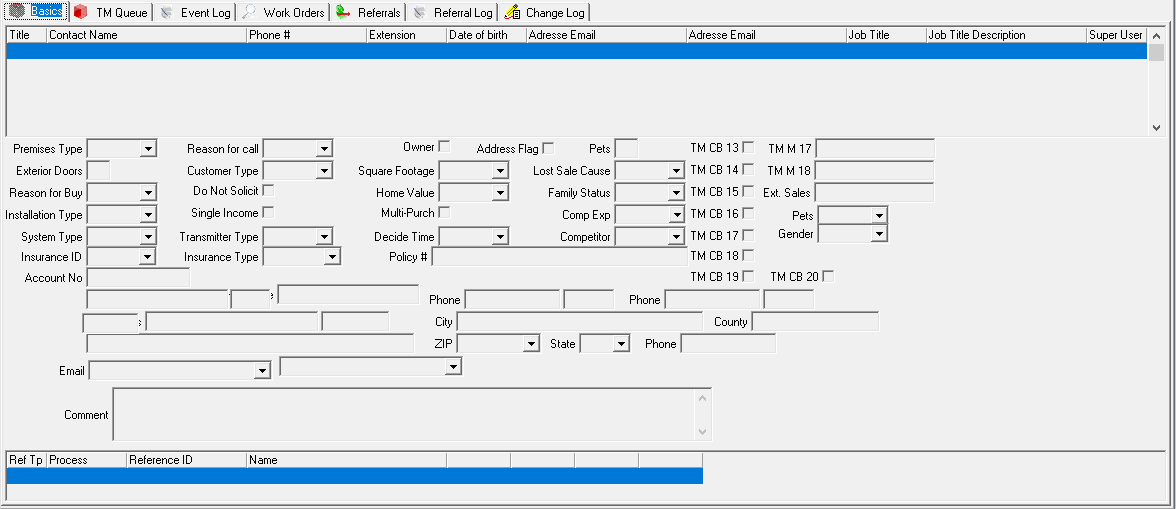
Field and Column Descriptions - Marketing Basics
The following table describes the fields/columns used in the Marketing Basics tab.
Field |
Description |
Title |
Title of additional contacts for this inquiry. |
Contact Name |
Name of additional contacts for this inquiry. |
Phone Number |
Phone number of an additional contact for this inquiry. |
Extension |
Phone extension of an additional contact for this inquiry. |
Date of Birth |
Date of birth of the contact. |
Email 1 |
Email address. Note: SBN saves all email addresses in uppercase. |
Email 2 (No Label) |
Secondary email address. Note: SBN saves all email addresses in uppercase. |
Job Title |
Dropdown list of user roles. |
Job Title Description |
Description of a user's role automatically populated when job title has been selected. |
Super User |
Check for a user who is assigned the ALL Profile. This user will have the ability to assign the ALL Profile. (Note: Can only have one checked or error message "Only 1 Super user allowed" will appear. |
Premises Type |
Type of building. (This menu originates from program #1704/31.) |
Reason for Call |
Codes and descriptions for the reason of the call. (This menu originates from program #1704/36.) Note: This field defaults with the reason entered in the New Inquiry window. If your action profile includes action 562/12, you can modify this field when the window is in change mode. |
Owner |
If this check box is selected, the person listed on the record owns the home or business. |
Address Flag |
Information-only flag; no functionality in SBN. |
Pets |
Number of pets at the installation site. |
Exterior Doors |
Number of exterior doors at the installation site. |
Customer Type |
Type of customer. (This menu originates from program #1534.) |
Square Footage |
Square footage at the installation site. (This menu originates from program #1704/33.) |
Lost Sale Cause |
Reason the sale was lost. (This menu originates from program #1704/34.) |
Reason for Buy |
Reason for the purchase. (This menu originates from program #1704/32.) |
Do Not Solicit |
If this check box is selected, make no future attempts to solicit this lead. |
Home Value |
Value of the installation site. (This menu originates from program #1704/39.) |
Family Status |
Family status for this installation. (This menu originates from program #1704/44.) |
Installation Type |
Type of system being discussed with the lead. (This menu originates from program #1704/35.) |
Single Income |
If this check box is selected, the lead is a single-income household. |
Multi-Purchase |
If this check box is selected, the lead is interested in systems for more than one installation. For example, multiple businesses, or both home and business. (This menu originates from program #1704.) |
Comp Expiration |
Date on which the lead’s current security agreement expires. |
System Type |
Type of system being considered by the lead. (This menu originates from program #1704/37.) |
Transmitter Type |
Type of transmitter for this installation. (This menu originates from program #1704/38.) |
Decide Time |
Amount of time for the customer to decide whether they will sign a contract. (This menu originates from program #1704/36.) |
Competitor |
Competitor who has the current contract for this installation. (This menu originates from program #1704/40.) |
Insurance ID |
Identifies the customer’s insurance company. (This menu originates from program #1541.) |
Insurance Type |
Type of insurance the customer has. (This menu originates from program #1590/48.) |
Policy Number |
Policy number of the customer’s insurance account. (This field accepts up to 40 characters.) |
TM CB 13-20 |
Customer defined check flags. |
TM M 17-18 |
Customer defined free-format text fields. Note: The TM M 17 field accepts up to 40 characters. |
Ext. Sales |
Free-form text field that displays the ID of the user who created the lead. This user does not necessarily exist in SBN. (This field accepts up to 10 characters.) |
Pets |
Identifies the type of pets located at the installation. (This menu originates from program #1590/3.) |
(Owner) Account Number |
Used to store additional information about owner. (This field accepts up to 15 characters.) |
(Owner) First Name |
Owner first name. (This field accepts up to 40 characters.) |
(Owner) Middle Initial |
Owner middle initial. |
(Owner) Last Name |
Owner last name. (This field accepts up to 60 characters.) |
(Owner) Phone |
Used to store owner phone number if different from customer. |
Extension (No label) |
Owner phone extension. |
(Owner) Phone |
Used to store additional phone number if different from customer. |
Extension (No label) |
Owner phone extension. |
(Owner) Address |
Street number, street name, and apartment or suite number for the owner. |
(Owner) City |
City of the owner address. (This field accepts up to 50 characters.) |
(Owner) State |
State of the owner address. (This menu originates from program #1510. This field accepts up to 60 characters.) |
(Owner) County |
County of the owner address. (This field accepts up to 20 characters.) |
(Owner) Zip |
Zip code of the owner address. (This menu originates from program #1718.) |
(Owner) Phone |
Additional phone for owner. |
Email address of owner. (This menu originates from program #1898.) Note: SBN saves all email addresses in uppercase. |
|
Email (No Label) |
Additional email address of owner. (This menu originates from program #1898.) Note: SBN saves all email addresses in uppercase. |
Comment |
Additional comments about the installation. Note: You can write extensive comments in this field. To open the field in a separate window to read or edit, press CTRL+Z. |
Referral Type |
Type of referral (customer or employee). Note: This field defaults to information entered in the Referral tab or from the New Referral window. (This is a read-only field.) |
Process |
If this column displays an X, the referral AP voucher or credit work order was created when the inquiry was installed. Note: This field defaults to information entered in the Referral tab or from the New Referral window. (This is a read-only field.) |
Reference ID |
Reference number to define the account number or employee ID. Note: This field defaults to information entered in the Referral tab or from the New Referral window. (This is a read-only field.) |
Name |
Name of the person who referred the account. Note: This field defaults to information entered in the Referral tab or from the New Referral window. (This is a read-only field.) |
Cust Prev Wage |
Custom Prevailing Wage. Select this checkbox to apply prevailing wage to a specific work order. (Prevailing wage must be pre-defined by IBS). |
Customizing the Order of Program Tabs in Marketing
You can customize the order of the program tabs that appear in Marketing after the Basics tab. There are three ways to customize the order of these tabs:
Dragging and dropping the program tabs into a different order. (You must enable action 193/49 in your user action profile in program #1502 to use this method.)
Setting up the Prg 562 Tabs field for your user action profile in program #1502
Defining the value of dynamic option tatab in program #1887
SBN determines the order of the tabs in Marketing primarily based on the entry in the Prg 562 Tabs field for your user action profile in program #1502. If this field is blank, SBN uses the value of option tatab to determine the order of the tabs. If the option value is blank as well, SBN orders the tabs in their default sequence. The default order of Marketing program tabs is: 1 Basics (cannot be moved), 2 TM Queue, 3 Event Log, 4 Work Orders, 5 Referral, 6 Referral Log.
Note: The order of the Marketing Basics tab cannot be changed; it always appears first.
Searching for Marketing Inquiries
You can access the Search window from Marketing, Customer Service, Data Entry, Monitoring, and Contract Master. These programs provide Search in the toolbar. For information on searching in SBN, see the reference document Searches.
Note: You cannot be in New or Change mode when you perform a record search.
Entering a New Marketing Inquiry
Use the New Inquiry window to define a new Marketing record. Information you enter in these fields defaults to the Marketing Basics tab. After you save the new inquiry, SBN returns you to the Marketing window in change mode. At this point, you can complete more fields in the Marketing window and move into the Marketing tabs before you save the new inquiry again, or you can save the new inquiry and make additional changes later by choosing Change.
Note: When you save a new inquiry, you can define the default cursor position in Marketing Basics with option tminpos.
Options for New Inquiries
If option ba204 is on, SBN checks the phone number entered in the new inquiry against the phone2 field of existing inquiries and displays a warning message if it finds duplicates.
If option ba357 is on, SBN checks the phone number entered in the new inquiry against the Fax field in existing inquiries and displays a warning if it finds duplicates.
Note: SBN searches for exact matches. For example, if you enter the phone number 972-518-2250 in a new inquiry, the search does not match that number with an inquiry that contains the phone or fax number 9725182250.
If option ba317 is on, SBN checks the email address entered in the new inquiry against the primary and secondary email addresses in existing inquiries and displays a warning if it finds duplicates.
If option ba364 is on and you create a new inquiry, the Branch menu in the New Inquiry window defaults with the branch or branches associated with the territory to which the zip code is attached. Use Territories (program #1616) to attach branches and zip codes to territories.
The New Inquiry Window
The following graphic shows the New Inquiry window as it opens.
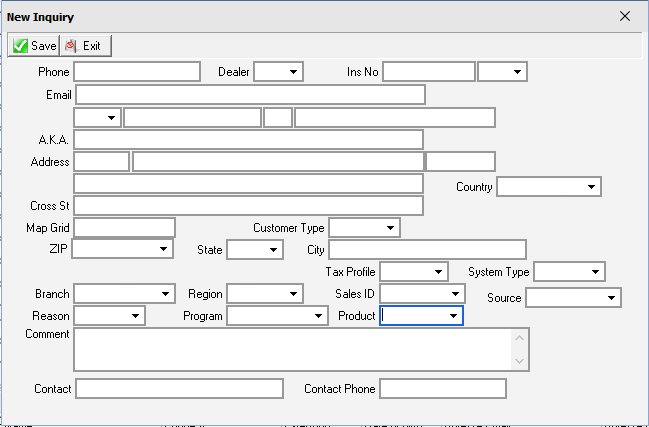
(Applies to company 204.)
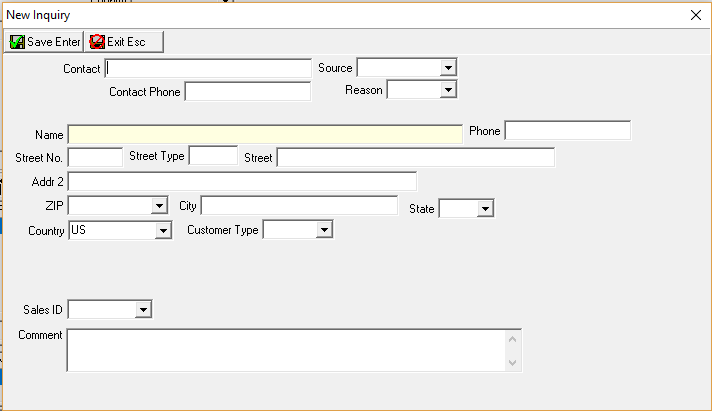
Field Descriptions - New Inquiry
The following table describes the fields used in the New Inquiry window.
Field |
Description |
Phone |
Primary phone number for the installation. Note: If options ba204 and ba357 are on, SBN checks the phone number entered in the new inquiry against the Phone2 and Fax fields of existing inquiries and displays a warning message if it finds duplicates. See Options for New Inquiries above. |
Dealer |
ID of the dealer associated with the inquiry. (This menu originates from program #1537.) |
Ins No |
Existing Installation number that you can link to the new account. This field accepts up to 12 characters. |
Dealer
ID |
ID of the dealer associated with the installation. (This menu originates from program #1537.) |
Email address of the homeowner or business. Note: If option ba317 is on, SBN checks the email address entered in the new inquiry against the primary and secondary email addresses in existing inquiries and displays a warning if it finds duplicates. |
|
Name |
Four fields containing the name of the homeowner or business. l If the account is residential, you may type a title for the homeowner. (This menu originates from program #1704/57.) l If the account is residential, you may type a first name for the homeowner. If the account is commercial, leave this field blank. This field accepts up to 35 characters. l If the account is residential, you may type a middle initial for the homeowner. If the account is commercial, leave this field blank. l If the account is residential, type a last name for the homeowner. If the account is commercial, type the name of the business. This field accepts up to 60 characters. Note: These fields default from the New Inquiry window, but you can modify this field when the window is in change mode. |
A.K.A. |
Also Known As or Alias. Optional field for a customer who may use a nickname or more than one name. This field accepts up to 35 characters. |
Address |
Street number, street name, and apartment or suite number for the alarm premises. |
Additional Address (No label) |
Additional line for the street address. This field accepts up to 35 characters. |
Cross Street |
Nearest major cross street to the homeowner or business site; used for dispatch information. This field accepts up to 35 characters. |
Map Grid |
Map coordinates for the homeowner or business site. This field accepts up to 10 characters. |
Customer Type |
Type of customer. (This menu originates from program #1534.) |
Country |
Country of the homeowner or business. (This menu originates from program #1865.) Note: This field defaults to the country value defined for your user ID in Personnel (program #1811). |
ZIP Code |
Zip code of the homeowner or business. (This menu originates from program #1718.) Note: SBN can use a valid zip code to create defaults for: l City l County l State l Time Zone l Branch |
State |
State of the homeowner or business. (This menu originates from program #1510.) This field may fill with a default state based on the Zip Code field, which originates from program #1718. You can override the default. Note: This field accepts up to 60 characters. |
City |
City of the homeowner or business. This field accepts up to 50 characters. Note: This field may fill with a default city based on the Zip Code field, which originates from program #1718. |
Tax Profile |
Identifies the tax profile. (This menu originates from program #1514.) Note: This field fills with the default tax profile associated with the selected zip code in program #1718. |
Branch |
Branch responsible for the marketing efforts for the lead. (This menu originates from program #1530.) Note: This field may fill with a default branch based on the Zip Code field. You can override the default. Note: SBN saves information entered in Branch, Region, and Sales ID fields when you select a zip code with no default information for these fields. Note: If option ba364 is on, this menu defaults with the branch associated with a territory and zip code. If a zip code is not attached, the menu displays all sales branches. |
Region |
Geographic subdivisions within a sales branch. (This menu originates from program #1530.) Note: SBN saves information entered in Branch, Region, and Sales ID fields when you select a zip code with no default information for these fields. |
Sales ID |
Salesperson ID. (This menu originates from program #1539.) Note: SBN saves information entered in Branch, Region, and Sales ID fields when you select a zip code with no default information for these fields. |
Reason |
Codes and descriptions for the reason of the call. (This menu originates from program #1704/36.) |
Program |
Type of sales program used to approach the prospect. (This menu originates from program #1701.) For example: l Direct sales l Telemarketing l Mass mailer Note: Your action profile must include action 562/12 to change this field. |
Source |
Source for how the prospect heard about the company. (This menu originates from Sources, program #1710.) Note: The sources in the menu vary based on your selections in the Branch, Program, or Dealer fields. Note: This field defaults from the New Inquiry window. Note: Your action profile must include action 562/12 to change this field. |
Comment |
Free-form text comment. |
Contact |
Name of Contact . |
Contact Phone |
Phone Number of contact. |
Product |
Product dropdown list. This fields originates from Products (#1583). |
Entering a New Marketing Inquiry
Use the following steps to enter a new marketing inquiry:
1. In Marketing, choose New.
w The New Inquiry window appears.
2. Complete the Phone, Last Name, and State fields.
3. Complete the remaining fields, as needed.
Note: SBN limits the selections in Program and Source menus based on the selections you make in the Branch menu.
4. Choose Save to save this new inquiry.
w SBN returns you to the main window of Marketing in Change mode.
Note: All information entered on this window appears in the main window of Marketing.
Changing a Marketing Inquiry
You can make changes to an existing marketing inquiry.
Use the following steps to change a marketing inquiry:
1. To search for the inquiry you want to change, choose Find Customer.
w The inquiry information appears in the main marketing window.
2. Choose Change.
w The fields in the main window open for changes.
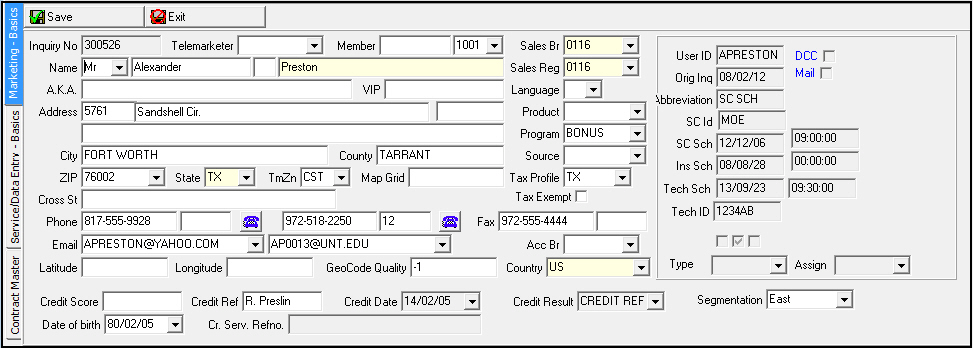
3. Change inquiry information, as needed.
4. Choose Save.
Entering a New Referral
Use New Referral to enter a referral given by an existing customer. After you enter and save information for the referral, SBN:
Assigns a new inquiry number to the newly referred account
Links the newly referred account to the referring account
Logs the referral in the Event Log for marketing
Creates an entry in the Referral Log for the customer who referred the new lead
Note: Each account can have an unlimited number of referrals. (For more information, see Referral Log.)
Use the following steps to enter a new referral:
1. Open the account of the referring customer.
2. Choose New Referral.
w A New Referral dialog box appears.
Note: SBN automatically populates the Country field with the country entered for the user in program #1811.
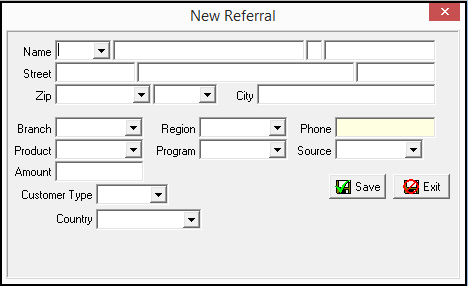
3. Complete the Phone field.
4. Complete the remaining fields, as needed.
5. Choose Save.
Jumping to Schedule Board
Jump to the Schedule Board to schedule:
Sales visits
Installations
Service calls
Marketing (program #562) and Schedule Board (program #0563) work together to schedule sales visits for prospective customers. When you enter Scheduling from Marketing, the Schedule Board displays a completed search, based on the type of schedule request entered. To access the Schedule Board from Marketing (program #562), choose Schedule Board.
Getting Next Record
Choose Get Next Record to bring up the next sales call to make from the outbound database. When getting the next record, SBN replaces the current inquiry with the inquiry for the next sales call.
Note: Use of this feature depends upon setup of the Outbound Marketing programs before its use. These programs include:
Outbound Branch Priorities (program #1713)
Outbound User Profiles (program #1714)
Outbound Database (program #1715)
Outbound Attempt Mix (program #1722)
Outbound Slots (program #1792)
Outbound Call Types (program #1793)
Running a Marketing Report
You can run two reports from Marketing:
l Sales Appointment Report (report #2038)
Note: Use the Sales Appointment Report to provide information to the sales person regarding the sales call for which they are scheduled. You can also use the Sales Appointment Record to collect additional demographic information for Data Entry.
l Proposal Report (report #2133)
Note: Use the Proposal Report to generate a letter that contains a sales proposal addressed to the sales lead. The letter includes specifications about the items you install and the service you provide, along with the fees you charge.
Use the following steps to run a Marketing report:
1. Choose Run Report.
w A Report Selection menu appears.
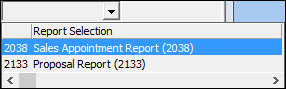
2. From the menu, select the report you want to run.
w The report opens.
3. Complete and run the report according to report instructions.
Marketing Actions
Choose Marketing Actions to view the 16 actions that you can take for the sales lead. Some of the actions invoke additional functionality. New functionality now creates a record in the Event Log for all events for the sales lead.
Note: Use Marketing Events (program #1856) to select the additional functionality or to log a marketing action.
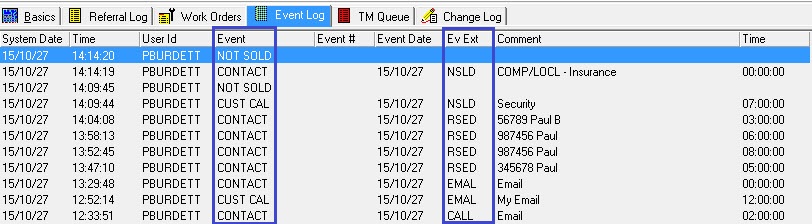
New dynamic options were added in program #1887; tm019 (RSED), tm020 (NSLD), tm021 (EMAL), tm022 (URL), and tm023 (COMP). These Actions, Customer call, or Contractor will display in the Event Log in Program #562.
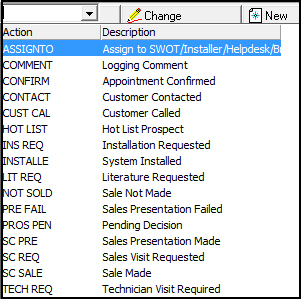
The following sections describe each Marketing Action.
COMMENT (Logging Comment)
Select the Comment action to type a comment about the sales lead.

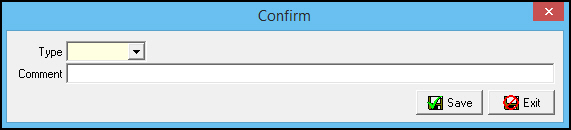
CONFIRM (Appointment Confirmed)
Select the Confirm action to select a type of confirmation call and to enter a comment about the call.
Note: The menu for the Type field originates from program #1704/52.
CONTACT (Customer Contacted)
Select the Contact action to select an outbound call type and to enter a comment about the call.
Note: The menu for the Type field originates from program #1793. Until drop down box aded to select date range.
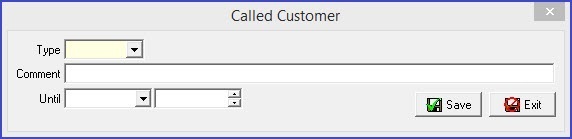
Select the Action tab, Customer Contacted, select a Type, enter a Comment, Until date, and save. The action will be logged in the Event Log tab.

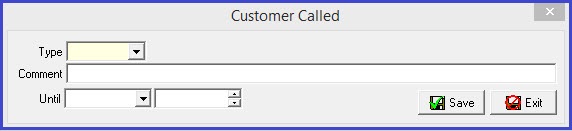
CUST CAL (Customer Called)
Select the Customer Called action to select a code that describes the reason the customer called and to enter a comment about the call.
Note: The menu for the Type field originates from program #1704/41. Until drop down box added to select date range.
Note: Competitor dropdown may appear based off of what Options tm023 and tm020 are set to. Option tm020 controls the Type field. Option tm023 controls the No Sale field. Following the below image, Option tm020 is set to "NSLD" which brings up the No Sale dropdown when "NSLD" is specifically selected. Option tm023 can be set to only show the Competitor dropdown menu when a specific "No Sale" item is selected such as "NS1," or another item. Option tm023 can also be set with the "%" symbol which will display the Competitor dropdown even if nothing within the "No Sale" dropdown is selected.
Select the Action tab, Customer Called, select a Type, enter a Comment, Until date, and save. The action will be logged in the Event Log tab.

In the Event Log the selected action type and events will logged.
HOT LIST (Hot List Prospect)
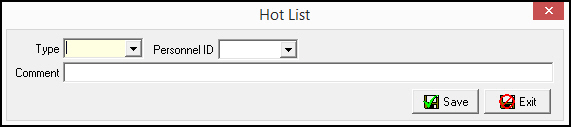
Select the Hot List action to select a code that describes the reason the customer appears as a hot prospect and to type a comment about the reason. You may also select a salesperson or user ID to associate with the prospect.
Note: The menu for the Type field originates from program #1704/51. The Personnel ID drop-down menu displays salespeople if the selected type is designated as Sales in the Code 2 field of program #1704. It displays user IDs if the selected type is designated as Users in the Code 2 field of program #1704. The Personnel ID field is protected if the selected type has a blank Code 2 field in program #1704.
INS REQ (Installation Requested)
Select the Installation Requested action to enter a request to schedule an installation.
Note: The Inquiry Number and Schedule Type fields default from the New Inquiry window. The Size field defaults based on the Work Type field; you can override the default. The menu for the Work Type field originates from program #1526.
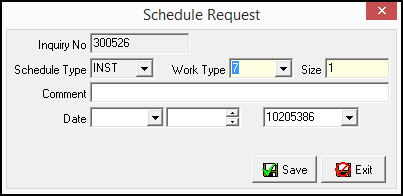
Use the following steps to enter an installation schedule request:
1. In Marketing, choose Marketing Actions.
w An action menu appears.
2. Choose INS REQ from the menu.
w The Schedule Request dialog box opens.
3. Complete the Work Type, Size, and Date fields, along with any other fields.
4. Choose Save.
w SBN logs the schedule request in the Marketing Event Log and the Data Entry Change Log.
INSTALL (System Installed)
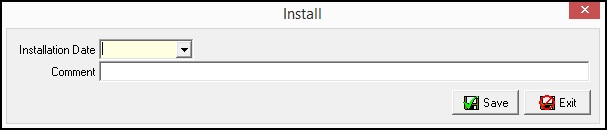
Select the Install action to open a dialog box for selecting the installation date and to type a comment regarding the installation. Upon saving, if you have entered a referral for this lead, SBN opens the Referrals tab and prompts you to pay the referring employee or customer.
Note: Saving information in this window updates the status of the lead.
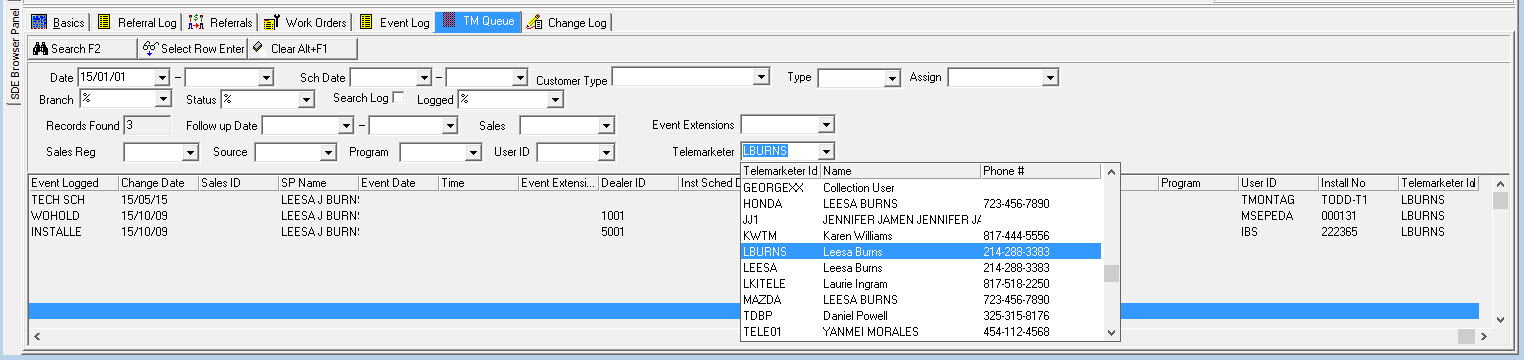
The Marketing TM Queue Tab
The following graphic shows the Marketing TM Queue tab.

Program #562 has a new field available in the TM Queue tab, Telemarketer drop-down Picklist that allows for a wildcard search for a Telemarketer ID. There is also a Telemarketer ID column.
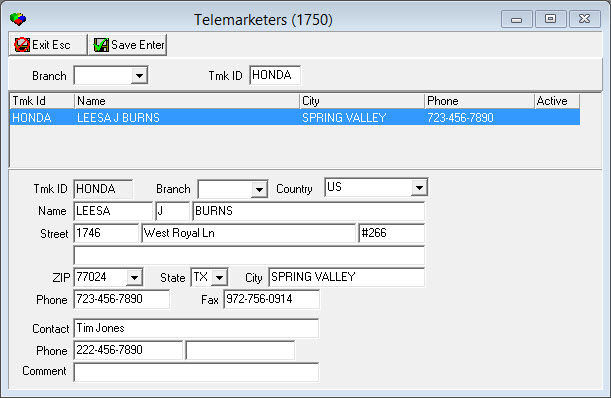
Use Program #1750 to edit a Telemarketer's ID information.
The Referrals Tab
Two sections appear in the upper section of the Referrals tab: Pay Referral 1 and Pay Referral 2.

Choose the appropriate button.
Paying a Customer
If the referral you are paying is for a customer, the Pay Customer dialog box opens when you choose the Pay Referral button. This dialog box displays the current open balance for the customer.
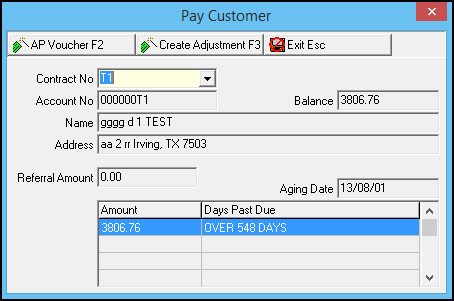
When you pay a customer referral, you may:
Create an AP voucher to issue a check. SBN then confirms it created the voucher and displays the voucher number.
Create an adjustment that credits the customer’s account. SBN confirms that it created a work order and displays the work order number.
Note: When you create an adjustment and save information in the Pay Customer dialog box, SBN assigns a closed status to the work order. The billing system includes the work order the next time that you run one-time invoices.
Paying an Employee
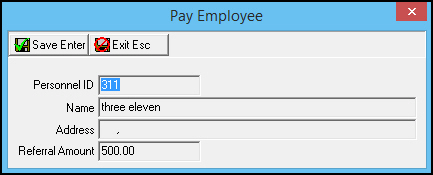
If the referral you are paying is for an employee, when you choose a Pay Referral button, the Pay Employee dialog box opens. To pay an employee referral, you must create an AP voucher to issue a check. SBN then confirms that it created the voucher and displays the voucher number.
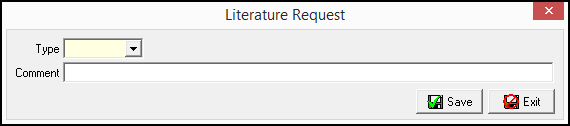
LIT REQ (Literature Requested)
Select the Literature Requested action to select the type of literature that the customer requests and to enter a comment regarding the literature.
Note: The menu for the Type field originates from program #1704/42.
NOT SOLD (Sale Not Made)
Use the following steps to record that no sale was made:
1. In Marketing, choose Marketing Actions.
w An action menu appears.
2. Select Not Sold from the menu.
w The No Sale dialog box opens.
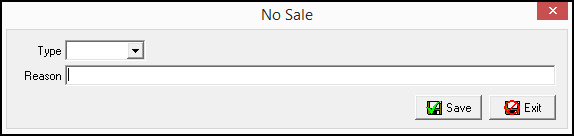
3. Select a code and describe the reason this lead was not sold.
Note: The Type field originates from program #1704/18.
4. Choose Save.
Note: Saving information in this dialog box updates the status of the lead.
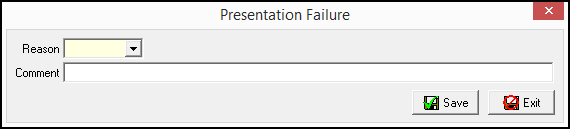
PRE FAIL (Sales Presentation Failed)
Select the Presentation Failure action to select a reason the presentation failed and to type a comment regarding the failure.
Note: Saving information in this dialog box updates the status of the lead. The menu for the Reason field originates from program #1704/59.
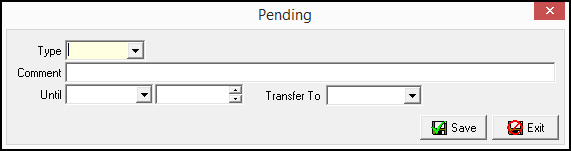
PROS PEN (Pending Decision)
Select the Pending action to select the reason that the lead is delaying a decision and to type a comment regarding the delay. When you choose Get Next Record, you can select a delay date and time for the record to display, or you can transfer the lead to another user.
Note: The event extension (Type), and the follow-up date and time that you select in this dialog box appear in the TM Queue for the selected referral. The menu for the Type field originates from program #1704/53.
SC PRE (Sales Presentation Made)
Use the following steps to record that a sales presentation was given:
1. Select the Sales Presentation Made action to select a code and description type regarding the presentation.
Note: The Type field originates from program #1704/19.
2. Select the date on which you made the sales presentation.
3. Type a comment if applicable.
Note: Before you can select the sales presentation date, you must schedule a sales visit using the Sales Visit Requested action. If you try to select the presentation date before scheduling the sales visit, SBN displays a message that says you are not authorized to use this function.
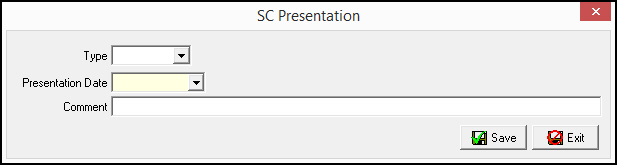
4. Choose Save.
SC REQ (Sales Visit Requested)
Select the Sales Visit Requested action to enter a request to schedule a sales visit.
The Inquiry Number and Schedule Type fields default from the New Inquiry window. The Size field fills with a default based on the Work Type field, but you can override the default.
Note: When you save information in this dialog box, SBN updates the status of the lead. You must use this action to schedule a sales visit before you can select a sales presentation date in the Sales Presentation Made action. The menu for the Work Type field originates from program #1526.
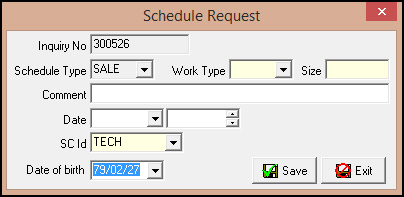
Use the following steps to schedule a sales visit:
1. Choose Marketing Actions.
w An Action menu appears.
2. Choose SC REQ from the menu.
w The Schedule Request dialog box opens.
3. Complete the Work Type and Size fields, along with any other fields.
Note: When the Auto Allocate check box is selected for the work type in program #1526, SBN automatically allocates the schedule request to the selected salesperson in Scheduling (program #563). When a work type that does not have Auto Allocate check box selected is used in the Schedule Request window of Marketing, SBN creates a schedule request in Scheduling, but does not allocate it to a salesperson.
Note: The Date of Birth field is a mandatory field. This populates the Date of Birth field in Marketing and Marketing Basics.
4. Choose Save.
w SBN logs the schedule request in the Marketing Event Log and the Data Entry Change Log.
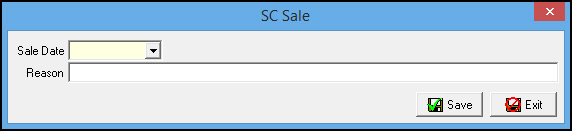
SC SALE (Sale Made)
Select the Sale Made action to select the date on which the sale was made and to type a comment regarding the sale.
TECH REQ (Technician Visit Required)
If you choose to schedule a technician from Marketing rather than Service, select the Technician Visit Required action..
The Inquiry Number and Schedule Type fields default from the New Inquiry window. The Size field fills with a default based on the Work Type field, but you can override the default.
Note: When you save information in this dialog box, SBN updates the status of the lead. The menu for the Work Type field originates from program #1526.
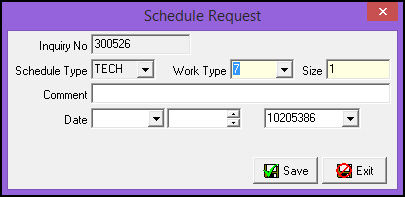
Use the following steps to schedule a technician:
1. In Marketing, choose Marketing Actions.
w The Action menu appears.
2. Choose TECH REQ from the menu.
w The Schedule Request dialog box opens.
3. Complete the Work Type, Size, and Date fields, along with any other fields.
4. Choose Save.
w SBN logs the schedule request in the Marketing Event Log and the Data Entry Change Log.
Jumping to Data Entry/Customer Service
When you jump to Data Entry/Customer Service (program #559) by choosing Jump to Data Entry/Cust Serv, SBN imports sales information into Data Entry to assist in the installation process. When you jump to Data Entry from Marketing, Data Entry opens in change mode with the appropriate information from Marketing displayed.
When you save a new account that you create after you choose Jump to Data Entry/Customer Service, SBN creates an action plan for that account. SBN populates that action plan with the Contacts from the Marketing Basics tab. When option tm006 is on, the new installation's default action plan will contain the default agencies.
When you save a new account that you create after you choose Jump to Data Entry/Customer Service, SBN automatically creates a service ticket with a default status defined by option sv045. If the new account has a corresponding inquiry in Marketing, the service ticket uses the schedule date from the inquiry, if available.
When you choose Jump to Data Entry/Customer Service from a marketing inquiry, the status of the inquiry defaults into the Event Log based on option tm005.
Refreshing the Window
Choose SQL Refresh to update the main window of Marketing and all Marketing tabs with new or changed information.
Paging
Choose Paging to send a message of up to 250 characters. The Name, Pager Type, and Number fields fill with defaults based on the Sales ID. When option ba456 is on, if you select a Sales ID (or any user ID) with an email address entered in Personnel (program #1811), SBN automatically selects the Email check box in the Paging window to send an email along with the page.
Note: The Paging dialog box opens in Change mode; you can change the Sales ID and Message, if needed.
Note: For more information on the fields in this dialog box, see Paging Queue.
Using Document Retrieval
Choose the Document Retrieval button to pass search parameters to a third-party software application to find documents related to the installation.
Using DCC (Derived Channel Communication)
Use DCC to add or change information about the DCC line that you have ordered. When you save information in the DCC dialog box, SBN enters a check mark in the DCC box in the main window of Marketing.
Use the following steps to add or change DCC line information:
1. In Marketing, right-click the blue DCC field.
w An option menu opens.
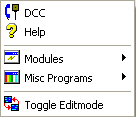
2. Choose DCC.
w The DCC dialog box opens. You may override any information that defaults into the dialog box.
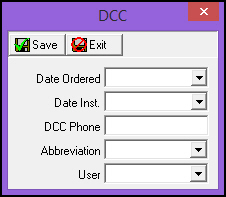
3. Complete the fields, as needed.
4. Choose Save.
w SBN enters a check mark in the DCC box.
Creating a Separate Mailing Address for an Inquiry
Choose Mail to enter a separate mailing address for the selected inquiry.
When you save information in the Mail Address dialog box, SBN inserts a check mark into the Mail box in the main window of Marketing.
Use the following steps to add or change Mail Address information:
1. In Marketing, right-click the blue Mail box.
w An option menu opens.
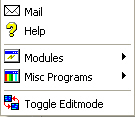
2. Choose Mail.
w The Mail Address dialog box opens. You can override any information that defaults into the dialog box.
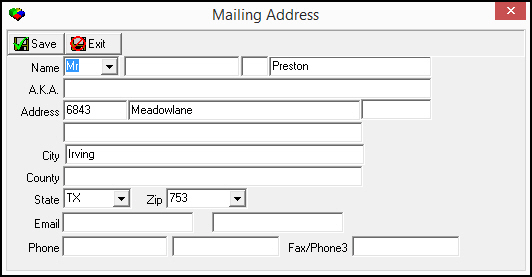
3. Complete the fields, as needed.
4. Choose Save.
w SBN enters a check mark in the Mail box.
Exporting Marketing Data Into Document Templates
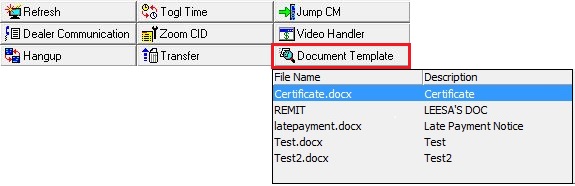
You may export data from Marketing and Marketing Basics into a document template by choosing Document Template.
To use this feature, first store the MS Word document or MS Excel spreadsheet templates to use in the file path defined by option ba469 with the names of the Marketing fields from which you want to export data within the templates. Then go to Document Templates (program #1645) and create an entry for each document template, indicating from which Marketing fields to export data into the template. Select the In Use check box in program #1645 for each template record that you want to appear in the Document Templates drop-down menu in Marketing.
Use the following steps to export data into document templates:
1. Open the billing account record from which you want to export details and choose Document Template.
A drop-down menu appears with the available document templates.
2. Select the document template you want to use.
If the template is associated with a Service Ticket status in Document Templates (program #1645), selecting that template will open a prompt reading "This template will create a Service Ticket. Do you wish to continue?" If you choose "Yes," the opening of the template generates a new Service Ticket. If you choose "No," the prompt will close and the template will not open.
The Word document or Excel spreadsheet opens and SBN replaces the field names in the document with the data from the fields in Marketing.
SBN creates an entry in the Communication Log (program #1888) with the following text: 'Document exported --> [document name].[file type], Contract: [contract number], Account: [account number]'.
3. Save the updated document.
4. To access the Document Templates available to Marketing programs:
Select the Document Template button at the top of the window or Alt+F9.
The dropdown menu will display the available documents.
Related Programs
The following table lists programs related to Marketing.
Program |
Number |
Document Link |
Description |
Scheduling |
563 |
Schedule sales visits for prospective customers, and installations for new customers. |
|
Data Entry/Customer Service |
559 |
Import sales information from Marketing into Data Entry to assist in the installation process and create a customer account. |
|
Telemarketing Queue Tab |
n/a |
Search for specific marketing records. |
|
Event Log Tab |
n/a |
View a list of events for a selected Marketing account such as Work Order actions, inquiries, scheduled personnel visits, etc. |
|
Work Orders Tab |
n/a |
Set up and track the progress of installations and maintenance work calls, as well as track proposals, pull stock from inventory, track job costs, and invoice customers when work is complete. |
|
Referrals Tab |
n/a |
Enter marketing referrals and pay incentives to customers and employees who refer new customers. |
|
Referral Log Tab |
n/a |
List of marketing referrals and their current status. |
|
Miscellaneous Marketing Fields |
1704 |
Define and maintain miscellaneous marketing fields and their menus. Attach translations to menu items to make them appear in the user's language. |
|
Marketing Events |
1856 |
Define marketing events and actions that can be taken for sales leads. |
|
Work Types |
1526 |
Define the Work Type menu for schedule request marketing actions. |
|
Marketing Reports |
|||
Sales Appointment Report |
2038 |
N/A |
Provide information to the sales person regarding the sales call for which they are scheduled. |
Proposal Report |
2133 |
N/A |
Generate a letter that contains a sales proposal addressed to the sales lead. |
Sales Appointment Report |
2038 |
N/A |
Generate information about a scheduled sales call and other demographic information such as potential installation property value, square footage, and reasons for making or losing the sale. |
Sales Per Sales Consultant Report |
2027 |
N/A |
View the number of sales inquiries, number of sales presentations made, number of resulting sales made, and total value of sales within a specific period. |
Sales Per Source Report |
2026 |
N/A |
View the number of sales presentations made and number of resulting sales made sorted by associated source. |
Sales Per User Report |
2025 |
N/A |
View the number of sales inquiries per user and number of resulting sales made for a specific period. |
Schedule Capacity Report |
2054 |
N/A |
Print schedules for sales persons. |
Sold Leads by Sales Person Report |
2029 |
N/A |
View sold leads for a specified period, sorted by sales person. |
Button Functions
The following table displays the buttons, describes the shortcut keys, actions, and functionality.
Button |
Name |
Shortcut Key |
Action |
Description |
|
Find Customer |
alt+f1 |
562/ 1 |
Search for customer. |
|
Change Record |
f2 |
562/ 2 |
Change details of selected marketing inquiry. |
|
New Record |
f3 |
562/ 3 |
Enter new marketing inquiry. |
|
New Referral |
f9 |
562/ 4 |
Enter new referral. |
|
Schedule Board |
shift+f10 |
562/ 5 |
Schedule sales visits for prospective customers. |
|
Get Next Record |
f8 |
562/ 6 |
Bring up next sales call to make from outbound database. Note: This feature depends upon setup of the Outbound Marketing programs for proper function. |
|
Run Reports |
alt+f12 |
562/ 7 |
Run Sales Appointment Report or Proposal Report. |
|
Marketing Actions |
f10 |
562/ 8 |
View actions that you can take for the sales lead. |
|
Jump to Data Entry/Cust Serv |
shift+f9 |
562/ 9 |
Data Entry opens in change mode with the appropriate information from Marketing displayed. |
|
SQL Refresh |
f11 |
562/10 |
Update main window and all tabs with new or changed information. |
|
Paging |
shift+f11 |
562/11 |
Send message. |
|
Copy |
shift+f8 |
562/14 |
Copy all details of the selected marketing inquiry from the main Marketing window and the Basics and Referrals tabs (except the SC ID field) into a new inquiry record. |
|
Document Retrieval |
SHIFT+F7 |
562/15 |
Pass search parameters to a third-party software application to find documents related to the installation. |
|
Document Template |
ALT+F9 |
562/16 |
Opens a menu of MS Word document or MS Excel spreadsheet templates. You may select a template into which SBN imports data from the selected billing account. |
|
Exit without saving |
esc |
Exit without saving changes to selected record. |
|
|
Save Existing Record |
enter |
Save changes to selected record. |
















Modifications and Updates to Marketing
The following table lists modifications and updates to the Marketing and Marketing Basics document.
Mod Number |
Date |
Description |
n/a |
07/15/08 |
document rewritten |
08.03.06375, 07.02.17831 |
02/06/09 |
City field now holds up to 50 characters. |
07.02.18635, 08.03.06869 |
06/24/09 |
Added Country field to main Marketing window. |
08.03.07205, 07.02.19232 |
12/04/09 |
Added Country field to New Referral dialog box. |
07.02.19764, 08.03.07573, 07.02.19775 |
06/09/10 |
Added four Credit fields to main Marketing window. |
07.02.19876, 08.03.07686 |
07/08/10 |
Added option ba456. |
07.02.19611, 08.03.07450 |
11/03/10 |
Added ability to customize order of program tabs in 562. |
08.03.08223 |
03/25/11 |
Added Personnel ID field to Hot List action window. |
07.02.21061, 08.03.08380 |
07/18/11 |
Added action 562/13. |
07.02.21332, 08.03.08522 |
01/26/12 |
Added Copy button. |
07.02.21744, 08.03.08766 |
09/27/12 |
Define drop-down menu for Credit Result field in program #1590/66. |
07.78.22242, 08.78.09012 08.78.09000, 07.02.22123 |
03/06/13 |
Added Auto Allocate check box to the Schedule Request window in 562. |
08.79.09404, 07.79.22953 |
10/02/13 |
Added Document Retrieval button. |
07.79.23076, 08.79.09474, 07.79.23062, 08.79.09469 |
03/20/14 |
Added Segmentation dropdown menu to the Marketing window. |
08.79.09485, 07.79.23098 08.79.09481, 07.79.23095 |
03/25/14 |
Added option tm013. |
07.80.23266, 08.80.09586, 07.80.23260, 08.81.09584, 07.80.23247, 07.80.23245, 07.80.23236, 08.80.09572, 08.80.09521, 07.80.23155, 07.80.23153, 08.80.09520, 07.80.23146, 08.80.09518 |
04/02/14 |
Added Options tm104, tm015, tm016, tm017, and tm018. Added Date of Birth and Cr. Serv. Refno. fields. |
07.81.23415, 07.81.23408 |
06/05/14 |
Added Option temp162. |
n/a |
07/14/14 |
Images updated. |
07.81.23572, 08.81.09781, 08.81.09759, 07.81.23544 |
09/16/14 |
Included new section on exporting Marketing data into document templates and Document Template button. |
n/a |
11/25/14 |
Updated Overview and Get Next button. |
07.82.23771, 08.82.09899, 07.82.23759, 08.82.09885 |
03/06/15 |
Updated the Service Request section and image. |
08.88.11234, 08.88.11237 |
01/17/18 |
Updated that all Actions are now logged within the Event Log. |
08.88.11236 |
02/09/18 |
Updated image for Company 204 and added two new fields: Contact and Contact Phone. |
08.88.11278, 07.88.25686, 07.88.25689, 08.88.11279 |
02/22/18 |
Updated SC Id must have Action 562/13 in program #1502 disabled to have ability to change Sales person while in Change mode. |
08.88.11295, 07.88.25708, 08.88.11289, 07.88.25695 |
03/08/18 |
Three new fields added: Job Title, Job Title Description, and Super User. Images updated also to reflect new fields. |
07.88.25823, 07.88.25817 |
05/17/18 |
Added options tm027-tm034. These options help to generate a Communication Log when a new inquiry is created. |
08.89.11422, 08.89.11427 |
07/03/18 |
Added changes to option tm023 and its new ability to make the Competitor field visible for any "No Sale" type selected in the Customer Called Screen when it is set to "%" symbol, or how it can be only visible when a specific No Sale type is selected. Images updated. |
08.92.11862, 07.92.26441, 08.92.11867 |
07/30/20 |
New Product dropdown added on the New Inquiry screen. Images updated. |